Repository navigation
AI Navigator
AI Navigator is a small chat that floats over every page of RedAmon. It answers two kinds of questions: how RedAmon works (from this documentation, with links to the exact section) and what the selected project contains (its graph, scans, findings, triage and workspace files). It only reads: it never runs a scan, a tool or an attack, and never changes anything.
AI Navigator is not the RedAmon AI Agent. The AI Agent is the autonomous pentester that runs tools against your targets. When you ask AI Navigator to do something, it says so and offers an Open the AI Agent button.
- Opening it
- What you can ask
- Choosing its model
- Reading an answer
- Conversations and history
- What it can read
- Shared projects
- Turning it off for everyone
- Limits
- Troubleshooting
After you sign in and accept the disclaimer, a round compass button sits at the bottom right of every page. Click it to open the chat panel next to it; click it again, press Escape or use ✕ to close it. A click on the page does not close it, so you can copy from the page while you chat.

- Move it: drag the button anywhere. It remembers its place for your account. With the keyboard, focus it and press Alt + arrow keys to move it, Alt + Home to put it back. The panel's ⋯ menu also has Reset button position.
- Resize it: drag the panel's outer edges, the ones away from the button, or the corner between them. It remembers its size for your account. It stops at the edge of the window and before an open drawer, and a smaller window shrinks it for as long as it is small. The ⋯ menu has Reset panel size.
- It steps aside: while a drawer is open on the side of the screen (the AI Agent drawer, the recon logs, a details drawer), the button moves next to it and the panel opens on the other side, so it never covers what you are typing in.
- A green dot on the button means an answer finished while the panel was closed.
The button shows when your account holds the navigator:use permission (every built-in member set has it except Automation) and Root has not turned AI Navigator off.
Everything is about the project selected in the header. Switch project and the panel shows that project's conversations; an answer being written for the previous project stops.
About RedAmon - how a feature works, where a setting is, what a permission means:
- How do I schedule a weekly scan?
- What does Raw data & files mean on a share?
- Where do I add my OpenAI key?
About this project - hosts, ports, technologies, findings, triage, scan history and workspace files:
- Which hosts expose SSH?
- What changed since the last scan?
- Which critical findings are not triaged yet?
- Is the GVM scan still running?
- What files are in the workspace?
You can mix both in one question (Which hosts run nginx, and how do I mute a finding?) and follow up (and on port 443?): it understands the conversation. Ask in any language: it answers in yours.
Requests to act (scan example.com, exploit this CVE, delete that node) are not done: AI Navigator explains it only reads and shows Open the AI Agent, which opens the AI Agent drawer on the graph page.

AI Navigator runs on your own model, never the project owner's. The first time you send a message, the model picker opens: choose any chat model from your providers. The choice is saved for your account and appears in Global Settings → Models by feature as AI Navigator; change it there or with ⋯ → Change model.
The model must be able to call tools. If it cannot, the answer says so and the picker opens again. A mid-size model is enough. Agent in the Loop cannot be used here.
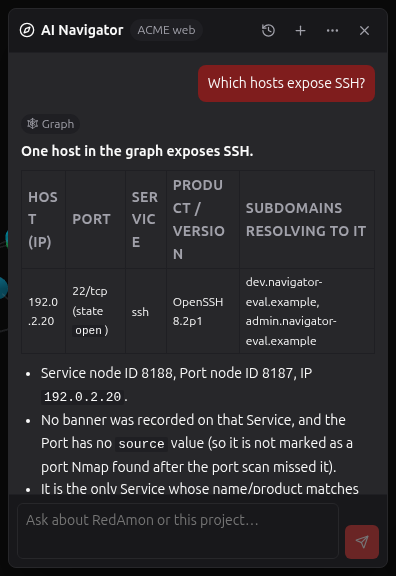
- Badges above the answer show where it came from: 📖 Docs, 🕸 Graph, 🗄 Records, 📁 Workspace.
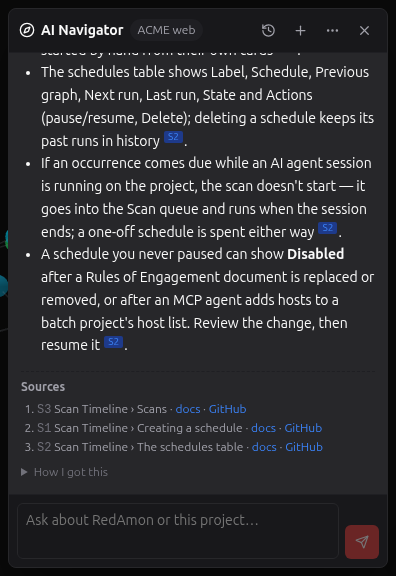
- Citations: facts from the documentation carry small markers such as S1; click one to open that section. The Sources list under the answer names each page and section, with a docs link (redamon.org) and a GitHub link to the wiki. A page that is not published on the docs site yet links to GitHub only.
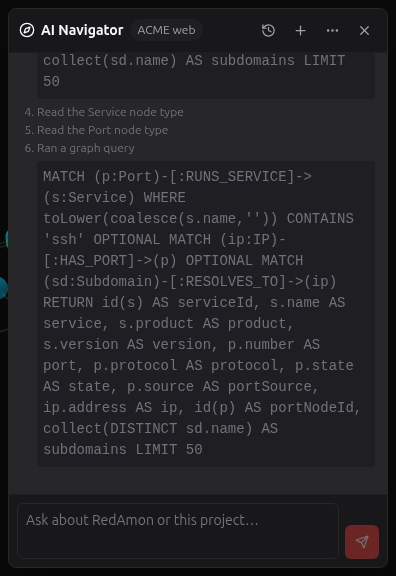
- How I got this (collapsed) lists what was read: the documentation sections, the tools, and the exact Cypher query it ran on the graph.
- Stop ends an answer being written; what was written is kept, marked Stopped.
- Retry on the last answer sends the same question again when an answer failed or was stopped.
- A question with no answer after it (the web app restarted while it was answering) shows No answer was saved; on the last question, Retry asks it again.
A link in an answer is clickable only when it is one of that answer's own documentation citations. Any other link, including every link that comes from scanned data, is shown as text, and images are never loaded: target data can be hostile.
| A graph answer | How I got this | A documentation answer |
|---|---|---|
 |
 |
 |
Your conversations belong to you and the project. Nobody else can read them: not the project's owner or co-owners, not an administrator.
- 🕘 History lists your conversations on the current project, newest first. Click one to open it, 🗑 to delete it (it asks first).
- + starts a new conversation. Nothing is saved until you send its first message.
- A conversation is deleted after the project's data retention with no activity (the Rules of Engagement setting; 90 days by default, and never less than one day). History shows the current limit.
- Your conversations are deleted with your account, and are not included in a project export.
When an administrator acts as you and asks AI Navigator something, that message shows Sent by an administrator acting as you.

AI Navigator reads exactly what you could read in the user interface, checked again on every question:
| Source | Needs |
|---|---|
| Documentation | nothing |
| Graph summary, findings, attack surface, exploit paths, blast radius |
graph:read (and triage:read for findings) |
| Your own Cypher queries |
graph:cypher; on a project shared with you, Raw data & files
|
| Scans, versions, settings, activity, triage, remediations, saved views, reports |
recon:read, triage:read, remediation:read, reports:read
|
| Workspace files |
workspace:read with Raw data & files
|
When it cannot read something you asked about, it tells you why (for example Workspace files need Raw data & files on this project) instead of answering as if it were empty.
Secret values stay out of your model. Unless the project's Rules of Engagement allow full access to sensitive data, AI Navigator never sends a secret's value to your AI provider: the value of a key, token or password that recon found comes back withheld, a graph query that tries to read one is refused, and anything shaped like a key, token or password in other text is masked. It can still tell you each secret's type, severity, source and where it was found.
It compares stored scan versions only: for what changed since the last scan it compares the two newest versions in the Scan Timeline.
On a project shared with you, AI Navigator sends the owner's project data to your AI provider. So the owner decides: in the share dialog, the owner turns on AI Navigator for collaborators (with their password). It is off by default. While it is off, collaborators see The owner of this project hasn't enabled AI Navigator for collaborators; their earlier conversations there stay hidden and are deleted by the retention. Turning it off stops any answer a collaborator is waiting for.
AI Navigator is not available through oversight or break-glass access. After an ownership transfer, the setting starts off for the new owner.

Root turns AI Navigator on or off for the whole server in IAM → Instance → AI Navigator (with Root's password). Off hides the button for everyone and stops every answer being written. The same panel shows whether the documentation is installed.

| Limit | Value |
|---|---|
| Message length | 4,000 characters |
| Messages per person | 20 every 5 minutes, 300 a day |
| Answers at once | one per project, two in total, per person |
| Conversations per project | 200 per person |
| Messages per conversation | 200 |
| Answer time | 3 minutes |
Your model's calls count toward your provider's limits, and an instance provider's daily budget when you use one.
| You see | Do this |
|---|---|
| AI Navigator isn't configured on this server | The server has no generated internal key: run ./redamon.sh update
|
| The documentation isn't installed on this server | Run ./redamon.sh update, or git submodule update --init redamon.wiki in your checkout |
| The agent is older than the web app | Rebuild with ./redamon.sh update
|
| This model can't call tools | Pick another model in the picker that opens |
| An answer is already being written for you on this project | Another tab is answering; wait, or press Stop it |
| You're sending messages too fast. Try again in N s. | Wait: the message box comes back by itself after N seconds (20 messages every 5 minutes, 300 a day) |
| This project is being restored or transferred | Wait a minute, then press Retry |
| AI Navigator's service isn't reachable right now | Press Retry; if it keeps happening, check that the agent container is running |
| No answer was saved under your last question | The web app restarted while answering: press Retry |
| A conversation does not open | Press Retry in the message bar |
| The owner of this project hasn't enabled AI Navigator for collaborators | Ask the owner to turn on AI Navigator for collaborators in the share dialog |
| No compass button | Your account lacks navigator:use, or Root turned AI Navigator off |