Repository navigation
First start
The first time you open Voxtrama, it takes you to a guided setup of three steps that you can follow or skip. Voxtrama has already measured your machine and proposes the settings to use; the first job needs one download, the transcription model.
The guided setup has three steps, in this order: Local processing, Model ready and Private storage. A tracker at the top of each page shows where you are.
The Local processing step offers three profiles, each a card with the model it runs, its download size and an estimate of how long an hour of audio takes on this machine.
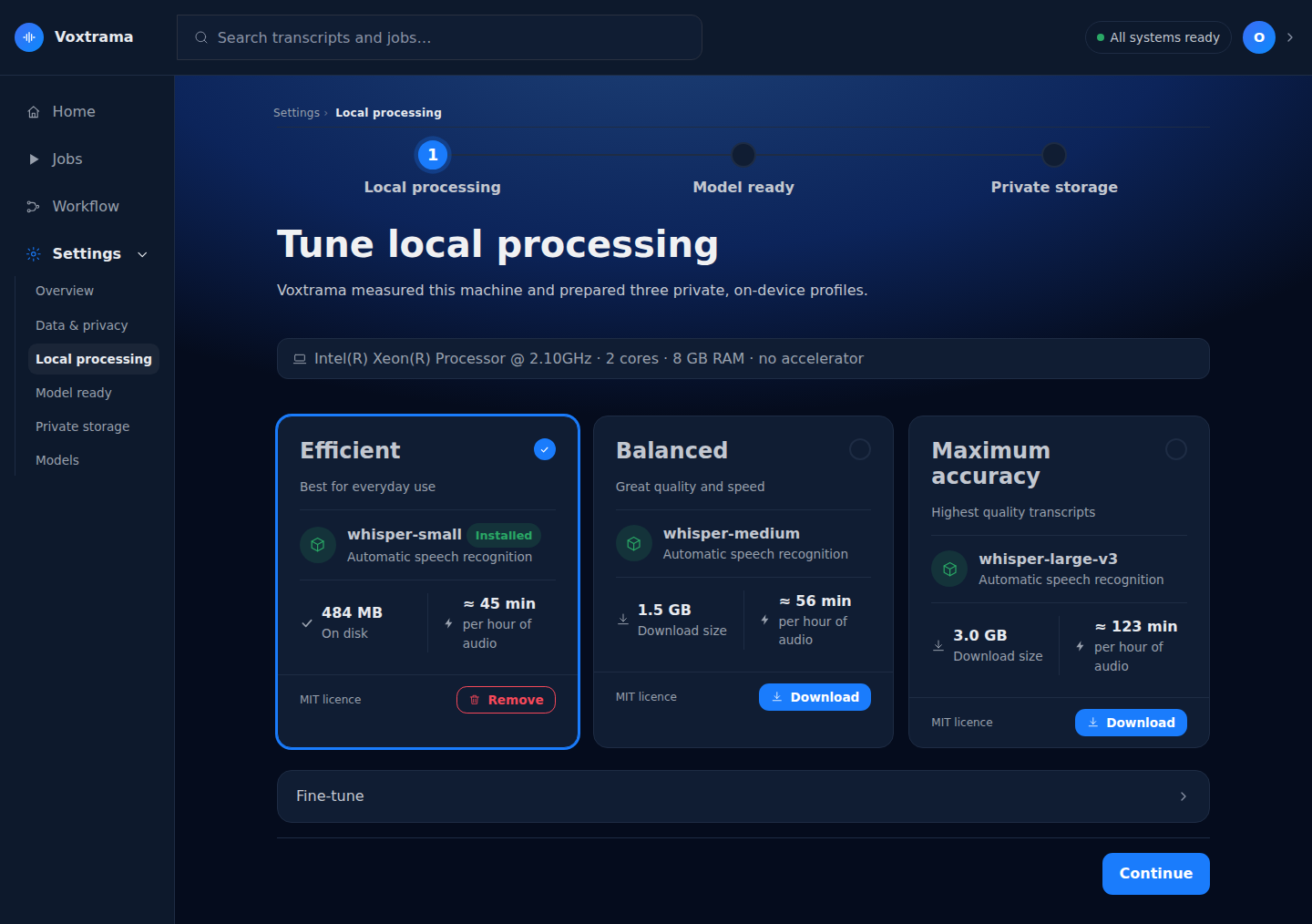
| Profile | Card title | Whisper model | Download |
|---|---|---|---|
| Low | Efficient | small | 484 MB |
| Base | Balanced | medium | 1.5 GB |
| High | Maximum accuracy | large-v3 | 3.0 GB |
The card Voxtrama recommends for your memory is preselected. A card is disabled, with a reason, when the free disk space cannot hold its download. Each card shows the licence of its model, and Installed with Remove when the model is already on disk.
-
Select a profile card.
-
Optional: open Fine-tune and set Cores per chunk and Parallel chunks. Each number cannot exceed the cores of the machine, and the panel shows the memory estimate and a warning when the numbers look too high.
-
Press Download selected model.
You should see Preparing local processing, a progress bar, a log, and Stop if you want to cancel. When the download ends, the button reads Continue. If it fails, the page shows The download failed: with the reason.
-
Press Continue.
To skip the whole setup, press Skip setup, use the proposal on this step. See Skip the setup.
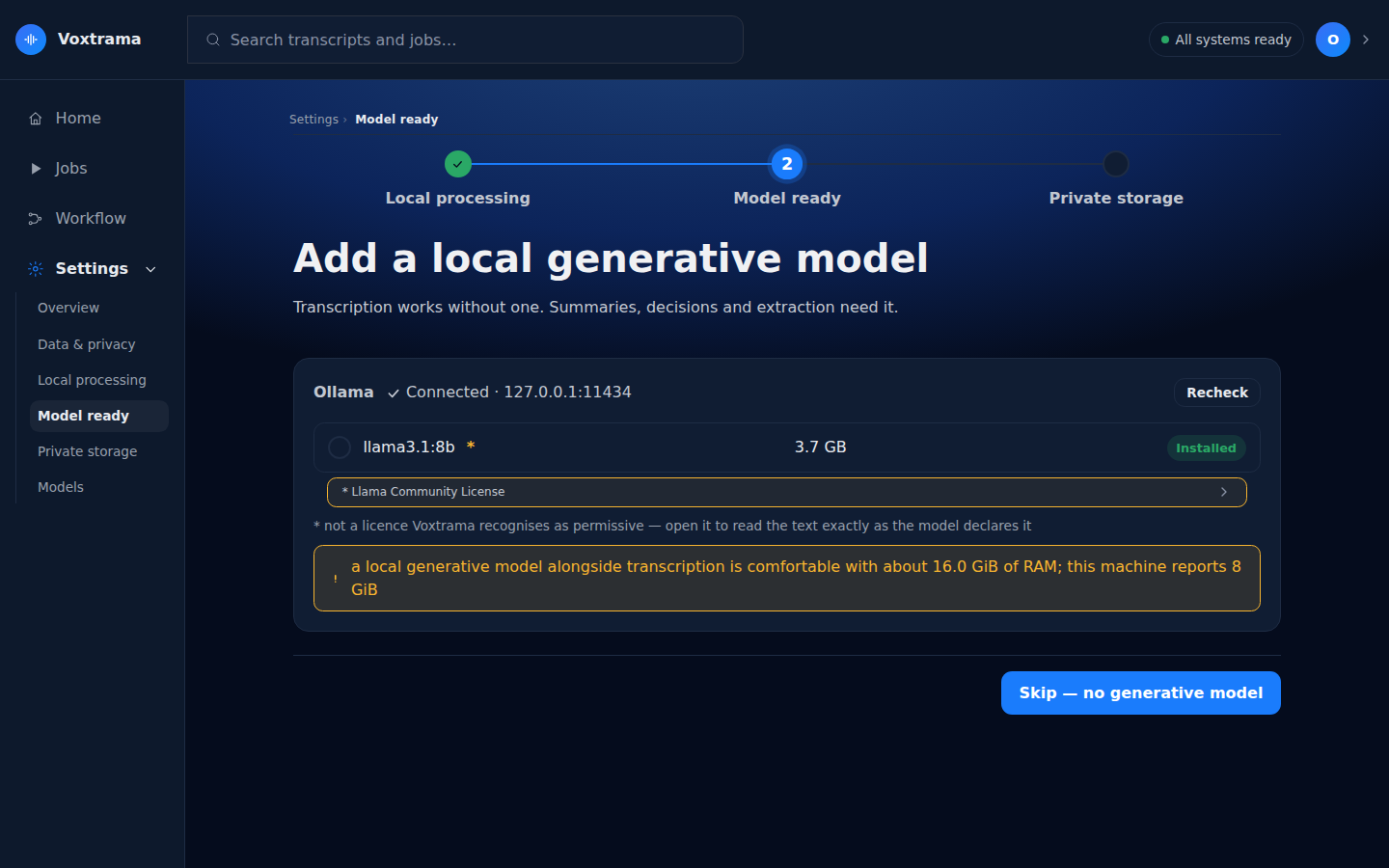
The Model ready step, titled Add a local generative model, connects the summary model. Transcription works without one; recaps, decisions and extraction need it.
-
Wait for the panel to show Ollama with Connected.
You should see the models Ollama has, with their sizes. If the panel says Ollama is not reachable, start Ollama and press Recheck. See Set up the summary model.
-
Select a model.
-
Under Context window, set Use at most or leave the maximum.
-
Press Continue, or Skip (no generative model) to go on without a summary model.
The Private storage step, titled Where your recordings live, checks the data folder.
-
Read the three checks: Folder exists, Writable: test file created and removed, and the free space. The writable check creates and removes a real file.
-
Read the Ready to start summary: name, profile, parallelism, generative model and data folder.
-
Press Finish setup.
You should see the home page, and a
voxtrama.tomlfile in the data folder. It is plain text: you can read it, edit it, or copy it to another machine.
Skipping uses the machine's proposal without going through the steps.
-
On the Local processing step, press Skip setup, use the proposal.
You should see the home page with the new-job form. Voxtrama writes a marker file,
setup-skipped, in the data folder, so the home page stops redirecting to the setup. -
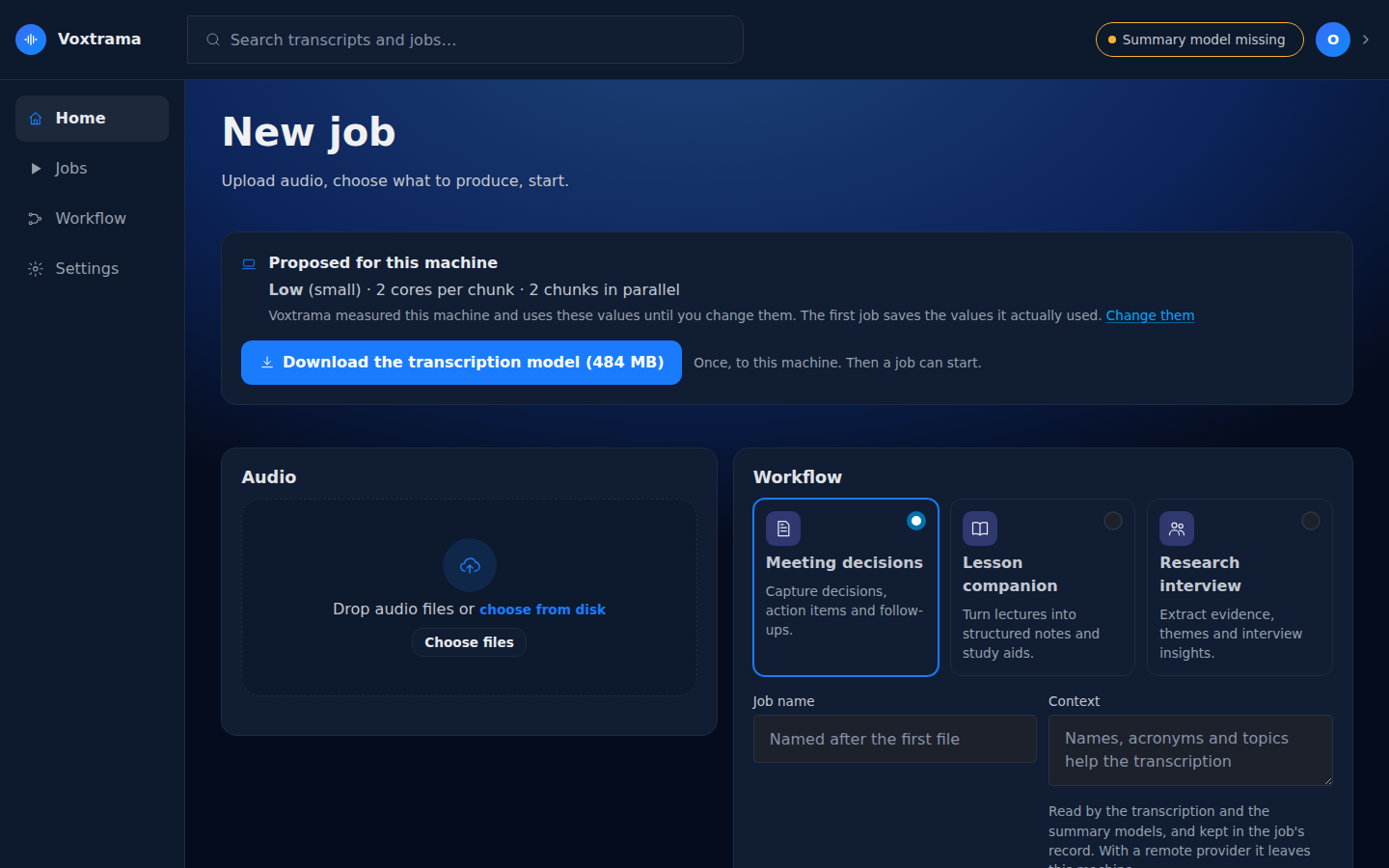
Look at the card Proposed for this machine at the top of the home page.
You should see the profile and its model, for example Low (small), then the cores per chunk and the chunks in parallel. Change them opens the Local processing step.
-
Press Download the transcription model, followed by its size in brackets.
You should see Waiting for the worker to start the download..., then Downloading with the bytes done and the total. Once the model is ready, the new-job form can start a job.
The proposal stays in force until the first job succeeds. Then Voxtrama writes the values that job used to voxtrama.toml in the data folder, and the card disappears.
The speaker model (83 MB) is downloaded on the first job that needs it. The skip option on the Model ready step, Skip (no generative model), leaves the summary model for later: see Set up the summary model.
The chip at the top right of every page says whether a job can run end to end. It is green when nothing stops a job, and amber with the most blocking problem otherwise. An amber chip opens a panel that lists every problem, each with an Open settings link to where it is fixed.
| Chip | What it means |
|---|---|
| All systems ready | Nothing stops a job. |
| Ollama not responding | The summary model cannot be reached. |
| Summary model missing | No summary model is chosen, or Ollama does not have it. |
| Transcription model missing | The transcription model has not been downloaded yet. |
| Data folder unusable | The data folder is full or cannot be written. |
On a new installation the chip often reads Summary model missing or Transcription model missing. Transcription works as soon as the Whisper model is downloaded; recaps need a summary model.
There are two ways to go through the setup again.
-
Run the setup steps again. Open Settings from the menu at the top right, and press Restart setup. The machine is measured again and nothing is kept as a starting point. The recordings and jobs stay where they are.
-
Return to the exact state of a new installation. Delete
voxtrama.tomland, if you skipped the setup,setup-skipped, both in the data folder, then restart the containers:rm ~/Voxtrama/voxtrama.toml ~/Voxtrama/setup-skipped docker compose restart
You should see the guided setup on the next visit to the home page. Use the path of your own data folder if it is not
~/Voxtrama. If one of the two files does not exist,rmreports it; the other is still removed.
The restart is needed: the containers read their settings once when they start, so reloading the page is not enough.