Repository navigation
Speakers
Voxtrama tells the voices of a recording apart (speaker diarization), labels them spk0, spk1 and so on, and lets you give each voice a name. Telling speakers apart is automatic and can be wrong, so every step on this page can be corrected by hand.
Voxtrama cuts the audio into short windows, computes a voice embedding for each window with an ECAPA model, and groups the windows that sound alike. Each sentence of the transcript gets the label of the group that dominates its time span.
The number of speakers is estimated, up to a ceiling. The default ceiling is 4 speakers. For a meeting with more people, set VOXTRAMA_MAX_SPEAKERS in .env (see Configuration), restart the services and regenerate the job with Run every step again. When the estimate is higher than the ceiling, the job keeps the ceiling and writes a warning in the Activity log.
Speakers are told apart inside one recording. Voxtrama does not recognise a person in the next recording.
Note
Why Voxtrama keeps no voice print
Voxtrama computes embeddings only while the Identify speakers step runs and does not store them. It keeps labels and the names you type, so no biometric profile of a person is kept in the installation. Biometric data used to identify a person is a special category of personal data under GDPR Article 9. The price is that you name the speakers of each recording by hand.
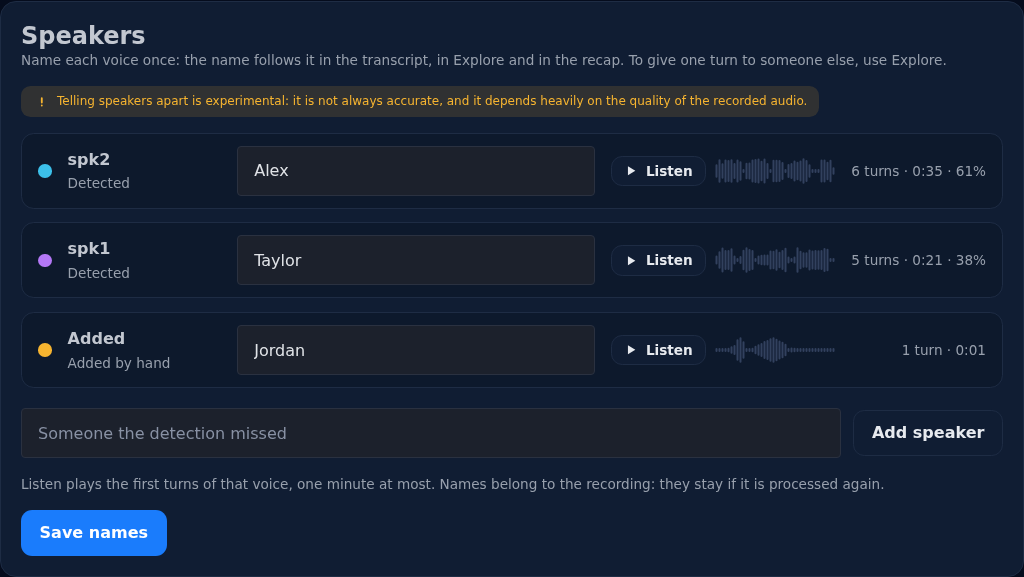
The Speakers tab lists the voices, the voice that speaks most first, then the speakers you added by hand. For each one it shows:
- the label (
spk0) with Detected, or Added with Added by hand; - a field Name this voice;
- Listen, which plays the first turns of that voice, one minute at most, on the job's own player. The small waveform beside it fills as they play. Press the button again, now Stop, or pause the player, to stop;
- the number of turns, the time the voice speaks and its share of the recording, for example "12 turns · 8:40 · 41%". A sentence you gave to someone else in Explore counts for them.
A notice says "Speakers are told apart automatically and can be wrong."
-
Open the Speakers tab.
-
Press Listen next to a voice and play its first minute.
You should see: the button turn into Stop and the small waveform fill.
-
Type a name in Name this voice, at most 80 characters. Repeat for each voice.
-
Press Save names.
You should see: the names replace
spk0,spk1and so on on the bubbles of the Transcript tab, in Explore, beside the points of the recap and in the exports.
- A blank field leaves that voice as it is.
- Names belong to the recording, not to the job: every job on the recording shows them, and they stay if the recording is processed again. A name is attached to a label such as
spk0. If a new run finds a different number of speakers, a name can land on the wrong voice, so check the Speakers tab after regenerating. - To rename a voice, change its name and save again.
- The Transcript tab shows the first name only; the full name stays in the Speakers tab.
If the detection missed someone, such as two people with similar voices or someone who spoke very little, add them.
-
Type the name under the list, in the field Someone the detection missed.
-
Press Add speaker.
You should see: a new row marked Added, with no turns.
-
Give them their sentences one by one in Explore, as the section "Give one sentence to someone else" describes.
When one sentence is attributed to the wrong person, change it in the Explore tab.
-
Open the Explore tab and click the speaker chip on the line.
You should see: the question Who is speaking here?
-
Choose someone already named on the recording, a speaker you added, or type a new name in Or a new name. The detected speaker puts the sentence back as detected.
-
Press Save.
You should see: the line with the new speaker.
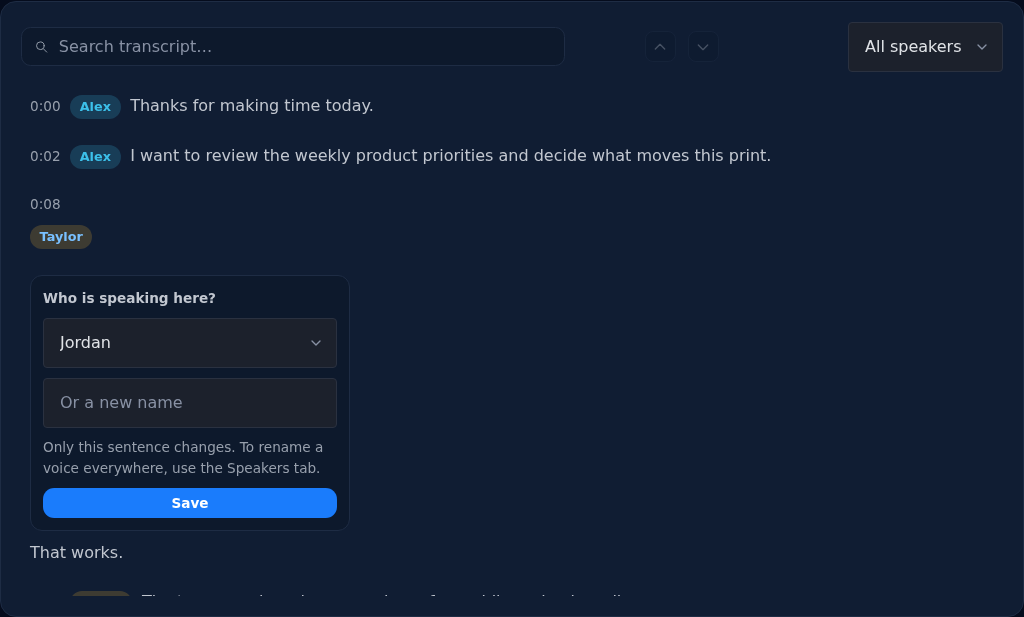
Only that sentence changes. The speaker's other sentences and the name of the voice stay as they are. The Explore tab is the only place where a single sentence is changed; the chips on the Transcript tab only show who speaks.
Speaker diarization is not always accurate, and it depends heavily on the quality of the recording. It works best when:
- each person is close to a microphone and the room is quiet;
- people speak one at a time;
- the voices are different enough, since two similar voices are often merged.
If the voices are merged or split, name the speakers anyway and fix single sentences in Explore. If the job has more speakers than the ceiling, raise VOXTRAMA_MAX_SPEAKERS and regenerate the job.
Voxtrama was measured on an evaluation set of 15 cases made of synthetic voices, not real recordings: Italian and English, clean audio, noise at a signal-to-noise ratio of 10 dB, telephone audio at 8 kHz, 15% overlapping speech, 3 and 4 voices, short turns, a 90/10 split of speaking time, and mixed languages.
| Setting | Median diarization error rate | Runs with the right number of speakers | Seconds of processing per minute of audio |
|---|---|---|---|
| number of speakers estimated | 0.14 | 39 of 45 runs | 11.9 |
| number of speakers given by the user | 0.12 | 45 of 45 runs | 12.2 |
Before the tuning, the median error rate with an estimated number of speakers was between 0.26 and 0.32, and the right number of speakers was found in 3 of 30 runs. A diarization error rate of 0.14 means that about 14% of the time is attributed to the wrong speaker or to none. These numbers come from synthetic voices and are not a promise for real recordings, where overlap, noise and similar voices change the result.