Repository navigation
Set up the summary model
The summary model is the model that writes the recap, the decisions, the themes and the concepts from a transcript, and Voxtrama expects it to be served by Ollama on the host machine. Transcription and speaker identification run inside Voxtrama and do not need it.
A job that includes a recap step fails at that step when no summary model is configured or reachable. The job page shows the banner No summary model configured when none is chosen, or No summary model reachable when Ollama does not answer. The steps that already ran, the transcript and the speakers, are kept; after you fix the cause, Retry this step runs the recap again.
To transcribe without a summary model, choose Transcription only, no summary in the new-job form. The job then produces the transcript with the speakers told apart and stops there.
The header chip shows Summary model missing when no summary model is chosen, or when Ollama does not have the chosen one, and Ollama not responding when Ollama cannot be reached. See First start for the full list of chips.
Ollama runs on your machine, outside Docker. On an Apple Silicon Mac that lets it use the graphics chip. On an Intel Mac it runs on the processor only, even when the Mac has a graphics card.
-
Download and install Ollama from ollama.com.
-
Start Ollama.
-
Run:
ollama list
You should see a table with the headings
NAME,ID,SIZEandMODIFIED, possibly with no rows yet.
-
Pull a model, for example:
ollama pull qwen3:4b
You should see the download progress, then a
successline. -
Run
ollama listagain.You should see
qwen3:4bin the table.
Which model to pick, in short:
- Memory: a model needs roughly its download size in memory, on top of what transcription uses. On the Model ready step, Voxtrama warns when the machine looks short.
- Speed: on a processor, a model of a few billion parameters writes a few words per second, so a long recap takes minutes.
- Size: small models follow instructions less closely. They may write fewer points than asked, or quotes that cannot be found in the transcript, which then show as Needs review.
Summary models and servers has the full guidance, including the context window.
Inside the containers, the host is called host.docker.internal, so Voxtrama reaches Ollama at http://host.docker.internal:11434. With no address configured, the guided setup tries exactly that address.
-
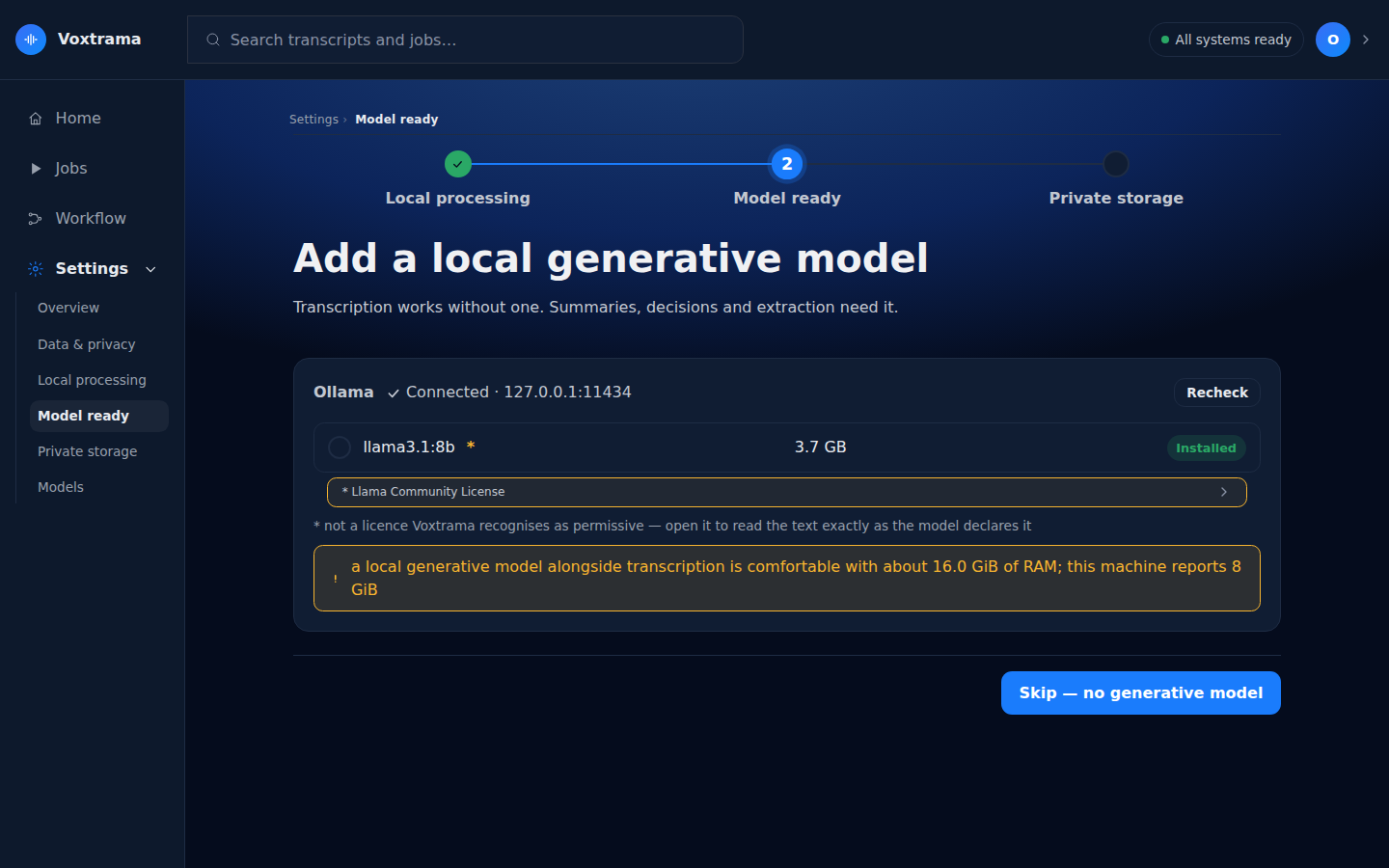
In Voxtrama, open the Model ready step of the guided setup. From a running installation: Settings, then Restart setup, then continue to Model ready.
-
Wait for the panel to read "Ollama" with "Connected".
You should see the models Ollama has, each with its size and the badge Installed.
-
Select a model.
-
Under Context window, leave Use at most at the maximum shown, or lower it. A transcript longer than the value is processed in more passes, never cut short.
-
Press Continue.
If the panel says "Ollama is not reachable at" followed by an address, press Recheck after starting Ollama. If it says "Ollama has no models installed yet.", pull a model as above and press Recheck.
To change the model later, without redoing the setup, open Settings and use Change generative model.
A native Ollama on Linux listens on 127.0.0.1 by default. The web server and the worker reach the host as host.docker.internal: compose.yaml maps that name to the host with extra_hosts: host.docker.internal:host-gateway, which Docker Engine on Linux needs and Docker Desktop provides by itself. The container connects through the Docker bridge, not through 127.0.0.1, so it reaches Ollama only if Ollama listens on an address the bridge can reach. The OLLAMA_HOST environment variable sets that address; the Ollama FAQ explains how to set it for your installation and what exposing it means for your network.
To use an Ollama server on another machine, set VOXTRAMA_OLLAMA_URL and VOXTRAMA_OLLAMA_MODEL in .env, then restart:
VOXTRAMA_OLLAMA_URL=http://gpu-box.lan:11434
VOXTRAMA_OLLAMA_MODEL=qwen3:4b
make down
make upA job on a remote server sends it the transcript. See Summary models and servers for credentials, several servers and what leaves the machine.