How to Use
Other languages: 繁體中文 | Português (Brasil) | Español | Deutsch
This guide covers starting the mirror once your phone is connected to the car — the two mirror entries and how they differ, and the start-up flow step by step.
Note
Before you start, make sure:
- ScreenOnAuto is installed and the three entries appear in Android Auto's launcher.
- You've opened the app once on the phone and granted the permissions it asks for.
Android Auto's app launcher shows two mirror entries. Both mirror the same phone screen — they differ in how the mirror is shown on the car screen:

 ScreenOnAuto |
 ScreenOnAuto (Legacy) |
|
|---|---|---|
| Display | Full-screen — takes over the map area | On a large enough car screen it can sit side-by-side with the map in split view; on a smaller screen the map simply goes to the background and only the mirror is shown (it does not replace the map) |
ScreenOnAuto — full-screen, taking over the map area:

ScreenOnAuto (Legacy) — side-by-side with the map:
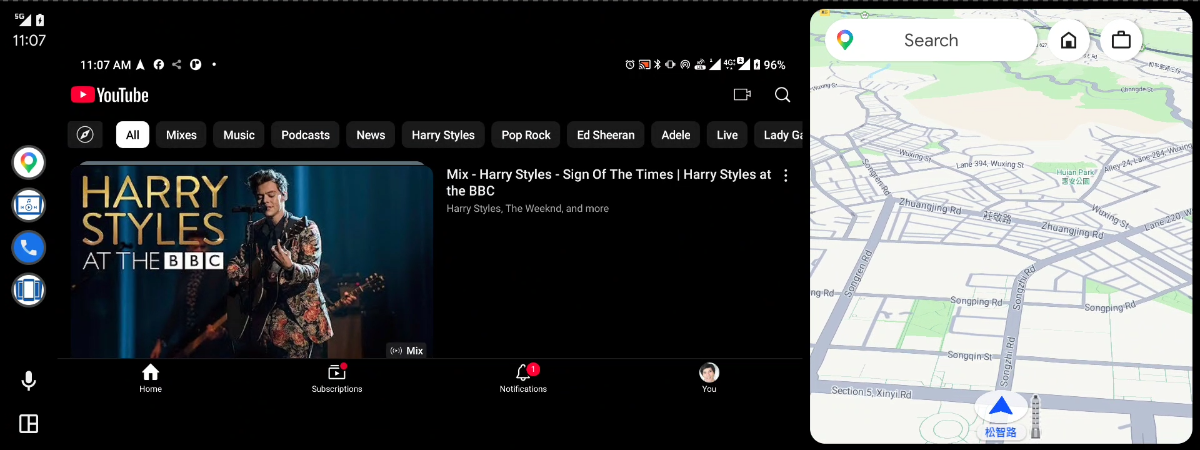
Try both and use whichever works better on your head unit. Both show the same mirror, and you can switch between them at any time — once mirroring is running, opening the other entry shows it right away without asking for permission again.
Tip
If you've opened ScreenOnAuto (the full-screen entry) before and now want to use ScreenOnAuto (Legacy), open your map app (e.g. Google Maps) on the car screen first, then start the Legacy mirror. This sets the map app back as the car screen's default map, so map-related functions aren't taken over by the full-screen mirror.
-
In the app on the phone, turn on Auto Start Mirror (one-time setup).
-
Connect the phone to the car and tap a ScreenOnAuto entry (
or
) in the Android Auto
launcher. -
The phone brings up the screen-capture permission dialog automatically — pick up the phone and tap Start now:

-
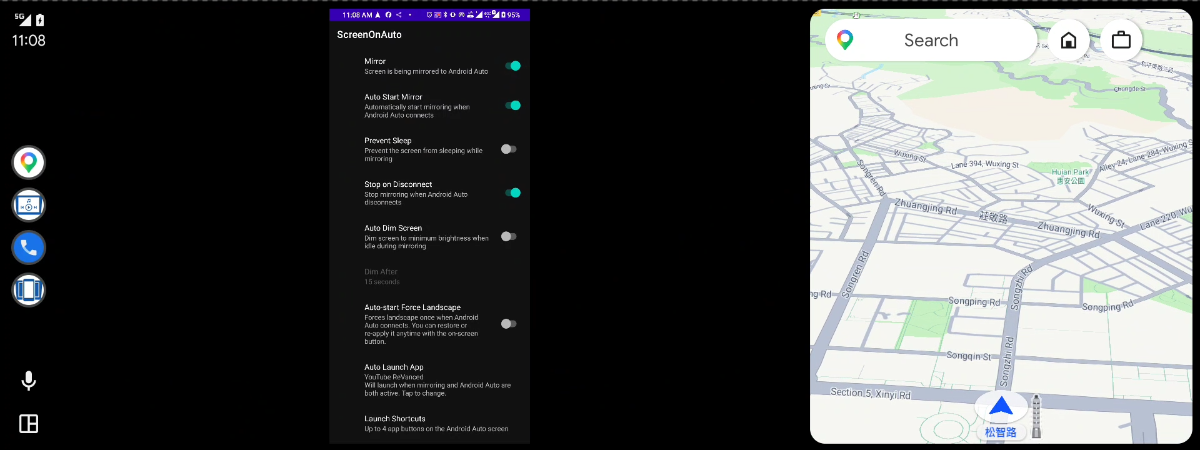
Your phone screen appears on the head unit:
Note
The permission dialog is an Android requirement — it appears once each time mirroring starts, not on every screen change. With Auto Start Mirror off, tapping the entry only opens the mirror screen; nothing is captured until you start it yourself.
If you prefer to keep Auto Start Mirror off:
- Open ScreenOnAuto on the phone and turn on the Mirror switch, then tap Start now in the permission dialog.
- On the car screen, open one of the ScreenOnAuto entries — the mirror is already running and shows immediately.
(The order doesn't matter — you can also open the entry first and flip the Mirror switch after.)
Tired of the dialog appearing every time? You can pre-grant the permission once via ADB — see Grant Mirror Permission via ADB.
Any of these works:
- Disconnect from the car — mirroring stops automatically (the default Stop on disconnect setting).
- Tap Stop Mirroring on the persistent phone notification.
- Turn off the Mirror switch in the app.
- Entry opens but stays blank — mirroring hasn't started yet; check the phone for the permission dialog, or start it via the Mirror switch.
- Black bars around the image — the phone and car screens have different aspect ratios; the Force Landscape button on the mirror screen (or Auto-start Force Landscape in the app's settings) usually fills the screen much better. If thin gaps or cut-off edges remain, fine-tune them with Settings → Advanced → Adjust mirror width / Adjust mirror height (positive pixels pull in a cut-off edge, negative pixels push out to fill a black bar).
- Image looks stretched or distorted after the layout changes (e.g. the visible area grows or shrinks in split view) — turn on Settings → Advanced → Fixed mirror size. The mirror then keeps its size instead of distorting (part of it may be hidden). Applies to the full-screen ScreenOnAuto entry.
- The Android Auto navigation bar on the car screen is drawn by Android Auto itself and cannot be hidden by the app.