Repository navigation
Connecting to Remote SAP Sessions
The sap-bridge Tunnel allows you to securely expose ABAP backend tools to your local AI Agent without relying on VPNs, SAP Routers, or direct ingress ports. This is highly beneficial for organizations that isolate SAP behind Citrix, Windows Virtual Desktop, or secure network silos.
The tunnel establishes an End-to-End Encrypted (E2EE) WebSocket connection over Nostr Relays between the local sap-bridge runtime and a browser session inside the secure boundary.
This document describes how to deploy the tunnel and manage the connection successfully.
Because the bridge relies on a browser to hook the native network layer inside Citrix/VDI, you must deploy the proxy class into the target SAP system:
- Connect to the target SAP system via SAP Logon or ADT inside your secure remote session (e.g. Citrix).
- Create or navigate to the exact ABAP proxy class provided with your agent:
ZCL_SAP_DEV_TUNNELin your$tmppackage. - In the
sap-bridgeWeb UI Dashboard, click Add System (or edit an existing one), set Connection Auth Type to "Tunnel", and click the "Copy ABAP" button. This copies the fullZCL_SAP_DEV_TUNNELclass source code directly to your clipboard. Paste it into the source code window and activate it. - Open SAP Transaction
SICF. - Navigate to
default_host->sap->bcand create a New Sub-Element namedzsapdevtunnel. - Open the newly created node, navigate to the Handler List tab, and enter
ZCL_SAP_DEV_TUNNELas the handler. - Save the node, right-click it in the tree, and select Activate Service.
The sap-bridge daemon manages WebSocket transport across one or more Nostr relays using a structured JSON array (nostr_settings).
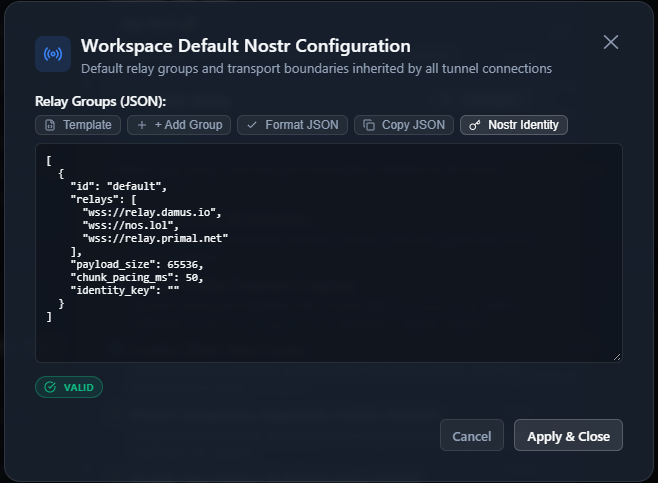
Nostr settings follow a strict, non-overlaying all-or-nothing priority:
-
Connection-Specific
nostr_settings:- If defined on the SAP connection card, it completely overrides the workspace settings.
- The connection configuration is 100% self-contained—there is zero field-level merging or ID-matching between connection and workspace settings.
-
Workspace Default
nostr_settings:- If the connection card has no local Nostr JSON (left empty), the workspace definition applies as-is.
-
Fallback Baseline:
- If neither the connection nor the workspace defines Nostr settings, the daemon automatically falls back to built-in public relays (
wss://relay.damus.ioandwss://relay.primal.net).
- If neither the connection nor the workspace defines Nostr settings, the daemon automatically falls back to built-in public relays (
Click "Configure Nostr..." (or "Configure Default Nostr..." in Workspace Settings) to open the focused JSON editor dialog:
- Monospace JSON Editor: Full control over relay definitions, transport boundaries, and authentication.
-
[Template]: Populates a starter template showcasing all available flags:[ { "id": "default", "relays": [ "wss://relay.damus.io", "wss://relay.primal.net" ], "payload_size": 65536, "chunk_pacing_ms": 50, "identity_key": "" } ] -
[+ Add Group]: Appends an additional relay group (e.g.corp,backup) for multi-network routing. -
[Format JSON]: Validates and pretty-prints the JSON configuration. -
[Copy JSON]: One-click clipboard copy, allowing you to easily copy the workspace configuration into a connection card to customize as needed. -
[Nostr Identity]: Opens the keypair utility dialog to generate a fresh Nostr keypair or derive public keys (npub/ hex) from an existing private key (nsec/ hex). -
Live Validation Badge: Renders real-time syntax validation along with effective worst-case transport boundaries:
-
Effective Payload Size:
$\min(\text{all groups})$ clamped to a 16 KB floor. -
Effective Chunk Pacing:
$\max(\text{all groups})$ delay in milliseconds to protect slower relays from rate-limiting.
-
Effective Payload Size:
Note
Channel & PSK Separation:
Relay groups (nostr_settings) govern purely the transport layer (where and how packets flow). Session addressing (nostr_topic) and end-to-end encryption (nostr_key, an AES-256-GCM symmetric PSK) are generated randomly per connection and stored safely in your encrypted vault. Multiple connections sharing the same relays will never cross-talk or collide.
In your sap-bridge Web UI Dashboard:
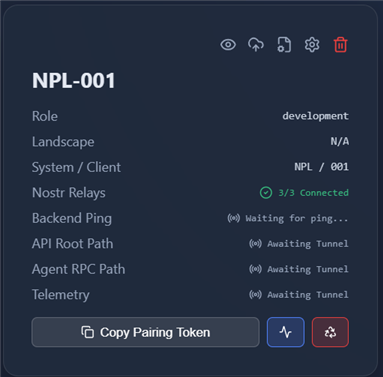
- Ensure the system is configured with
"auth_type": "Tunnel". - In the
sap-bridgeWeb UI Dashboard card for your system, click "Copy Tunnel Pairing Token". - This copies a Base64 pairing string containing the assigned Nostr topic, relay servers, and a 256-bit symmetric Pre-Shared Key (PSK) generated exclusively for this connection.
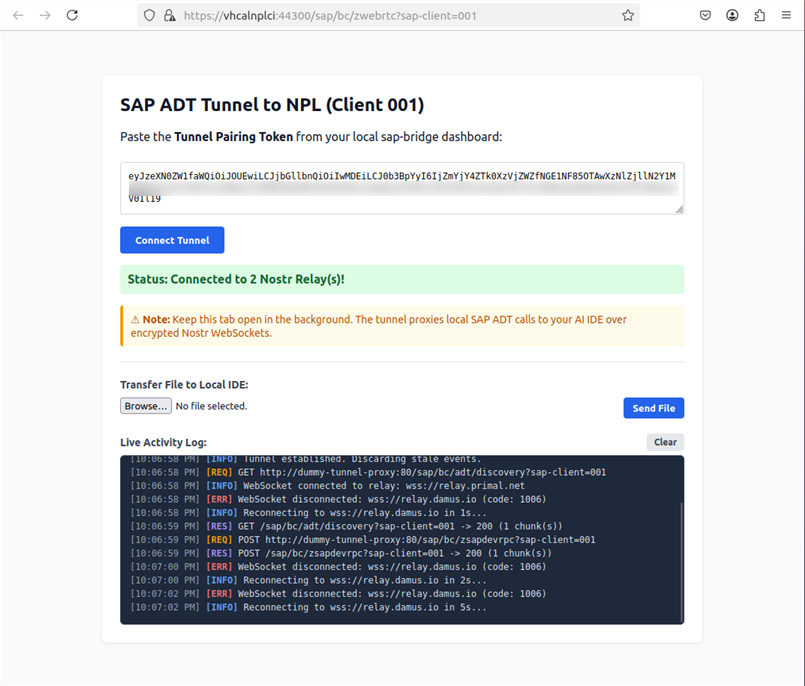
- Within your remote VDI / Citrix environment, open the web browser (Chrome, Edge, or Firefox).
- In SAP Transaction
SICF, right-click yourzsapdevtunnelservice and select "Test Service" (or open the service URLhttps://<sap-host>:<port>/sap/bc/zsapdevtunnel). If the browser unexpectedly prompts for a username/password in a Windows Kerberos SSO environment, see Windows Kerberos SSO Login Prompts below. - Paste the Base64 Tunnel Pairing Token into the token input box on the page.
- Click "Connect Tunnel".
- The browser decodes the topic and relay servers, imports the 256-bit PSK into Web Crypto API, activates AES-256-GCM End-to-End Encryption (E2EE), and connects to the Nostr relays. All in-flight requests, responses, chunks, and pings are encrypted at the application layer with hardware acceleration.
You can securely transfer files between your local IDE workspace and the remote SAP session over the established Nostr Tunnel:
- Open the local
sap-bridgeWeb UI Dashboard. - On the connection tile for your system, click the Send File button (cloud upload icon).
- Select the local file you wish to send. The icon will show transmission progress.
- The remote
ZCL_SAP_DEV_TUNNELbrowser page will receive the chunks and trigger an automatic browser download prompt to save the file on your remote machine.
- Open the
ZCL_SAP_DEV_TUNNELbrowser page in your remote session. - In the "Transfer File to Local IDE" container, select a file and click "Send File".
- The browser will stream the file in chunked events. Once the local daemon reassembles and decodes the file, it will write it into your local workspace folder under
./transferred_files/. - The remote UI status will update to green "Upload complete!" upon receiving acknowledgment from the local daemon.
If you are running SAP GUI for Java inside your remote desktop session (such as Citrix, Windows Virtual Desktop / Azure Virtual Desktop on Windows, or remote Mac), you can automate Dynpro screens, inspect element hierarchies, execute transactions, and perform declarative table maintenance (SM30/SM34) seamlessly across the tunnel.
The ZCL_SAP_DEV_TUNNEL browser page provides three dedicated helper buttons located directly beneath the Live Activity Log to deploy and start the embedded agent:
-
Command to start agent: Copies the ready-to-run startup commandjava -jar sap-agent-bridge.jar <token>with your active pairing token pre-filled. -
BASE64 -> Agent: For locked-down Windows VDI environments where browser downloads are restricted by policy, this copies a self-contained PowerShell script to your clipboard that reconstructssap-agent-bridge.jardirectly from in-memory Base64 without requiring external internet or file transfer access. -
Download SAP GUI Agent: If browser downloads are permitted, streams the JAR binary across the active tunnel and initiates a standard browser download.
Once sap-agent-bridge.jar is on your remote machine, launch SAP GUI for Java, log into your target SAP system, and start the agent (java -jar sap-agent-bridge.jar) in PowerShell (Windows) or Terminal (macOS). The agent automatically injects into the running SAP GUI process and hosts a local Web Manager dashboard at http://127.0.0.1:58457/ where you can paste pairing tokens, manage system connections, and view live activity logs.
For complete setup instructions, architecture diagrams, and multi-client isolation guarantees, see the dedicated guide:
👉 Running SAP GUI for Java in VDI
-
Configuration Hierarchy (
nostr_settings): If custom relay groups are defined in the SAP system card, they completely override the workspace defaults (all-or-nothing). If left empty, the connection inherits the workspace defaults. -
Transport vs. Channel Separation:
nostr_settingsconfigures purely relay transport infrastructure (relays,payload_size,chunk_pacing_ms, and optionalidentity_key). The channel addressing (nostr_topic) and payload encryption key (nostr_keyAES-256-GCM PSK) are managed per connection and automatically encoded in the Pairing Token. -
Firewall & Proxy Restrictions in VDI/Citrix: If your corporate Citrix / VDI environment blocks public WebSocket relays (e.g.
wss://relay.damus.io), configure internal corporate Nostr relays in the dedicated Nostr Configuration modal ([Configure Nostr...]). -
Token Pairing Mismatch: The Tunnel Pairing Token encodes your effective relays, connection topic, and encryption key. If you adjust relay endpoints in
nostr_settings, click "Copy Tunnel Pairing Token" again and paste the updated token into the browser session inside VDI/Citrix. -
Ephemeral Security: Tunnel messages use ephemeral Nostr events (
kind: 20000), processed strictly in memory by WebSocket relays without persistent disk storage. -
Large Payloads & Dynamic Arbitration: Payloads are compressed with browser
gzipand sliced into chunks matching the effective worst-case limit across your active relays (with dynamic NIP-11 probe clamping). If a relay drops a chunk,sap-bridge's inactivity monitor automatically issues anackevent to fetch missing chunks from the 30-second in-memory cache.
When executing "Test Service" in transaction SICF, the browser inside Citrix/VDI may fail to connect if SAP generates an unresolvable internal hostname or a default HTTP URL (e.g. http://...:8000).
To resolve the correct HTTPS host and port:
-
Open Transaction
SMICM(ICM Monitor) in your SAP Logon session. - Navigate to Goto -> Services (or press
Shift + F1). - Locate the row with Protocol = HTTPS. Note the Service Name / Port (e.g.
44300,443, or8443) and verify that its status is Active. -
Construct the Service URL:
In your Citrix/VDI browser, adjust the service URL to use
https://and the verified port from SMICM:https://<sap-host-or-ip>:<https-port>/sap/bc/zsapdevtunnel -
ICM Parameter Verification: If HTTPS is inactive or missing in
SMICM, check profile parametericm/server_port_<N>in transactionRZ11or contact your SAP Basis Administrator to activate the HTTPS ICM service port.
When concurrently running multiple SAP systems (e.g., Development and Quality) via the sap-bridge Tunnel, ADT discovery or resource requests might fail with 400 Session not found errors.
Because the remote tunnel client page runs directly inside your browser context, it shares the browser's cookie jar.
- If you access both systems in the same browser profile (even in different windows or tabs), the browser will send session cookies (like
sap-contextidorSAP_SESSIONID) for both systems. - If they share a parent domain (e.g.
.company.com), or if they are routed through the same hostname, the browser sends the cookie of one system to the other. - The SAP ADT framework rejects these mismatching/stale cookies with
400 Session not foundinstead of starting a new session.
You must isolate the cookie jars for each active SAP tunnel connection:
- Use Different Browsers (Easiest): Run one connection in Chrome and the other in Edge or Firefox.
- Use Different Browser Profiles (Best for SSO): Create a separate browser profile in Chrome or Edge. Open each tunnel client in a separate profile window. Each profile has a completely isolated cookie store and allows SSO to work independently.
- Use Container Tabs (Firefox Only): Install the Multi-Account Containers extension in Firefox. Open each tunnel connection in a separate container tab.
- Use Incognito Mode in separate browser windows. This won't work if your SAP system is configured with single-sign-on and you don't have separate SAP login credentials.
When accessing the tunnel page in your remote session browser (Citrix/VDI), you may experience page loads that freeze on Ready or fail to execute cryptographic operations.
If Microsoft Edge is configured via group policy to open internal SAP sites in IE Compatibility Mode, the tunnel page's modern JavaScript (ES6 const, Map, arrow functions) will fail to load or compile, rendering the Connect Tunnel button completely unresponsive.
- Indicators: An Internet Explorer logo (lowercase blue "e") is visible in Edge's address bar next to the URL, or a banner says "You're in Internet Explorer mode".
- Solution: Copy the tunnel URL and open it in a modern browser (such as Google Chrome, Firefox, or Microsoft Edge with IE compatibility mode disabled).
Modern browsers enforce a strict security policy that disables the Web Crypto API (crypto.subtle) in insecure contexts. Since the tunnel page utilizes crypto.subtle to sign events and compute chunk hashes, accessing the page over plain HTTP on a remote domain/IP (e.g. http://sapdev.internal.corp:8000/...) will cause script execution to fail.
-
Indicators: The tunnel UI shows an "Insecure Context Notice" banner, or the browser console shows errors like
TypeError: Cannot read properties of undefined (reading 'digest'). -
Solutions:
-
Access via HTTPS: Configure SSL on your SAP system and access the tunnel page via
https://(using the HTTPS port fromSMICM). -
Localhost Port Forwarding (SSH Tunnel): Access the page via
http://localhost:<port>forwarded over SSH. Browsers treat loopback addresses (localhost/127.0.0.1) as a Secure Context, fully enabling the Web Crypto and clipboard APIs even over HTTP.-
Command:
ssh -L 8000:<remote-sap-host-or-ip>:<remote-sap-http-port> <user>@<ssh-jump-host>
-
How it works: Run this command in your local terminal. Then navigate to
http://localhost:8000/sap/bc/zsapdevtunnel?sap-client=<client>in your browser. The browser seeslocalhostand activates all Web Crypto APIs. The SSH client intercepts the local requests, tunnels them encrypted through the jump host, and forwards them to the remote SAP host.
-
-
Browser Override Flags: Configure your browser to treat the insecure origin as secure. In Chrome/Edge, navigate to
chrome://flags/#unsafely-treat-insecure-origin-as-secure(oredge://flags/...), enable the setting, paste your HTTP SAP origin (e.g.,http://10.20.30.40:8000), and restart the browser.
-
When running the ZCL_SAP_DEV_TUNNEL proxy page in a background browser tab or minimized window inside Citrix/VDI, you may observe the tunnel periodically dropping or switching from Active to Stale / Offline after extended periods of inactivity.
Modern web browsers (Google Chrome, Microsoft Edge, Firefox, Safari) enforce aggressive power and memory-saving policies:
-
JavaScript Timer Throttling: After a tab has been in the background for more than 5 minutes, browsers clamp
setIntervalexecution from 15 seconds down to once every 60+ seconds. Because thesap-bridgedaemon expects regular heartbeats within 60 seconds, timer throttling triggers an inactivity watchdog timeout and marks the tunnel asStaleorOffline. - Memory Saver & Sleeping Tabs (Tab Discarding): Chromium-based browsers (Chrome and Edge) automatically "freeze" or "discard" background tabs that haven't been actively viewed in 1–2 hours to reclaim system RAM. Freezing a tab terminates all active WebSocket connections immediately.
- Relay & NAT Timeouts: Public or corporate Nostr relays and intermediate network firewalls drop idle WebSocket connections after 60–120 seconds of silence. If background throttling pauses outgoing heartbeats, the connection drops silently.
- OS Efficiency Mode & App Nap: When browser windows are minimized, Windows places the process into Efficiency Mode (EcoQoS) and macOS engages App Nap, deprioritizing network socket processing.
-
Exclude the SAP URL in Browser Performance Settings (Recommended): Add your SAP server URL to your browser's performance exception list so the tunnel tab is never put to sleep or throttled:
-
Google Chrome: Navigate to
chrome://settings/performance→ Under "Always keep these sites active", click Add and enter your SAP domain/URL (e.g.https://<sap-host>:<port>). -
Microsoft Edge: Navigate to
edge://settings/system→ Under "Never put these sites to sleep", click Add and enter your SAP tunnel URL.
-
Google Chrome: Navigate to
-
Keep the Tab in a Dedicated Window: Instead of minimizing the browser window or burying the tunnel page behind inactive tabs, keep the
ZCL_SAP_DEV_TUNNELpage in its own separate small browser window on your desktop. Browsers prioritize open windows over minimized or backgrounded tabs. -
Auto-Recovery on Tab Focus: If the browser has frozen the tab or dropped relay connections while you were away, simply clicking into or focusing the
ZCL_SAP_DEV_TUNNELbrowser tab will instantly wake the JavaScript runtime, reconnect any dropped relay WebSockets, and send an immediate catch-up heartbeat ping to restore the connection.
If the SAP HTTPS service unexpectedly displays a browser username/password prompt instead of logging you in automatically, authentication has not completed. This can occur before the tunnel page loads, even when another SAP system works in the same browser.
For environments using Windows Kerberos/SPNEGO SSO, explicitly requesting the SAP HTTP service ticket is an optional diagnostic step and possible temporary workaround:
-
Open PowerShell on the machine where the browser runs, inside the same Windows user session. For a browser inside Citrix/VDI, run the command inside that remote session.
-
Replace
sapqa.example.combelow with the fully qualified SAP hostname from the HTTPS service URL, then run:& "$env:WINDIR\System32\klist.exe" get HTTP/sapqa.example.com
The standard service principal name (SPN) is
HTTP/<sap-host-fqdn>, including for HTTPS. DNS aliases and browser policies can change the SPN used by the browser; ask your SAP Basis/AD administrator to verify the actual SPN if this test does not match browser behavior. -
If Windows reports that the ticket was retrieved successfully, retry the same HTTPS service URL. Once the tunnel page loads, continue with the pairing token and Connect Tunnel steps.
Why this can help: Unlike plain klist, which lists cached tickets, klist get requests a service ticket for the current Windows logon session. The browser may then use the cached ticket for SSO. Use the explicit Windows executable path because Java also provides a klist command with different options and does not support this get syntax.
Interpretation: A successful ticket request confirms that Windows can obtain a ticket for that SPN; it does not prove that the browser sends it or that SAP accepts and maps it to a user in the target client. If login succeeds afterward, treat this as a possible workaround rather than a confirmed root-cause fix. The command does not change SAP or Active Directory configuration and is not a required tunnel setup step.
If the problem recurs: Capture the failed browser authentication exchange and start a short SAP SPNEGO trace before rerunning klist get. In the target SAP system, use transaction SPNEGO -> Goto -> SPNego Tracing, or ask SAP Basis to collect the trace. Stop the trace after reproducing the issue. A trace started only after login succeeds cannot explain the earlier failure.
References: Microsoft Windows klist documentation, Chromium HTTP authentication and SPN generation, SAP SPNEGO tracing instructions.