Repository navigation
Running SAP GUI for Java in VDI
This guide explains how to automate SAP GUI for Java running inside remote environments such as Citrix, Windows Virtual Desktop (AVD), or remote jump hosts on Windows and macOS.
By combining the sap-bridge Nostr Relay Tunnel with the embedded SAP GUI Bridge Agent, your local AI IDE agent can inspect screens, read tables, enter data, select tabs, and execute transactions on a remote SAP GUI session without requiring inbound VPNs, open firewall ports, or direct network access to the SAP application server.
In many enterprise landscapes, developers connect to SAP systems via a remote desktop session inside Citrix or Azure Virtual Desktop where only SAP GUI and a web browser are accessible.
graph TD
    subgraph LocalWorkstation["Local Workstation (Laptop / PC / Mac)"]
        IDE["AI IDE (Antigravity / Cursor / VS Code)"]
        Daemon["sap-bridge daemon (Port 58454)"]
        IDE <--> Daemon
    end

    subgraph RelayCloud["Nostr Relays (Public or Corporate)"]
        WSS["E2EE Nostr WebSocket Relay (Outbound Port 443)"]
    end

    subgraph RemoteSession["Remote Session (Citrix / Windows Virtual Desktop / macOS)"]
        WebManager["Bridge Manager Web UI (http://127.0.0.1:58457/)"]
        Agent["sap-agent-bridge.jar"]
        SAPGUI["SAP GUI for Java (platin.jar)"]
        WebManager <--> Agent
        Agent <-->|"Injected JVMTI / jcmd"| SAPGUI
    end

    Daemon <-->|"AES-256-GCM Encrypted"| WSS
    WSS <-->|"AES-256-GCM Encrypted"| Agent
-
Zero Inbound Ports: All connections between your local machine and the remote desktop are initiated outbound over standard WebSocket secure connections (
wss://port 443). - End-to-End Encryption (E2EE): Every payload, script, and response is encrypted with AES-256-GCM using a 256-bit Pre-Shared Key (PSK) generated exclusively for your active pairing session.
To bridge SAP GUI inside your remote session, you need sap-agent-bridge.jar present on the remote machine.
Inside your remote desktop browser, open your active ADT Tunnel page (e.g. https://<sap-host>:<port>/sap/bc/zsapdevtunnel or via transaction SICF). The page provides dedicated helper buttons located directly beneath the Live Activity Log to retrieve the agent:
- In strict enterprise Citrix environments, file downloads in browsers may be blocked by group policy.
- Clicking
BASE64 -> Agentcopies a self-contained PowerShell script to your clipboard that reconstructssap-agent-bridge.jardirectly from in-memory Base64 without needing external download access:$b64 = "..." [IO.File]::WriteAllBytes("sap-agent-bridge.jar", [Convert]::FromBase64String($b64))
- Paste this into PowerShell on Windows to write the JAR file directly to your current folder.
- If browser downloads are allowed in your remote desktop, click
Download SAP GUI Agent. - The page streams the JAR binary across the active tunnel and triggers a standard browser download prompt to save
sap-agent-bridge.jar.
Open SAP GUI for Java inside your remote desktop and log into your target SAP system (e.g. A4H, client 001).
Open your terminal inside the remote desktop:
-
On Windows: Open PowerShell or Command Prompt in the folder containing
sap-agent-bridge.jar. - On macOS: Open Terminal.
Execute the command:
java -jar sap-agent-bridge.jarThe agent automatically:
- Scans active processes to locate the running SAP GUI for Java instance.
- Injects
sap-agent-bridge.jarinto SAP GUI usingjcmd/ JVMTI. - Initializes the internal Bridge Manager server at
http://127.0.0.1:58457/.
Tip
Optional: Pre-Connecting via CLI
If you prefer headless or automated startup with tunnels already connected, you can pass one or more pairing tokens directly on the command line:
java -jar sap-agent-bridge.jar <pairing-token>
The Command to start agent button on the tunnel page copies this pre-filled command to your clipboard.
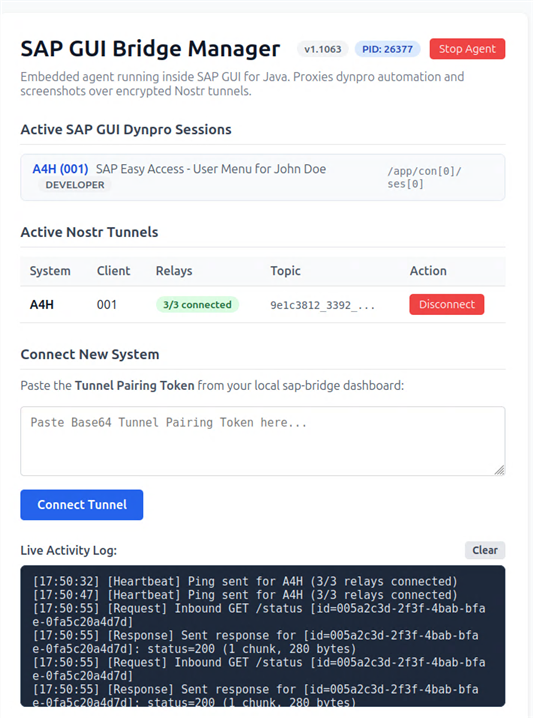
Once attached, open http://127.0.0.1:58457/ in your remote browser to manage your connections:
- Copy the Tunnel Pairing Token (from your local
sap-bridgeWeb UI Dashboard card or the remoteZCL_SAP_DEV_TUNNELpage). - Under "Connect New System", paste the token into the input field and click "Connect".
- The bridge establishes the encrypted Nostr WebSocket tunnel to your local AI agent.
- If you work across multiple SAP systems (e.g.
DEVandQAS), simply paste and connect additional tokens — all active connections run concurrently within the same agent instance!
-
Active Nostr Tunnels: Displays connection health, assigned Nostr topic, and connected relay count (e.g.
3/3 connected). - Active SAP GUI Dynpro Sessions: Displays live details of all open sessions (System ID, Client, active Program, Dynpro screen number, Window Title, and User).
-
Live Activity Log: Real-time auto-scrolling log of relay connections, heartbeats, inbound MCP automation requests (
/eval,/status,/screenshot), and chunked response deliveries.
Click [Stop Agent] at the top right to disconnect all active Nostr tunnels and release port 58457. SAP GUI will continue running uninterrupted.
Attaching the agent to a running SAP GUI process requires the Java jcmd diagnostic utility:
-
jcmdis included with all standard Java Development Kits (JDK 11, 17, 21), such as Eclipse Adoptium Temurin or OpenLogic JDK. - If your remote desktop only has a minimal Java Runtime Environment (JRE),
jcmdmay not be present. Install a full JDK or configureJAVA_HOMEto point to a valid JDK installation.
Under the Java Virtual Machine specification, classes that have already been loaded into memory cannot dynamically redefine their method signatures or add new fields while the process is running.
- If you download a new version of
sap-agent-bridge.jar, simply close the SAP GUI for Java application window, launch SAP GUI again, and re-attach the new JAR.
The agent connects to Nostr relays over outbound wss:// (WebSocket Secure) on port 443. If your corporate proxy requires proxy authentication or blocks public relays (e.g. relay.damus.io), specify internal company relay endpoints in your sap-bridge Web UI system settings.