Repository navigation
Backups
This page covers NodePilot backups: where archives are stored, what a backup job can back up (files, PostgreSQL, MySQL/MariaDB, also inside Docker), schedules and their two cron formats, retention, the three encryption modes, running jobs by hand, downloading archives, and restoring them yourself with age, tar, pg_restore/psql and mysql.
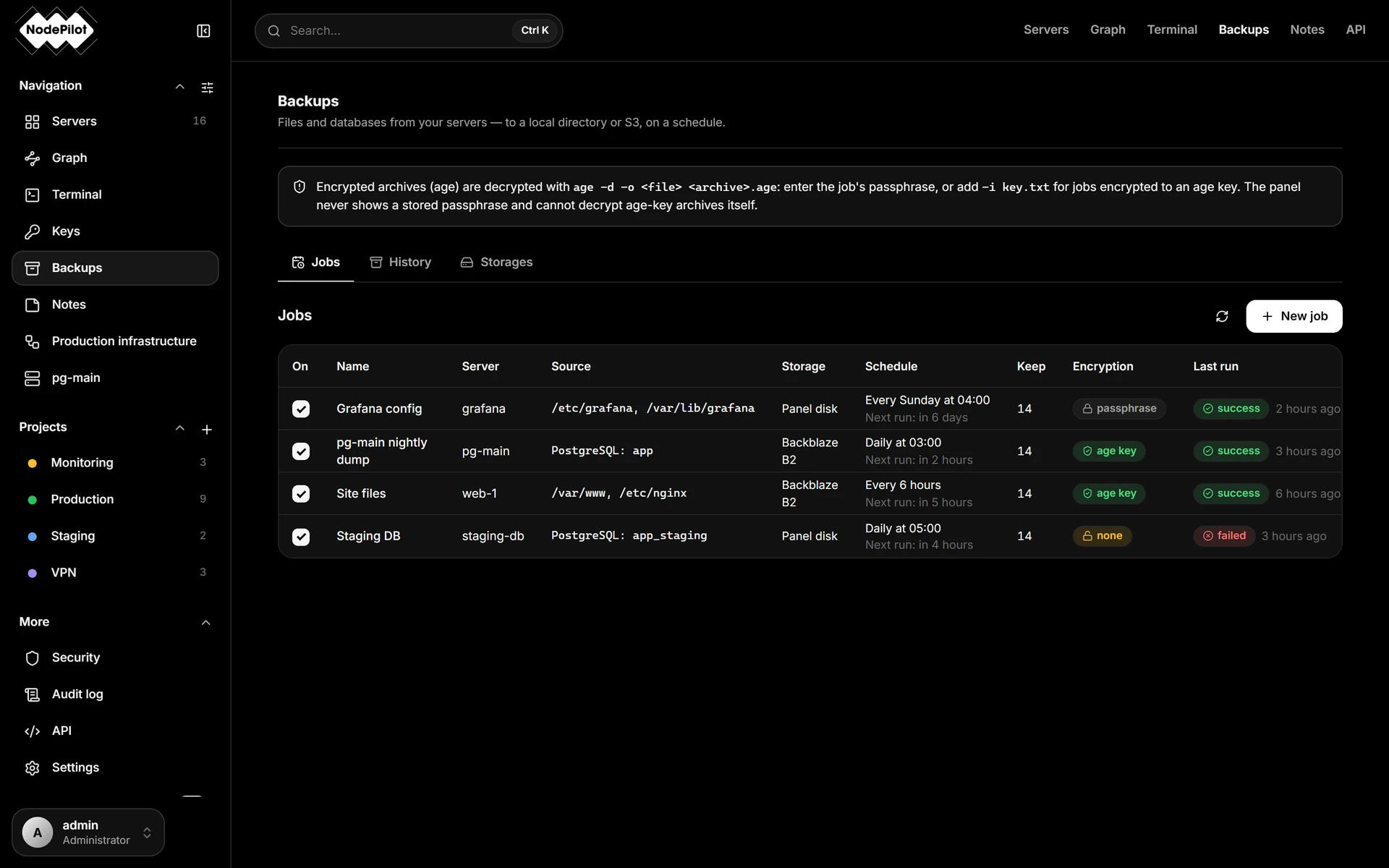
Open Backups in the sidebar. The page has three tabs: Jobs, History and Storages. Everything on it is also available over the API (backups permission area) and to AI agents over MCP.
- The panel connects to the server over SSH and starts a command that writes the archive to stdout:
tar,pg_dumpormysqldump. - The panel reads the stream and, if the job is encrypted, encrypts it with age as it arrives.
- The result goes to the job's storage: a directory on the panel host, or an S3 bucket.
Nothing is installed on the servers. The tools (tar, pg_dump, mysqldump, gzip, or docker) must already be there.
Archive names look like <server>-<job>-YYYYMMDD-HHMMSS.<ext>, with .age added when the job is encrypted. Server and job names are reduced to letters, digits, - and _. The timestamp is UTC.
| Source | Extension | Format |
|---|---|---|
| Files | .tar.gz |
gzip-compressed tar |
| PostgreSQL | .pgdump |
pg_dump -Fc (custom format, restore with pg_restore) |
| MySQL / MariaDB | .sql.gz |
gzip-compressed SQL from mysqldump
|
A storage is where archives go. Create one on the Storages tab with Add storage before you create jobs. Each job writes to one storage, and many jobs can share it.
Local directory stores archives on the panel host, under <path>/<job id>/<file>.
| Field | API field | Notes |
|---|---|---|
| Directory on the panel host | local.path |
The UI asks for an absolute path. Over the API, a relative path is resolved against the panel's data directory. The panel user must be able to write there. |
With the standard systemd unit the service can only write inside /var/lib/nodepilot (ProtectSystem=strict, ReadWritePaths=/var/lib/nodepilot), so use a directory under it, for example /var/lib/nodepilot/backups, or add another ReadWritePaths= in a drop-in.
S3-compatible works with AWS S3 and with services that speak the S3 API, such as MinIO or Wasabi. Objects are stored under <prefix>/<job id>/<file>.
| Field | API field | Required | Notes |
|---|---|---|---|
| Endpoint | s3.endpoint |
no | Leave empty for AWS S3. For MinIO, Wasabi and others, the service URL. http:// endpoints are allowed. |
| Region | s3.region |
yes | |
| Bucket | s3.bucket |
yes | |
| Prefix | s3.prefix |
no | Key prefix inside the bucket. |
| Access Key ID | s3.access_key_id |
yes | |
| Secret Access Key | s3.secret_access_key |
yes when creating | Stored encrypted with the master key and never returned. When editing, leave it empty to keep the current one. |
| Path-style addressing | s3.path_style |
no | Off by default (virtual-hosted-style). Usually required for MinIO. |
For S3, the panel first writes the archive to <data dir>/tmp and then uploads it in 16 MiB parts, so the panel host needs free space for the largest archive.
-
Test writes a small
.nodepilot-testfile or object and deletes it. It shows "Storage is reachable" or the error. - Deleting a storage only removes it from the panel. Archives already in it are not deleted. If any job uses the storage, the deletion is rejected (HTTP 409).
Create a job on the Jobs tab with New job.
| Field (UI) | API field | Notes |
|---|---|---|
| Name | name |
Required. |
| Server | server_id |
The server to back up. |
| Storage | storage_id |
Where to put the archives. |
| Source | source |
Files, PostgreSQL or MySQL / MariaDB. See below. |
| Schedule | schedule |
Cron expression in UTC, or empty / null for manual runs only. See Schedules. |
| Archives to keep | retention |
The last N successful archives; 0 keeps all. Default 0. |
| Encryption | encryption |
none, passphrase or recipients. See Encryption. |
| Job enabled (runs on schedule) | enabled |
Default on. A disabled job still runs with Run now. |
The Jobs table shows each job's server, source, storage, schedule, how many archives it keeps, the last and next run, and the encryption mode.
| Field (UI) | API field | Notes |
|---|---|---|
| Paths (one per line) | paths |
At least one path. |
| Excludes (glob, one per line) | excludes |
Each line becomes a tar --exclude= pattern. |
The panel runs tar -czf - --exclude=… -- <paths> on the server. If the SSH user is not root, the command runs with sudo -n, so the user needs passwordless sudo for tar to read protected files. tar exit code 1 ("file changed as we read it") is accepted: the archive is still valid.
{ "type": "files", "paths": ["/etc", "/var/www"], "excludes": ["*.log", "/var/www/cache"] }| Field (UI) | API field | Notes |
|---|---|---|
| Database | database |
Required. |
| User | user |
Optional. Passed as -U. |
| Password | password |
Optional. Stored encrypted on the panel and never returned; responses show has_password instead. Leave empty when editing to keep it. Passed as PGPASSWORD. |
| Host | host |
Optional. Passed as -h. |
| Port | port |
Optional. Passed as -p. |
| Docker container | docker_container |
Optional. If PostgreSQL runs in a container, the dump is taken with docker exec. |
The dump is pg_dump -Fc (custom format). It runs as the SSH user, without sudo. With a container it becomes docker exec [-e PGPASSWORD=…] <container> pg_dump -Fc …, so the SSH user must be allowed to run docker.
{ "type": "postgres", "database": "app", "user": "app", "password": "secret", "docker_container": "postgres" }The fields are the same as for PostgreSQL (database, user, password, host, port, docker_container). The panel runs:
mysqldump --single-transaction --routines --triggers --events [-h host] [-P port] [-u user] -- <database> | gzip -cThe password is passed as MYSQL_PWD. With a container, mysqldump runs through docker exec. If mysqldump fails, the run is marked failed even though gzip exits with 0.
{ "type": "mysql", "database": "shop", "user": "backup", "password": "secret" }The dump covers one database and does not include CREATE DATABASE, so create the database before restoring (see below).
In the job dialog, choose Preset, Custom cron or Manual. Manual jobs run only with the Run button. All times are UTC, whatever the time zone of the panel host or your browser.
Presets:
| Preset | Expression |
|---|---|
| Every hour | 0 0 * * * * |
| Every 6 hours | 0 0 */6 * * * |
| Every 12 hours | 0 0 */12 * * * |
| Daily at 00:00 | 0 0 0 * * * |
| Daily at 03:00 | 0 0 3 * * * |
| Daily at 05:00 | 0 0 5 * * * |
| Every Sunday at 04:00 | 0 0 4 * * Sun |
| Every Monday at 03:00 | 0 0 3 * * Mon |
| Monthly on the 1st at 03:00 | 0 0 3 1 * * |
The panel accepts two cron formats.
sec  min  hour  day-of-month  month  day-of-week  [year]
0    0    3     *             *      *            → every day at 03:00:00 UTC
An optional 7th field is the year. This format uses Quartz day numbers in the day-of-week field: 1 = Sunday, 2 = Monday, … 7 = Saturday. That differs from classic crontab, so 0 0 3 * * 1 means Sunday, not Monday. Use day names to avoid mistakes:
0 0 3 * * Mon          every Monday at 03:00
0 30 2 * * Mon-Fri     weekdays at 02:30
0 0 4 * * Sat,Sun      weekends at 04:00
min  hour  day-of-month  month  day-of-week
0    3     *             *      1            → every Monday at 03:00 UTC
Here 0 and 7 are Sunday and 1 is Monday, as in crontab. Day names (mon-fri, sun), ranges, lists and steps work too. The panel converts the day-of-week field to day names internally, so 0 3 * * 1-5 runs Monday to Friday.
Note
Both formats work everywhere: in the Custom cron field of the job dialog, in the API and in the MCP create_backup_job / update_backup_job tools.
- The scheduler checks for due jobs every 20 seconds. Only enabled jobs with a schedule run.
- The next run time is moved forward before the job starts, so a failing job is not retried in a loop. It waits for its next scheduled time.
- A job runs once at a time. If it is still running when it is due again, that run is skipped. Run now on a running job returns HTTP 409.
- If the panel restarts during a backup, that run is marked failed with
interrupted: panel restarted.
Archives to keep (retention) is the number of successful archives to keep per job. After each successful run, the panel deletes older successful archives from the storage, and their history entries. Failed runs are not counted and are not removed by retention. 0 keeps everything.
Archives are encrypted with age. The job's Encryption setting has three modes:
| Mode (UI) | API value | Who can decrypt |
|---|---|---|
| No encryption | none |
Anyone with access to the storage. |
| Passphrase (stored in the panel) | passphrase |
Anyone who knows the passphrase. The panel stores it encrypted with its master key, so whoever compromises the panel gets it too. |
| Public age key (recommended: the panel can't decrypt) | recipients |
Only holders of a matching private key. The panel has only the public keys. |
Encryption happens on the panel while the stream arrives. Encrypted archives get the .age extension, and runs show encrypted: true.
Enter the passphrase twice (at least 8 characters in the UI). The panel never shows a saved passphrase and you cannot recover it through the UI. Keep it somewhere safe: without it the archives are useless. When editing a job, leave the field empty to keep the current passphrase.
{ "encryption": "passphrase", "passphrase": "correct horse battery staple" }List one or more age public keys (age1…), one per line. Archives are encrypted for every key listed, and any one of the matching private keys can decrypt them. You can list several keys, for example yours and a colleague's, or a key kept offline for disaster recovery.
{ "encryption": "recipients", "recipients": ["age1ql3z7hjy54pw3hyww5ayyfg7zqgvc7w3j2elw8zmrj2kg5sfn9aqmcac8p"] }You can use an existing key (age-keygen -o key.txt prints the public key) or let the panel generate one:
- In the job dialog, choose Public age key and click Generate a key pair.
- The New age key pair dialog shows the private key and the public key. The private key is shown only now. It is not stored anywhere, not in the panel and not on the servers.
- Click Download nodepilot-backup-key.txt. The file is a standard age identity file (comment lines with the creation date and public key, then the
AGE-SECRET-KEY-1…line). - Store the file somewhere safe, away from the panel.
- Tick I have saved the private key and click Add public key to the job.
Over the API: POST /api/backup-keys/generate (permission backups:write) returns public_key, private_key and identity_file. The call is recorded in the audit log, but the key itself is not.
- The panel never decrypts archives. There is no restore or decrypt function in the UI, the API or MCP. Downloads return the archive exactly as stored, still encrypted.
-
passphrasemode: the panel holds the passphrase (encrypted with the master key) because it needs it to encrypt new archives. It never shows it back, but someone who takes over the running panel, or gets both the database and the master key, can recover it and decrypt your archives. -
recipientsmode: the panel holds only public keys, which can encrypt but not decrypt. Even a fully compromised panel cannot read past archives. This is why it is the recommended mode and why the security checklist flags passphrase jobs. -
nonemode: database dumps and config files often contain passwords, so the job dialog warns about this.
The older boolean field encrypt is still accepted: "encrypt": true without encryption means passphrase, and "encrypt": false means none. Responses include encrypt (true for any encrypted mode), encryption and recipients.
-
Run now (the Run button on a job) starts the backup in the background and returns immediately with a run in status
running. Over the API:POST /api/backup-jobs/{id}/run. - The History tab lists runs, newest first: job, status (
running,success,failed), start time, duration, size and file name. Failed runs show the error, including the tail of the remote command's stderr. The API returns up to 500 runs and can filter byjob_idandserver_id. -
Download a successful archive from the history. For encrypted archives the button says "Download (age-encrypted — decrypt with age -d)". Over the API:
GET /api/backups/{id}/download(permissionbackups:read). - Deleting a history entry also deletes the archive file from the storage. A running backup cannot be deleted.
- Deleting a job keeps its archives in the storage. Its run history is removed from the panel along with the job, so the panel can no longer list or download those archives. Remove old archives from the storage yourself, or delete the history entries first. Deleting a server from the panel also deletes its backup jobs.
Download the archive from the History tab (or copy it from the storage directory or bucket), then decrypt it if needed and restore it with the usual tools. age is available in most package managers (apt install age).
Passphrase mode (age asks for the passphrase):
age -d -o web-1-db-20250101-030000.pgdump web-1-db-20250101-030000.pgdump.agePublic key mode, with the key file you saved:
age -d -i nodepilot-backup-key.txt -o web-1-db-20250101-030000.pgdump web-1-db-20250101-030000.pgdump.agetar strips the leading /, so paths are restored relative to the directory you extract into. Extract into an empty directory first and copy back what you need:
mkdir restore
tar -xzf web-1-etc-20250101-030000.tar.gz -C restore
ls restore/etcThe dump is in pg_dump custom format, so use pg_restore:
createdb app                                   # if the database does not exist
pg_restore -d app --no-owner web-1-db-20250101-030000.pgdump
To read it as plain SQL or feed it to psql, convert it first:
pg_restore -f app.sql web-1-db-20250101-030000.pgdump
psql -d app -f app.sql
PostgreSQL in Docker:
docker exec -i postgres pg_restore -U app -d app --no-owner < web-1-db-20250101-030000.pgdumpThe dump does not create the database, so create it first:
mysql -e 'CREATE DATABASE shop'
gunzip -c web-1-shop-20250101-030000.sql.gz | mysql shop
MySQL in Docker:
gunzip -c web-1-shop-20250101-030000.sql.gz | docker exec -i mysql mysql -u root -p"$MYSQL_ROOT_PASSWORD" shopYou can combine decryption and restore in one pipeline:
age -d -i nodepilot-backup-key.txt shop.sql.gz.age | gunzip -c | mysql shopAll endpoints need the backups permission area. See API for authentication.
| Method | Path | Permission | Purpose |
|---|---|---|---|
| GET | /api/backup-storages |
backups:read |
List storages |
| POST | /api/backup-storages |
backups:write |
Create a storage |
| GET / PATCH / DELETE | /api/backup-storages/{id} |
read / write / write | Get, change or delete a storage |
| POST | /api/backup-storages/{id}/test |
backups:write |
Test a storage |
| GET | /api/backup-jobs?server_id= |
backups:read |
List jobs |
| POST | /api/backup-jobs |
backups:write |
Create a job |
| GET / PATCH / DELETE | /api/backup-jobs/{id} |
read / write / write | Get, change or delete a job |
| POST | /api/backup-jobs/{id}/run |
backups:write |
Run now |
| GET | /api/backups?job_id=&server_id= |
backups:read |
Run history |
| GET / DELETE | /api/backups/{id} |
read / write | Get a run, or delete it with its archive |
| GET | /api/backups/{id}/download |
backups:read |
Download the archive as stored |
| POST | /api/backup-keys/generate |
backups:write |
Generate an age key pair (not stored) |
Example: a nightly encrypted dump of a PostgreSQL database running in Docker, keeping 14 archives.
curl -X POST https://panel.example.com/api/backup-jobs \
  -H "Authorization: Bearer $NP_TOKEN" -H "Content-Type: application/json" \
  -d '{
    "name": "app db",
    "server_id": "SERVER_ID",
    "storage_id": "STORAGE_ID",
    "source": { "type": "postgres", "database": "app", "user": "app", "docker_container": "postgres" },
    "schedule": "0 0 3 * * *",
    "retention": 14,
    "encryption": "recipients",
    "recipients": ["age1…"]
  }'