Repository navigation
Getting Started
This page takes you from a freshly installed panel to a working setup: the administrator account, SSH credentials in the keychain, your first servers (one by one or in bulk), host key pinning, and the tools for organizing a large fleet: projects, tags, favorites and search. It assumes the panel is already running (see Installation).
Open the panel in a browser (by default http://127.0.0.1:7780, or the address of your reverse proxy). While the
database has no users, the panel shows the Initial setup screen instead of the sign-in form.
-
Username is prefilled with
admin. Change it if you like. - Enter a Password (at least 8 characters) and repeat it in Repeat password.
- Click Create administrator. You are signed in right away.
Only one account can be created this way: once a user exists, the screen becomes the normal Sign in form. The language selector and the theme button in the top corner of this screen work before you sign in.
You can also create a user from the command line (nodepilot user create <name> --password ...). See
CLI reference. To turn on two-factor authentication, see Security.
The keychain (Keys in the sidebar) holds SSH credentials that many servers can share. You don't have to use it: a server can also carry its own password or key. But the keychain makes rotation easy, and bulk import requires it.
- Open Keys and click Add key.
- Fill in the New key dialog:
| Field | What to enter |
|---|---|
| Name | Any label, for example deploy@prod. |
| Type | Private key or Password. |
| Private key | Paste the key (OpenSSH or PEM format), or click Load from file (files up to 64 KB). |
| Key passphrase | Only if the key is encrypted. |
| Password | The SSH password (when the type is Password). |
- Click Add.
What to know:
- The panel checks that a private key can be decoded (with the passphrase, if given) before saving it.
- Secrets are stored encrypted on the panel server and are never sent back to the browser. When you edit a key, leave the secret field empty to keep the current value.
- Changing a key's secret makes every server that uses it reconnect with the new one.
- The Servers column shows how many servers use each key. A key that is in use can't be deleted: switch those servers to another authentication method first.
On Servers, click Add server. The New server dialog has these fields:
| Field | Notes |
|---|---|
| Name | Required. Shown everywhere in the panel. |
| User | Required. Defaults to root. |
| Host / IP | Required. |
| Port | 1–65535, defaults to 22. |
| Authentication | Password, Private key or From keychain (see below). |
| Tags | Free-form labels. Press Enter or comma to add one. Existing tags are suggested. |
| Projects | Tick any number of projects. |
| Description | Optional text, also searchable. |
Authentication types:
| Type | What the server stores |
|---|---|
| Password | Its own SSH password. |
| Private key | Its own private key (paste it or use Load from file), plus an optional passphrase. |
| From keychain | A reference to a keychain entry. If the keychain is empty, the dialog links to Keys. |
When you edit a server, a fourth option, Keep current, leaves the stored credentials untouched. The panel never shows saved secrets.
Buttons:
- Save saves and closes the dialog.
- Save and test saves, then connects to the server and runs a trivial command. The result appears in the dialog: Connected with the latency, or Connection failed with the SSH error.
- Test connection (shown once the server is saved) repeats the test.
Commands such as service actions and reboot run as the configured user. For a non-root user they use sudo -n,
so that user needs passwordless sudo for those actions.
Click Import on Servers to open Bulk import servers. Paste data into the text box, or load a .csv,
.json or .txt file with File. Example fills in a sample. A preview table shows what will be created
before you click Import.
CSV format (one server per line):
# name,host,port,username[,tags separated by ;]
web-01,10.0.0.11,22,root,prod;web
web-02,10.0.0.12,22,root,prod;web
db-01,10.0.0.21,2222,admin,prod;db
- Columns:
name,host,port,username,tags. Tabs also work as the separator. - Tags are separated by
;(or|). - Only
hostis required. An empty name becomes the host, an empty port becomes22, an empty user becomes the Default user from the right-hand panel (rootby default). - Lines starting with
#and a header line starting withname,hostare skipped. - All CSV servers authenticate with the Keychain key you select on the right.
JSON format: an array of server objects (a single object also works):
[
  { "name": "web-01", "host": "10.0.0.11", "port": 22, "username": "root", "tags": ["prod", "web"] },
  { "name": "db-01", "host": "10.0.0.21", "username": "admin",
    "auth": { "type": "password", "password": "..." },
    "description": "Primary database" }
]- Recognized fields:
name,host,port,username,auth,tags,description,project_ids. -
authis optional. It can be{"type": "password", "password": "..."},{"type": "key", "private_key": "...", "passphrase": "..."}or{"type": "identity", "identity_id": "..."}. Entries withoutauthuse the selected Keychain key.
Options on the right apply to every imported server:
| Option | Effect |
|---|---|
| Keychain key | Credentials for CSV rows and for JSON entries without auth. Required when such rows exist. |
| Default user | Used when a row has no username. |
| Add tags to all | Extra tags merged into every server's tags. |
| Add to projects | Projects every imported server joins. |
Rows with a missing host or an invalid port are listed under Skipped entries and are not imported. The import itself is all-or-nothing: if the panel rejects any entry (for example, a malformed private key), no servers are created and the error names the entry.
If you open Import or Add server from a project page, that project is preselected.
NodePilot pins each server's SSH host key on first use:
- The first time the panel connects and logs in successfully, it saves the server's host key fingerprint
(
SHA256:...). - Every later connection must present the same key. If it doesn't, the connection is refused with a
host key mismatcherror and the server shows as Unreachable.
You can see the pinned fingerprint on the server page: Overview tab, Host key (SSH) card. If a key changed for a legitimate reason (for example, the OS was reinstalled), click Forget host key and confirm. The panel will trust and pin whatever key the server presents on the next connection, so only do this when you are sure there is no man-in-the-middle.
Changing a server's host or port also clears its pinned key.
A project is a named, colored group of servers. A server can belong to several projects at once.
- Create: click + (New project) next to Projects in the sidebar. Enter a Name, an optional Description and pick a Color (a preset, no color, or a custom one).
- Add servers: tick projects in the server dialog, or select servers in the list and click Add to project.
- Remove servers: on the project page, select servers and click Remove from project. They stay in the panel.
- Edit or delete: hover the project in the sidebar and use the pencil or trash icon, or use Edit and Delete on the project page.
The project page has three tabs: Servers (the same list as the main page, limited to the project), Graphs and Notes. See Graphs and Notes.
Deleting a project keeps its servers and its graphs (the graphs just lose their project). Notes attached to the project are deleted along with it, so move any notes you want to keep first.
Tags are free-form labels on a server. Use them for roles, environments or locations (prod, db, eu).
- Click a tag in the server list to filter by it, or pick one in the All tags dropdown.
- Tags on the server page link to the filtered list.
- Tags can't contain spaces or commas: typing either one finishes the tag.
Switch the list to Grid view and click the star on a server card (Add to favorites). The status dropdown then offers ★ Favorites to show only those servers. Favorites are stored in your browser, not on the panel.
- Global search: press Ctrl+K (or /) anywhere to focus the search box at the top. It matches server names and addresses. Use ↑/↓ and Enter to open a server, Esc to close. Pressing Enter with no match opens the server list filtered by your text.
- List filter: the Filter: name, address, tag… box on Servers also matches the user and the description. Combine it with the tag and status dropdowns (Any status, Online, Unreachable, Unknown, ★ Favorites). Reset clears all filters.
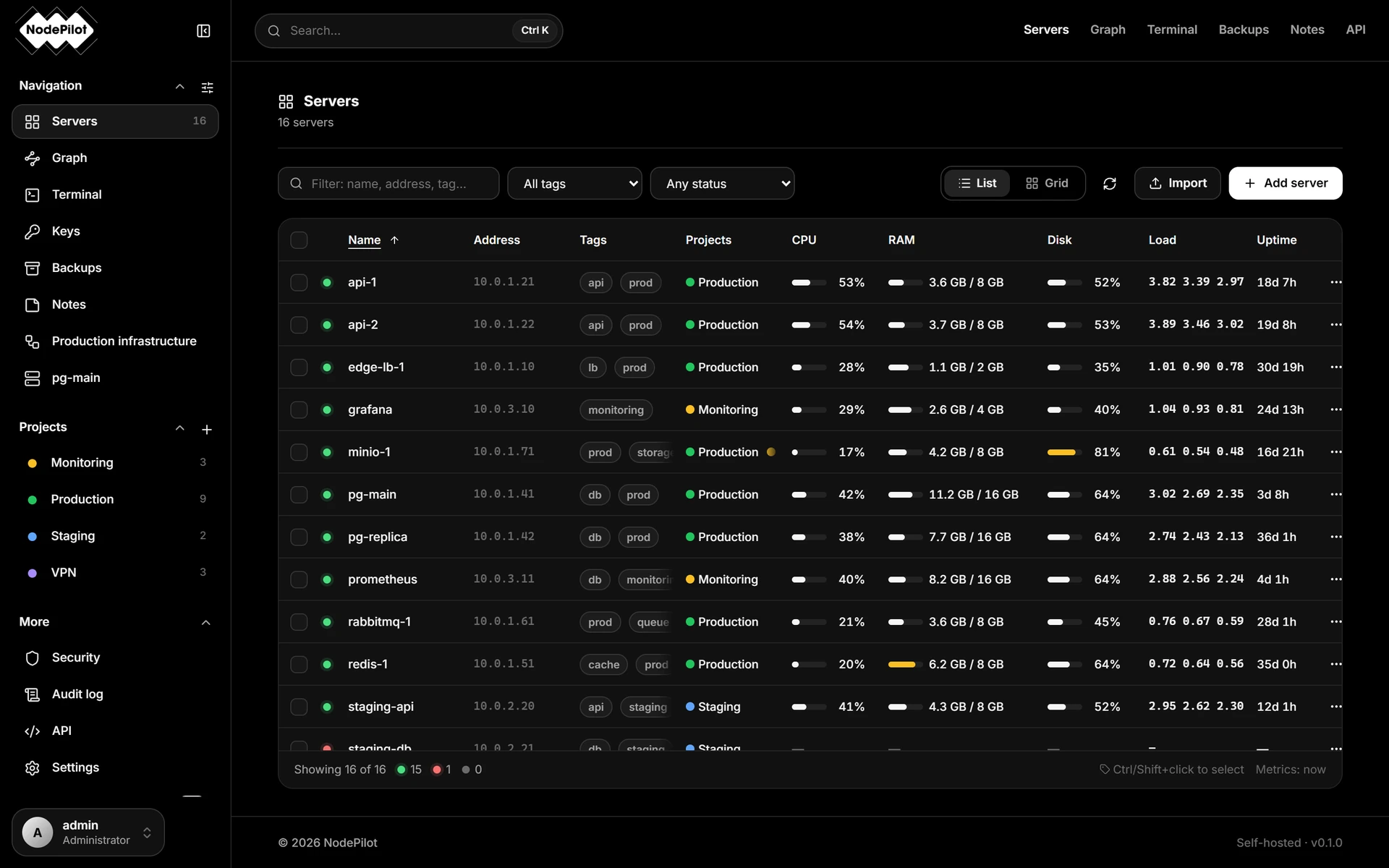
Switch with List / Grid at the top of the server list. Your choice is remembered in the browser.
| List | Grid | |
|---|---|---|
| Layout | Virtualized table, scrolls smoothly through thousands of rows | Cards, 24 per page with pagination |
| Shows | Status, name, address, tags, projects, CPU, RAM, disk, load, uptime | OS, status, name, address, CPU/RAM/disk meters |
| Sorting | Click a column header | By the list's current sort |
| Select | Checkbox, Ctrl+click a row, Shift+click a checkbox for a range | Checkbox or Ctrl+click a card |
| Favorites | (filter only) | Star on each card |
The disk column shows the largest mounted filesystem. Selecting servers opens a bar with Run command,
Add to project, Delete and Clear selection. Deleting more than five servers at once asks you to type
delete to confirm. Deleting a server removes it from the panel together with its notes and backup jobs. The
machine itself is not touched.
- Servers and monitoring: the server page, stats, files, services, reboot.
- Multi-exec and terminals: run commands on many servers, use the web terminal.
- Graphs: draw how your servers depend on each other.
- Backups: back up files and databases.
- Security: 2FA, the panel SSH key, the audit log.