Repository navigation
Interface
This page describes the panel's interface: languages, light and dark themes, the sidebar and its customizable Navigation section, the layout on phones, and every keyboard shortcut. All settings on this page are stored in your browser, so each browser (and each user on it) keeps its own.
The interface is available in 7 languages: English, Русский (Russian), Deutsch (German), Français (French), 中文 (Chinese), 日本語 (Japanese) and العربية (Arabic).
On the first visit the panel picks the first of your browser's preferred languages that it supports, and falls back to English. To switch:
- open the user menu at the bottom of the sidebar → Language, then pick a language; or
- go to Settings → Interface language; or
- use the language selector in the corner of the sign-in screen.
Arabic switches the whole layout to right-to-left. Code, terminal output, the file editor, the graph canvas and the charts stay left-to-right, and numbers use Latin digits so IP addresses, ports and percentages stay readable.
The panel has a dark theme (the default) and a light theme. To switch:
- the Dark mode switch in the More section of the sidebar;
- the user menu → Light theme / Dark theme;
- Settings → Interface → Theme: Dark or Light;
- the sun/moon button on the sign-in screen.
The web terminal, the file editor and the graph canvas follow the theme.
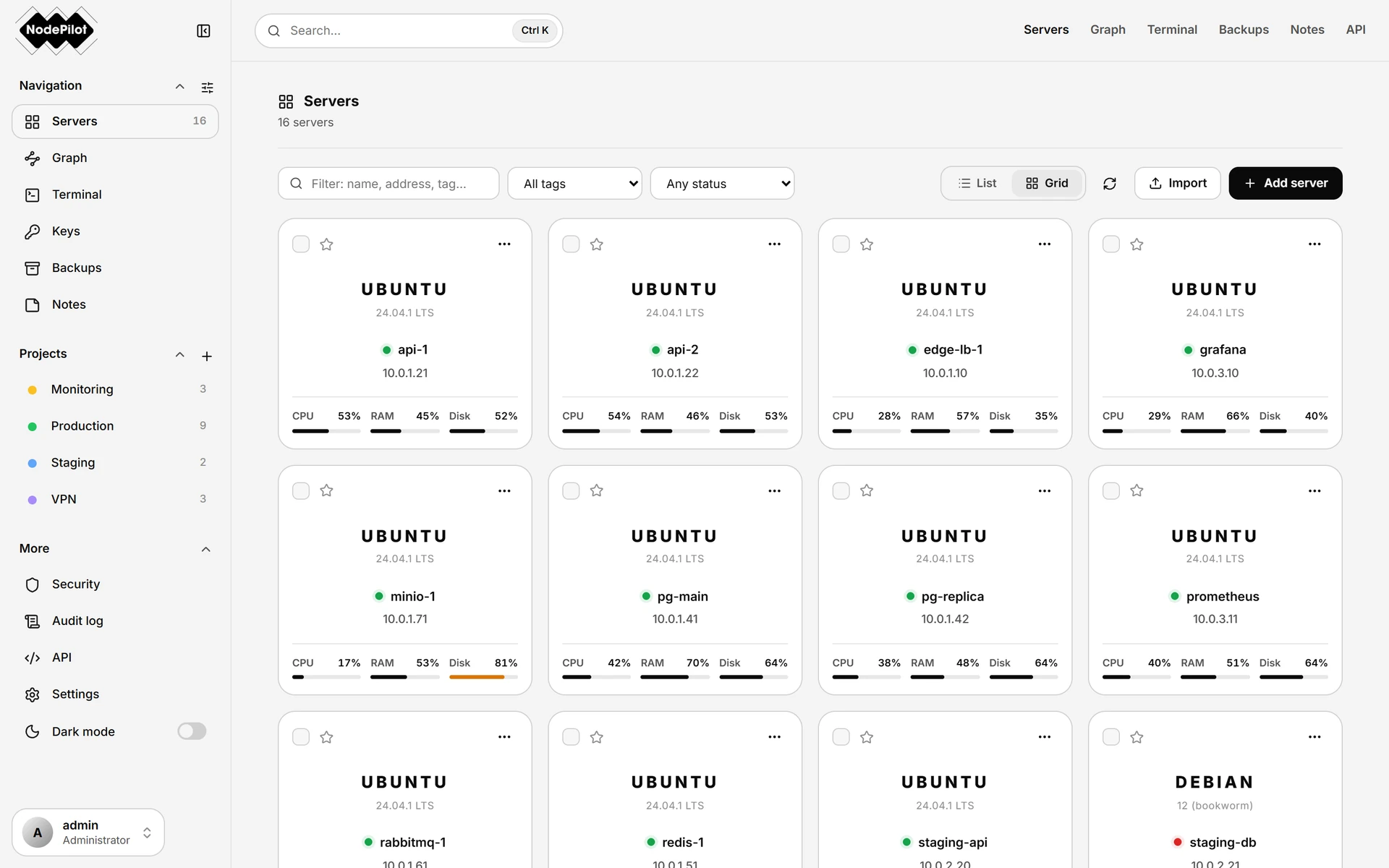
From top to bottom:
| Part | Contents |
|---|---|
| Logo and collapse button | Collapse menu / Expand menu. |
| Navigation | The main pages and anything you pinned. Customizable (see below). |
| Projects | Your projects in alphabetical order, with server counts. + creates a project. Hover a project for edit and delete buttons. |
| More | Security, Audit log, API, Settings and the Dark mode switch. |
| User menu | Settings, Language, Light theme / Dark theme, Sign out. |
Click a section title to fold or unfold that section. The top bar has the global search box and quick links to Servers, Graph, Terminal, Backups, Notes and API.
Click the button next to the logo (Collapse menu). The sidebar shrinks to icons only. Hover an icon to see its name. Projects appear as colored dots. Click the button again (Expand menu) to restore it. The choice is remembered in your browser.
Customizing the Navigation section is only possible with the sidebar expanded.
By default Navigation holds six pages: Servers, Graph, Terminal (the multi-exec page), Keys, Backups and Notes. You can reorder them, hide the ones you don't use, and pin individual servers, graphs and notes.
- Click the sliders icon next to the Navigation title (Customize navigation). The section switches to edit mode and shows "Drag to reorder, or Alt+↑/↓".
- Make your changes:
| To… | Do this |
|---|---|
| Reorder | Drag a row by its handle. Or focus a row (Tab) and press Alt+↑ / Alt+↓. |
| Hide or show an item | Click the eye button on its row. |
| Pin a server, graph or note | Click Add. In Add to navigation, choose the Servers, Graphs or Notes tab, search, and click Add on each item. Click again to unpin. |
| Remove a pinned item | Click the × on its row. Built-in pages can only be hidden, not removed. |
| Start over | Click the reset button (Reset: "Restore the default items and order"). This also removes all pins. |
- Click Done.
How it behaves:
- Hidden items disappear from the section. A Show all row appears at the bottom with the number of hidden items. Click it to show them for now, and Show less to fold them again. A hidden page still appears while you are on it.
-
Pinned items link straight to the server page, the graph, or the note (
/notes?note=<id>). While you are on a pinned item, it is highlighted instead of its section page. - If a pinned server, graph or note is deleted, it disappears from the section. In edit mode it shows as Deleted, so you can remove it.
These settings are stored per browser: another browser or another computer starts with the default navigation.
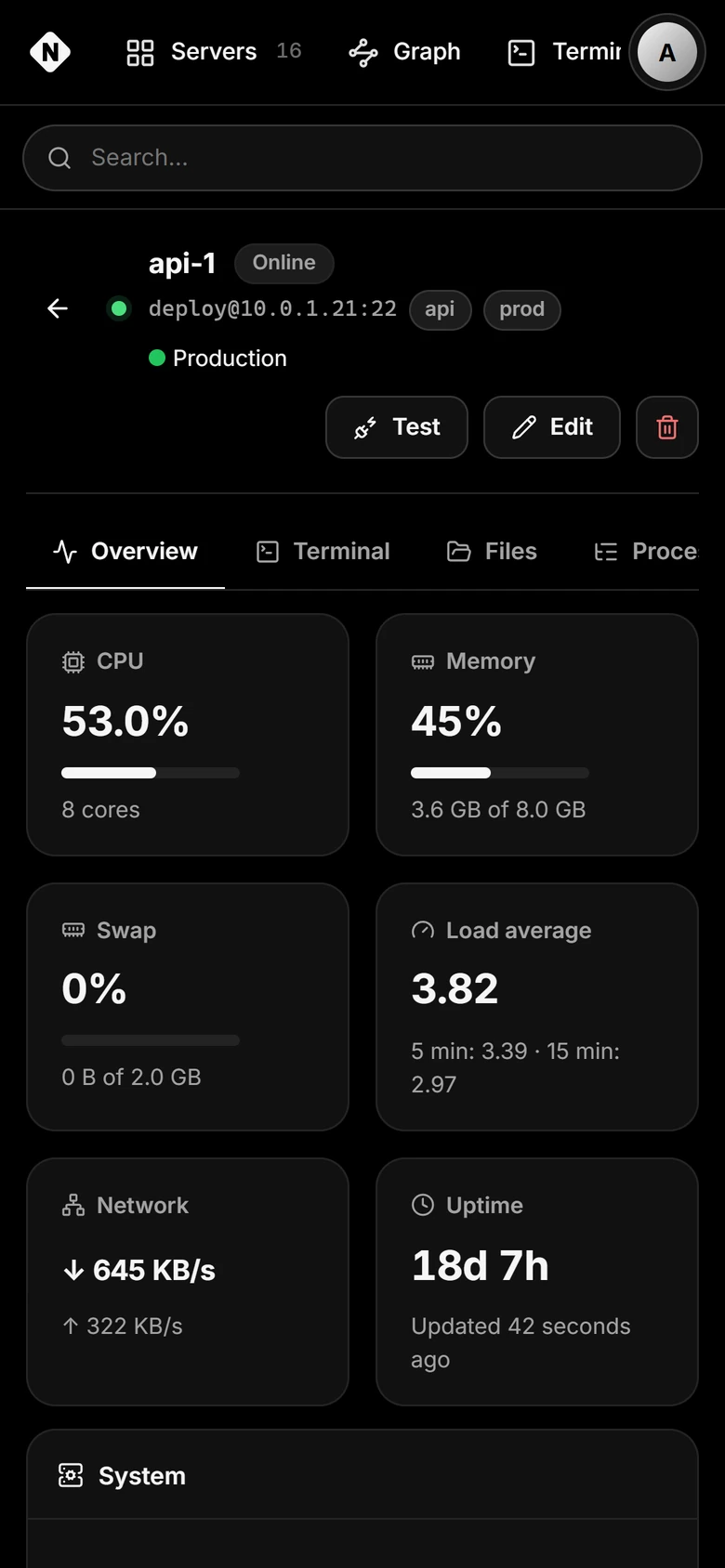
When the window is narrower than 806 px (most phones), the layout changes:
- The sidebar becomes a bar at the top of the screen. All items from Navigation, Projects and More sit in one row that scrolls sideways (swipe, or use the mouse wheel). The current page's item is scrolled into view.
- Section titles are hidden, so you can't customize the navigation or use the + project button there. Do that on a wider screen. Your desktop customization still applies.
- The user menu is the round avatar at the end of the bar.
- The search box takes the full width of the top bar, and the top-bar quick links are hidden.
- Page headers wrap their buttons onto a new line.
On macOS, use Cmd wherever the table says Ctrl.
Anywhere
| Keys | Action |
|---|---|
| Ctrl+K, or / (when not typing in a field) | Focus the global server search. |
| ↑ / ↓, Enter | In search results: move the highlight, open the server. Enter with no match opens the server list filtered by your text. |
| Esc | Close the search results, a dialog or a menu. |
| Enter | Confirm in a "type … to confirm" dialog. |
Server list
| Keys | Action |
|---|---|
| Ctrl+click a row or card | Add it to the selection or remove it. |
| Shift+click a checkbox | Select or clear the range from the last clicked row (list view). |
Editors and forms
| Keys | Where | Action |
|---|---|---|
| Ctrl+Enter | Multi-exec command box | Run the command. |
| Ctrl+S | Note editor | Save the note. |
| Ctrl+S | File editor | Save the file. |
| Enter or comma | Tag fields | Add the tag. |
| Backspace | Empty tag field | Remove the last tag. |
| Enter / Esc | File manager path field | Go to the typed path / cancel. |
Graph editor (see Graphs)
| Keys | Action |
|---|---|
| Shift+click | Add to the selection. |
| Ctrl+A | Select all nodes. |
| Ctrl+C / Ctrl+X / Ctrl+V | Copy, cut, paste (also between graphs). |
| Delete or Backspace | Delete the selection. |
| Esc | Finish editing a canvas note. |
Sidebar
| Keys | Action |
|---|---|
| Alt+↑ / Alt+↓ | Move the focused item while customizing Navigation. |