Repository navigation
Notes
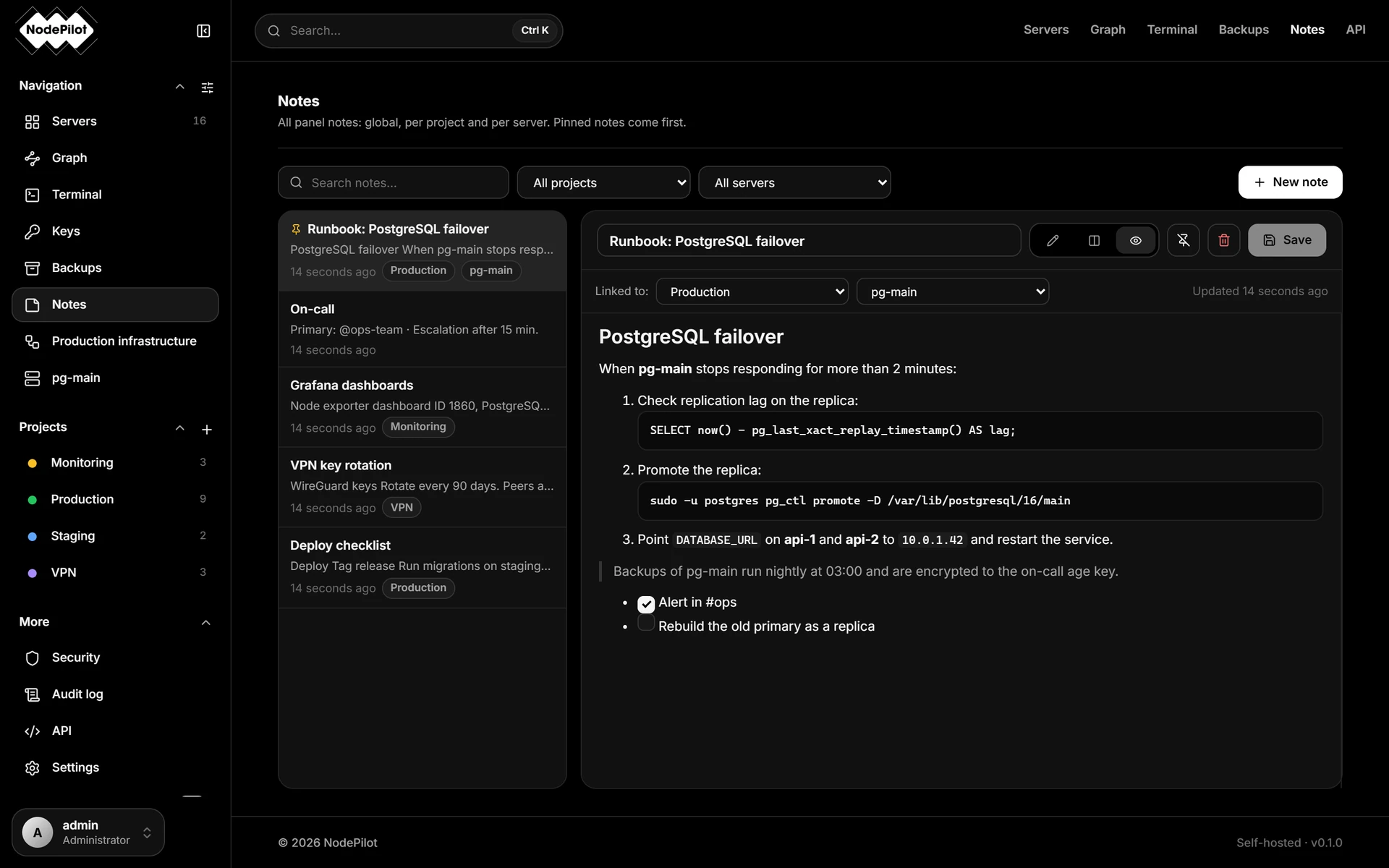
NodePilot has built-in Markdown notes for runbooks, instructions and anything else you want to keep next to your servers. A note can be global, belong to a project, belong to a server, or both. This page covers where notes live, editing and preview modes, pinning, and links to a note.
| Where you open it | What it shows | New notes are… |
|---|---|---|
| Notes in the sidebar | All notes in the panel. Filter by project (All projects) and by server (All servers). | Linked to the project and server picked in the filters, or global if none. |
| A project page, Notes tab | Notes linked to that project. | Linked to the project. |
| A server page, Notes tab | Notes linked to that server. | Linked to the server. |
On the Notes page, each note in the list shows the project and server it belongs to. The editor there has a Linked to: row with a project dropdown and a server dropdown, so you can move a note, attach it to both a project and a server, or make it global (No project, No server).
Notes are deleted together with the project or server they are linked to. A note linked to both is deleted when either one is deleted.
- Click New note. A note titled "New note" is created and opened.
- Type a title in the Title field and write the body in Markdown.
- Click Save or press Ctrl+S (Cmd+S on macOS). Notes are not saved automatically: the Save button is active only when there are unsaved changes.
Other actions in the editor header:
- Pin / Unpin: pinned notes always come first in the list, marked with a pin icon.
- Delete (trash icon): deletes the note permanently after confirmation.
The list is sorted with pinned notes first, then by the last update. Search notes… matches titles and note text.
The body supports GitHub-flavored Markdown: headings, bold, code, fenced code blocks, lists, task lists,
tables and links. Links in the preview open in a new browser tab.
Three buttons next to the title switch the view:
| Button | Mode |
|---|---|
| Pencil | Edit: the Markdown source only. |
| Two columns | Split: source on the left, live preview on the right. |
| Eye | Preview: the rendered note only. |
A note with text opens in preview mode. An empty note opens in split mode. On narrow screens (under 900 px) the note list moves above the editor.
The Notes page keeps the open note in its address: /notes?note=<id>. Copy that URL to share a note with
another panel user or bookmark it. Opening the link selects the note and clears any filters that would hide it.
You can also pin a note to the sidebar: customize the Navigation section, click Add, and pick the note on the Notes tab. See Interface.
Notes are available through the REST API (/api/notes) and the MCP tools list_notes, get_note, create_note,
update_note and delete_note, so an agent can document what it changed. See API and
MCP and AI agents.