Repository navigation
Multi Exec and Terminals
This page covers the three ways to run commands through NodePilot: multi-exec (one command on many servers at once), the web terminal (an interactive shell in the browser), and persistent terminal sessions (shells that live on the panel and are driven over the API, mainly by AI agents).
All three use the server's existing SSH connection and run as the server's configured user.
Open Terminal in the sidebar (or in the top bar). Despite the name, this item opens the Multi-exec page: "Run one command on many servers in parallel over SSH."
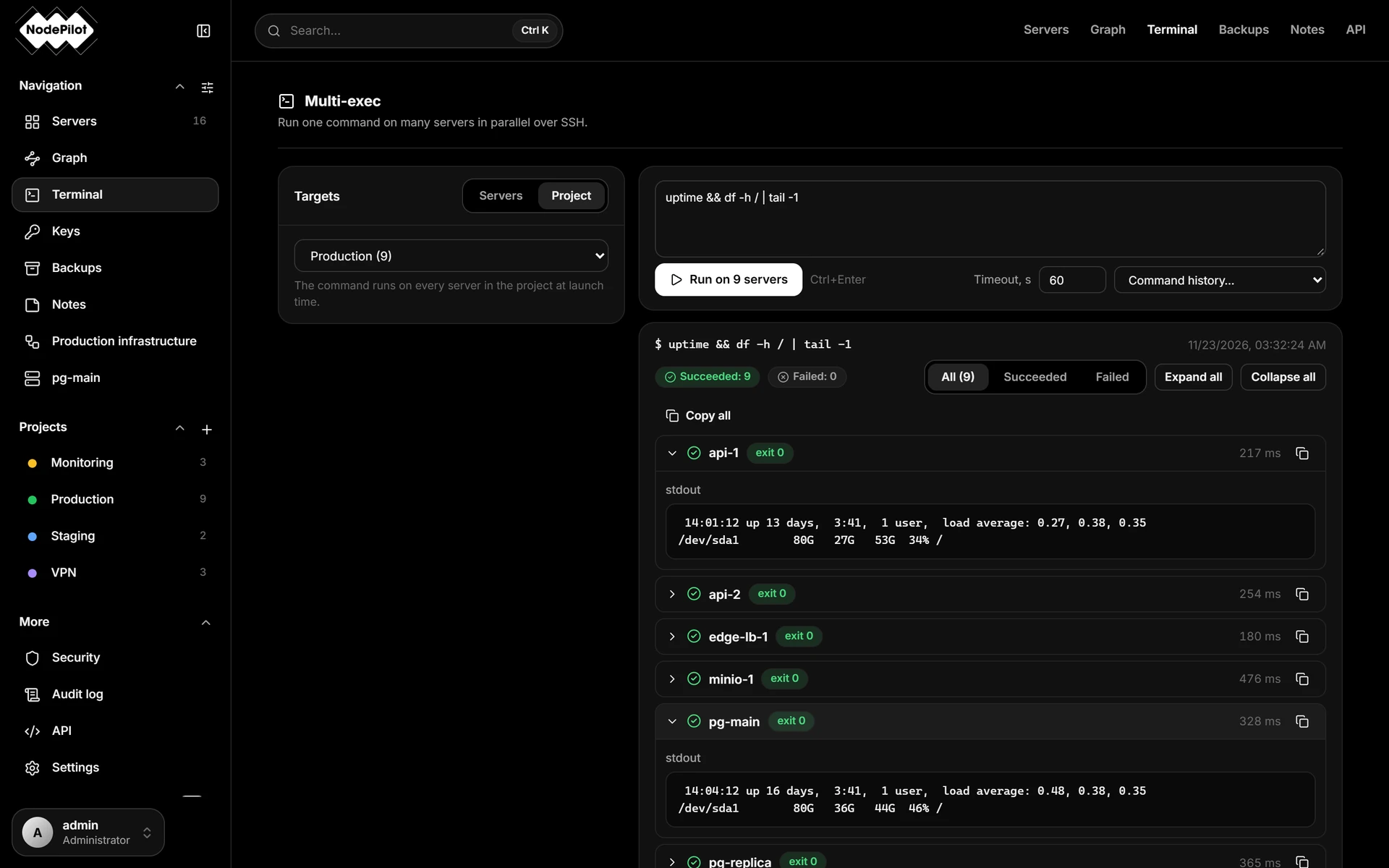
The Targets card has two modes:
| Mode | How it works |
|---|---|
| Servers | Tick servers in the list. Narrow it with Search servers (name or address), the All tags dropdown and Online only. Select visible ticks everything the filters show, Clear unticks all. |
| Project | Pick a project. The command runs on every server that is in the project at launch time. |
You can also start from the server list: select servers, then click Run command in the selection bar. A dialog with the same command form opens for exactly those servers.
- Type the command, for example
uptime && df -h /. It runs through the server's shell, so pipes,&&and redirects work. - Optionally change Timeout, s (default 60). The timeout applies to each server separately. The panel caps it at one hour.
- Click Run on N servers, or press Ctrl+Enter in the command box.
The panel asks for confirmation when the command targets more than 20 servers, or when it looks destructive
(rm -rf, mkfs, dd if=, shutdown, reboot, poweroff, halt, init 0).
Up to 32 servers run the command at the same time. The results appear when every server has finished.
- Badges at the top count Succeeded and Failed. A run counts as succeeded only if the server was reached and the command exited with code 0.
- Filter with All, Succeeded or Failed. Failures are listed first, then servers by name.
- Each server row shows the exit code, the duration and, if the command could not run, the error (for example a connection timeout). Click a row to see stdout and stderr separately. With five results or fewer, all rows start expanded.
- Expand all, Collapse all and Copy all (copies every visible result with a header per server). Each row also has its own copy button and links to the server.
- Output is capped at 1 MiB per stream per server. Longer output is cut and marked output truncated.
- Results: the page keeps the last 10 runs, newest first, until you reload it. Older runs can be dismissed with Hide.
- Commands: the Command history… dropdown next to the timeout holds your last 30 distinct commands. Pick one to put it back in the command box. This history is stored in your browser only.
For automation, the same feature is available as POST /api/exec and the MCP tool bulk_exec. See API and
MCP and AI agents.
An interactive shell (PTY) in the browser, built on xterm.js and a WebSocket.
Open it from the server page (Terminal tab), or from the Terminal item in a server's row menu or card menu in the server list.
What you get:
- Several sessions per server. The + button (New session) opens another shell in a new tab. A dot on each tab shows its state. Closing a connected session asks Close session? first.
- Sessions survive tab switches. You can go to Files or Services and come back to the same shells. Leaving the server page closes them.
- Reconnect. If the shell exits or the connection drops, the terminal shows the reason and a Reconnect button. Reconnecting starts a new shell.
- Resizing follows the browser window automatically.
- 10,000 lines of scrollback. Colors follow the panel's light or dark theme.
Each terminal opening is recorded in the audit log (see Security).
A persistent session is a shell that lives on the panel, not in a browser tab. You open it, send input, and read output with plain HTTP requests or MCP tool calls. Between calls the shell keeps running, so:
- the working directory and environment carry over (
cd,export,source venv/bin/activatestay in effect); - interactive programs and prompts work (answer
y, enter a password, press Ctrl+C); - long-running commands keep going while you poll for output.
This makes them the right tool for AI agents doing multi-step work. A one-shot exec starts a fresh shell for every
command and can't answer prompts.
Persistent sessions are not shown in the web UI. Use them through the API or MCP.
| Aspect | Behavior |
|---|---|
| Terminal size | 160×48 by default, can be set when opening and resized later. |
| Output buffer | The last 1 MiB of output, addressed by absolute byte offsets. Each read returns next. Pass it as since on the next read to get only new output. If older output was dropped from the buffer, the response says truncated. |
| Sending input | Text is sent as typed. Control characters work too: \u0003 is Ctrl+C, \u0004 is Ctrl+D, \t is Tab. Set enter to press Enter after the text. |
| Waiting | A request can wait up to 30 seconds for output. It returns once output has been quiet for 0.3 seconds, or when the wait runs out. |
| ANSI codes | Optional strip_ansi removes colors and cursor sequences from the response. |
| Idle timeout | A session with no reads or writes for 30 minutes is closed. A session whose shell has exited is removed after 5 idle minutes. |
| Limit | 64 open sessions per panel. |
| Restarts | Sessions are kept in memory. Restarting the panel closes them. |
| Visibility | Listing sessions shows every open session on the panel, with the server and who opened it. |
| Permissions | Requires the exec area with write access on the token. |
| Tool | What it does |
|---|---|
terminal_open |
Opens a session on a server and returns it with the first output (the login banner and prompt). |
terminal_send |
Types into a session. Presses Enter by default and waits up to 2 seconds for output (ANSI stripped). |
terminal_read |
Reads output since an offset, for example while a long command runs. |
terminal_list |
Lists open sessions. |
terminal_close |
Closes a session. |
A typical agent loop: terminal_open → terminal_send "cd /srv/app" → terminal_send "git pull" →
terminal_read with since until the command finishes → terminal_close.
The REST endpoints are under /api/terminal-sessions. See API for the request and response formats, and
MCP and AI agents for connecting an agent.