Achievement List
So first off, what the achievement list actually is, looks like and how it can be used.
Of course the UI can be changed or even disabled if you'd prefer.
If you'd like to skip to the part where you can customize the List, you can go here.
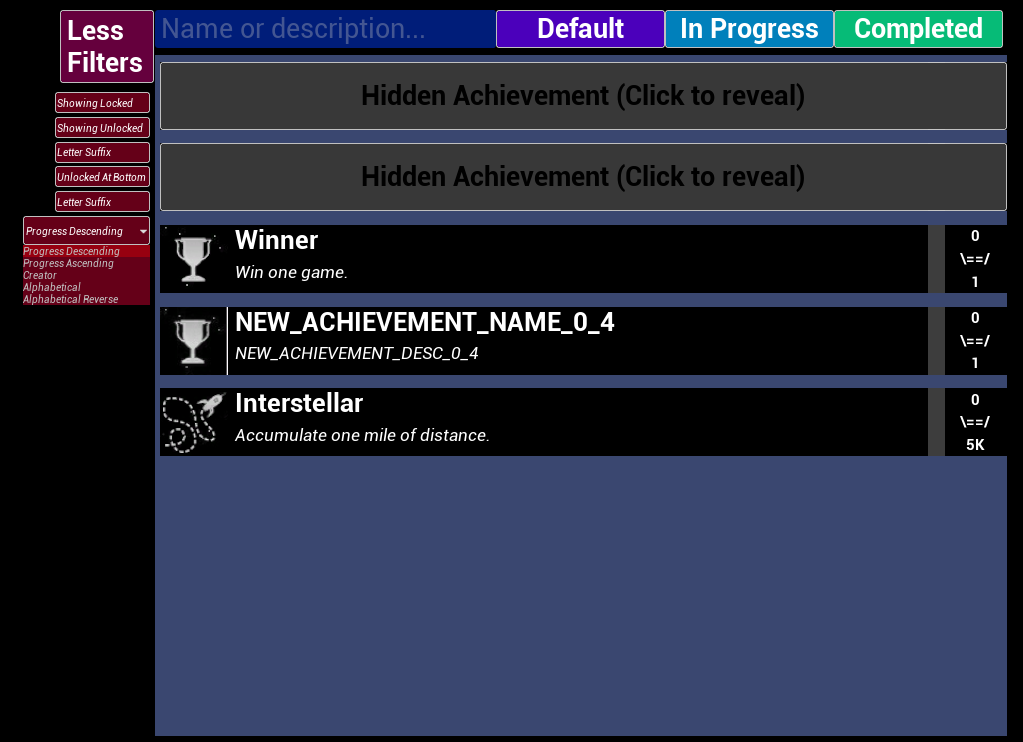
You can see that there is already quite a lot of filters in place. There's filters that allow you to show only completed or in progress achievements, as well as smaller filters that allow the user to sort the list just how they want it.
First we shall go over what options there are for you, the user, and then we shall go over what the UI actually does, as it'll be good to know what options there are before changing the UI itself.
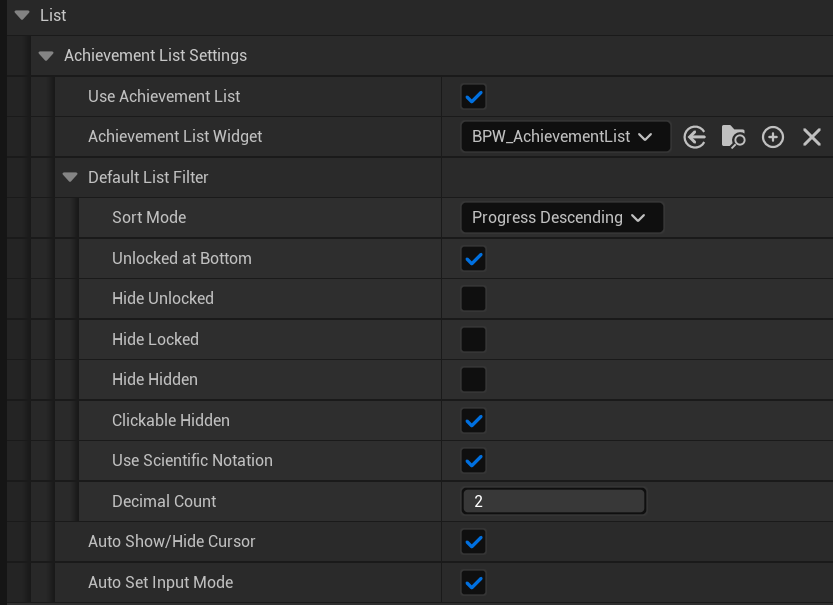
These are the settings the user will have access to. These can be found in the ProjectSettings/AchievementPlugin in the UI header.
First of all, you can disable the achievement list from being usable at all, self-explanatory.
Then you can choose the Achievement List widget to use, just like the Popups, you can make your own Widget. Most of this List Widget uses Blueprints so you can look at what I did and make your own version if you'd prefer. Of course you are free to modify the default one or make a copy, modify it and use that one instead.
Then the Default List Filter. As you saw before in the image showcasing the List, there are 3 big 'main' filter buttons, one of which being the Default. The filters used by this button (as well as the filters used when opening the list for the first time), will be the filters you set here. Below I shall go over what all the settings do (there are also tooltips in the Editor itself when hovering over the text).
Sort Mode: The sorting mode to use for sorting the achievements, with the options being:
- ProgressDescending = Sorts achievements based on Progress, with highest Progress at the top
- ProgressAscending = Sorts achievements based on Progress, with lowest Progress at the top
- Creator = This does not sort the achievements at all. It uses the exact same order as the user of the Plugin has for the achievements
- Alphabetical = Sorts achievements in alphabetical order
- AlphabeticalReverse = Sorts achievements in reverse alphabetical order
Unlocked at Bottom: This makes it so that all unlocked achievements get put at the bottom, regardless of where the Sort Mode would place it.
Hide Unlocked: Hides unlocked achievements.
Hide Locked: Hides locked achievements.
Hide Hidden: Hides hidden achievements.
Clickable Hidden: Whether hidden achievements can be clicked to be revealed.
Use Scientific Notation: Whether to use scientific notation for achievements with high progress values. By default it will turn something like 2400 into 2.4K, but using this option it will instead show 2.4e3 instead.
Decimal Count: How many decimals to use when showing high values. Something like 1234 will be turned into 1K with 0 decimals, 1.2K with 1 decimal and 1.23K with 2 decimals. Max decimals is 2. Auto Show/Hide Cursor: Whether the List should automatically show or hide the cursor when the List is shown/collapsed. Changing this during runtime will not have any effect as the check is done and cached during the Construct of the List. Auto Set Input Mode: Whether the List should automatically set the input mode to Game/UI with a focus on the List Widget when the List is shown and set the input mode back to Game when it is collapsed. Changing this during runtime will not have any effect as the check is done and cached during the Construct of the List.
Default: This will use the Default Filter Settings as described in the List Settings.
In Progress: This will modify the current filters to show Unlocked achievements and hide Locked achievements.
Completed: This will modify the current filters to hide Unlocked achievements and show Locked achievements.
More/Less Filters: This will show/hide the smaller filter buttons and combo box below it.
The smaller filter buttons: These are all explained in the List Settings.
The list can customized to your liking. It mainly uses Blueprint Nodes to control the UI's behavior, so you can take a look at it and see how it works so you can make your own.
If you simply want to change the color scheme and look of the List, you can always make a copy, modify that one to your liking, and then changing the Plugin's Settings to use your List instead of the default one, more information on that can be found in the List Settings.