Popup Customization
So you don't like how the default popups look or just simply want to create your own? Then this guide's for you!
First I will explain how the default popups work and how you can customize them to your liking and what you'll need to do in order to work with the plugin's code.
If you want to know just the parts you will need to do, you can control + f and look for REQUIRED, which I will put near any components or settings that you'll need to have.
There are quite a couple of settings to customize the popup and its behavior:
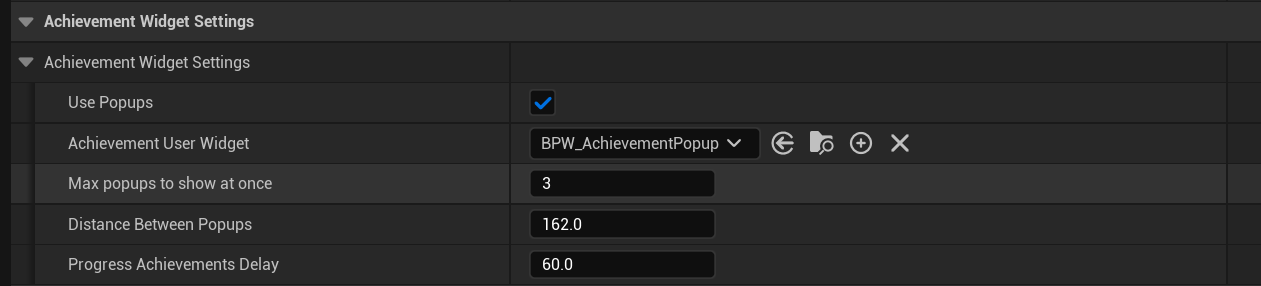
Let's go through them step by step:
- Use Popups : Whether or not to use popups at all. Disabling this will also disable custom popups
- Achievement User Widget : Which User widget to use for the achievement popup. By default this will use the default one that comes with the plugin, but you can create your own and set it here REQUIRED: You'll need to set this to your own User Widget for it to work
- Max popups to show at once : Self-explanatory. Shows up to x achievement popups at once
- Progress Achievements Delay : How many seconds before the same achievement progress can get another popup. For example, updating your position and then movement achievement every tick will by default only show the progress towards the achievement once every 60 seconds
So this is how the default popup is built:
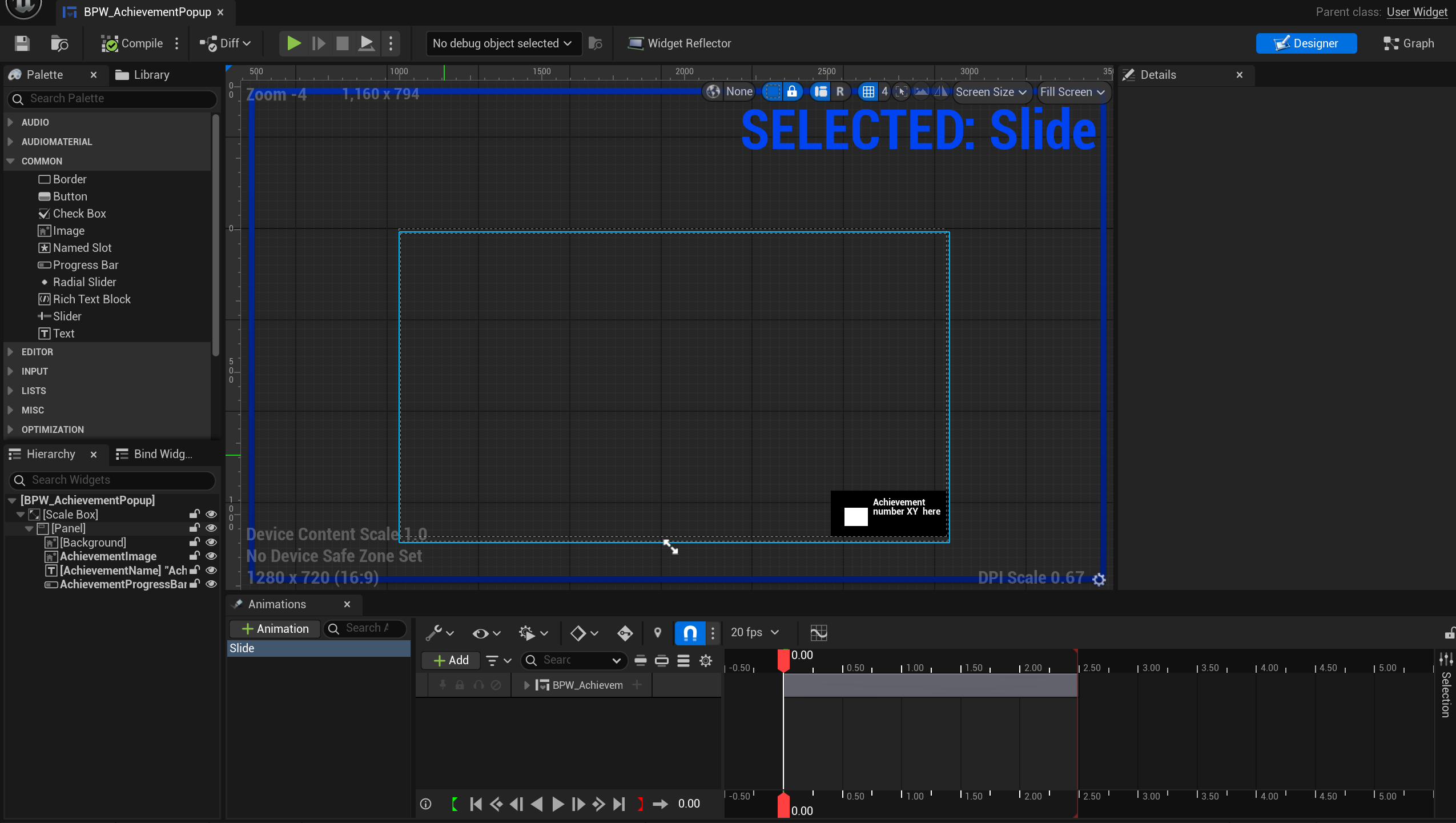
There's a lot going on here for anyone unexperienced so let's go through it bit by bit, I will also put the types behind the names so it is more clear as to what something is:
- Scale Box: This scales its child widget content to fit the available space while maintaining the original aspect ratio. This is useful for ensuring UI elements look proportional across different screen sizes and resolutions
- Panel : This just holds all the other children
- Background [Image] : This is just the black rectangle behind the text and image
- AchievementImage [Image] : This is the white box to the left of the text. I change this image to use the locked/unlocked texture for the achievement when the popup is created.
REQUIRED: You will need to have an image called exactly "AchievementImage", that will be used to display the texture of the locked/unlocked achievement, somewhere in your widget in order for it to work. You may skip this step but that will disable the use of locked/unlocked textures - AchievementName [Text] : The text, this is changed to use the Display Name from the achievement when the popup is created
REQUIRED: You will need to have a Text component called exactly "AchievementName", that will be used to display the Display Name of the achievement, somewhere in your widget in order for it to work. You may skip this step but that will disable the use of Display Names for achievements - AchievementProgressBar [Progress Bar] : This is a little hard to see normally, so there is an extra image below this (example is at 50% progress). This bar displays how far along the progress of an achievement is if it hasn't been unlocked yet but did make progress. This is calculated when the achievement makes progress and is set when the popup is created
REQUIRED: You will need to have a Progress Bar called exactly "AchievementProgressBar", that will be used to display the progress of the achievement, somewhere in your widget in order for it to work. You may skip this step but that will disable the use of showing progress for achievements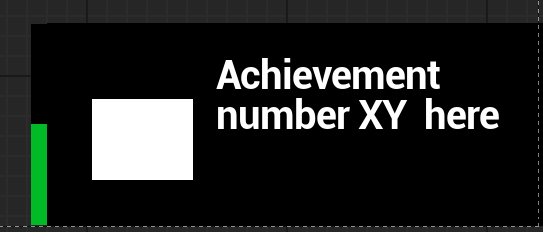
So I have an animation in my popup that plays on start and after it is done, it will remove itself from the list I have in my code which also destroys it.
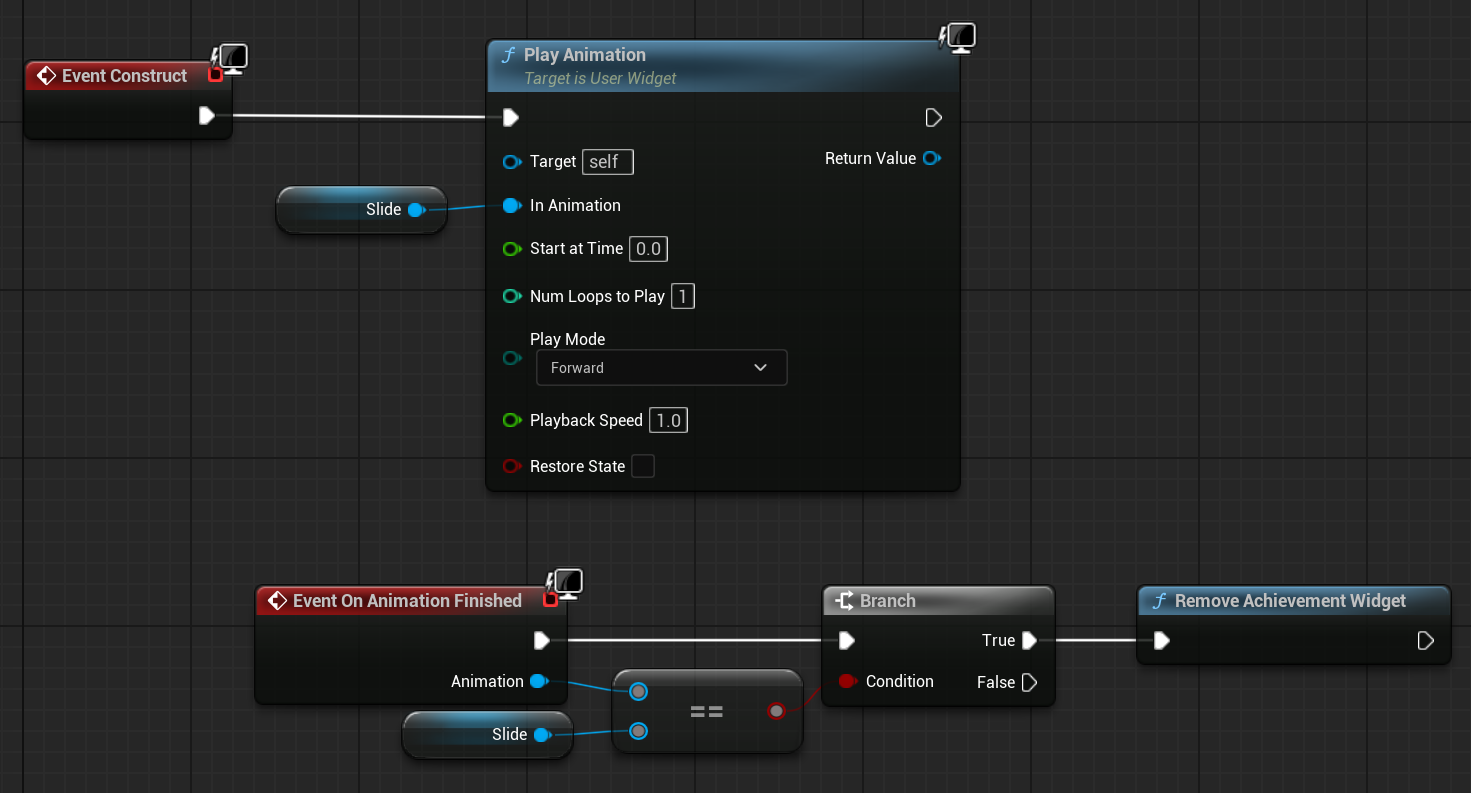 On construct I play the animation I want to play, then when it finishes, if it was the animation I wanted to use as the final one, I call "Remove Achievement Widget", which will remove it from my list as stated and delete itself.
The reason I use the branch is because if a user wants to add multiple animations, they understand how to check for the final animation before removing it from the list.
REQUIRED: You need to call the Node called "Remove Achievement Widget" from the plugin when the Widget should be deleted. Failing to do this will prevent future widgets from being created and thus will break the popups altogether.
The popup by default also has an animation. I will explain here how I made mine so you can make your own if you'd like.
Mine starts on the right, slides to the left and fades out after a bit. This is all done using Unreal's animation system so that anyone could make their own animations if they so choose to, here's how I mine works:
First, we want the transform's translation (position) to move from the right (outside of the screen) to the left, then wait for .5 seconds and then start fading over the course of a second.
As shown below, I have the variables I need (which you can add by pressing the big "Add" button, to the left of the eye) and, moving the slider (the red bookmarks) to 0 seconds and setting the values to what you want them to be, like I set my X to 1000.
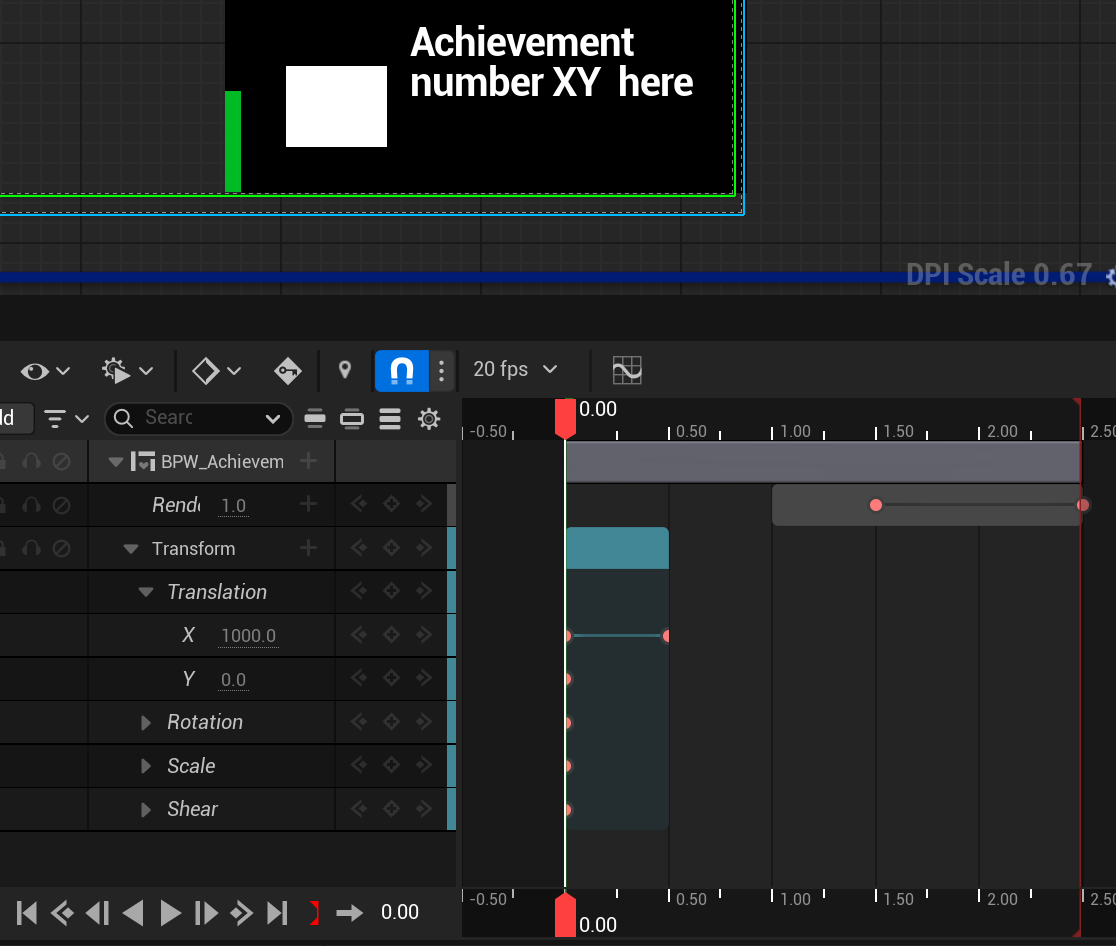
Then we want to move it to the left within .5 seconds, so we move the bookmark to .5 seconds, set x to 0 and that's it.
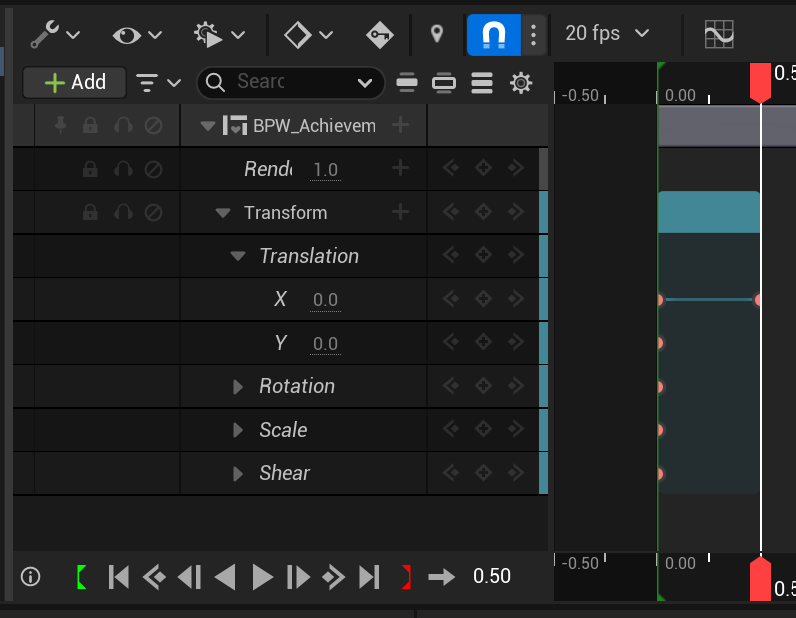
I did the same for the Render Opacity afterwards.
Now you can make your own animation, or perhaps multiple if you'd prefer.
That's all you need to know about creating your own custom popup!
The achievement's data is already filled in for you as long you as you have the proper components and as long as you remove the widget at the end, everything will work!
Have fun creating your own popups.