Basic Starting Guide
This is the starter guide that will explain what everything does and how to get started!
First you will need to set up some achievements.
Head to Edit->Project Settings -> Achievement Plugin (under Game)
Add an element to the AchievementsData map like this:
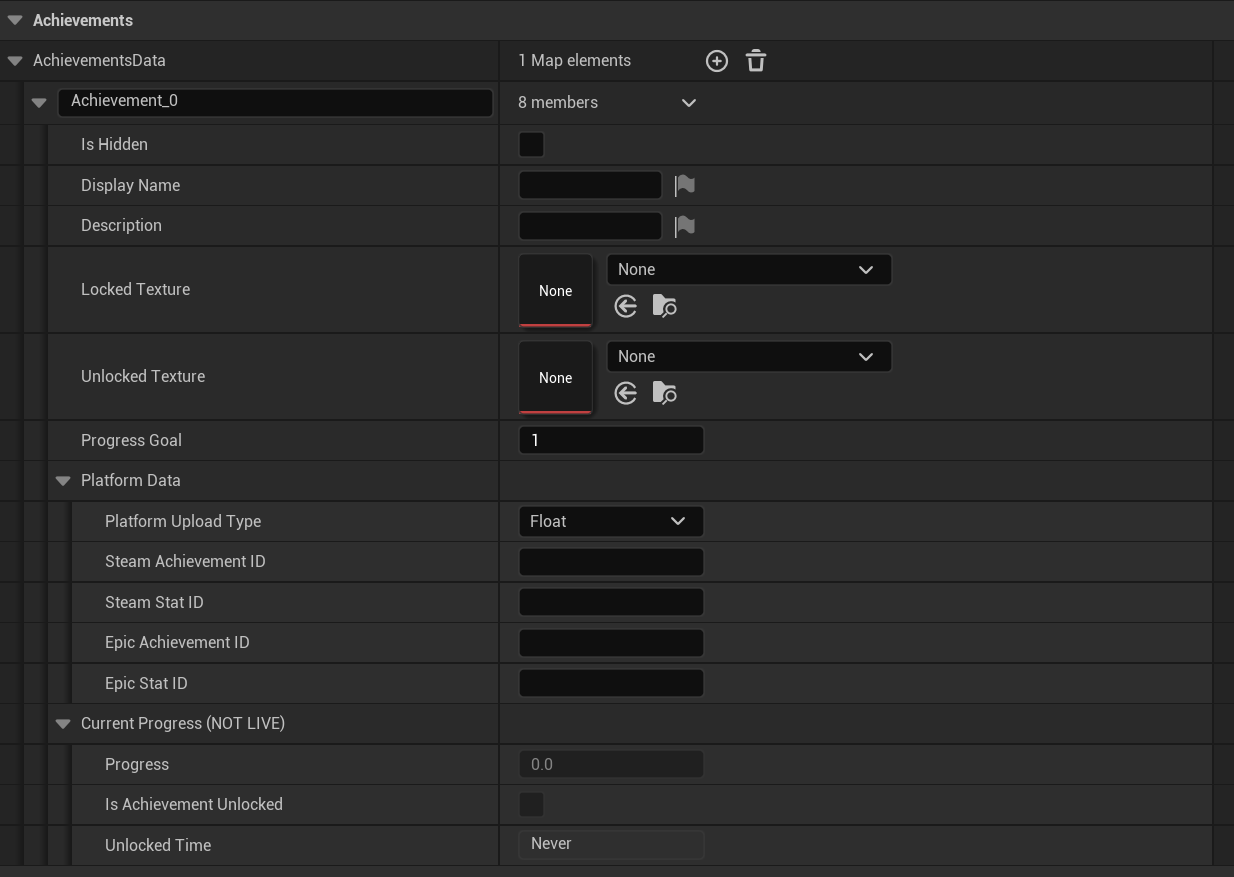
Now that we have this, let me explain what everything does:
- Key (the name in the top-left, by default Achievement_X) : Name of the achievement, you will use this in your blueprint nodes so make sure you can remember these!
- Is Hidden : Not used in the plugin by default. Could be used for a custom achievement list to hide an achievement (similar to how Steam hides achievements)
- Display Name : This name is used in the achievement popup for when the achievement makes progress or is unlocked
- Description : Same as hidden but for descriptions instead
- Locked Texture : The texture that will be displayed in the popup when an achievement makes progress but hasn't been unlocked yet
- Unlocked Texture : The texture that will be displayed in the popup when an achievement has been unlocked
- Progress Goal : How much progress needs to be made before the achievement is unlocked
Platform Data:
- Platform Upload Type (Float, Int32) : What the type of the Stat will be when uploaded. In Steam you need to select what type the stat is and this allows you to make sure the plugin also uses the correct type for your Stat
- Steam Achievement ID : Id you used in your Steam game's achievement
- Steam Stat ID : Id you used for your Steam Stat
- Epic Achievement ID : Same as Steam Achievement ID but for Epic instead
- Epic Stat ID : Same as Steam Stat ID but for Epic instead
Current Progress (NOT LIVE)
- Progress : What the current progress of the achievement is at
- Is Achievement Unlocked : Whether the achievement has been unlocked already (progress has met goal)
- Unlocked Time : When the achievement was unlocked (if at all)
Note: The current progress does not load in by default, you need to load it in manually by pressing a button called "Load/Update Runtime Stats", which will try to load in progress for all current achievements. This is just to show the data in case you're trying to debug it but it cannot be modified!
This plugin currently supports 2 external platforms, Steam and Epic Games.
Of course you can also just use Local Only if you don't want to use either of those.
At the bottom of the plugin's settings there will be a section called "Platform Settings":

So now that you have chosen a platform, if it wasn't Local Only, here are some explanations on how to set them up.
Note: Keep in mind that if Steam or EOS have been selected, the game will connect to Steam/Epic when you press play. If that gets in your way, I recommend leaving the connection part for setting up last (or setting it up and setting it to Local Only until you create your shipping build)!
So you want to use Steam achievements?
You will have the Steamworks SDK first, more information on how to do that can be found here: Installation
After you have done that, continue reading:
Well we will need the app Id in order to update the user's achievements/stats for that game specifically.
Your settings should look like this (with Steam App ID potentially starting at 0):

All you need to do is get your game's Steam App ID and fill it in there.
The plugin also automatically creates a .txt file with the Steam App ID that will allow you to connect to Steam in the editor so you're all set!
If you need help setting up your Steam Achievements, you might want to check out their official documentation here, you'll only need step 1 (as the plugin already takes care of the code parts).
So you want to use Epic Games achievements?
Well that will require a lot of specific data, but not to worry, all data you'll need to fill in is easy to find (once you have set up your game in the dev portal that is).
Your settings should look like this:
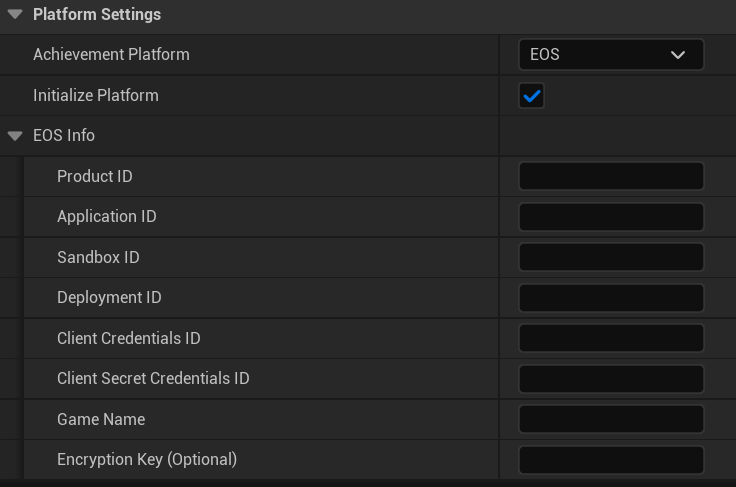
All of this data can be found in your Epic's dev portal at the bottom of your Product's page, in the "Product Settings". By pressing "Use Credentials in header file" it will generate a file with all the data you need to fill in here as well. The names are the same so it should be easy enough.
If you need help setting up your Epic Achievements, you might want to check out their official documentation here. Of course you will need to set up a product, sandbox and more but there are other tutorials and documentation pages that can help you with that.
So now that we have achievements (and possibly a platform) set up, it is time to update their progress! For this, we will use blueprint nodes.
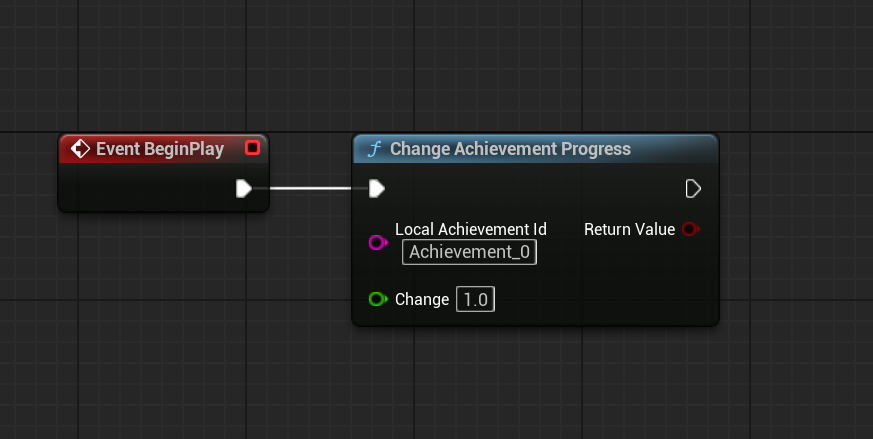
In order to update the progress on an achievement, we use the node called "Change Achievement Progress", where the "Local Achievement Id" will be the name of the achievement (this name is the same as they Key you used in the AchievementsData map from earlier!) and Change being the value to increase it by (you can also reduce it by making Change -1 or lower).
Now let's say you are quickly trying to test your achievements and want them to reset on play? Well easy, in your blueprint of choice you can simply call "Delete Single Achievement Progress" or "Delete All Achievement Progress":
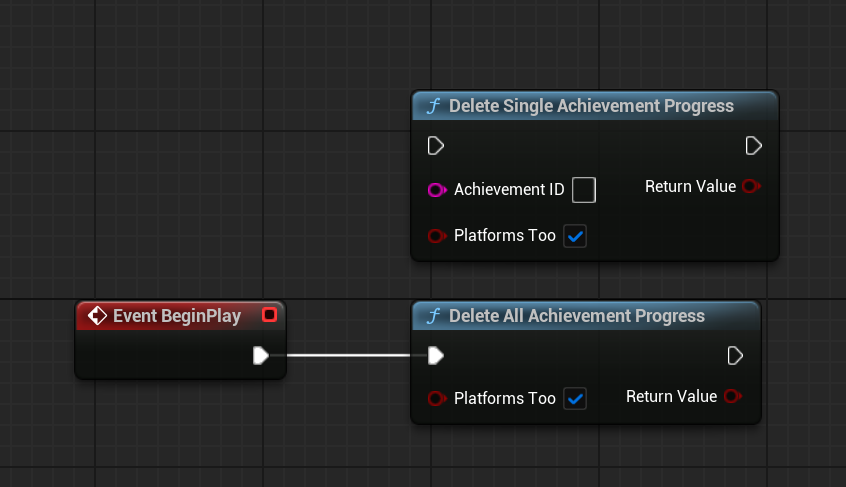
You can choose to delete all of your progress or just the progress for one achievement. You can also choose to not delete them on your chosen platform, Steam or Epic, which you might not want to constantly update. If Local Only platform is used then the boolean will have no effect so no need to worry about turning it off every time.
Note: Epic Games does not allow achievement progress to be deleted, so the "Platforms Too" boolean will only affect Steam.
By default, the plugin will save when the program closes, and load when it starts up. However, you might want to save and/or load these multiple times while the game is still running, and of course there's Nodes that can help you with that.
There are 2 nodes that will allow you to save the progress, "Save Achievement Progress" and "Save Achievement Progress Async". The difference is that Async will not block the game thread, while the sync (normal) version will.
For example, if you want to auto-save the game in the background but still allow the player to play the game smoothly as always, use Async. If you want to save before quitting, so the save has to be done right now before anything else happens, use sync (normal) instead.
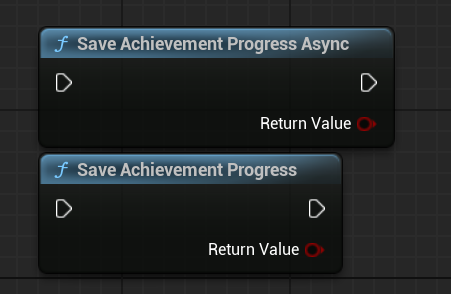
For loading, there is only a sync version:
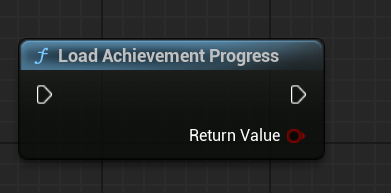
Loading will override any progress made if you didn't save beforehand, so be careful!
As a programmer, I understand that the popups might not be the prettiest and some people would rather not have them at all.
There are a couple of settings for the popups in the plugin's settings:
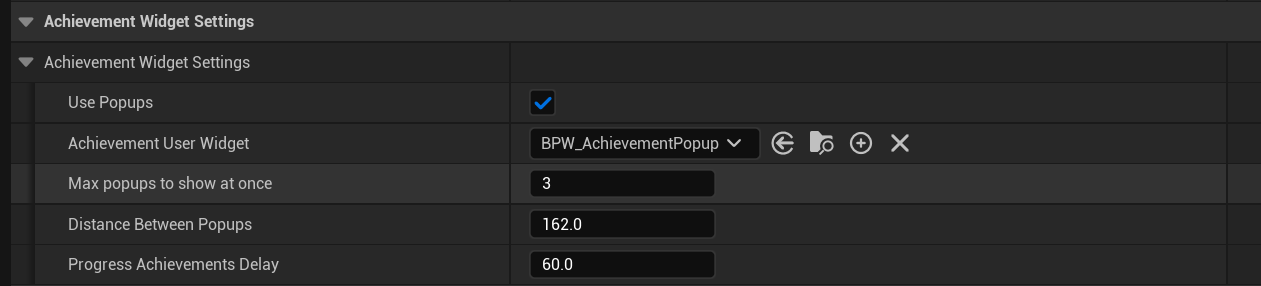
I will go more in-depth in its own page, but if you do not like them at all and just want them gone, just set the "Use Popups" to false (click on the box to remove the checkmark).
So now you have learned the following:
- How to create achievements
- How to use Steam or EOS as a platform for achievements
- How to update and remove achievement progress
- How to save and load your achievement progress manually
- How to disable the popups if they aren't desired
The plugin has quite a bit more, like more settings, customization and even allowing you to create your own popups!
This will be explained in their own page(s) but this guide should have been enough to get you started.
Have fun creating achievements and making your players experience that sweet sweet dopamine :D