Platform Initialization
So you want to initialize your platform manually without the plugin doing it for you? This guide will teach you how that works!
You can use this to either enable it yourself (which will only work with Steam) or to just disable the platform of choice while working on your project.
First the plugin should not be allowed to initialize it on their own. In the Plugin's Platform settings, there is a boolean called "Initialize Platform":

Now that that is done, the platform will not be initialized by the plugin.
It is also possible to disable (or re-enable) syncing achievements with platforms temporarily. The way you can do this is by using the following Blueprint Node "Achievement Platform Initialized":
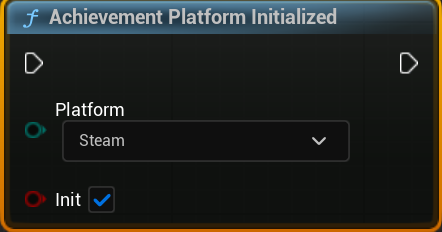
This node can make the plugin believe the selected platform is "uninitialized", which will prevent achievements from being synced.
Setting the boolean to false will make it no longer count as "initialized" and of course this can be reversed by calling the Node again but setting the boolean to true instead.
Note: This part only works for Steam as it only requires the appId, while EOS requires much more data to be set up beforehand!
Let's say you want to still use Steam Achievements, but don't want to initialize the SDK yet, you've already disabled this plugin from initializing the platform, but the plugin still needs to know that you have initialized it already.
Luckily, there is a Blueprint Node that can do that for you and you just saw it already. The node above "Achievement Platform Initialized" can also be used to enable the platform afterwards, simply call it with Init set to true.