Repository navigation
Game Settings and Profiles
Global defaults apply when no personal profile is active: tool start (optional), headset connect (optional), and after a game exits.
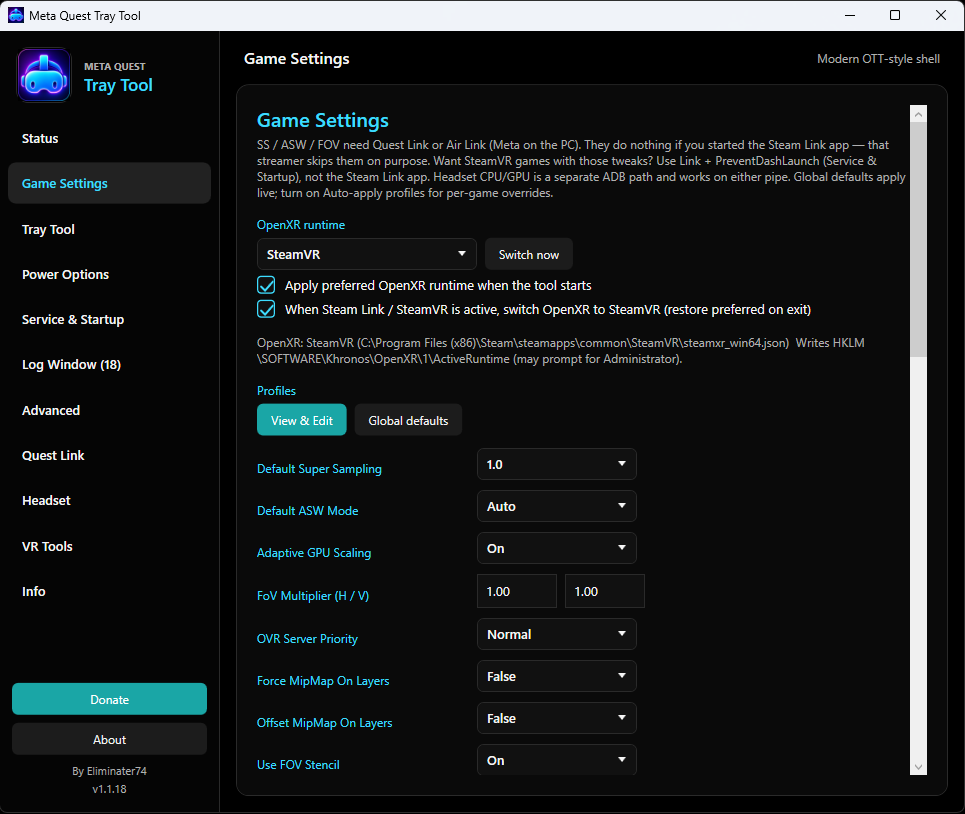
On Game Settings:
- Preferred runtime: Meta / Oculus or SteamVR
-
Switch now writes
HKLM\SOFTWARE\Khronos\OpenXR\1\ActiveRuntime(needs Administrator) - Apply preferred OpenXR when the tool starts
Per-profile OpenXR can override the global choice. Steam Link assist can force SteamVR OpenXR while Steam Link / SteamVR is the session, then restore your preferred runtime. See FAQ.
Applied through OculusDebugToolCLI.exe (and optionally the GUI from tray / Service & Startup).
| Setting | Typical use |
|---|---|
| Super Sampling | Pixel density (often needs a new VR session) |
| ASW | Off / Auto / 45 / 30 / 18 FPS clock |
| Adaptive GPU | On/Off |
| FoV multiplier H/V | Narrower FOV for GPU headroom |
| Visual HUD | Performance / compositor / ASW overlays |
| Mip flags | Force / offset mip on layers |
| OVR server priority | CPU priority for OVRServer |
Cycle Perf HUD from the tray or HotKeys. Newer Meta runtimes sometimes reject server: ASW CLI — check Log.
In v1.1.29, horizontal and vertical FOV values remain independent through save/reload and in the profile/global editors. Setting both to 1.00 sends an explicit reset to the full multiplier. Custom numeric values are preserved instead of falling back to the first preset. HUD choices use the observed Meta command mapping; Version is retained as a legacy mode whose display is not exposed in the audited ODT UI.
Quest Link Read live registry fills its controls without applying or saving them. Apply verifies registry values and reports mismatches; this does not prove that a running headset stream has adopted the overrides. See the control audit for evidence and limits.
While Steam Link / Virtual Desktop is the active streamer, Meta ODT + Link registry writes are skipped (those streamers own bitrate/SS). There is no way to send those without Quest Link / Air Link. ADB, OpenXR, power, and audio still apply. Full comparison: Quest-Link-vs-Steam-Link.
Want Steam games with SS / ASW / Link bitrate? Use Link + Dash-to-SteamVR — do not start the Steam Link app.
- Profiles → New or import from Steam / Meta library (cover art).
- Set the process name (e.g.
BeatSaber.exe) and overrides (SS, ASW, Link, OpenXR, custom CLI/ADB). - Optional Launch via
steam://run/{appId}. - When that process starts, the profile auto-applies (tray notification + optional headset announcement).
- When it exits, global defaults restore.
The launcher will not replace an already-active game profile. Close the active game first so its settings are restored before starting another profiled game.
Ignore list (Tray / Game Settings) stops Discord, browsers, vrserver, etc. from stealing the profile.
Save last-good (tray) writes the current SS/ASW/HUD into the active personal profile mid-session.
Built-in presets exist for several PCVR titles (MSFS 2024, Beat Saber, HL:Alyx, DCS, iRacing, …).
Edit the MSFS 2024 profile and enable Experimental MSFS 2024 VR launch. This is opt-in and off by default. When enabled, a launch:
- Prepares the configured PCVR path (Meta Horizon Link, or SteamVR over Meta Link when Dash → SteamVR is configured).
- Starts MSFS normally with the profile's launch arguments. If the arguments are blank, the tool uses
-FastLaunch. - Waits for the
FlightSimulator2024window, focuses it, and—if enabled—sends the configured toggle after the delay (defaultCtrl+Tabafter 45 seconds).
This is best-effort automation, not a native MSFS VR boot. It does not click verification dialogs or detect when a flight is ready, and MSFS may ignore the toggle while a menu is loading. Confirm the first run manually and adjust the delay or disable automatic toggle if needed. The tool records the simulator processes that existed before launch and only sends input to a newly appeared FlightSimulator2024 window that still belongs to that process. Steam launch arguments are passed through the Steam run URI; if Steam ignores them, put -FastLaunch in Steam's normal Launch Options.
Profiles file: %AppData%\MetaQuestTrayTool\profiles.json. Export/import everything from Advanced.
Optional list of process names (no .exe) such as RTSS, Afterburner, NZXT CAM. Closed when a PCVR session connects. Voice close overlays can force the same list even if auto-close is off. The tool first asks each process to close; after 1.5 seconds it may terminate that process itself, but does not kill its child process tree.
Never kills SteamVR, Oculus, Discord, or Explorer.
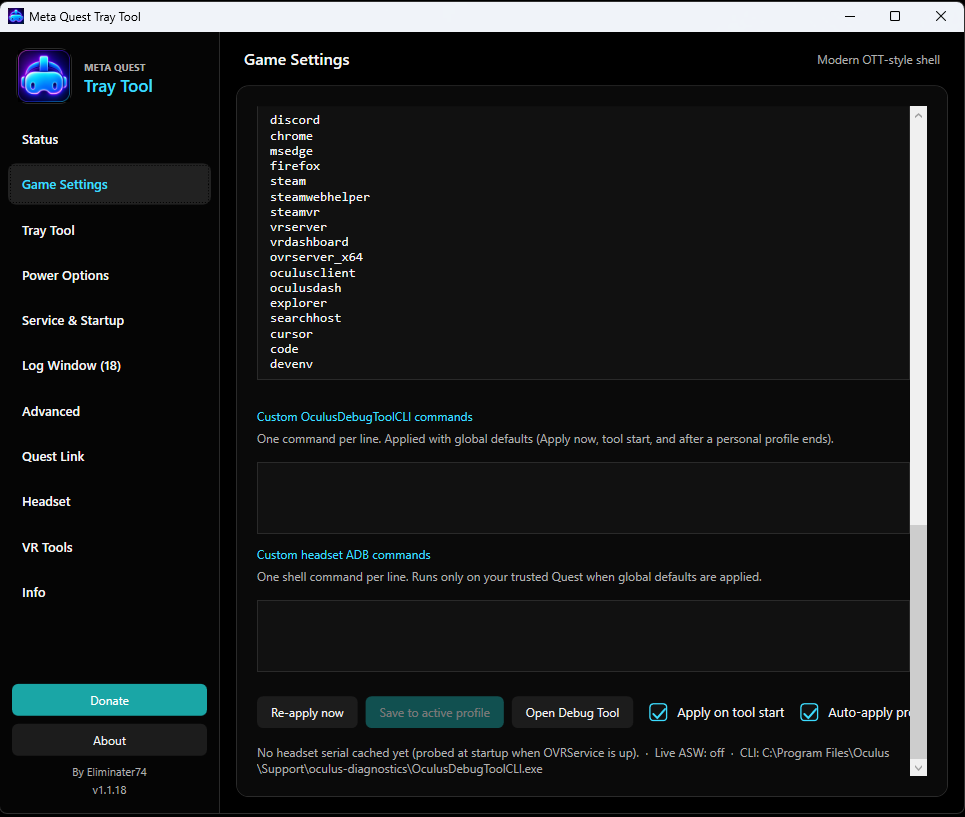
Extra OculusDebugToolCLI lines and adb shell lines on global defaults and on each profile.
Custom ADB lines run only on a classified VR headset, and—when Only run ADB commands on the trusted headset is enabled—only after that headset has been explicitly trusted.