Repository navigation
Headset ADB
SideQuest-style props via bundled Google platform-tools. Not the same as Air Link.
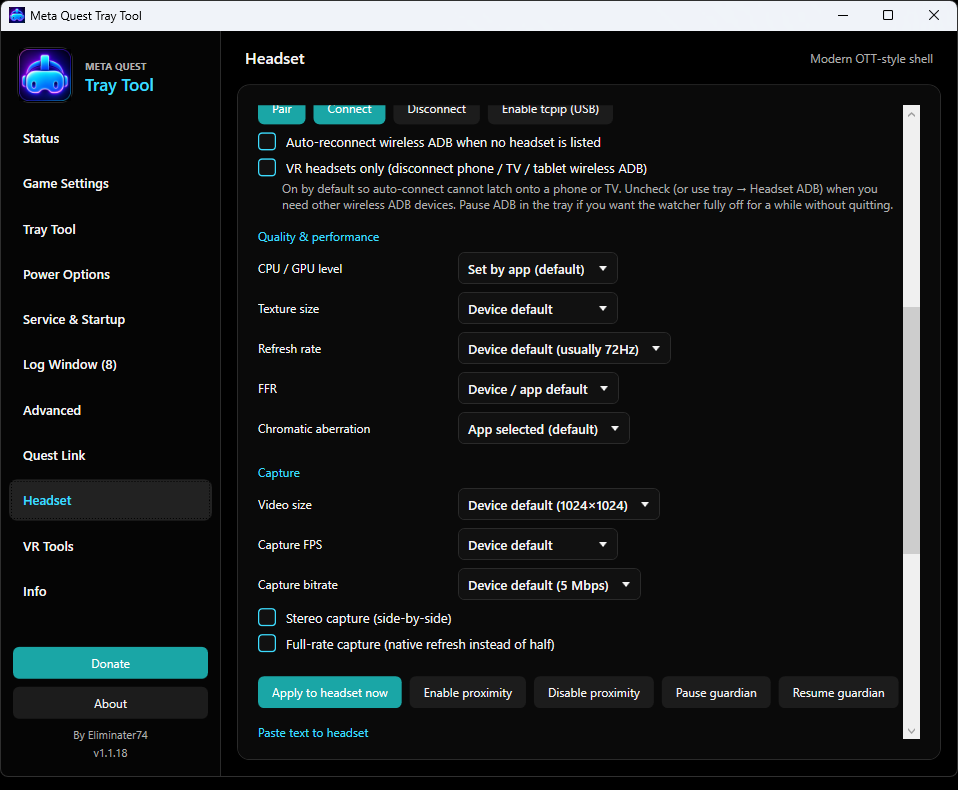
Current builds include trusted USB/wireless headset selection, independent CPU/GPU levels, headset-aware refresh choices, Dynamic FFR, recording start/stop/download, 10-second runtime logcat performance samples, guarded experimental rendering controls, and reset of documented live ADB defaults. v1.1.33 starts performance logcat at the headset's current timestamp without clearing history and waits for a newly stopped recording to stabilize before downloading. Physical headset validation remains open. Device/app-default options stop applying their override; they do not necessarily reset a property already active on the headset. Use Reset live ADB overrides where documented defaults exist, and reboot the headset for temporary overrides that do not have a proven safe clear. The legacy capture-eye option is experimental and does not promise a specific stereo layout across firmware versions.
- Enable Developer Mode on the Quest (Meta developer account).
- USB: plug in, allow debugging, set Always allow.
- Or Wireless debugging: Pair (pairing port + code), then Connect (IP:connect port).
-
Enable tcpip over USB once if you prefer
adb connectwithout pairing every time. - SideQuest on the headset can also open an ADB port while it is running — use the headset LAN IP and that port (often 5555) with Connect. No USB pair step required for that session.
- Optional auto-reconnect to the saved wireless endpoint (that host:port only — the tray does not scan the LAN for random ADB devices).
- VR headsets only is on by default: if a phone/tablet/TV shows up on wireless ADB (or you Connect the wrong IP), that session is dropped. Uncheck it (Headset page or tray → Headset (ADB)) if you want other gadgets to stay connected. USB phones are never disconnected. Quest tweaks still never run on non-headsets.
- Pause ADB (tray → Headset (ADB)): stop polling / reconnect / disconnect while you use another device — until you resume, or for 2 hours. The tray stays running; tooltip shows when ADB is paused.
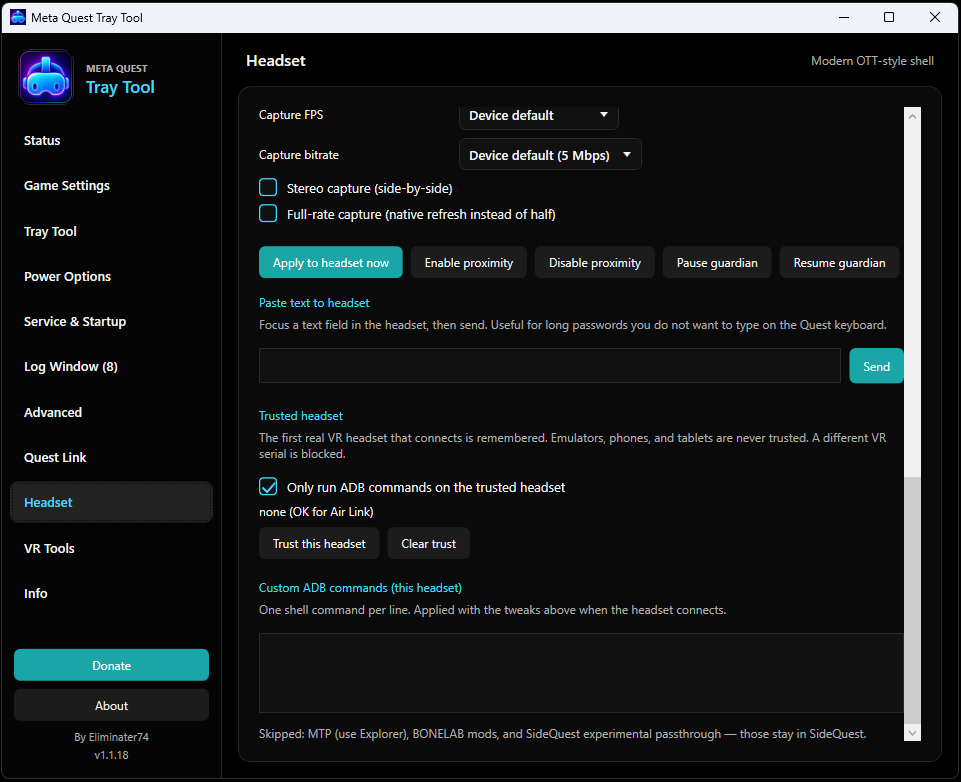
Only real VR headsets are trusted. Phones, tablets, and emulators never receive headset commands.
Independent CPU and GPU levels, texture size, model-aware refresh rate, Dynamic or Fixed FFR, chroma, capture size/FPS/bitrate, headset recording start/stop/download, 10-second runtime logcat performance samples, Quest Pro local dimming, subsampled foveation, live documented-default reset, paste-text / proximity / guardian helpers.
High Top FFR is labelled legacy/VrApi because OpenXR treats it as High. Capture FPS is labelled legacy/firmware-dependent until physical headset validation proves current firmware honors debug.oculus.capture.fps.
Stop & download latest recording snapshots known Quest recording folders before Stop, disables the recording property, then waits for a new or changed MP4/MOV whose size and timestamp stabilize before pulling it into %AppData%\MetaQuestTrayTool\captures\. The download is checked for a non-empty local file before reporting success.
If the headset does not finalize a recording before the timeout, the app reports that instead of downloading a stale or still-growing file. Stop the recording inside the headset, wait a moment, and retry.
Capture 10-second performance sample starts at the headset's current log timestamp and reads filtered VrApi / VrRuntime / OVRPlugin output for FPS, CPU/GPU levels, utilization, FFR/foveation, and SpaceWarp fields. It reports only fields that the active app/firmware actually emits. This is runtime log evidence, not proof from setprop read-back; physical Quest validation is still required before treating it as a release guarantee.
Normal CPU/GPU controls stay at App default and Levels 0–4. Higher conditional Meta levels are left for a later experimental flow because current Meta guidance ties them to headset model, dynamic resolution, tracking modes, thermal state, and runtime restrictions.
The ADB screenshot path saves the current headset view as a PNG:
- Tray → Screenshots → Take headset screenshot (ADB)
- Tray → Headset (ADB) → Take headset screenshot (ADB)
- Headset page → Take headset screenshot (ADB)
- Ctrl+Shift+Num 9
- Voice: “take headset screenshot”, “quest screenshot”, or “ADB screenshot”
Files save under %AppData%\MetaQuestTrayTool\screenshots\. The command uses the same real-VR/trusted-headset guard as other ADB actions, validates the PNG before reporting success, and queues “Screenshot taken.” through headset announcements when the Quest audio route is available.
The Take screenshot (Quest Link preferred) action on the tray Screenshots menu and Headset page first tries Quest Link / Air Link mirror capture when Meta Link is actively streaming, then falls back to this ADB path.
Apply when headset connects re-pushes props (Quest resets debug.oculus.* on reboot).
Battery, charge, and Wi‑Fi show on Status / Info via dumpsys when ADB is up.
| Wireless ADB | Air Link | |
|---|---|---|
| Purpose | Debug / props | PCVR video stream |
| Needs | Developer Mode + pair/connect, tcpip, or SideQuest on-headset ADB | Meta Horizon Link |
| Same Wi‑Fi | Yes | Yes |
You can use Air Link without ADB. ADB is only for headset tweaks (CPU/GPU, FFR, refresh, …).
Steam Link app: there is no Meta Debug Tool / Link-registry path. ADB is the only way this tray can tweak the Quest itself. SS / ASW / bitrate still belong in Steam’s UI. See Quest-Link-vs-Steam-Link.
If the SideQuest app is running on the Quest, it often exposes a wireless ADB listener. Enter the headset’s Wi‑Fi IP and the port SideQuest opened (commonly 5555) on the Headset page, click Connect, then enable Auto-reconnect if you want the tray to keep using that endpoint. This is separate from the SideQuest PC app; the tray already bundles its own adb.