Repository navigation
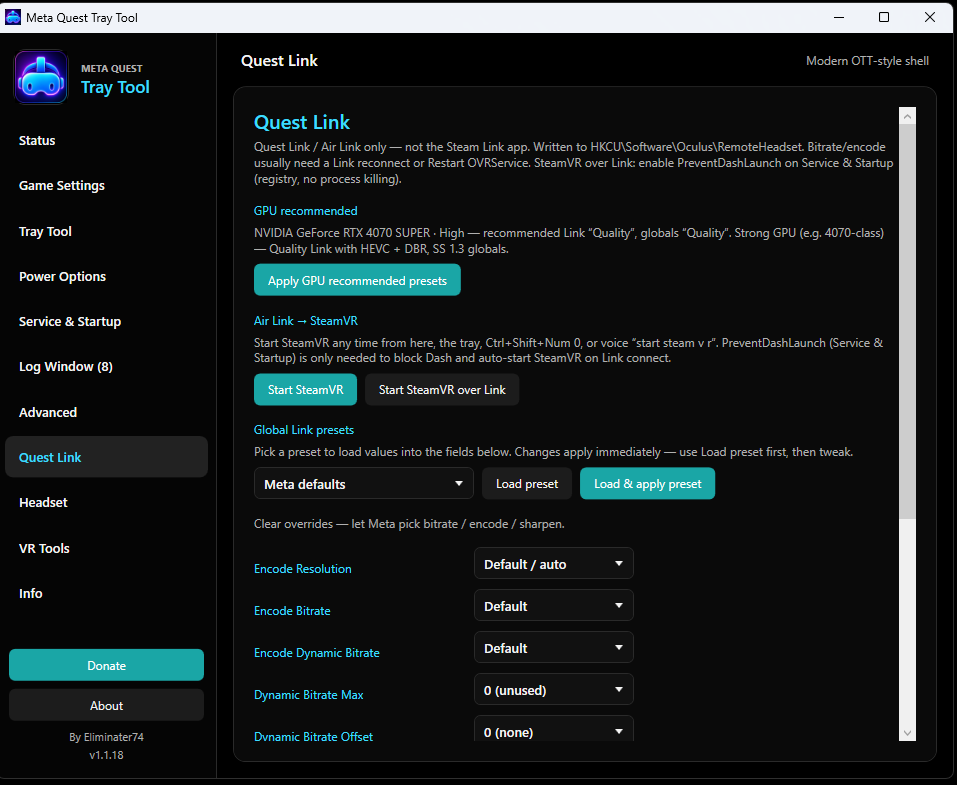
Quest Link
PCVR over Meta Horizon Link (wired USB or Air Link). These PC tweaks do not work if you launched the Steam Link app instead — see Quest-Link-vs-Steam-Link.
Settings are written to:
HKCU\Software\Oculus\RemoteHeadset
| Option | Notes |
|---|---|
| Bitrate (Mbps) |
0 / empty = no override (Meta default); presets include high values through 960 Mbps; startup preserves external high fixed-bitrate values when the saved baseline is still old-capped |
| Encode resolution width | e.g. 3664; 0 = no override |
| HEVC | Prefer H.265 for Air Link |
| Sliced encoding |
NumSlices — 1 often used to reduce wired artifacts |
| Link sharpening | Off / Normal / Quality |
| Distortion curve | Low / High / default |
| Dynamic bitrate (DBR) | On/off + max + offset; startup also preserves external high DBRMax values when the saved baseline is still old-capped |
| Mobile ASW | Headset-side ASW |
GPU-tier Apply recommended presets fills Link + global game settings from the detected GPU.
Apply usually needs a Link reconnect or Restart OVRService.
Current public release v1.1.34 protects old saved baselines during startup. If Oculus Debug Tool already has fixed bitrate or DBRMax above 500 Mbps and the tray still has an old 500 Mbps saved value, startup auto-apply keeps the higher ODT value instead of downgrading it. Each field is evaluated independently:
- high fixed bitrate only: fixed bitrate is preserved
- high DBRMax only: DBRMax is preserved
- both high: both are preserved
- explicitly saved high values in the tray remain authoritative
- 500/500 stays a no-op
This is registry and startup-merge protection. A running headset stream may still need reconnect or OVRService restart before Meta adopts the value.
Read live registry fills the Quest Link controls from RemoteHeadset without applying or saving those values back over themselves. Apply verifies the registry values it wrote and reports mismatches; that proves persistence, not active-headset adoption.
Saved presets remain editable even when Steam Link / SteamVR or Virtual Desktop is the active streamer. In those sessions, live Meta Link registry and ODT writes are skipped on purpose because the active streamer owns its own bitrate path.
Registry reference (value names from Meta’s Debug Tool binaries): see ODT-REGISTRY.md in the repo.
Use Quest Link → Take Quest Link mirror screenshot, tray → Screenshots → Take Quest Link mirror screenshot, or voice take link screenshot / quest link screenshot / mirror screenshot to capture the live Meta Link / Air Link mirror through Meta's OculusMirror.exe. This path requires an active Quest Link / Air Link stream and does not require ADB.
Use Take screenshot (auto), tray → Screenshots → Take screenshot (Quest Link preferred), Ctrl+Shift+Num 8, or voice take screenshot when you want Link mirror capture first and ADB fallback if Link is not streaming. Saved PNGs go to %AppData%\MetaQuestTrayTool\screenshots\, and headset announcements say “Screenshot taken.” after a successful save when audio can reach the Quest.
There is no RemoteHeadset key for “Air vs cable”. Meta stores transport in:
%LocalAppData%\Oculus\DeviceCache.json → headset isUsingAirLink
The tray Status / Info probe also uses USB vendor IDs, Link audio, rdConnectionState, SteamVR (vrserver), and Virtual Desktop processes.
Wi‑Fi auto-connect is not a Link session. When the headset is on the network, DeviceCache often shows connected without opening Link. Dash → SteamVR and session-end toasts ignore those ghosts (they require a live stream).
If Steam Link / SteamVR or Virtual Desktop is the live streamer, live Meta Link registry + ODT SS/ASW writes are gated. You can still edit and save Quest Link presets for the next Meta Link / Air Link session. Change bitrate in Steam / VD instead. Headset ADB still works if you want CPU/GPU/FFR.
Want those Link sliders and SteamVR games? Use Link + Dash-to-SteamVR, not the Steam Link app.