Repository navigation
GitHub for STEM
GitHub is a platform for storing, managing, and sharing code. You can use a personal GitHub account throughout your degree program to complete technical coursework, build a portfolio of projects, and demonstrate your technical skills to prospective employers.
Start at the setup step that best describes your situation:
-
I don't have a GitHub account. Create a new GitHub account.
-
I already have a GitHub account, but haven't set it for up for STEM coursework yet. Configure your GitHub account.
-
I already set up my GitHub account for STEM coursework. Verify your GitHub account.
Follow the directions below to create a new GitHub account. If you already have a free GitHub account, skip to Configure your GitHub account. GitHub Terms of Service allows only one free account per person.
Otherwise, follow the instructions below.
-
Go to https://github.com/signup.
-
Sign up for GitHub using one of the following methods:
- Continue with Google (recommended for all users with a Gmail account)
- Continue with Apple (recommended for macOS users without a Gmail account)
- Manually enter the requested information. Use a personal email address and a strong, unique password.
-
Enter a professional username that you are comfortable sharing publicly. Click Selecting a Professional GitHub Username for additional guidance. Note your GitHub username, you may need it later.
-
Review GitHub’s Terms of Service and Privacy Statement, if desired. An AI chatbot can help you understand these documents. Just provide it with the URLs.
-
Click the Create account button.
-
If you did not use a Continue with... option, check your email inbox or junk mail folder for a verification message from GitHub. Follow the instructions in the verification email to complete the sign-up process.
-
Sign in to GitHub, if prompted.
-
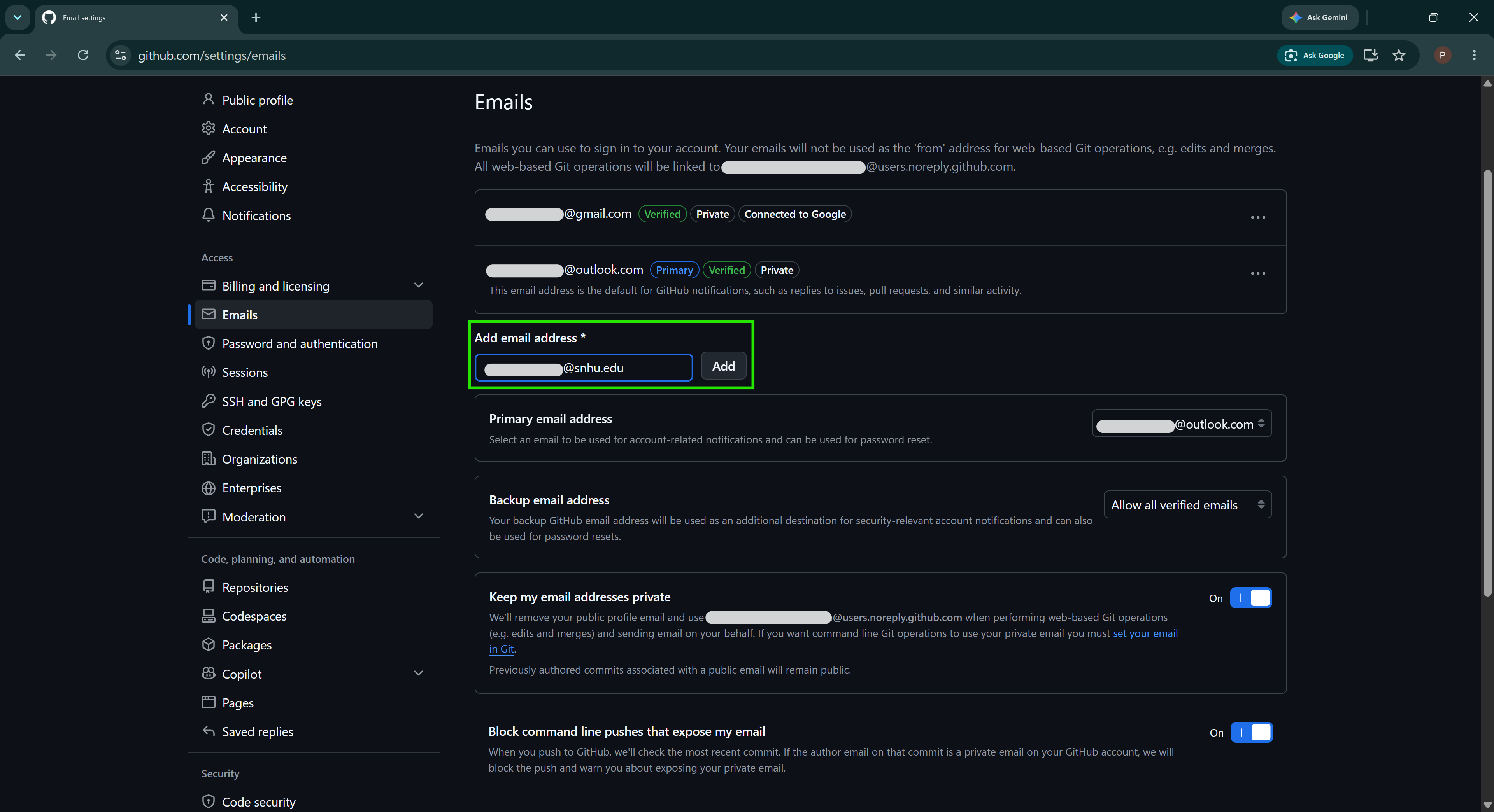
In the Add email address field, enter your
...@snhu.eduaddress and click Add.- Optional. Add other personal email addresses as backups, if desired.
-
Check your email inbox for a verification message from GitHub.
- If you do not see a message for each email address added, check your Junk or Spam folder.
- Click the Verify email address button in the message to confirm that you own the email address, or copy and paste the URL into your browser.
- Repeat this step for each email address you added to your GitHub account.
-
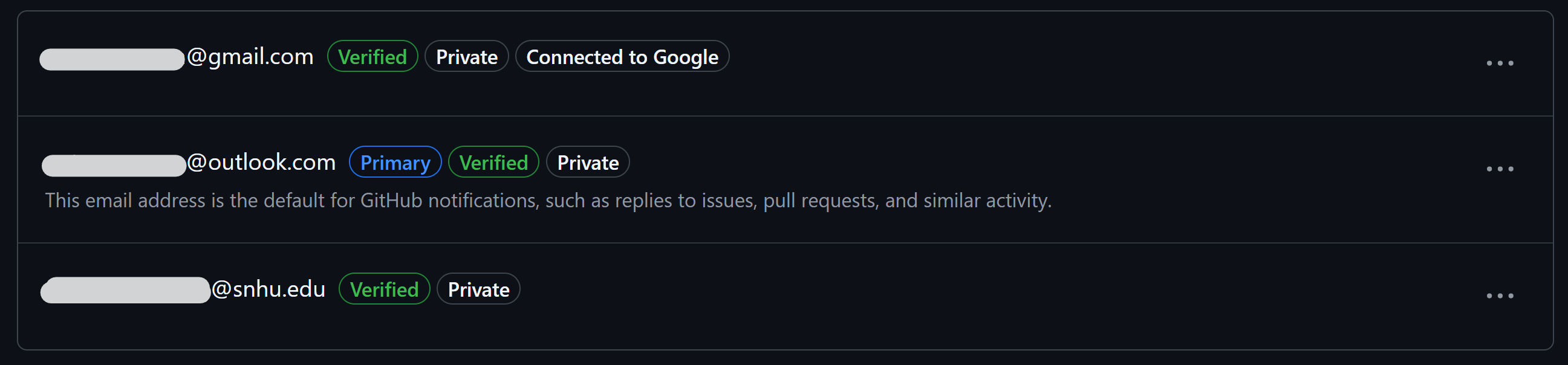
Back in GitHub > Settings > Emails, refresh the page to confirm that all email addresses are listed as verified.
-
Optional. Change your Primary email address from the list of verified addresses to the one you desire. This is the address that GitHub will use for notifications and other communications.

-
Scroll down and turn on Keep my email addresses private.

-
Remember your GitHub-provided public email address. You will need it to configure your development environment. The public email address will look similar to
123456789+your-username@users.noreply.github.com. Note your GitHub public email address, you may need it later. -
Turn on Block command line pushes that expose my email.

GitHub requires users who contribute code to configure two-factor authentication (2FA). Two-factor authentication requires an additional form of verification when you sign in and helps protect your account if someone obtains your password.
-
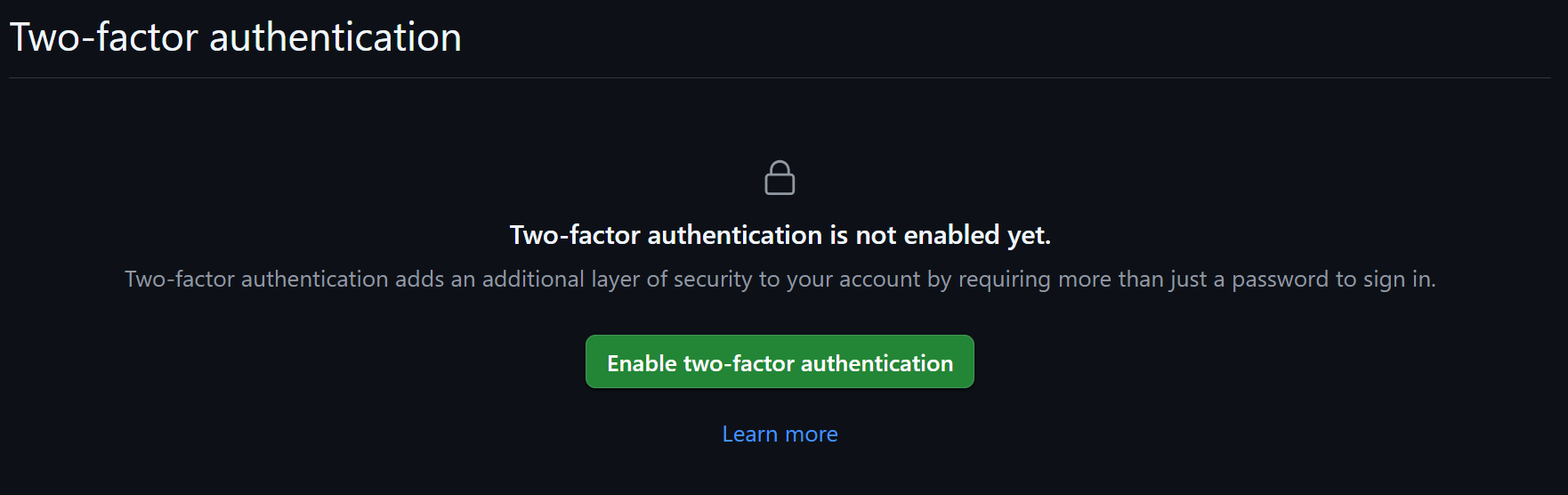
Under Two-factor authentication, click the Enable two-factor authentication button.
-
Follow GitHub’s on-screen instructions to configure a two-factor authentication (2FA) method. This step is time-sensitive. One-time codes expire quickly.
TIP. Use the same authenticator app you use for your SNHU account. This is usually the Microsoft Authenticator app from the Apple or Google Play stores.
WARNING. Only enable SMS text messages authentication if you have no other option. SMS is less secure than other methods, such as an authenticator app or a security key.
-
Download or copy your recovery codes when prompted.
-
Store your recovery codes in a secure location separate from the device you normally use to sign in.
Important. Recovery codes can help you regain access to your account if you lose access to your normal authentication method. Store them securely. Do not save your only copy on a device that could be lost or damaged.
-
Recommended. Add a passkey if your device and browser support one.
Warning
Do not share your password, passkey, authentication codes, or recovery codes with anyone. Neither GitHub nor SNHU will ever ask you for this information. If someone asks for it, report the request to GitHub and SNHU immediately.
Before continuing, use this checklist to confirm that your personal GitHub account is ready for STEM coursework. If an item is not complete, click its link to review or update the setting.
-
Account: I can sign in to GitHub using my personal GitHub account, not an account managed by my employer.
-
Username: My GitHub username is appropriate for school, work, and professional use.
-
Email addresses: My SNHU email address and at least one personal email address are listed and verified in Email settings.
-
Primary email: My preferred primary email address is selected.
-
Email privacy: I enabled Keep my email addresses private and Block command line pushes that expose my email in Email settings.
-
Git commit email: I located my GitHub-provided
noreplyemail address in Email settings for use when configuring Git. -
Account security: Two-factor authentication (2FA) is enabled in Password and authentication.
-
Recovery codes: I saved my 2FA recovery codes in a secure location where I can access them if I lose my device.
Important
Never share your GitHub password, authentication codes, passkeys, or recovery codes with anyone, including your instructor.
You have completed the required GitHub setup steps. You may continue with the optional GitHub setup steps below now or return to course setup tasks. You may always revisit these steps if needed.
The profile-customization step below can help you begin building a professional GitHub presence, but it is not required unless course activities specifically require it.
-
Sign in to GitHub, if prompted.
-
Optional. Add or change profile information that you wish to share publicly. Remove any information you do not want to be public. For example, you can add or remove:
- An avatar image;
- A brief bio;
- Links to your social media;
- A profile README (advanced);
- Click the Update profile button to save your changes.
For an example user profile with custom README, see Petey Penmen's profile.
-
Scroll down to Contributions & activity.
-
Consider leaving the Make profile private and hide activity checkbox unchecked. Checking this box only hides your activity and social information, such as your contribution graph, achievements, activity feed, organization memberships, and follower information. It does not make public repositories private or hide the profile information noted above. It can help to build a history of GitHub activity that employers look for.
-
Consider checking the Include private contributions on my profile checkbox. This lets your GitHub contribution graph reflect work you do in private repositories (e.g., course assignments) without revealing the repositories or their contents.
-
Click the Update preferences button to save your changes.
-
-
Scroll down to Profile settings.
-
Check the Show Achievements on my profile checkbox, if desired. This lets your GitHub profile display badges for achievements you earn.
-
Click the Update preferences button to save your changes.
-
-
If your preferred spoken language is not English, scroll down to Trending settings and update your Preferred spoken language, if desired, and Save Trending settings.
GitHub Education provides eligible students and faculty with free access to learning resources and professional development tools. Click on your role to learn more.
Important
GitHub Education benefits are entirely optional.
You do not need these benefits to complete your STEM coursework. Applications and benefits are managed directly by GitHub.
SNHU cannot approve applications, change eligibility decisions, or provide technical support for GitHub Education benefits. For assistance, contact GitHub Support.
GitHub Education benefits do not require you to purchase a GitHub subscription or add a payment method.
One particularly useful benefit of GitHub Education is 60 additional GitHub Codespaces core hours per month, increasing the free monthly allowance from 120 to 180 core hours. Codespaces lets you write and run code in a cloud-based development environment without installing software on your computer.
SNHU students and teaching faculty may apply for GitHub for Education benefits. GitHub typically requires proof of enrollment or teaching assignment.
Before applying for GitHub Education for Students, obtain an Enrollment Certificate from SNHU. GitHub may request this document to verify your current enrollment.
-
Sign in to mySNHU..
-
Under Self-Service > Academics, find the Request/Review Enrollment Verification link.
-
Follow the instructions to obtain your Enrollment Certificate.
-
Save the certificate to your computer so it is available if GitHub requests proof of enrollment.
For additional information, see SNHU's Enrollment Verification Instructions.
GitHub documentation:
SNHU faculty members may apply for GitHub Education for Teachers. GitHub will require a verified school-issued email address and proof that you are currently assigned to a teaching role.
{{SME TODO: Develop a self-service process for faculty to obtain verification documents from SNHU. Potential options include teaching assignment letter, dedicated letter, or Brightspace process.}}
Faculty should follow GitHub's application instructions and provide the requested proof of current employment or affiliation.
GitHub documentation:
GitHub may ask applicants to complete their billing name and address to support verification of their academic affiliation.
If requested:
-
Go to Payment information.
-
If prompted, sign in using the method you used when creating your GitHub account.
-
Edit your billing name and address so it matches your school documentation exactly.
-
Click the Save billing information button.
Warning
You do not need to add a payment method to apply for free GitHub Education benefits.
Do not add a credit card or other payment method unless you intentionally want to purchase services.
Paid services are not required for your GitHub account setup or coursework.
-
Go to your Education Benefits.
-
Sign in to GitHub, if prompted.
-
Under GitHub Education, click the Start an application button.
-
Identify your academic status as a student or faculty member, as applicable.
-
Follow the on-screen instructions and provide the requested information or verification documents.
-
Submit your application.
-
Return to Education benefits every few days to review your application status. Process may take longer during peak periods.
Important
If your application is not approved, review the explanation provided by GitHub before reapplying. Your academic verification documents should be clear, current, and consistent with your application information.
Neither SNHU nor your instructor can approve applications, change eligibility decisions, or provide technical support for GitHub Education benefits. For assistance, review FAQ or contact GitHub Support.
- Understand the difference between Git and GitHub
- Explain the GitHub flow
- Open and merge a pull request
- Create a repository
Prerequisites: Completion of Understanding Git and Version Control or basic understanding of Git and version control
- Watch YouTube Video: What is GitHub?
-
Complete MS Learn Module: Introduction to GitHub. This includes a GitHub skilling exercise to do the following:
- Create a branch
- Commit a file
- Open a pull request
- Merge your pull request
- Watch YouTube Video: How to create your first GitHub repository: A beginner's guide
- Read GitHub Docs: Quickstart for repositories
- Watch YouTube Video: How to upload files and folders to GitHub
- Read GitHub Docs: Adding a file to a repository
Source: GitHub Foundations for Non-Developers
Your GitHub username is your public identity on GitHub. Choose a username that you will be comfortable sharing professionally for many years.
Your username becomes part of your GitHub profile address, repository URLs, and other places where you use Git and GitHub. You may also include your GitHub profile on your résumé, CV, LinkedIn profile, personal website, or job applications. In technical and computational fields, employers may view your GitHub profile as part of your professional portfolio.
Anyone may see your GitHub username when you:
- Share your GitHub profile
- Create a public repository
- Contribute to a public repository
- Participate in an open-source project
- Share a repository with an instructor, tutor, or employer
- Include your GitHub profile on a résumé, CV, LinkedIn profile, personal website, or job application
Making your GitHub profile private does not hide your username or make public repositories private.
Consider how Petey Penmen, the SNHU mascot, might choose a professional GitHub username.
A good username is:
- Professional. Use your real or preferred professional name when possible.
- Clear. Make it easy to read, spell, and recognize.
- Brief. Keep it reasonably short.
- Timeless. Choose a username that will still be appropriate after graduation.
- Distinctive. Select a version that distinguishes you from other GitHub users without revealing private information.
| Good Example | Why It Works |
|---|---|
peteypenmen |
Uses a full name and is easy to remember |
petey-penmen |
Separates the names for readability |
ppenmen |
Uses an initial and last name |
peteyjpenmen |
Adds a middle initial without using private information |
Your first choice may already belong to another GitHub user. Try professional variations in this order:
- Add your middle initial or middle name
- Use your first initial and last name
- Add a hyphen between parts of your name
- Reverse the order of your first and last names
- Add a brief professional term only if it reflects a long-term interest or identity
For example, if petey-penmen is unavailable, Petey could try:
peteyjpenmenpetey-j-penmenppenmenpenmen-petey
Avoid adding random numbers just to make a username available. If numbers are necessary, use a combination that does not reveal personal information and will remain professional.
Tip
Before creating your account, say the username aloud and imagine placing it on a résumé. Choose another option if it is difficult to explain, spell, or share professionally.
Avoid usernames that include:
- Birth years or graduation years
- Student identification numbers
- Birth dates, phone numbers, addresses, or other private information
- Random numbers when a name-based alternative is available
- Slang, jokes, or internet memes
- Offensive or inappropriate language
- Nicknames that may appear unprofessional
- Temporary interests that you may outgrow
Examples to avoid:
petey-penmen2007coolguy99xXPeteyMasterXxgamergal123
Important
Choose a username that you will be comfortable sharing professionally throughout college and your career.
Suppose Petey Penmen selects petey-penmen.
| Use Case | Example |
|---|---|
| GitHub profile | https://github.com/petey-penmen |
| Repository URL | https://github.com/petey-penmen/it140 |
| Git clone URL | https://github.com/petey-penmen/it140.git |
Your GitHub username and Git author information serve different purposes.
- Your GitHub username identifies your GitHub account, such as
petey-penmen. - Your Git author name identifies you as the person who created a commit, such as
Petey Penmen. - Your Git author email helps GitHub associate your commits with your GitHub account.
You should normally use your real or preferred professional name—not your GitHub username—as your Git author name.
For example:
GitHub username: petey-penmen
Git author name: Petey Penmen
A professional Git author name makes commit history easier for instructors, tutors, collaborators, and prospective employers to understand. It also helps reviewers connect your work with the name on your résumé or job application.
Using your GitHub username as your Git author name is acceptable when the username is already a clear version of your name. However, matching the two does not provide an additional technical benefit. GitHub normally uses the commit email address—not an exact match between the author name and username—to associate commits with an account.
Later, you will configure Git with your professional author name and the private noreply email address provided by GitHub.
For Petey Penmen, the recommended Git author name would be:
Petey Penmen
Choose a professional version of your real or preferred name whenever possible. If your first choice is unavailable, try a middle initial, an initial-and-last-name format, or another clear name-based variation.
For Petey Penmen, petey-penmen is a strong choice because it is easy to read, professional, and appropriate for both academic and future career use.
Return to Create a new GitHub account