Repository navigation
Hosting a Server
Run a 5th Echelon server for your group: on your Windows PC from the launcher, on its own on Windows, on a Linux VPS with one script, or in Docker. The full reference is in the repository: docs/deploying.md and docs/server-settings.md.
| Way | For | Effort |
|---|---|---|
| From the launcher (Windows) | A LAN party, or friends for an evening, from your gaming PC | A few clicks |
| On its own (Windows) | A Windows PC that stays on | A few commands |
| Linux, with the installer | A public or always-on server on a small VPS, with HTTPS and automatic updates | One script |
| Docker | You already run things in Docker | One command |
Want several servers sharing friends, or your own network address? See Running a Network.
Players need to reach these on the server:
| Port | Protocol | What |
|---|---|---|
| 80 | TCP | The game's online configuration, and the community API. The game always uses port 80 |
| 443 | TCP | The launcher's API over HTTPS (with the Linux installer's Caddy) |
| 8000 | TCP | Content (multiplayer balancing) |
| 21126 | UDP | Game login |
| 21127 | UDP | Game service |
| 21128–21129 | UDP | Internet play: players' public addresses, and the relay |
| 50051 | TCP | Accounts, friends and invites (launcher and overlay). Behind Caddy it's served on 80 and 443 instead |
At home, forward these on your router to the server's PC. On a VPS, open them in your provider's firewall.
The address players connect to. Without it, the server tells players to connect to 127.0.0.1. Use:
- your public IP (with the ports above forwarded); or
- the server's VPN address, if everyone plays over one VPN.
A server's host name can be at most 27 characters (the game's limit).
Very little: by the load test, one core handles 500 players and two handle 1,000, in under 100 MB of memory. Bandwidth is the real cost: matches run between the players, but relayed players use roughly 20–60 KB/s each on the server.
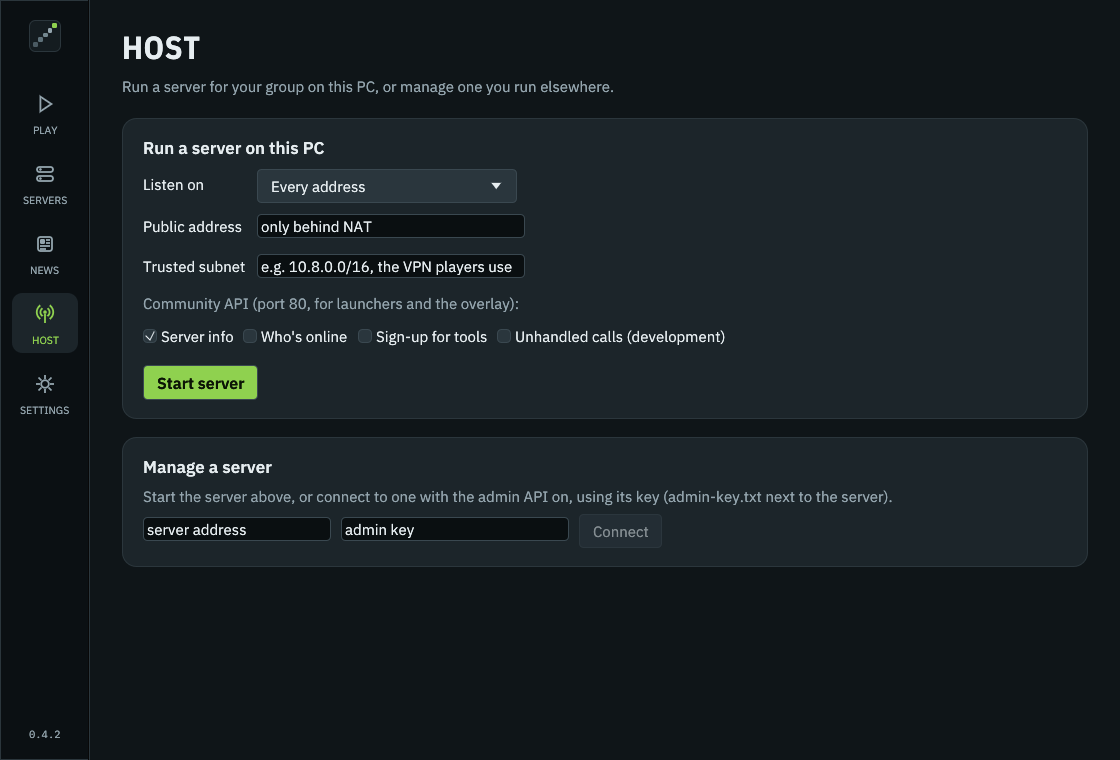
- Open the launcher's Host screen. If
dedicated_server.exeisn't next to the launcher, press Download the server. - Listen on: Every address is fine.
- Public address: fill it in if players come in through port forwarding (your public IP). Leave it for a LAN.
-
Trusted subnet (optional): if everyone plays over one VPN, its subnet (e.g.
10.8.0.0/16). It fixes joins when a game advertises the wrong network adapter. - Community API: Server info is enough. Who's online shares every username and what online players are doing. Sign-up for tools lets other tools create accounts.
- Press Start server. Players then connect to your address under Servers › A server of your own.
The server stops when the launcher closes. It writes service.toml (its settings) and server.log.json next to dedicated_server.exe.
Allow it through Windows Firewall when asked (or see the commands below).
- Put
dedicated_server.exefrom the latest release in a folder of its own, e.g.C:\5th-echelon. - Allow the ports through Windows Firewall, in an administrator PowerShell:
New-NetFirewallRule -DisplayName "5th Echelon (TCP)" -Direction Inbound -Protocol TCP -LocalPort 80,8000,50051 -Action Allow
New-NetFirewallRule -DisplayName "5th Echelon (UDP)" -Direction Inbound -Protocol UDP -LocalPort 21126-21129 -Action Allow
- Start it from that folder, with the address players connect to:
cd C:\5th-echelon
.\dedicated_server.exe --public-address 203.0.113.10
The first start writes service.toml and creates the database, keys and data\ folder. Run it as a scheduled task or service to keep it going.
Note: Port 80 must be free. Other programs (IIS or another web server, say) may hold it.
The recommended way for a server on the internet. On a fresh VPS (Debian 12+, Ubuntu 22.04+, Fedora, Rocky/Alma 9+ or Arch; x86_64):
curl -fsSLO https://raw.githubusercontent.com/JDevWebb/5th-echelon-enhanced/main/scripts/install-server.sh
sudo bash install-server.sh
Before you run it:
-
An A record for your server's name (e.g.
play.example.com) pointing at the VPS. On Cloudflare: DNS only (grey cloud), not proxied. - Your provider's firewall: SSH, TCP 80 and 443, UDP 21126–21129.
It asks for:
- A domain name. With one, Caddy serves the game's web parts on port 80 and the launcher's API over HTTPS on 443. Leave it empty to skip Caddy.
- Sharing friends: keep the server on its own, run a coordinator here too, or join a coordinator your group runs elsewhere (Running a Network).
- A name and region for the server directory.
It then downloads the latest release (checking its checksum and the release key's signature), creates a sandboxed systemd service, gets certificates, and opens the ports in ufw or firewalld.
| Defaults on a new install | |
|---|---|
| Friend lists | Friends only (--friends everyone to change) |
| Accounts | Every account needs a player identity |
| Updates | Installed automatically when the server is in a network (--no-auto-update turns that off) |
Looking after it:
sudo bash install-server.sh --status      # what's running, its coordinator, the updater's last result, the program check
journalctl -u 5th-echelon -f              # the server's log
sudo bash install-server.sh               # again: updates, keeping accounts and settings
sudo bash install-server.sh --uninstall   # removes it (--purge deletes the data too)
Settings live in /var/lib/5th-echelon/service.toml; restart with systemctl restart 5th-echelon after changing them. scripts/harden-host.sh hardens the rest of the machine (SSH, fail2ban, updates). Backups to Cloudflare R2 (live, seconds behind) and Backblaze B2 (daily), on 0.4.2 or newer: docs/backups.md.
The program check: before the server (and coordinator) start, the updater checks their programs against the release's signed checksums, kept from the install so it works offline. --status shows the result on its Programs line. A program that doesn't match is reported, never stopped.
Note: After your server has updated itself to 0.4.2, run the installer once more (
sudo bash install-server.sh; it keeps your settings, accounts and keys). An update only replaces the programs. The installer turns on the program check, larger uploads for players' reports (8 MB, 3 minutes), BBR for TCP and the admin UI's compression, and backups if/etc/5th-echelon/backup.envexists.
Full guide, with every option: docs/deploying.md.
Every signed release publishes the server's image:
docker run -d --name 5th-echelon --restart unless-stopped \
  -e FE_PUBLIC_ADDRESS=203.0.113.10 \
  -p 80:80 -p 8000:8000 -p 21126-21129:21126-21129/udp -p 50051:50051 \
  -v 5th-echelon:/srv/5th-echelon \
ghcr.io/jdevwebb/5th-echelon-server:latest- Everything it writes (database, keys,
service.toml) is in the volume. - Docker Desktop (Windows, macOS) hides players' real addresses from the server, which internet play needs: run the server directly there, or use host networking. Docker on Linux is fine.
- To build it yourself:
docker compose -f docker/compose.yaml up -dfrom a clone of the repository.
Already running websites on the machine? The server's TCP parts can share port 80 with them through Caddy, by host name, and the UDP ports can move. Guide and a tested Caddyfile: docs/reverse-proxy.md.
Host › Manage a server in the launcher lists and removes players and games, and shows the log. It needs the admin API on ([admin] in service.toml, or the installer's --admin) and its key (admin-key.txt next to the server).
The admin API is never reachable from the internet. For a remote server, use an SSH tunnel:
ssh -L 50051:127.0.0.1:50051 you@play.example.comthen connect to localhost with the key. The launcher warns before sending a key over an unencrypted connection to a public address.
All in service.toml (docs/server-settings.md):
| Section | What |
|---|---|
[public] |
The host name and ports players connect to, when they differ from what the server listens on |
[friends] |
mode = "everyone" (default) or "mutual" (friends only) |
[limits] |
Failed logins and new accounts per address, closing registration, requiring identities |
[nat] |
Internet play: the helper's port, who's relayed (auto, all or off) and how fast, and relay_pairs (on: the relay carries only players the server put together) |
trusted_subnet |
Fixes joins when everyone plays over one VPN |
[clients] |
The oldest launcher allowed (default: the server's own release; "off" for any) |
[community_api] |
Server info, who's online, sign-up for tools |
[admin] |
The admin API for Manage a server |
[federation] |
Joining a coordinator (Running a Network) |
When something goes wrong: Server Troubleshooting.