Repository navigation
The Launcher
The launcher has six screens, in the menu on the left: Play, Servers, News, Roadmap (on the community network), Host and Settings.
At the bottom of that menu:
- GitHub: the project's page, for releases, issues and the code.
- Discord: message the developer, for bugs, questions or a game. Right-click it to copy the name instead.
- The version. Click it to see what's new again.
The window can be resized, maximised or made full screen with F11, and everything scales to fit. Ctrl + and Ctrl − make everything bigger or smaller; Ctrl 0 resets it.

Your name on the current server and your identity's short id (e.g. ID DNIC-JULS). Click it to open Settings › Identity and friends. It says No account yet or No identity yet before your first Connect.
- The server card shows the server you're on, its region, your ping and the players online. Click it for the server menu. For a server outside the community network, its caption says who runs it: Self-hosted for a server on no network (your own, a friend's, a LAN party's), or the other network's name for another group's. Hover it for what that means.
- The readiness line says where you stand:
| It says | Meaning |
|---|---|
| Ready to play · everything checked | All good |
| Ready to play · 1 note (or n notes) | Fine to play; the Status card has something worth knowing (amber) |
| 1 thing to fix (or n things) | Something red in the Status card. Play still works, but the game may not connect |
| Checking… | The checks are running |
| Splinter Cell: Blacklist is running | The game is open |
- Play starts the game (on Windows it runs the game directly; on Linux with Steam, it asks Steam to start it). It turns into Playing while the game runs.
- The arrow beside Play (from 0.4.6) offers Play SvM and Play Coop: they start the game straight into the Spies vs Mercs or Co-op online lobby, with no intro videos, no title screen and no key to press. The launcher remembers your choice, and so does the game: started from Steam afterwards, it goes to the same lobby until you press plain Play again. A start for a friend's Join goes to the join instead. A game that can't get online shows its own message and goes on to the menu as usual. On an install another tool manages, only plain Play is offered.
- Beta features on: while any beta feature is on, a line under the launch bar says so, and that the game's log goes to the server's admins after each game.

The network's servers, best first, with your ping and how many players are on each. Pick one and you're switched there at once, signed in with the same name and with your friends. If you have no account there yet, one is made for you with your usual name. Ping again measures again. The arrow keys and Enter work too.
For anything else (a server of your own, a LAN party, another group's network), use Servers › at the bottom.
The launcher's checklist. When everything is fine it shows a short summary; when something isn't, it shows only the problems, each with a button that fixes it.
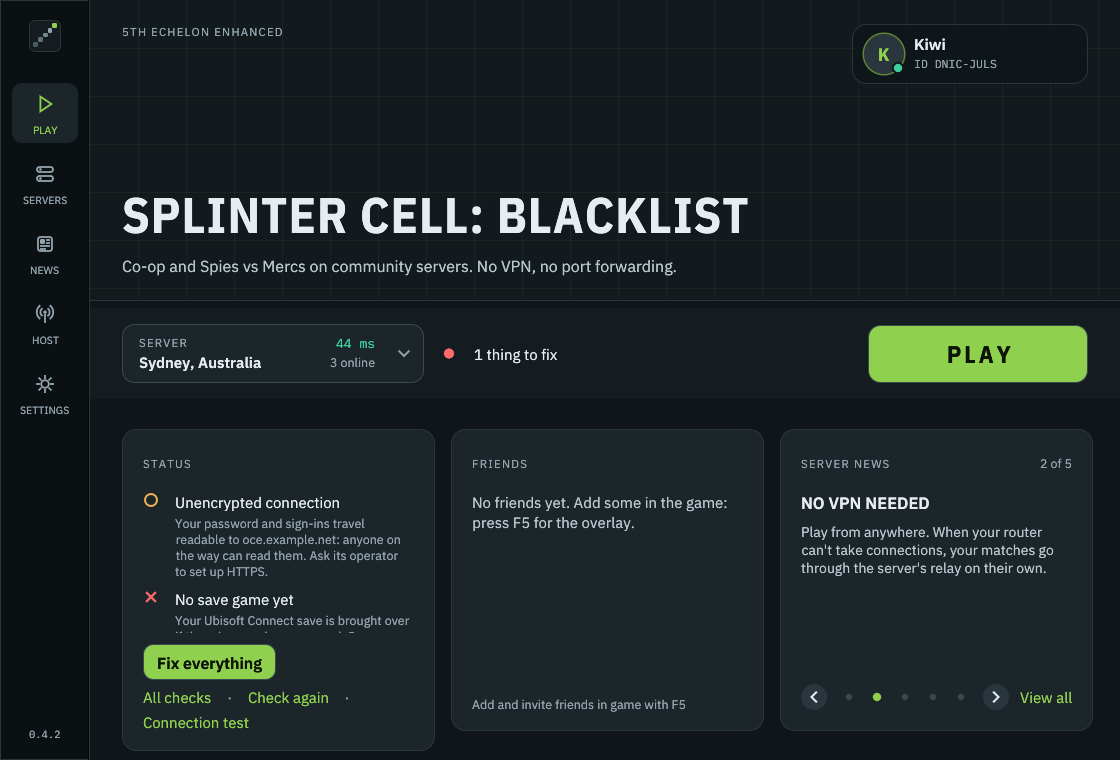
- Fix everything runs the whole setup again on the current server: client, account, network and save.
- All checks lists every check, green ones too (Show less folds it back).
- Check again runs the checks now (they also refresh every 30 seconds).
- Connection test opens Settings › Network and its test.
Every check, and what to do about it, is on Status Checks.
Who of your friends is online and what they're playing, how many are offline, and friend requests waiting for you. A friend in a party or public match on your server has Join, which takes you into it (see Joining a friend). Friends playing on another server of the network are listed as On <server> with Join, which moves you to their server (quit the game first). You add friends in the game, with the overlay (F5).
The server's news, turning every 8 seconds. View all opens the News screen.
Anything that takes a while shows in one bar along the bottom: switching servers, creating your account, installing, the connection test, sending a report, updating. Steps shows each step and how long it took.
When something fails, the bar turns red and stays until you close it:
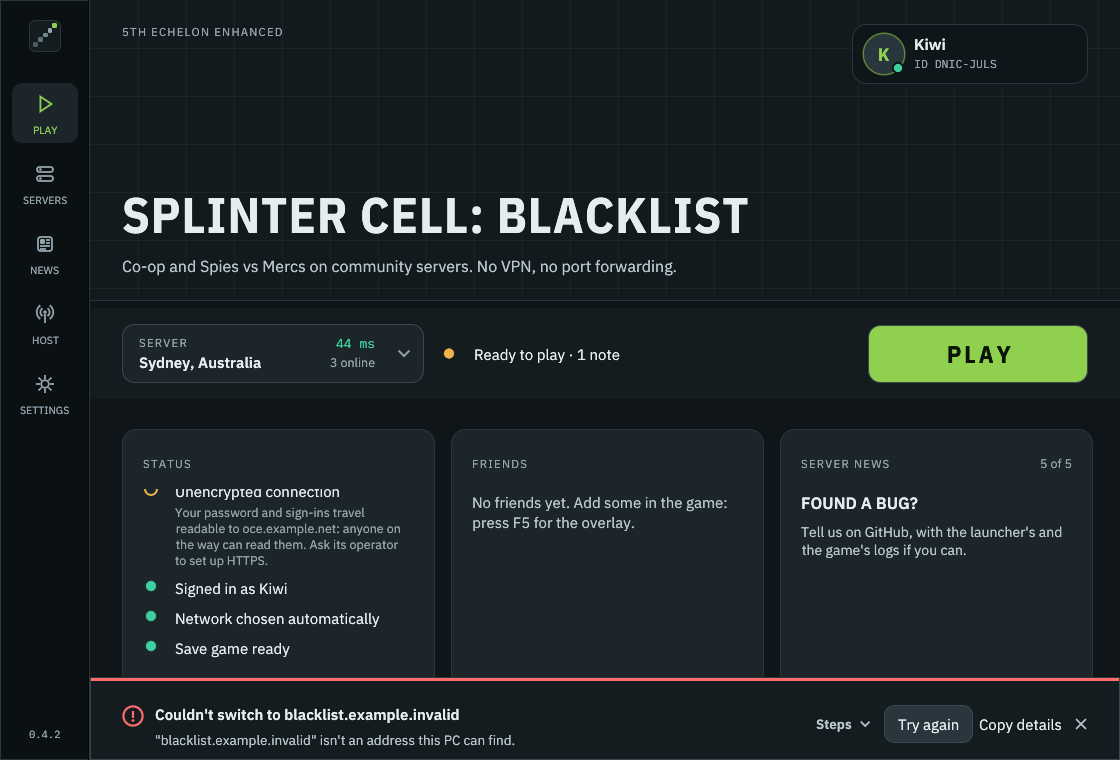
- Try again repeats it.
- Copy details copies the steps and the error, to paste into an issue or a chat.
- Without logs (for a report that wouldn't send) sends it without the attached logs.
The message itself usually says what to do. Error Messages lists them.
- An update for the launcher: a banner at the top, Version x is available, with Update now, What's new and Later. See Updates.
- While a new release goes out to the servers: a notice says when your server updates and is back, in your own time zone, and that you can keep playing until then. If your server already runs a newer version than your launcher, it offers Update and restart.
- When maintenance is booked: see below.
When the admins book maintenance for your server, a notice under the launch bar says so, on the day or from 12 hours before (whichever comes first): when, for how long, in your own time, and the admins' note. The server menu marks that server too, e.g. Maintenance 8 pm, or Back 9 pm while it's down.
| The notice | What it means |
|---|---|
| Maintenance today (or tomorrow) | Play until then, and finish your match before it starts |
| Maintenance soon | From 30 minutes before: a match you start now may not finish there. Play on <city> moves you to the nearest server that stays up |
| Your server is down for maintenance | Play waits. The launcher checks every 15 seconds and says when it's back, or Play on <city> moves you now |
| Maintenance under way | The server still answers, so you can play, but it may restart and cut a match short |
| Taking longer than planned | It should be back by now; the launcher keeps checking |
| Network maintenance | The whole network: friends on other servers, the server list and new names pause for a while. Your games carry on, and Play works as usual |

The community network's servers are in the server menu on the Play screen. This screen is for the rest:
-
Network: the network in use (
scbl.jdevwebb.net, the community network, unless you changed it). Use another network takes another group's network address, e.g.play.mygroup.org; its servers then fill the server menu. Back to the community network switches back. - A server of your own: a private server for your group, outside the network. Type its name or IP address and press Connect. Recent keeps your last five, one click each.
- On your network: Find on my network looks for a server running on your local network, e.g. at a LAN party.
More on networks and servers: Servers and Networks.

All of the current server's news, as the game's own news screen shows it. Read more opens a link in your browser.
What's being built for 5th Echelon Enhanced: Shipping, Next and Later, each with its release, and Requested, what players have asked for, when the admins show any of it. It's there while you play on the community network; on another network the screen isn't in the menu. Offline, it shows the roadmap as last read, with the date.
Suggest a feature or improvement sends an idea to the project's admins:
- About: Launcher, In the game, Matches and joining, Servers, or Other.
- Title, in a few words, and Details: what you'd like, and what it would help with.
- Send. It goes with your name, your server and your launcher's version, signed with your identity, so connect to a server first. Up to 3 a day.
Your suggestions lists what you've sent, with its status (New, Planned, Done or Declined) and the admins' reply.
On the community network: write to its admins about anything, with the game's or the launcher's log if you tick them. Their answers show here, the menu shows a dot until you've read one, and the game's overlay tells you when one comes. More: Reporting a Problem › Support.
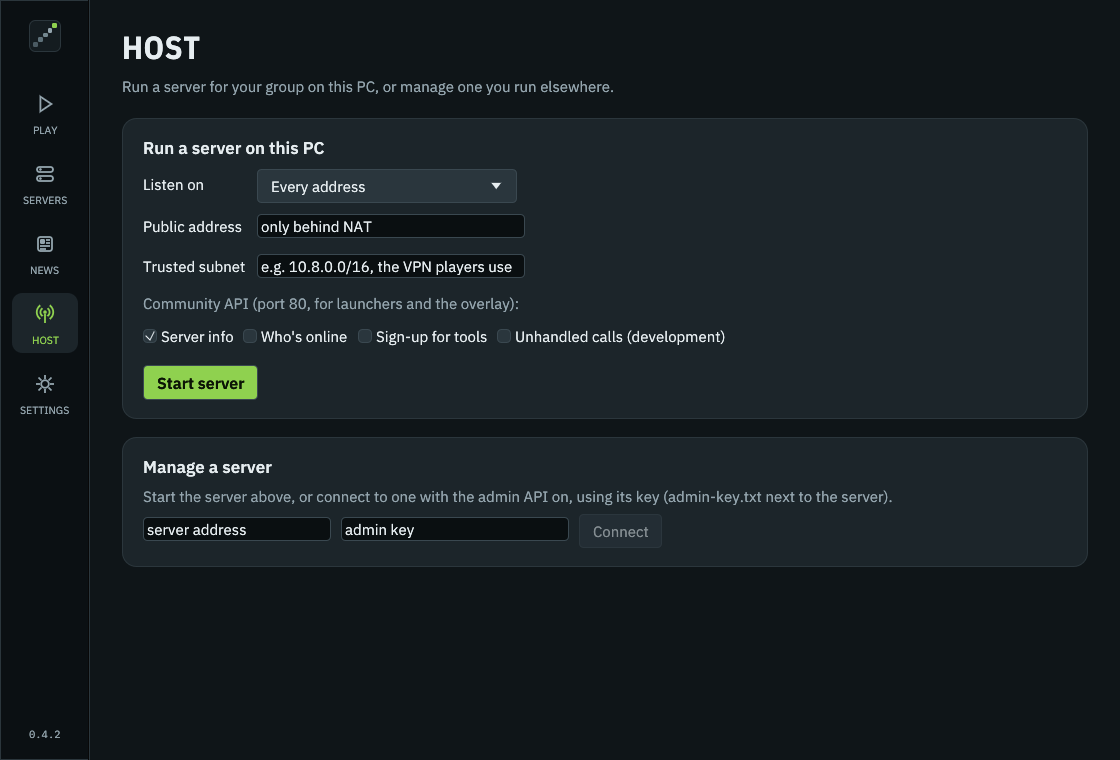
Run a 5th Echelon server on this PC for your group, or manage a server you run elsewhere. See Hosting a Server.
The first time you open the launcher after an update, What's new shows the main changes you'll see and the fixes you'd notice. Changes only the community network has are marked; if you play on another network, it offers Switch to the community network ›, once. If you skipped releases, it shows the newest in full and the main changes of up to two before it. Got it closes it; Full release notes (or All release notes) opens them on GitHub.
Missed it? Click the version at the bottom of the side menu.
Ten sections: Game, Network, Servers and accounts, Identity and friends, Save game, 5th Echelon client, Advanced, Display, Feedback and About. Each is described on Launcher Settings.