Repository navigation
Launcher Settings
Settings has eleven sections, listed on its left. Most players never need to change anything here: the defaults are what the setup chose for you.
If another program set up your game (a community's own app, say, through uplay.override.toml), the launcher says so, and its server, account and network settings are read-only here: change them in that program.
- Game
- Network
- Servers and accounts
- Identity and friends
- Notifications
- Save game
- 5th Echelon client
- Advanced
- Display
- Feedback
- About

Game folder: where the launcher found the game (the folder with the game's .exe, usually …\src\SYSTEM). Choose folder… picks another; Open folder opens it. With more than one copy installed, Other installs found lets you switch.
Options:
| Option | What it does | Default |
|---|---|---|
| Renderer | DirectX 11 (recommended) or DirectX 9. Only shown when both versions of the game are installed | DirectX 11 |
| In-game overlay, opened with | The overlay for friends, invites and match settings, and the key that opens it: F1 to F12, Insert, Home, End, Page Up or Down, Pause, Scroll Lock or `. A function key on most laptops needs Fn | On, F5 |
| Join invites automatically | Accept invites as soon as they arrive, without pressing anything | Off |
| Start the game through Steam (for Steam Input and controllers) | Windows, Steam copies only. Steam applies Steam Input (controller layouts, Xbox 360 pads and the rest) only to games it starts: with this on, Play asks Steam to start the game. Steam then picks DirectX 9 or 11 (its Play menu or launch options), and the launcher can't tell from the game's exit whether it crashed. If Steam can't be started, the launcher starts the game itself and says so | Off |
| Remove negative mouse acceleration | The game caps how far the view turns in one frame, so fast flicks turn less than slow ones. This widens that cap far past any real movement, so aiming is 1:1, while a bad input spike still can't flip the camera. Greyed out while Fusion Fix's own DisableNegativeMouseAcceleration is on (set that to 0 in SplinterCellBlacklist.FusionFix.ini to use this one; it keeps the spike limit, which matters under Proton) |
Recommended on (you choose, see below) |
| Brighten the picture | The game caps its brightness low, which looks dark (under Proton especially). This lifts the cap and sets a brighter picture by editing Blacklist.ini while the game is closed; Brightness sets how bright (0.60 to 1.00). Turning it off puts the original values back. Locked while the game runs |
Off |
| Disable automatic climbing (Active Sprint) | Sam stops climbing and vaulting over edges by himself when you sprint into them: climbing is only ever manual. Takes effect the next time the game starts; locked while it runs | Off |
| Client log detail | How much the client writes to bl-tracing.log: Error, Warning, Info, Debug or Trace. Raise it only when asked to, for a bug report |
Info |
| Extra command line | Unreal Engine options passed to the game | Empty |
New game options: options that change how the game plays (the last three above, from 0.4.5) are offered once: in the setup on a first run (Getting Started), and in a New game options window after the update that brings them, with what we recommend already chosen. Until you've chosen, they're off, and Play waits for your answer. Change them here any time.
From 0.4.6: changes still being tried out. Each is off unless you turn it on here, and you're never asked about them. They may feel wrong, stutter or crash the game; turn one off if it gives you trouble. Each takes effect the next time the game starts.
While any beta feature is on, the launcher sends the game's full log to your server's admins each time the game closes, with names, folders and addresses on your PC hidden (as in a report). That's how the admins see how a beta does in real games. The launch bar on Play says so for as long as one is on.
| Beta | What it does |
|---|---|
| Mouse turning the same at any frame rate | Above 60 fps the game turns less for the same mouse movement, so turning feels slow and many players cap their frame rate. This scales the mouse's turn so it turns as it does at 60 fps, whatever the frame rate. Only the mouse: controllers are left alone. If turning gets faster above 60 fps with it on, turn it off and send a report |
On Linux with Steam it notes "Runs through Steam and Proton; Play asks Steam to start it.", and on a CPU with more than 16 threads it shows the Steam launch options the game needs, with Copy (see Linux and Steam Deck).

How other players reach this PC. See Playing Over the Internet for how it works.
| Mode | When to use it |
|---|---|
| Automatic (default) | Almost always. The server tells the game your public address, so players connect directly; when your router can't be reached, play goes through the server's relay |
| Always through the server | When direct connections fail for you even though the test passes (a firewall or a second router in front of you). All match traffic goes through the server, with a little more delay |
| LAN or VPN only | Everyone is on one LAN or one VPN, and you want the game's original behaviour: it advertises only your local address |
Open the game's port on the router (UPnP / NAT-PMP) (on by default) asks your router to forward UDP 13000 to this PC while the game runs, and removes it afterwards.
Run the test checks each part of the connection in turn. Run it with the game closed: the game holds ports the test needs.
| Step | What it checks |
|---|---|
| Config server (port 80) | The server's configuration answers (the game always uses port 80) |
| API and account | The launcher's API answers and your account signs in |
| Game service sign-in | Signing in to the game service, the way the game does (UDP 21126) |
| How players reach this PC | Whether other players can reach you: Direct, Direct, router port opened, or Through the server's relay |
| Internet play helper | The server's NAT helper answers (UDP 21128–21129) |
Every result, and what to do about it: Playing Over the Internet › The connection test.
The game uses one network adapter for matches. Automatic (the one that reaches the server), the default, picks the adapter that reaches your server each time the game starts, so switching between Wi-Fi and Ethernet doesn't matter, and a VPN adapter isn't used by mistake.
Pin an adapter only if your group plays over a VPN on purpose. Then Don't start the game without this adapter stops the game playing over the wrong network when the VPN is off.

Every server you have an account on, with its name and password (Show passwords to see them; you never need to type them).
- Rename gives you a new name on that server. Friends, blocks and invites carry on. Restart the game if it's running.
- Use makes that server the current one.
- Remove forgets the server and its saved account on this PC. The account itself stays on the server; your identity finds it again if you connect later.

- Your identity and its short id. Copy to move it to another PC copies it as text. Anyone with that text can sign in as you on every server, so keep it private.
- Import: paste an identity copied from another PC and press Use this identity. Do this before connecting to any server on the new PC. Full steps: Moving to another PC.
-
Server directory: where the server menu's list comes from: the community network (
https://scbl.jdevwebb.net; a launcher that saved the oldplay.scbl.jdevwebb.netmoves over by itself) unless you joined another network. It must be anhttps://address. Most players never touch it; the Servers screen changes it for you.
When a chat message pops up in the corner of the game, for each room: Global, Lobby and Messages from friends, each Never, Only mentions (messages that name you, @name), Outside matches or Always. Unless you change it: Global outside matches, Lobby and friends always. Outside matches keeps Global quiet while you play, and still tells you when someone names you. Invitations and friend requests always pop up.
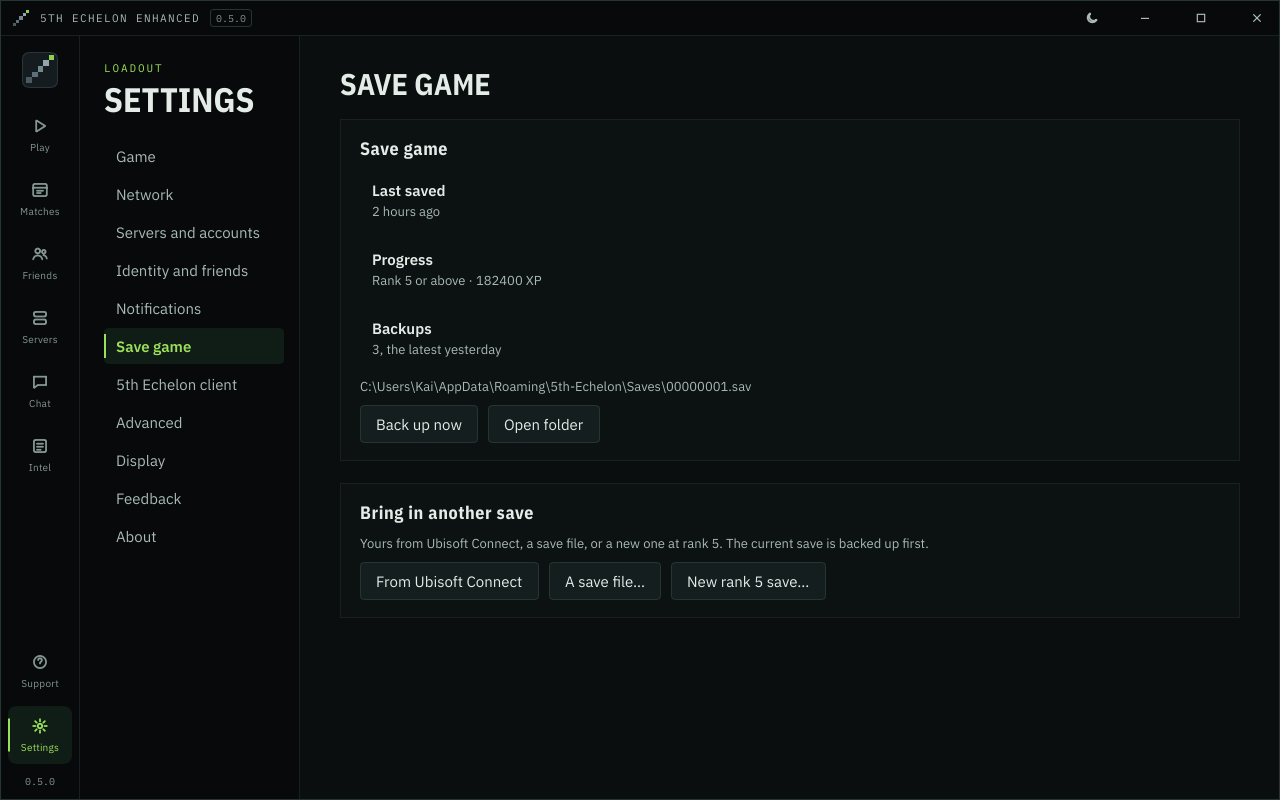
Where your save is and how much XP it has (rank 5 is 6,600 XP; it says when it's below rank 5).
- Back up now copies it next to itself, with the time in the name.
- Import from Ubisoft Connect (shown when it finds a Ubisoft Connect save) brings that save over.
-
Import a save file… takes a save from another PC, Ubisoft Connect's
1.save, or one of the launcher's backups. Your current save is backed up first. - New rank 5 save… replaces your save with a new rank 5 one, after backing it up.
- Open folder opens the save folder.
More: Save Games.
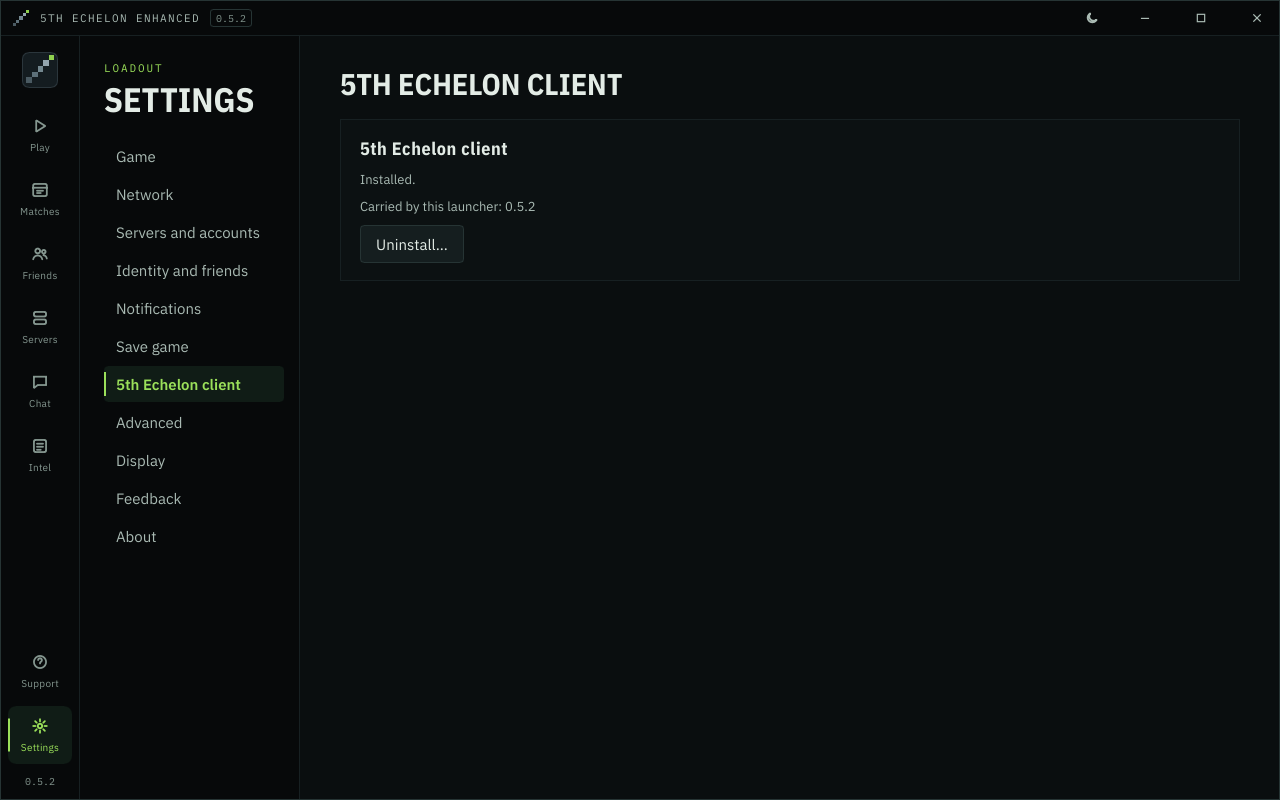
Whether the client (the game's uplay_r1_loader.dll) is installed, and the version this launcher carries.
- Install installs it (the setup does this for you).
- Uninstall… puts the game's own DLL back, so the game no longer connects to 5th Echelon servers. See Undoing the install.

Leave these alone unless you're debugging, or someone helping you asks.
- Hooks: which parts of the game the client patches, and extra logging (e.g. Log storm udp packets, Log RMC messages).
- Write the game's data version (bl-dataversion.txt): for working out why two copies of the game refuse each other ("a different version of the game"). Off by default.

Make everything bigger or smaller (70 % to 160 %; also Ctrl + and Ctrl −, and Ctrl 0 to reset), and Full screen (F11).
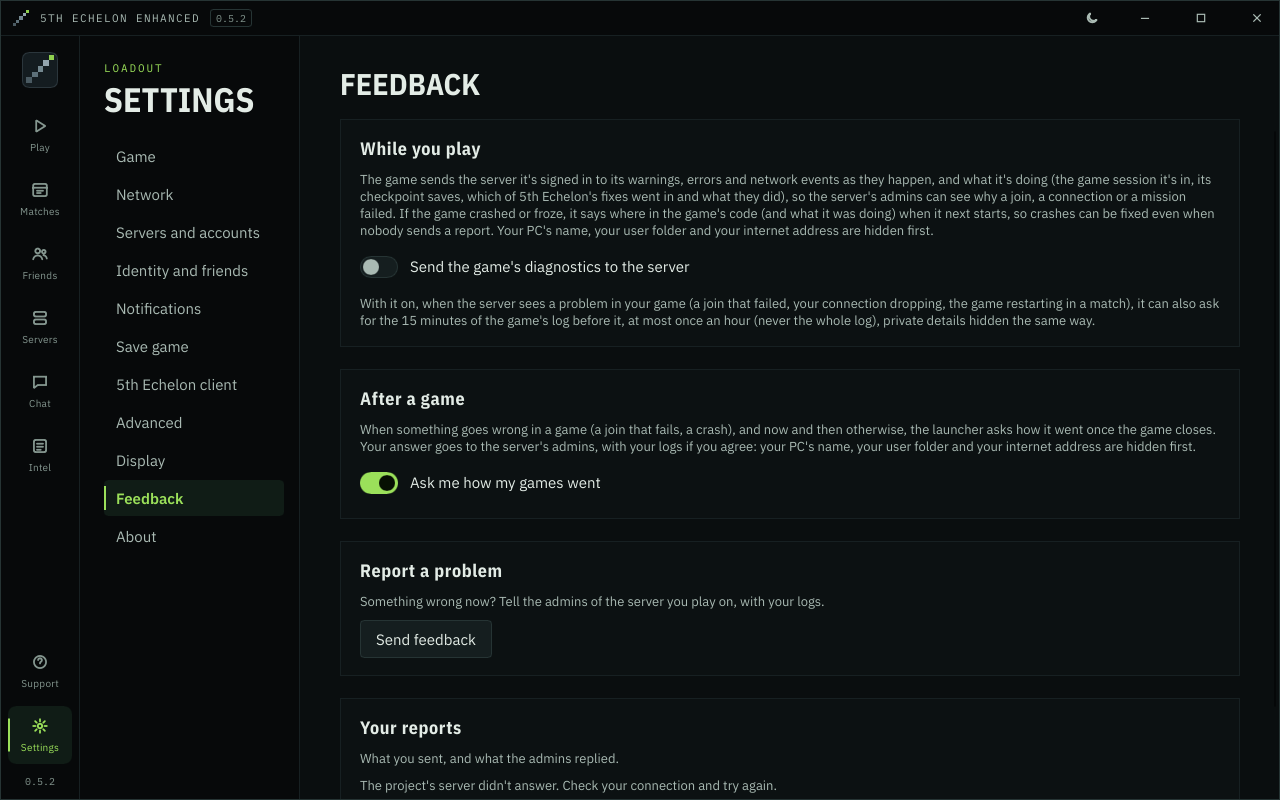
- While you play: Send the game's diagnostics to the server. The game sends the server its warnings, errors and network events, and what it's doing (a few lines a minute at most), so the server's admins can see why a join or a connection failed. When something goes wrong, the server can also ask for the 15 minutes of the game's log before it, at most once an hour (never the whole log). Turning this off stops all of it.
- After a game: Ask me how my games went. After a game where something went wrong, and now and then otherwise, the launcher asks how it went.
- Report a problem: Send feedback sends a report now, with your logs if you agree. See Reporting a Problem.
- Your reports: the reports you've sent, with the admins' replies. A notice says when a reply comes.
Your PC's name, your user folder and your internet address are hidden before anything is sent.
The launcher's version, credits, Check for updates and a link to the releases.