Repository navigation
Connections
NeoPedal can be driven by other programs, stream live telemetry, show a dashboard on a phone or tablet, put overlays in your stream (OBS, Streamlabs, XSplit, vMix), display overlays in VR, and replay sessions without the game. Everything on this page is off by default.
Remote control lets Stream Deck, Bitfocus Companion, SimHub or any button box software run app commands through a small local HTTP server.
- Open
Config>Remote Control. - Turn on
enable_remote_control. The default port is8337(remote_control_port).
The server only listens on 127.0.0.1 (this computer):
| Request | Effect |
|---|---|
GET http://127.0.0.1:8337/commands |
Lists the available commands (JSON) |
POST http://127.0.0.1:8337/command/<name> |
Runs a command. The request must include an X-NeoPedal header (any value; X-NeoPedal, used by older versions, is still accepted) |
Commands are the same as the hotkeys: overlay_visibility, overlay_lock, overlay_auto_hide, reload_preset, load_next_preset, restart_api, spectate_next_driver, cycle_deltabest_source, black_box_next_incident, show_main_window (main window in front of the game), the Broadcast Director commands (director_toggle, director_next_car, director_lock...), preset_1 to preset_10, widget_<name> to toggle an overlay (for example widget_relative), module_<name> to toggle a module, and more. Example:
curl -X POST -H "X-NeoPedal: 1" http://127.0.0.1:8337/command/overlay_lockRequests without the header, or with another host name than 127.0.0.1 or localhost, are refused, so web pages cannot send commands from your browser.
With remote control on, ws://127.0.0.1:8337/stream pushes live telemetry as JSON: speed, gear, RPM, pedals, position, lap times, delta, fuel, tyre and brake temperatures and more (the same fields as the web dashboard).
| Parameter | Effect |
|---|---|
?interval=<ms> |
Push interval, 20 to 5000 ms, default 100
|
?fields=speed,gear,rpm |
Send only these fields |
?changes=1 |
Send only fields that changed since the last message |
A client can change fields and changes at any time by sending a text message such as {"fields": ["speed", "gear"], "changes": true} ("fields": null for every field). Values keep base units (km/h, °C, liters); values in your units are under display. Browser pages must be served from http://localhost or http://127.0.0.1: other origins, local files and sandboxed frames are refused.
The web dashboard shows live data in a browser, for example on a phone or tablet next to your screen: gear, speed, RPM, delta, lap times, position, fuel (or virtual energy for LMU Hypercar and LMGT3), pedals, tyre and brake temperatures, time left. With LMU it also shows the official delta and marks invalid laps. The page uses the app language and your units.
- Open
Config>Web Dashboardand turn onenable_web_dashboard(port8338by default,web_dashboard_port). - To open it from another device, turn on
enable_lan_access. Windows Firewall may ask you to allow the app the first time. - The
Web Dashboardsettings page shows the addresses to open and the access code, with copy buttons (alsoConfig>Web Dashboard Address...).
Security:
- An access code is always required (
access_code, a random code is generated if empty, then kept when the app restarts). After 10 wrong codes, the device is blocked for 60 seconds. The code is exchanged for a session cookie, so it does not stay in the page address. - Without HTTPS, traffic is plain HTTP: only enable LAN access on a network you trust.
-
enable_httpsserves the dashboard over HTTPS with a self-signed certificate created in the config folder. The browser warns once about it: check the SHA-256 fingerprint shown byWeb Dashboard Address...before accepting it.
Stream overlays put your overlays in your stream as browser sources: no window capture, no chroma key, a transparent background and the overlays exactly as on your screen. It also works with the game in exclusive fullscreen, where window capture cannot see the overlays.
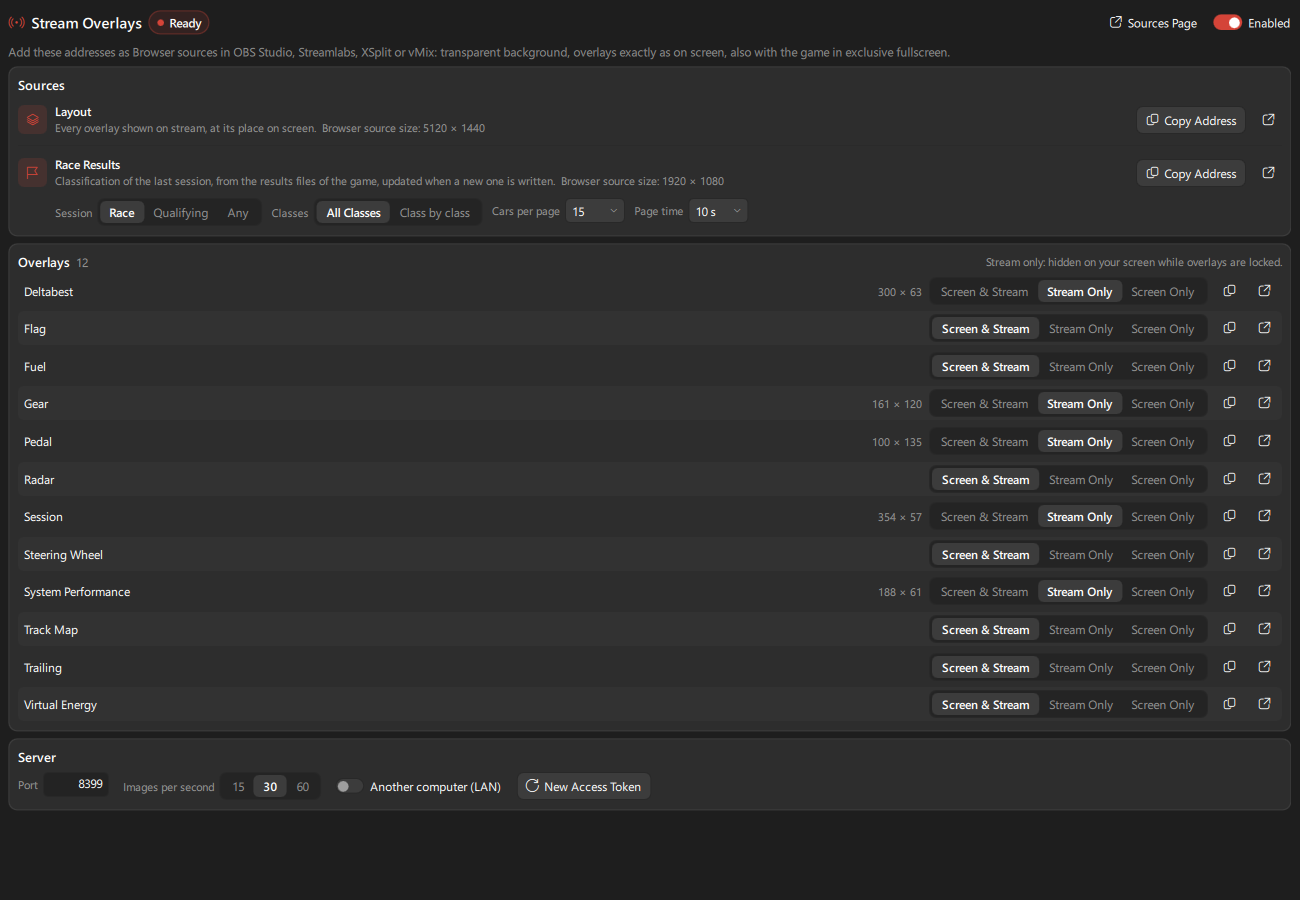
- Open the
Stream Overlayspage (Toolspage,Streamin the navigation bar, or the command palette) and turn onEnabled(port8339by default). - Click
Copy Addressnext to a source. - In OBS Studio:
Sources>+>Browser, paste the address asURL, and set the width and height shown on the page. Streamlabs, XSplit, vMix and Twitch Studio have the same kind of source.
Sources:
| Source | What it shows | Browser source size |
|---|---|---|
Layout |
Every overlay shown on stream, at its place on your screen. Format: 16:9 (screen centre) (default) shows the centre of the screen in 16:9 (ultrawide or triple screen: overlays outside that part are not shown unless you place them inside with the layout editor), Whole screen the whole screen as before 0.23.0. Copy the address again after changing the format |
16:9: 1920 x 1080. Whole screen: size of the screen shown on the page (smaller sizes are scaled to fit) |
| One per overlay | That overlay alone, at top left (&scale=1.5 in the address enlarges it) |
Size of the overlay shown on the page |
Race Results |
Classification of the last race, with classes and pages cycling | 1920 x 1080 |
Where each overlay is shown: for each overlay of the page, Screen & Stream (default), Stream Only (shown to your viewers but not on your screen, for example standings or the track map for the stream only), or Screen Only (never on stream, for example your fuel or delta). A stream only overlay is fully transparent on your screen while overlays are locked; unlock overlays to see and move it. This is also the stream_visibility option of each overlay.
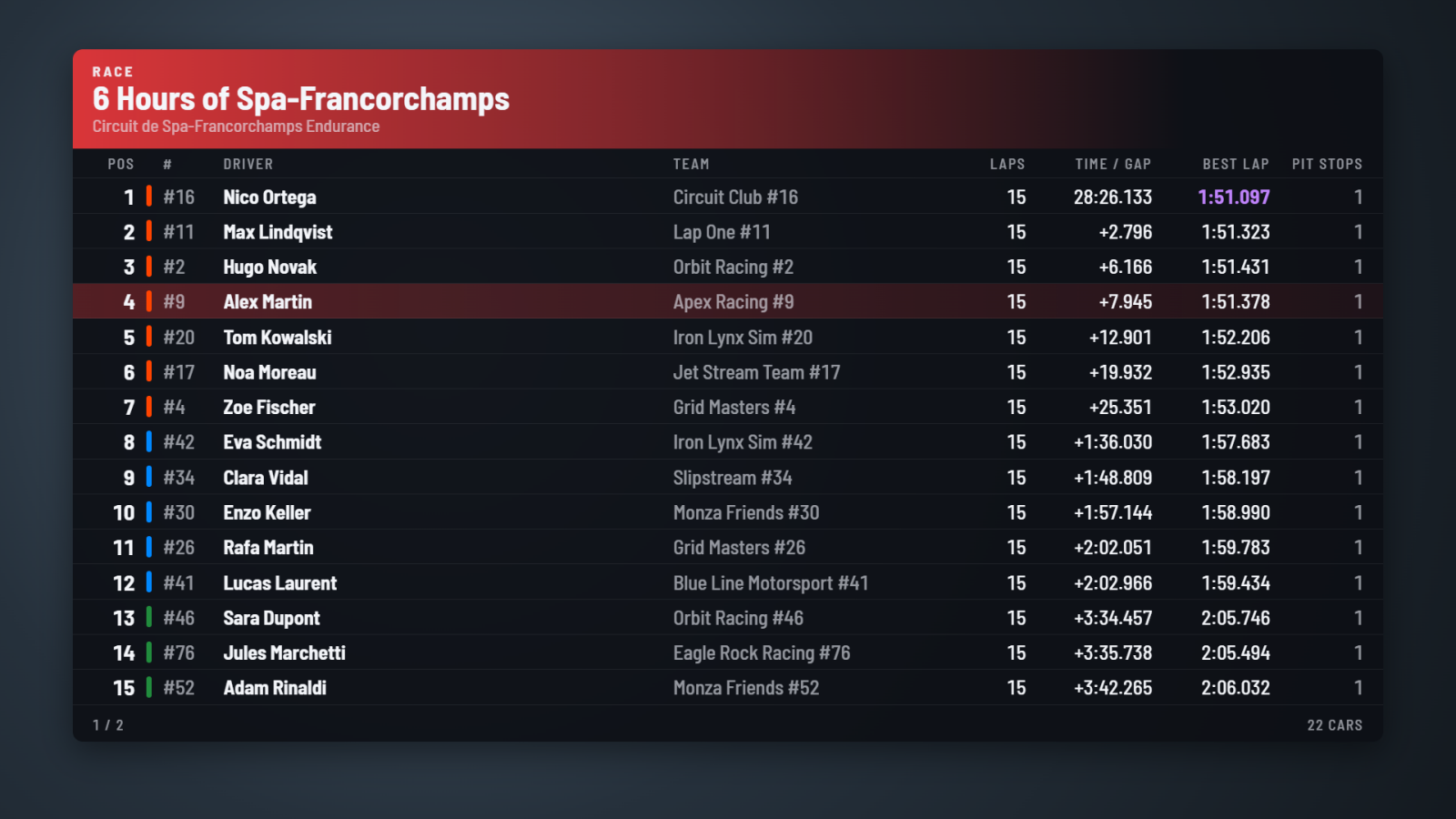
Race results source: the classification of the last race from the game results files (see Race Results), refreshed when a new file is written, with the circuit logo and car brand logos of Le Mans Ultimate when the app has them. Options on the page (saved in the address): session (Race, Qualifying or Any), All Classes or Class by class, cars per page, time per page. In the address: &class=<class name> for one class only, &animate=0 without animation.
Good to know:
- Overlay images are only captured while a source is shown, copied from what is already drawn on screen (no extra drawing), and only sent again when they change, up to
Images per second(15, 30 or 60). -
Layout editor:
Edit Layoutnext to theLayoutsource opens it in your browser, the whole screen shown with the 16:9 frame: drag overlays to their place on the stream (for example those on the sides of an ultrawide screen), mouse wheel to resize, arrows to move by one pixel,Ctrl+Zto undo, thenSave. Their place on your screen does not change; each format (16:9, whole screen) has its own places, andReset/Reset Allput them back. - Overlays hidden by auto hide (no session) are hidden on stream too. While you spectate a session or watch a replay (no car driven), they are shown and updated as long as a
Layoutor overlay source is on air (Show overlays while spectatingin theServerpart of the page, on by default), and hidden again a few seconds after the last source stops. Laps, fuel and stats are still only recorded while you drive. When no overlay is shown, the page tells why (auto hide outside sessions, visibility options). - The Broadcast Director has its own graphics source, served by the same server but not listed on this page.
- Every address contains an access token. If an address was shown on stream by mistake, click
New Access Token: addresses copied before stop working, copy them again. The token is kept when the app restarts (up to 0.22.1 a new one was made at each start: copy the addresses once more after updating). -
Another computer (LAN)lets a streaming PC on your local network show the sources (dual PC setup): the page then lists the addresses to use from that PC. Windows Firewall may ask you to allow the app the first time. -
Sources Pageopens every source in your browser, to test them.
Config > VR Overlay (Experimental) > enable_vr_overlay shows all visible overlays in your headset, with the same layout as on your desktop. Nothing else to install: everything is included in the Windows release.
-
OpenXR games, on any runtime (SteamVR, Meta Quest Link / Air Link, Virtual Desktop, Windows Mixed Reality, Pimax, Varjo...), experimental and off by default (
enable_openxr_layer): the app comes with its own OpenXR layer, a small DLL that OpenXR games load when they start. It draws the overlays over the game image. Games using Direct3D 11 (Le Mans Ultimate, rFactor 2 and most sim racing games), Direct3D 12 or Vulkan are supported; OpenGL games are not. - SteamVR games (OpenVR): shown as a SteamVR overlay as soon as SteamVR runs. The app never starts SteamVR, so Meta or Virtual Desktop users without SteamVR are not bothered. When an OpenXR game runs on SteamVR, only the OpenXR layer draws the overlays (no double image).
- OpenXR games: start the app before the game. Overlays disappear from the headset within 2 seconds when the app is closed.
-
enable_attach_to_headsetmakes it follow your head; otherwise it is fixed in front of your seated position (recentering the view in the game moves it too). -
overlay_width_meters,distance_meters,vertical_offset_metersandhorizontal_offset_metersplace it.update_intervalsets the refresh (default50ms).
How the OpenXR layer is installed and removed:
- With
enable_vr_overlayandenable_openxr_layeron, the app registers the layer for your Windows user account only (registry keyHKEY_CURRENT_USER\SOFTWARE\Khronos\OpenXR\1\ApiLayers\Implicit, no admin rights) while it runs. - Closing the app, turning an option off, or uninstalling the app removes it. Since 0.22.4 every start removes it unless
enable_openxr_layeris on (0.22.3 registered it withenable_vr_overlayalone). - To keep it out of one game, set the environment variable
DISABLE_NEOPEDAL_XR_LAYER=1for that game. Games run as administrator ignore layers registered for the user. - Every OpenXR game loads it, Le Mans Ultimate too (its VR goes through OpenXR with the built-in OpenComposite). If an OpenXR game misbehaves or no longer starts in VR, turn
enable_openxr_layeroff and open an issue: the layer is new and not yet tested on every headset.Help>Show Logsays which graphics API the layer found in the game. - After an app update, restart an OpenXR game that was already running: it keeps the layer it started with, which draws nothing for a newer app (
Help>Show Logsays so). The SteamVR overlay and the mirror window still work meanwhile. - Overlays far apart on your desktop cost nothing more in VR: only the overlays themselves are sent to the game, not the empty space between them.
- From source: build the layer with CMake (
native/openxr_layer/CMakeLists.txt), andpip install openvrfor SteamVR.
For OpenGL games, or to place overlays with another tool, turn on enable_vr_mirror_window in the same page. A desktop window shows all visible overlays as one image. Display it in your headset with a window capture tool such as OpenKneeboard, OVR Toolkit, XSOverlay or Desktop+. mirror_background_color sets its background; its position is remembered. Closing the window turns the mirror off until the next reload.
VR Compatibility (tray or Overlay menu) shows each overlay as a separate window on the taskbar, so tools like OpenKneeboard can capture overlays one by one. Do not use it if you do not play in VR.
Tools > Advanced > Session Recorder records the game's shared memory while you drive and plays it back through every overlay and module, without the game. Useful to test overlays and settings without the game, or to show an issue: attach a saved section to a bug report. To review an incident, the game replay (below) shows the real footage.
-
Start Recording/Stop Recordingwhile in game, or turn onenable_auto_replay_recordingin the Recorder module to record each time you drive (number_of_saved_replaysautomatic recordings kept, default20; manual recordings are never removed). - Recordings are
.tpreplayfiles in thetelemetryfolder (about 7 MB per minute). REST API data of LMU is recorded too. - Double-click a replay (or
Open Replay...) to play it: the app reads from the file until you clickBack to Game. - Play, pause, speed, loop, position slider with lap changes and incidents,
Go to lap,◀ Incident/Incident ▶, frame by frame. Keys:Spaceplay / pause,Left/Right5 seconds,Shift+Left/Rightone frame. -
Set Start,Set EndandSave Section...save part of a replay to a new file, for example to share an incident.
The telemetry viewer can open the replay at the cursor position (Open Replay Here) when a Session recorder replay covers that lap.
The Replays list and the Replay tab of Results & Replays (Results in the navigation bar, or Tools > Results & Replays) control replays saved by Le Mans Ultimate, through the game REST API (the game must be running). Each replay is linked to the results file of its session: pick a replay to see its results, or watch an event or a lap of the results in the replay. The pill at the top tells what the game is doing: not answering, in the menus, in a session, or replay open.
-
Replays: the replays of
UserData/Replaysgrouped by day (newest first), with track, session, event, time and size. Search by track or event,All/Practice/Qualify/Racefilter, sort by date, size or track.Watch(or double-click, orEnter) opens one in the game, after confirmation (with a warning in a live session).Open Folderopens the replay folder. -
Replay files:
Addcopies replay files (.Vcr) into the game replay folder (you can also drop them on the page), with a progress bar andStop Copy; a file with the same name gets a number,Name (2); nothing is copied if the disk lacks space. Right-click a replay (or the...menu for the selected replays) toExportit to another folder,Renameit,Protect From Deletion(star) orDeleteit: deleted replays go to the Windows recycle bin, after confirmation; protected ones are always kept. Select several replays withCtrl+ click, a range withShift+ click, all withCtrl+A. The...menu also cleans the folder up: delete replays older than a number of days, keep only the latest ones, delete the temporary files (_vcr*.tmp) the game leaves behind. A replay open in the game cannot be deleted or renamed. -
Replay Playback (replay open in the game): rewind, play backwards, play / pause (
Space), slow motion (½), fast forward, and every speed of the game in the...menu; replay time and speed (1x).Lapwith previous / next goes to a lap start of the car followed by the camera; lap starts seen are marked on the timeline. In a live session:LIVEand the session time. -
Camera (in a session or a replay): camera on the previous or next car, name of the car followed by the camera, and the camera menu of the game:
Driving(Cockpit, Swingman, Nose Camera, Bonnet Camera),Onboard(7 cameras fixed on the car) andTrackside(Cycle All, groups 1 to 4), the camera shown checked; the arrows step to the previous or next angle of the group shown. The eye button shows or hides the game UI:Show / Hide Game UIhides or shows everything for clean pictures (top bar, standings, replay bar and HUD), as a middle click in the game does (the click is sent to the game window, your mouse and the window in front are left alone); or the HUD parts one at a time (chat, car HUD, timing, MFD, track map). -
Incidents: contacts between cars of the session, or with a wall. The game lists a contact from both cars: they are merged into one incident (
×2when several contacts of the same cars follow each other). Car number and class, your car marked in blue,All/Cars/Wallsfilter,My car, and driver chips (most incidents first) to see one driver's incidents. The export button copies the incidents shown to the clipboard or saves them as CSV. Once you leave a session, its incidents and standings stay shown (Last Session). -
Timeline: every incident on a line covering the whole session, with the replay position. Click an incident to jump to it, click anywhere else to move the replay there. Mouse wheel zooms, drag moves the zoomed part, double-click or
Whole sessionshows everything again. -
Jump to Incident (or double-click,
Enter, the arrows of the panel for the previous / next incident) moves the replaySeconds Beforethe incident, camera on your car if it is involved, else on the first car. Right-click an incident to choose the car or to see only one driver's incidents. In a live session the button becomes Replay This Moment: the replay of the session opens at that moment, andBack to Livereturns to the session. -
Drivers: standings of the session or replay, by position: class position, car number, driver and car, laps, best lap (purple: fastest of its class), last lap, gap to the leader (practice & qualifying: best lap behind the best lap of the leader, as in game), pit stops, virtual energy (cars of your team only), status (garage, in pits, finished, retired) and number of incidents (click it to see that driver's incidents). Class chips show one class only, your car is highlighted, the car followed by the camera is marked. Double-click a driver (or its camera button) to put the camera on their car. Right-click:
Go to Lap...moves the replay to the start of a lap of that car. - Map: the track and pit lane of the session or replay with every car (class color and number, your car with a white ring, the car followed by the camera with a blue one). With the game on this computer, cars follow their real place 10 times a second, like the Broadcast Director track map; otherwise they glide along the track between updates. Click a car to put the camera on it. Mouse wheel zooms, drag moves, double-click shows the whole track.
The page asks the game only while the replays list or the Replay tab is shown, on one connection per update: every 2 seconds with a replay open, 5 seconds otherwise, 15 seconds when the game is not running; standings only while Drivers or Map is shown, while a replay is open, or when the incidents change. Refresh (F5) asks again at once. Seconds before, sort, filters, the tab shown and protected replays are kept for next time.
Broadcast in the navigation bar (or Tools > Broadcast Director) casts a race: live, driving or spectating an online race, or in a replay. Cars with live timing, every game camera in one click, an assisted or automatic director, a commentator screen, and its own broadcast graphics as a browser source (1920 x 1080) served by the stream overlay server, placed with a layout editor in your browser. See Broadcast Director.
All options: Remote Control, Web Dashboard, VR Overlay, Session recorder and Game replays.