Repository navigation
Driver Stats
The Driver Stats Viewer shows your numbers per track and per car: personal bests, distance, races, results. With Le Mans Ultimate, your lap times are compared with community lap times and placed on a level ladder, from Alien to Offline.
Open it with the Stats entry of the navigation bar, or Tools > Driver Stats Viewer.
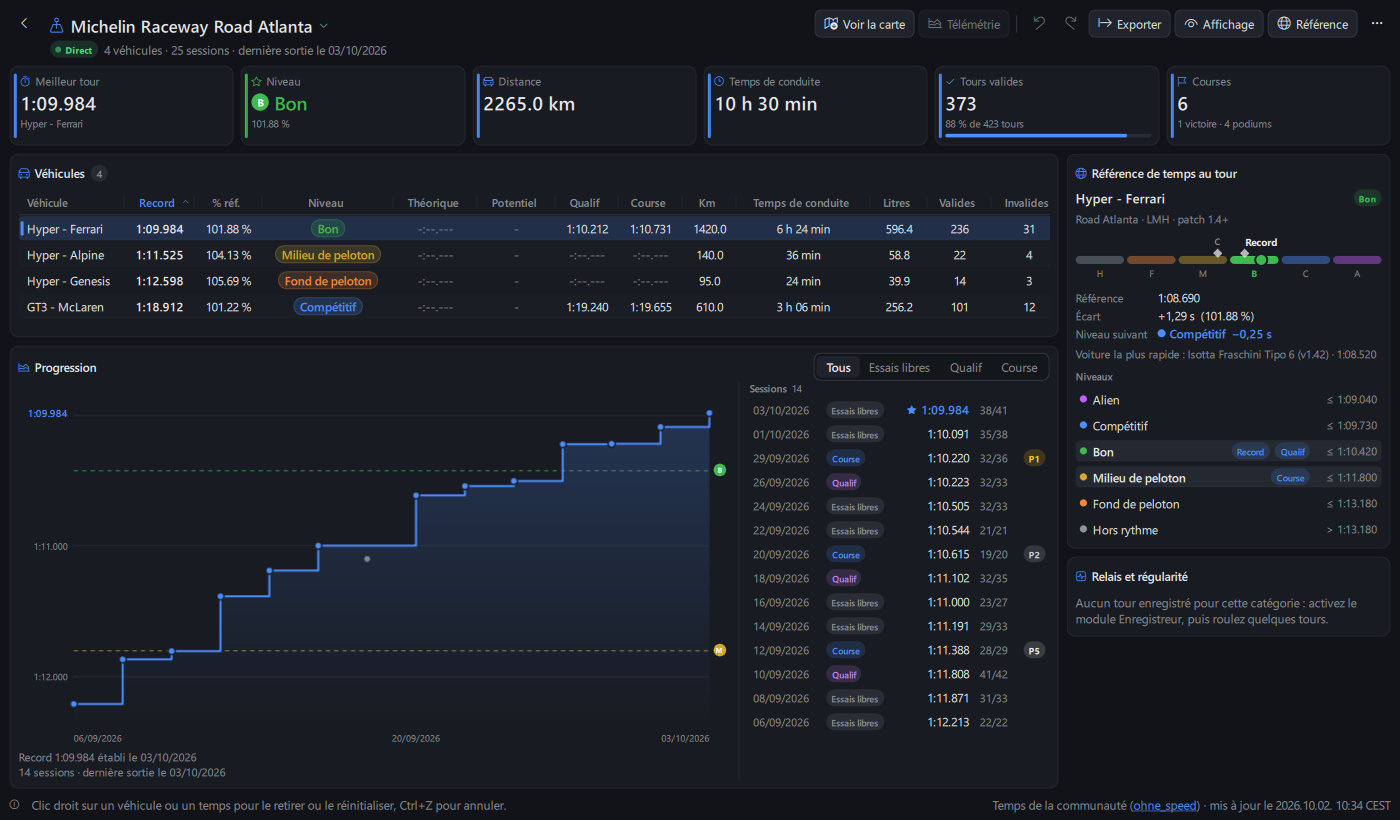
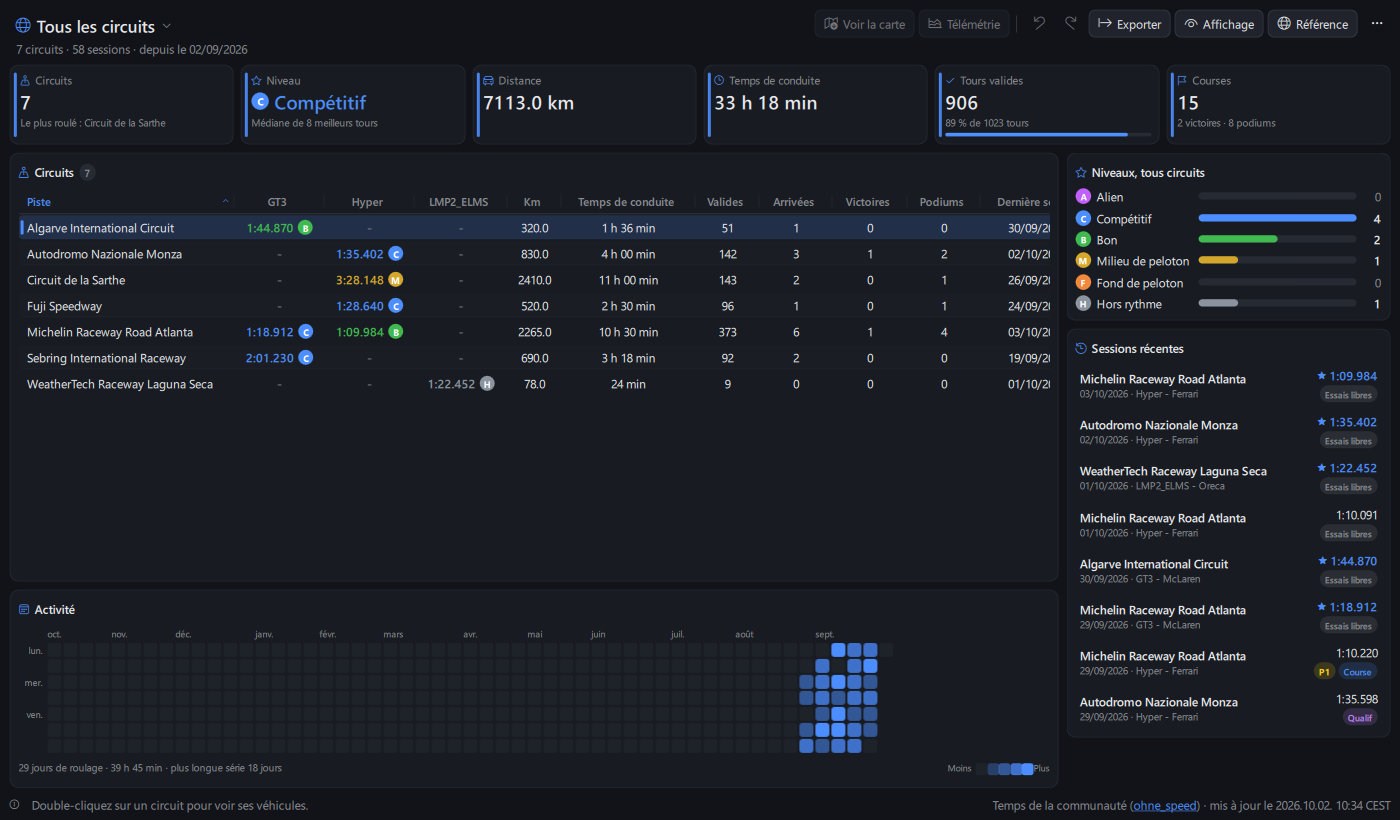
| Track: level scale, progression, sessions | All tracks: activity, recent sessions |
|---|---|
 |
 |
The Stats module (Module page) records your stats and saves them when you return to the garage. Each driving stint is also added to the session history. Stats are stored in the global config folder (.stats files and driver.history).
Stats are not recorded while:
-
enable_player_index_overrideorenable_active_state_overrideis on in the API options (spectating, overrides); - the app runs with several instances allowed (
--single-instance 0).
The vehicle_classification option of the Stats module sets how cars are grouped: Class - Brand (default), Class or Vehicle (not recommended: every car has its own name). Community comparison needs the class (Class - Brand or Class). enable_podium_by_class counts finish positions in your class.
The track name is the page title: click it to pick another track (type to search, Up / Down and Enter to choose, or press /). Below it: number of vehicles and sessions, last driven date, and a Live badge when it is the track of the running game session. The arrow on the left (Alt+←) goes back to All Tracks.
The key figures add up all cars: best lap and its car, its level (with its letter), distance, driving time, valid laps (with their share), races, wins and podiums.
The vehicle table lists each car or class with, among others:
- personal best, gap to the community reference (
% Ref.) and level; - theoretical best (sum of your best sectors) and potential (personal best minus theoretical best);
- qualifying and race bests, distance, driving time, fuel used, valid and invalid laps;
- race starts, finishes, wins, podiums, DNF, win and podium rates, average finish position, penalties;
- average speed, fuel consumption per 100 km, last driven date.
Click a column name to sort (rows slide to their new place). View > Columns (or right-click the column names) shows or hides columns; drag a column edge to resize it. Missing values are dimmed, levels shown as colored badges.
Keyboard in the table: Up / Down, Page Up / Page Down, Home / End to move, Enter to open a track, Delete to remove the selected car (or track), Backspace to go back to All Tracks, Menu for the right-click menu. F5 reloads the stats.
The Lap Time Reference card on the right shows the level scale of the selected car: the six levels from Offline (left) to Alien (right), your personal best (round mark) and your qualifying and race bests (diamonds) placed on it. Hover a level for its lap time limit, a mark for its lap time. Below: the reference lap time, your gap, the time to find for the next level, the fastest car, and the list of levels with the lap time of each one and badges where your bests stand.
All Tracks, first entry of the track selector, is the page that opens (also when you come back after 2 minutes away). It shows your career on one page: each track with the best lap of each class, colored by its level, track totals and last driven date, plus the count of your best laps per level. Double-click a track to open it. View > Sort Tracks by Last Driven lists recent tracks first.
- Activity: a calendar of the last 12 months, one square per day colored by your driving time (all tracks), with the days driven, the total time and your longest streak. Hover a day for its sessions.
- Recent Sessions: your latest sessions on every track, with the best lap (★ when it was your personal best), the race result and the session type. Click one to open its track with its car selected.
-
Driver: name, country, team and number of your game profile (
UserData/player/Settings.JSON), your Steam profile picture (from Steam's own cache, nothing is downloaded), and your races in the game results files: races, wins, podiums, average finish, clean races (no contact, no penalty) and contacts per race. Positions are class positions. With Le Mans Ultimate, your Driver Rank and Safety Rank too, as the game menu shows them, each in its color with the progress to the next tier, and the change since your previous rank (▲ +10%): every change of rank is kept indriver_ranks.historyof the global config folder. Your badge as well (Good Driver,Trusted Racer,Rookie,Warning...), with the game's icon, name and description; the icon is downloaded once from Studio 397's public image server (no sign-in) and kept ingameimage/badge. Several game accounts on one computer (several Steam accounts): ranks are kept per account, the account in use is the one signed in to Steam (followed live), and your other accounts are listed below with their Steam name and picture, last ranks seen, badge and date. When the game rewrites its menu file without your ranks, the last ranks seen of the account in use are shown with their date.
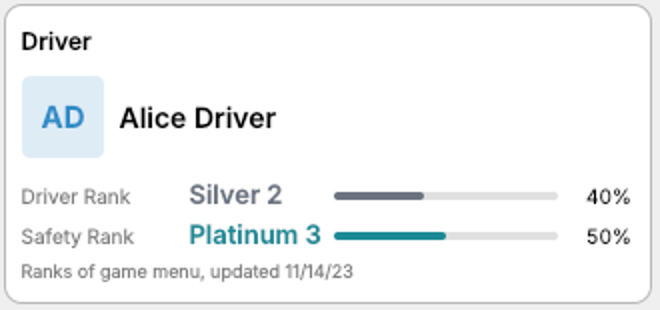
Sessions played before the Stats module recorded them, or with the app closed, are still in the game results files. When a best lap of an LMU results file is missing from your stats, or faster than your personal, qualifying or race best, the Driver card shows how many lap times were found, with Complete.... The confirmation lists every change (track, car, lap time before and after, date); the stats file is backed up first and Ctrl+Z undoes it.
- The car is the one of the session history when the session is linked to it, else found from the results (class, brand in the car name, or vehicle name, following
vehicle_classification). - Laps invalidated by track limits have no time in LMU results files; in team races, only the laps you drove count.
- rFactor 2 results files are not used here (they keep times of invalid laps).
Personal bests are compared with the community LMU lap time sheet of ohne_speed (a published Google Sheet: reference hotlap per track and class, ladder up to 107 %):
| Level | Personal best vs class reference |
|---|---|
Alien |
about 100 % |
Competitive |
101 % |
Good |
102-103 % |
Midpack |
104-105 % |
Tail-ender |
106 % |
Offline |
107 % and slower |
The sheet's 101 % column is the slowest lap time of 101 % (101.5 % of the class reference), and so on: a lap time equal to a limit as shown counts in that level. The ladder is a race pace ladder: the level is the one of your personal best, your qualifying and race bests are marked on the ladder of the reference card. Theoretical (best sectors) and Potential are of the class, as the Sectors module keeps them: best sectors may be of another brand.
The sheet is downloaded once a day when the page opens and kept for offline use. The Reference menu has Update Reference, Change Sheet Address... (another sheet with the same layout) and Compare With Community Lap Times (on or off). View > Colorblind colors uses colors easier to tell apart.
Under the table, side by side (one at a time with the list button when the window is narrow):
-
Progression: best lap of each session (dots, new personal bests highlighted) and your personal best over time (line over a shaded area), with round lap time grid lines and the level limits (dashed, level letter at the end). Filter by
All,Practice,QualifyingorRace; the filter applies to the sessions list too. The line under the chart gives the date of your personal best and the game version it was set with (PB 1:09.984 set on 03/10/2026 · Version 1.42). -
Sessions: sessions of the selected car, newest first: date, session type, game version (
v1.42), best lap (★ personal best), valid laps, race result (position, podium in color, DNF or DQ), or your class position from the game results file (P3/12). A lightning mark shows contacts or penalties. The tooltip adds driving time and distance and, from the results file, position, gap, contacts, penalties, track limits points, online or single player and server. Click a session linked to a results file to open it in Results & Replays. - Stints & Consistency: pace and lap time change per lap by tyre compound over your recorded stints, and a consistency index per session and per track (lap time spread of clean laps; lower is more consistent).
The game version is recorded with each session since 0.23.0 (Le Mans Ultimate); older sessions take it from the game results file of the session. Sessions are linked to the game results files by track, session type and time.
- Your friend exports their history:
Export>Session History for a Friend (JSON).... - You load that file with
Reference>Compare With a Friend's Stats.... Their times show next to yours. -
Reference>Stop Comparing With Friendreturns to your stats only.
The Export menu saves:
-
Export CSV...: the table as shown (visible columns); -
Export Raw Values (CSV)...: base units without formatting (lap times in seconds, distance in meters, fuel in liters), for spreadsheets; -
Session History (CSV)...andSession History for a Friend (JSON)....
The Telemetry button (or right-click > Open Recorded Laps) opens the recorded laps of the selected car class in the Telemetry Viewer, with your personal best lap as reference. View Map shows the track map.
The viewer never lets you edit a value, only reset or remove:
- right-click a lap time >
Reset Lap Time; - right-click a car >
Remove Vehicle; -
⋯>Delete all stats of this trackremoves all stats of the track (orDeleteon a track ofAll Tracks).
Before each change, the stats file is backed up (the last 10 are kept): ⋯ > Restore Backup. Undo / Redo (Ctrl+Z / Ctrl+Y) work while the page is open (they wait while an edit is being saved), and stats recorded meanwhile are kept. ⋯ > Reload (F5) reads the stats file again (the page also reloads by itself when the Stats module saves).
All options: Driver stats viewer and Stats module.