Wireless Energy Tap_EN
The Wireless Energy Tap is a portable item used to connect any machine to the wireless EU network. When the player right-clicks a GT machine with it, the corresponding link terminal cover (energy or power) is automatically attached, eliminating the need to craft covers manually. Supports Energy (energy link) and Power (power link) dual-mode switching, with dynamic textures reflecting the current mode.
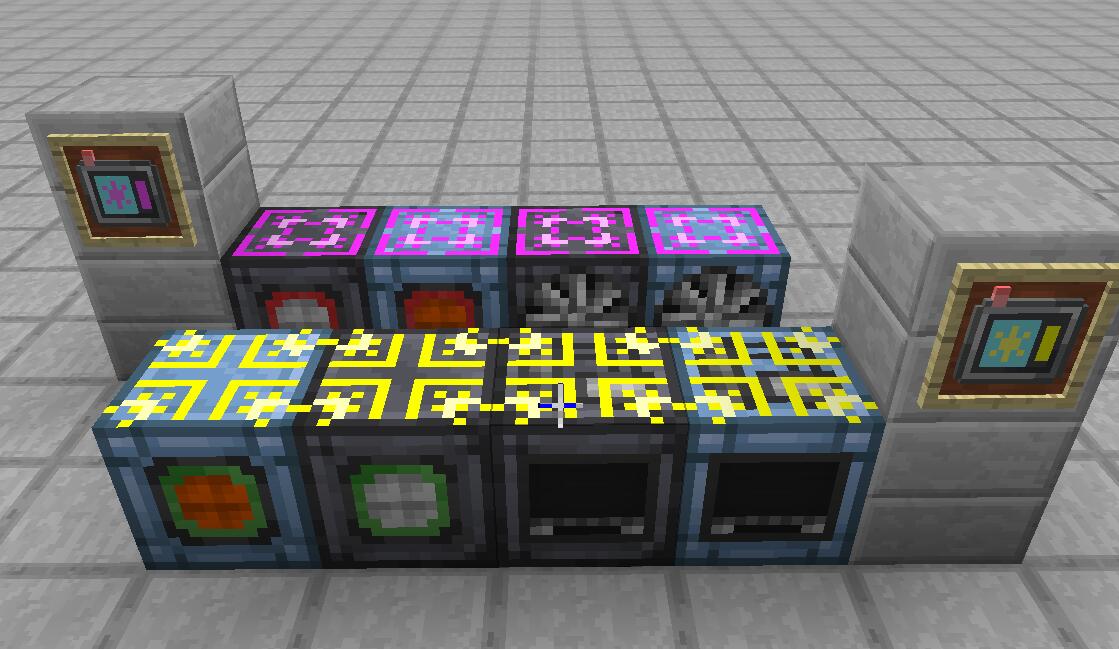
- Portable item, connects any machine to the wireless EU network
- Shift + Right-click to switch Energy / Power modes
- Right-click a machine to auto-attach the corresponding cover
- Dynamic texture reflects current mode (Energy yellow / Power purple)
- Binding a Laser Source/Target Hatch consumes 1 Laser Vacuum Pipe
Craft in a crafting table using the following 3×3 matrix:
| Slot | Col 1 | Col 2 | Col 3 |
|---|---|---|---|
| Row 1 | LV Emitter | Steel Plate | LV Emitter |
| Row 2 | Steel Screw | Screen Cover | Steel Screw |
| Row 3 | LV Emitter | Steel Plate | LV Emitter |
Materials: LV Emitter ×4 + Steel Plate ×2 + Screen Cover ×1 + Steel Screw ×2
Recipe layout: Four corners are LV Emitters, top-middle and bottom-middle are Steel Plates, middle-left and middle-right are Steel Screws, center is Screen Cover.
The Wireless Energy Tap supports 2 modes, switched via Shift + Right-click:
| Mode | Name | Function | Grid Line Color |
|---|---|---|---|
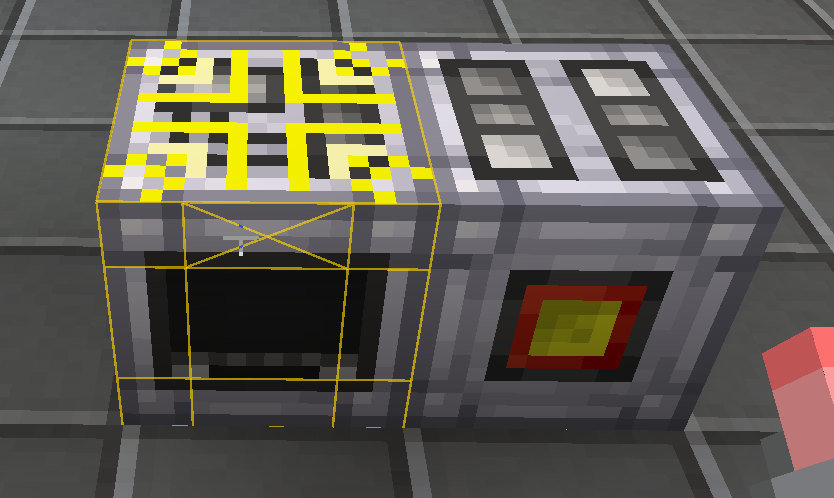
| Energy | Energy Link | Draws energy from the wireless grid to power the machine | Yellow grid lines |
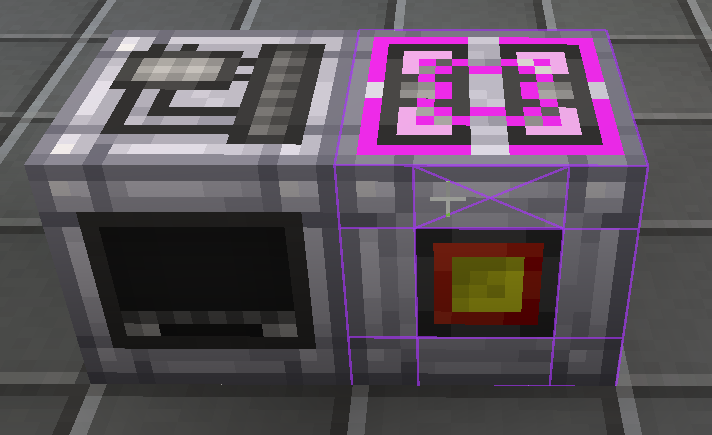
| Power | Power Link | Outputs machine-generated energy to the wireless grid | Purple grid lines |
- Switch method: Shift + Right-click (on a block or in air)
- Texture feedback: Item texture updates immediately after switching to reflect the current mode
When the Tap points at a GT machine (ICoverable), a 3×3 grid highlight is drawn, mimicking GT wrench/cover tool behavior:
| Mode | Color (RGB) | Alpha | Description |
|---|---|---|---|
| Energy | RGB(255, 213, 0) Yellow | 160 | Energy link mode grid lines |
| Power | RGB(170, 51, 255) Purple | 160 | Power link mode grid lines |
Line width calculation: Line width = 2.0 × displayHeight / 1080, auto-scaling based on screen resolution.
| Parameter | Value | Description |
|---|---|---|
| Anti-repeat interval | 4 ticks (~200ms) | INTERVAL_TICKS = 4L, prevents repeated attachment to the same machine within a short time |
| Bind notification | First 10 times | MAX_BIND_NOTIFY = 10, bind success notification shows at most 10 times then stops |
| Default amperage logic | Force 2A when input amp ≤ 1 | Prevents single-ampere machines from malfunctioning |
| Voltage fallback | Use output voltage when input V ≤ 0 | Compatible with generator-type machines (no input voltage) |
| Arc furnace 4A special case | 4A | Identified via RecipeMaps.arcFurnaceRecipes, forced 4 amperes |
When right-clicking a GT machine, the Tap auto-detects voltage/amperage/capacity and attaches the corresponding cover:
- Auto-detection: Reads the machine's input voltage, input amperage, and capacity
- Energy mode: Attaches Link Terminal (Energy) cover, configures V / A / capacity
- Power mode: Attaches Link Terminal (Power) cover
- Capacity formula: V × A × 800 ticks
Grid binding: Binds to the machine owner's (ownerUUID) grid. Prompts to confirm team sharing — team members' machines will connect to the same grid.
- Step 1: Craft the Wireless Energy Tap
- Step 2: Shift + Right-click to switch to the target mode (Energy draw / Power output)
- Step 3: Right-click a GT machine to auto-attach the corresponding cover (on the side facing the player)
- Step 4: The machine starts drawing power from the grid (Energy) or sending power to the grid (Power)
- Step 5: Right-click the attached cover to view configuration info
Item NBT fields of the Wireless Energy Tap:
| Field | Type | Description |
|---|---|---|
| OutputMode | boolean | Current mode (false = Energy / true = Power) |
| LastUseTime | long | Last use timestamp, used for anti-repeat interval check |
| BindNotifyCount | int | Bind notification count, stops notifying after reaching MAX_BIND_NOTIFY (10) |