Repository navigation
Editor Tools
Menus, overlay, and editor-only helpers.
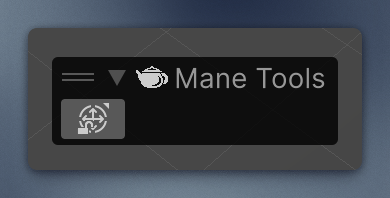
Mane Tools overlay on the Scene View toolbar.
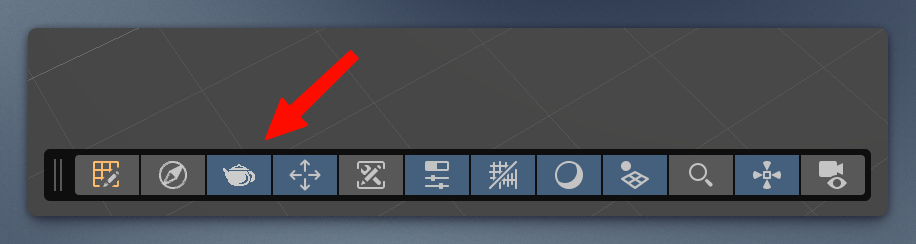
Includes Children Transform Freeze: while enabled, moving a parent keeps active children in world space.
Right-click a RectTransform component and choose Convert → Bake Transform to Anchors.
The current rectangle is written into the anchors. Anchored Position becomes (0, 0), and Width and Height (sizeDelta) become 0. The edges are then the anchors, so the element resizes with its parent instead of keeping a fixed offset and size.
The parent must be a RectTransform with a width and height other than zero. A root Canvas element, or a child of a plain Transform, cannot be baked.
The pivot must be (0.5, 0.5). The size is split evenly around the anchor center, so a different pivot leaves the rectangle in the wrong place. Rotation and scale stay as they are.
This is extremely useful when you need to attach children to an exact point on a parent whose size is not known yet.
Example: particle systems and other dynamic objects bind to exact points on the background image at different screen resolutions.
Edit → Take Game Screenshot (F10), or from code:
using Mane.Unity.Editor;

Screenshot.Capture();                    // desktop, timestamped PNG
Screenshot.Capture("/path/to/folder");   // folder or file path
An empty or invalid path falls back to the desktop. The Console logs the written path.
- GameObject / Assets → Mane Tools → Check Missed Components — missing scripts and broken references on the selection, prefab, or scene.
- Assets → Mane Tools → Search for References — project only, or project + packages. Finds every asset that references the selected ones: scenes, prefabs, materials, ScriptableObjects, animator controllers, and any other type. It uses Unity's dependency data, so it works with binary-serialized assets and importer settings too.
-
Search for References (deep) — the same, plus a search for the asset's GUID in the text of every text file. This also finds GUIDs stored as plain strings, like an Addressables
AssetReferenceor your ownstring guidfields; those results are marked "as a GUID in text". It reads every text file in the scope, so it is slower.
Results go to the Console. Click each log entry to highlight the related GameObject (if possible).
Create → Scripting → MonoBehaviour Script follows Unity's script menu: the Project window asks for a name, and the class name and root namespace come from that name and the assembly definition.
The class body is empty. Unity's item normally inserts Start and Update; this package replaces it with the empty template.
Add Component → New Script still uses Unity's installed template, so that path still includes Start and Update.
uGUI related component menus UIBehaviour and ManeUIBehaviour can be added with Mane Tools for Unity UI.
EditorDebug.Log / LogWarning / LogError compile away outside the Editor, so shared runtime code can log without player spam.
| Action | Where |
|---|---|
| Clear Console | Edit, F8 |
| Unload scene / Remove scene / Reopen scene |
File (Ctrl/Cmd+W, Ctrl/Cmd+Shift+W, Ctrl/Cmd+T) |
| Apply prefab changes | GameObject → Prefab (the transform is included) |
| Force Reserialise Asset(s) / Force Reserialize All Assets | Assets → Mane Tools |