Get Mods & Nexus Integration
Clicking Get Mods on the Mods page opens a separate Get Mods window. This window has a sidebar with three sections: Nexus Mods, Add from Archive, and Add from Folder. The main area shows the currently selected section. When a mod is added by any method, an additional entry in the sidebar appears in the Downloads section, showing its progress and status.
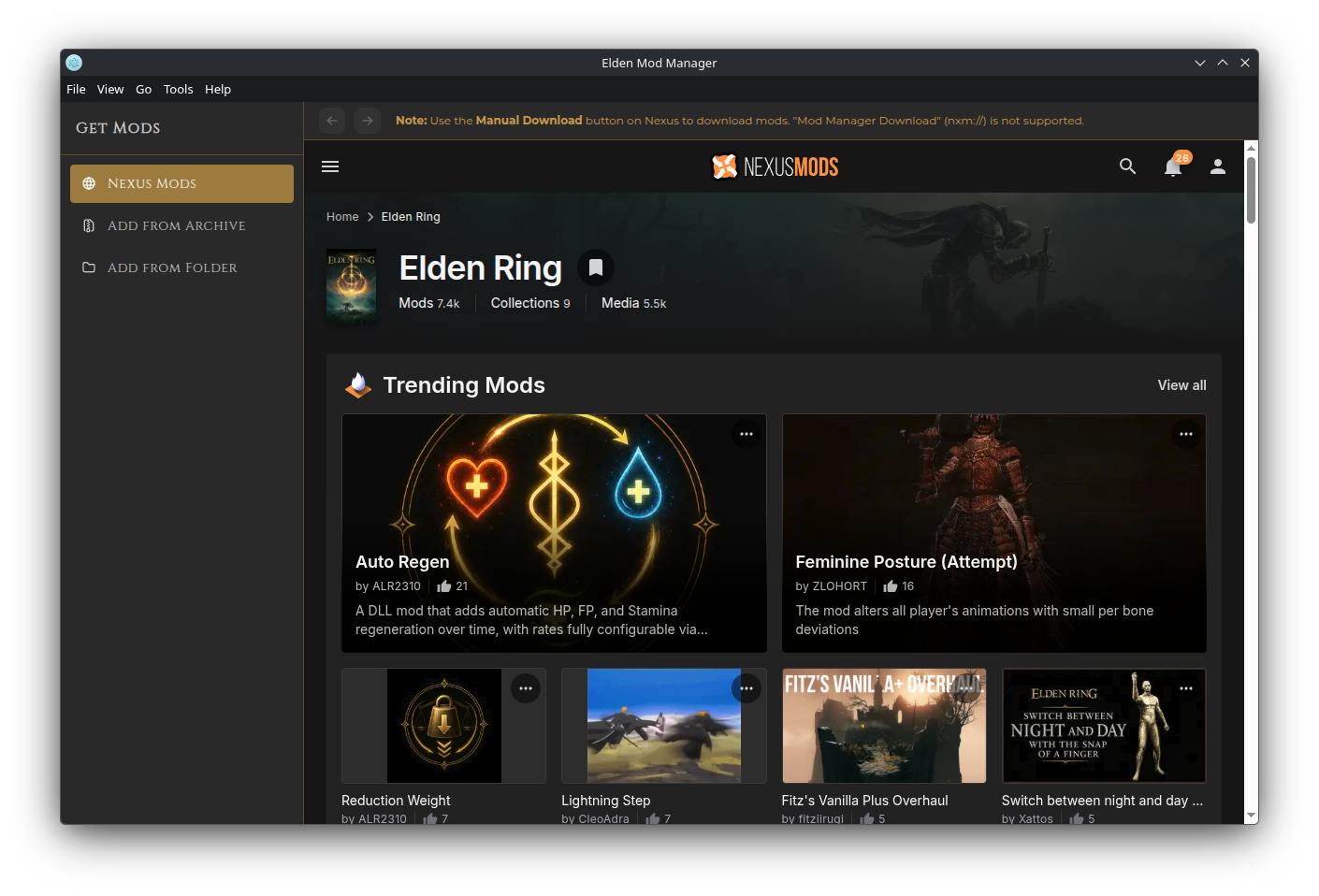
This is an embedded browser that links directly to the Nexus Mods Elden Ring section, with Back/Forward navigation buttons in the top left corner. Use Nexus Mods as you normally would in a web browser, and when you find a mod you want to add, click the Manual Download button on its page. The app will download and extract it automatically, then you can configure it in the Configure Mod form (see below).
Important: Use the Manual Download button on a mod's Nexus page. The "Vortex" and "Mod Manager Download" buttons (
nxm://links) are not supported.
Browse to a mod archive already on your disk (.zip, .7z, .rar, .tar, .gz, .bz2). It's extracted and handed off to the Configure Mod form.
Browse to a folder that already contains an extracted mod.
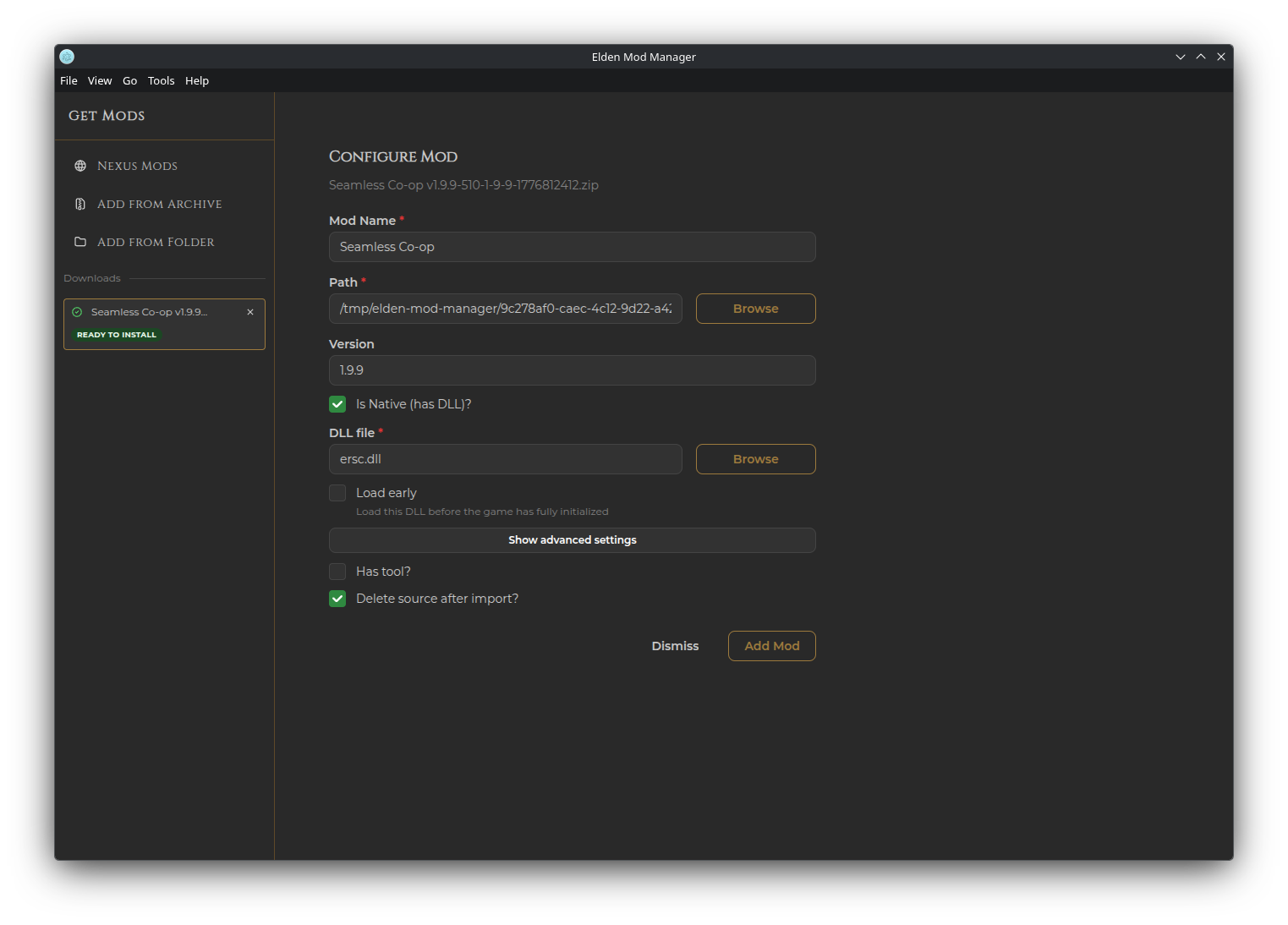
However the mod got here, you'll land on the same form before it's added to your library:
- Mod Name — pre-filled from the download/Nexus info where possible
- Path — read-only, where the extracted mod currently lives
- Version — pre-filled from the download/Nexus info where possible
-
Is Native (has DLL)? — check this for DLL-hook mods. The app tries to auto-detect the
.dllif there's exactly one in the folder. Also exposes Load early and, under "Show advanced settings," the same Finalizer/Initializer fields described in Managing Mods - Has tool? — check this if the mod includes a companion executable (randomizer, config utility, etc.). This registers a Tool linked to the mod, which you can later launch from the mod's actions menu
- Delete source after import? — removes the original archive/folder once the mod is copied into your managed mods folder (checked by default for Nexus downloads)
Click Add Mod to finish. If a mod with the same name and version is already installed, you'll be asked to change one of them first.
For some well-known mods, several of these fields are filled in automatically once the app recognizes them.
- If you have downloads that haven't finished being configured yet, closing the Get Mods window will ask you to confirm — choosing to close anyway discards them, deleting their downloaded/extracted files. Finish configuring (or leave the window open) if you want to keep one.
- If you got here from a profile import with several missing mods queued up, the sidebar shows a Pending Installs list — installing each one (via any method) checks it off automatically.