Tools
Tools are companion executables associated with your mods — config/randomizer utilities, ertool, and the like. The app keeps managed copies of them in its own tools folder (see Settings).
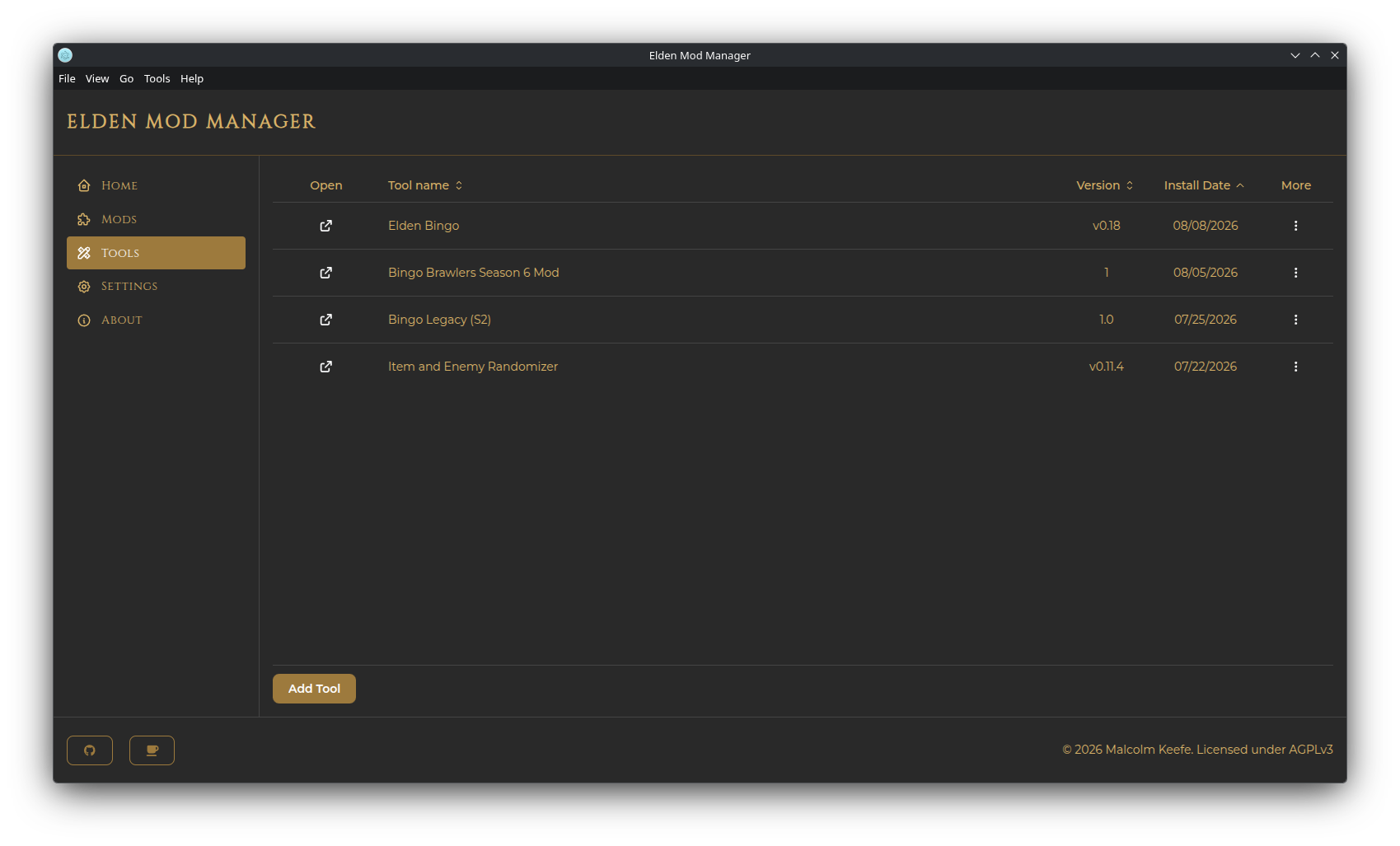
When you add a mod via Get Mods and check Has tool?, a Tool entry is created and linked to that mod automatically. You can then launch it from that mod's actions menu (Open Tool) on the Mods page, or from the Tools page.
Note: Deleting a mod that has a linked tool also deletes that tool.
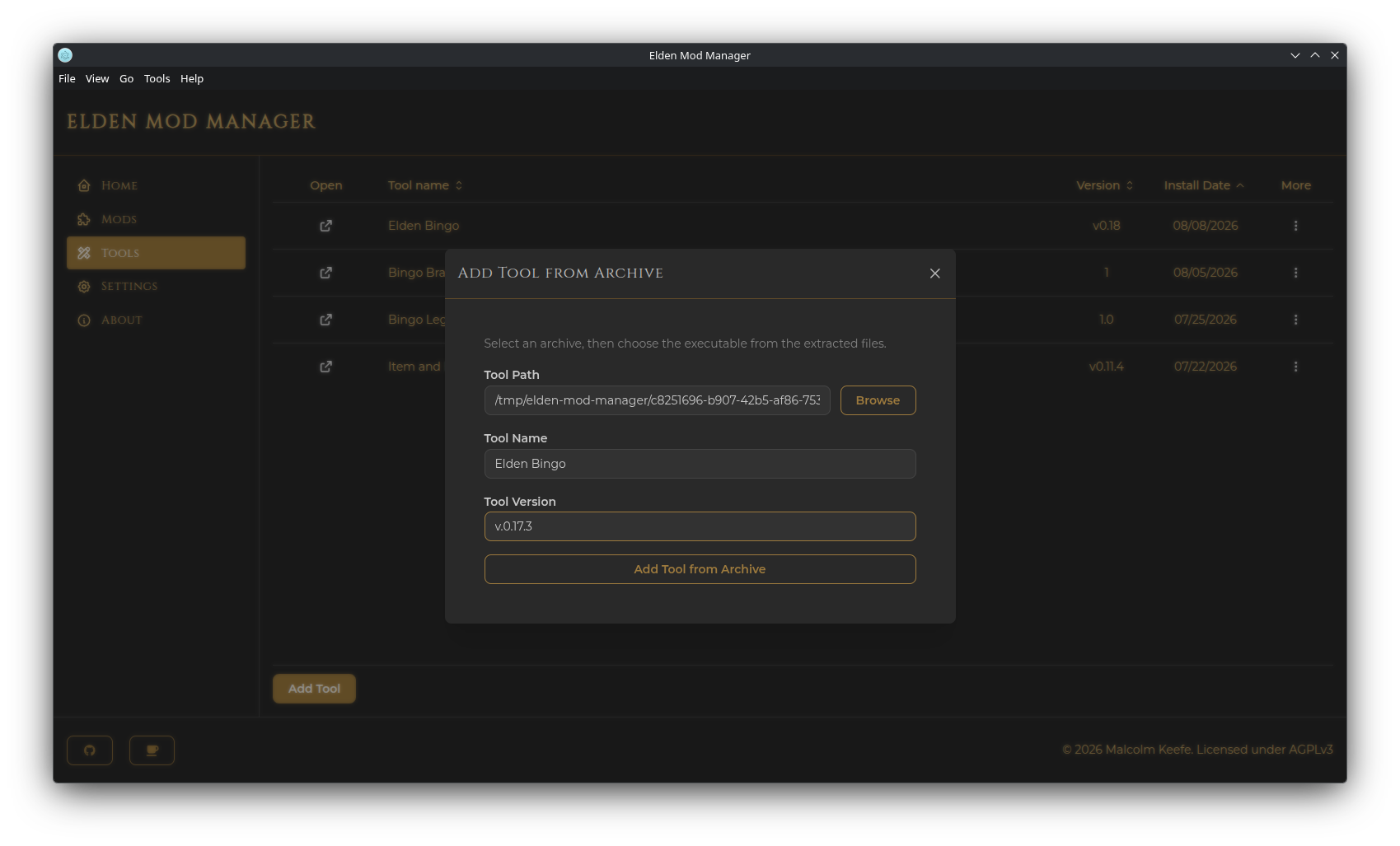
On the Tools page, click Add Tool, then choose:
- From File — pick the executable directly. You can optionally copy just that file into the app's managed tools folder (and delete the original file afterward).
- From Archive — pick an archive; it's extracted, then you pick the executable from inside it. The whole extracted contents are copied into the tools folder.
- From Folder — pick a folder that already contains the tool, then pick its executable inside it. You can optionally copy the whole folder into the app's managed tools folder (and delete the original folder afterward).
Fill in a Name and Version (a tool with the same name and version combination can't be added twice).
Click the icon in the Open column on the Tools page, or use Open Tool from a linked mod's actions menu on the Mods page.
On Linux, a Windows-only tool (a .exe file) is launched automatically through Proton, using Elden Ring's own Proton prefix — see Linux Support for how this works and what it requires.
Use the More menu on a tool's row:
- Edit Tool — change its name, version, or path
- Open Containing Folder — opens the tool's location in your file manager
- Remove Tool — removes the entry, with an option to also delete its files from disk