Managing Mods
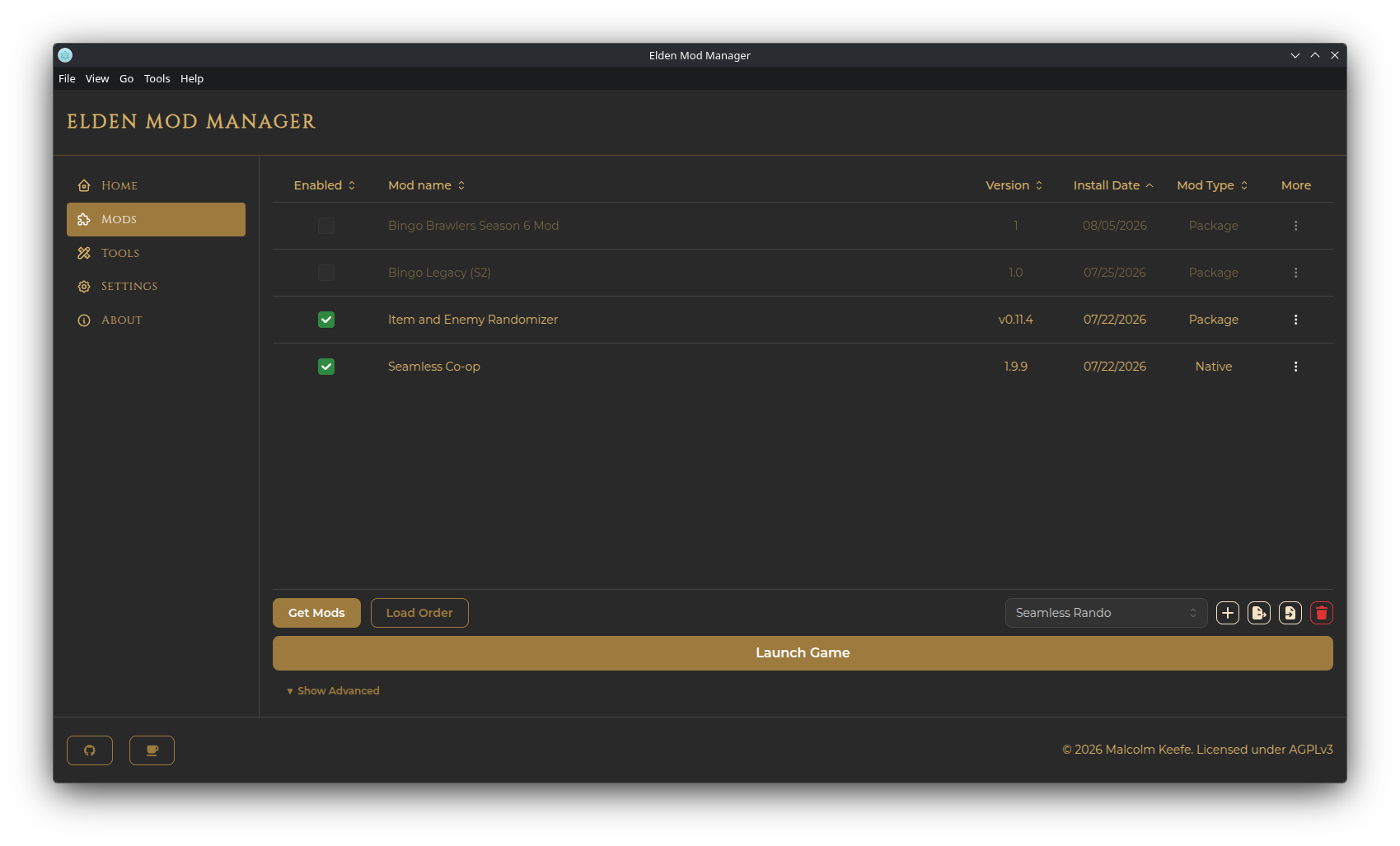
The Mods page lists every mod you've installed, with columns for:
- Enabled — a checkbox controlling whether the mod is part of your currently active profile
- Mod name
- Version
- Install Date
- Mod Type — see Native vs. Package mods below
- More — a per-mod actions menu
Below the table is the toolbar: Get Mods, Load Order, the profile selector, Launch Game, and an Advanced Settings section (see Launching the Game).
Installing a mod adds it to your library — it doesn't automatically appear in the game. Enabling a mod (via its checkbox) adds it to the currently active profile's load order. Different profiles can have different mods enabled from the same shared library, so you can keep a large mod collection installed and only turn on what a given profile needs.
-
Native mods ship a
.dllfile that hooks directly into the game. (Example: Seamless Co-op) -
Package mods are file-replacement/param-edit mods (containing a
regulation.binand/or the game's expected mod subfolders. Example: Glorious Merchant).
The Mod Type column tells you which kind each installed mod is; this also affects which options are available in its actions menu and how Load Order treats it.
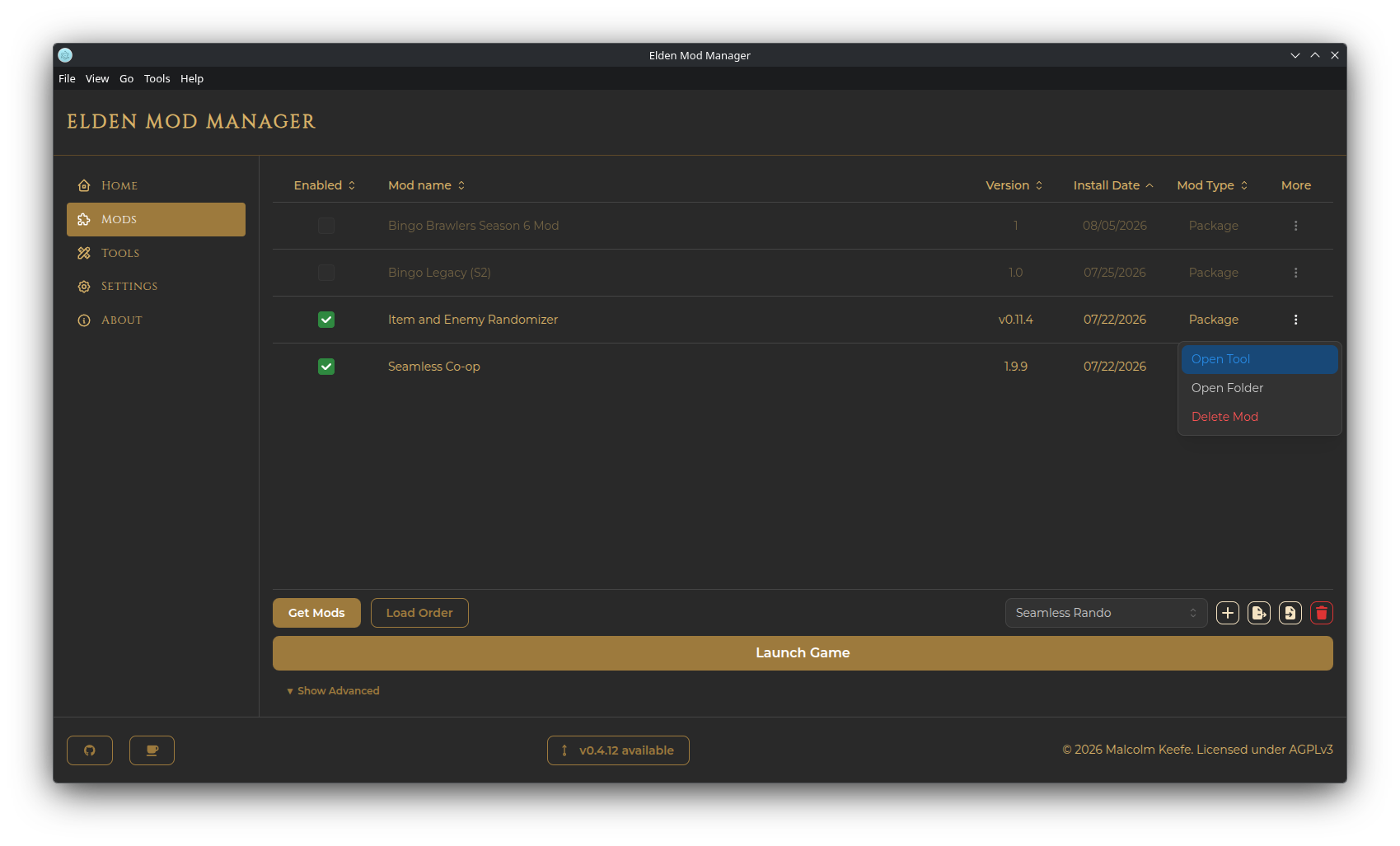
Click More (3 vertical dots) on a mod's row to see:
-
Edit Mod — change its name or version (this moves its install folder on disk to match and updates any linked tool automatically); also lets you turn "Is Native (has DLL)?" and "Has tool?" on or off and pick the correct DLL file / executable
-
Edit Profile Settings (Native mods only, requires the mod to be enabled) — advanced DLL loading hooks:
- Load early — load this DLL before the game has fully initialized
- Finalizer — a symbol name called when the DLL is queued for unload
- Initializer — run an action after the DLL loads: none, a delay in milliseconds, or a named function symbol
Important: Only change these if a mod's own instructions tell you to, or you know what you are doing!
-
Edit INI Files (only shown if the mod ships
.inifiles) — opens an in-app text editor, one tab per file, with Save / Save All -
Open Tool (only shown if a companion tool is linked to this mod) — launches the linked executable; see Tools
-
Open Folder — opens the mod's install folder in your file manager
-
Delete Mod — removes the mod's files from disk and removes it from every profile's enabled list and load-order rules. This cannot be undone.
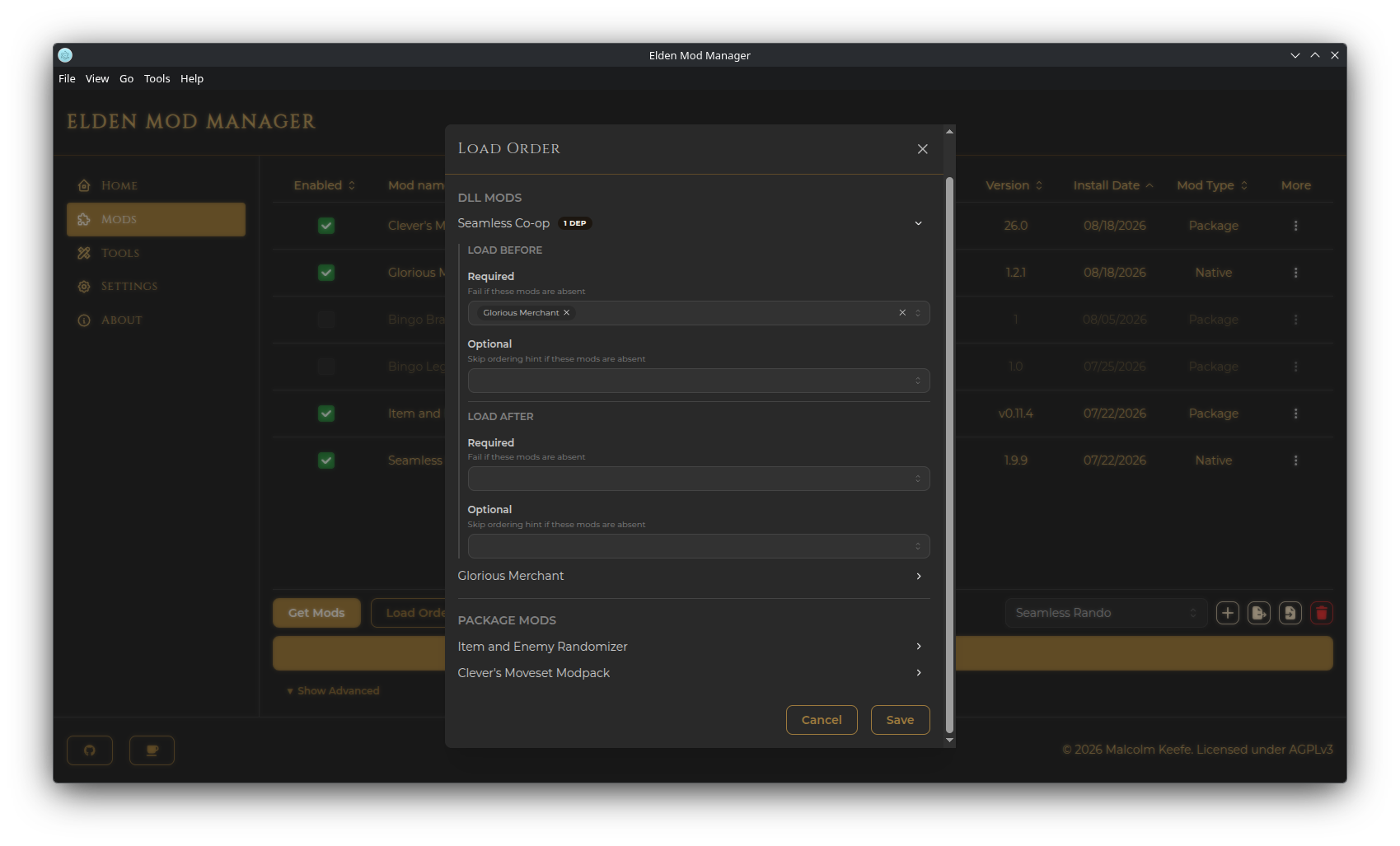
Click Load Order to open the load order editor. It only lists mods that are currently enabled in the active profile, split into two independent groups:
- DLL mods (Native)
- Package mods
Each group is ordered separately — DLL load order doesn't affect package load order or vice versa.
Expand a mod's row (the chevron on the right) to set fine-grained ordering rules against other enabled mods of the same type:
-
Load before / Load after, each split into:
- Required — the game/mod loader will fail to launch if the referenced mod isn't present
- Optional — the ordering hint is simply skipped if the referenced mod isn't present
These rules are saved per profile. If no mods are enabled yet, you will be prompted to enable at least one first.