Getting Started
The main window has:
- A navigation sidebar with five pages: Home, Mods, Tools, Settings, and About
- A footer with links to the project's GitHub and support page, plus an update notice when a new version is out
- A menu bar at the very top of the window — see The Menu Bar below
- File — Quit
- View — Reload, Force Reload, and Toggle Developer Tools
- Go — quick shortcuts to open the Elden Ring install folder, your Mods folder, the app's own install folder, or its AppData folder, each in your file manager
- Tools — Add Elden Mod Manager desktop shortcut (see Installation)
- Help — Bug Report and Releases (both open the project's GitHub page), and Collect Logs — see Troubleshooting if something goes wrong
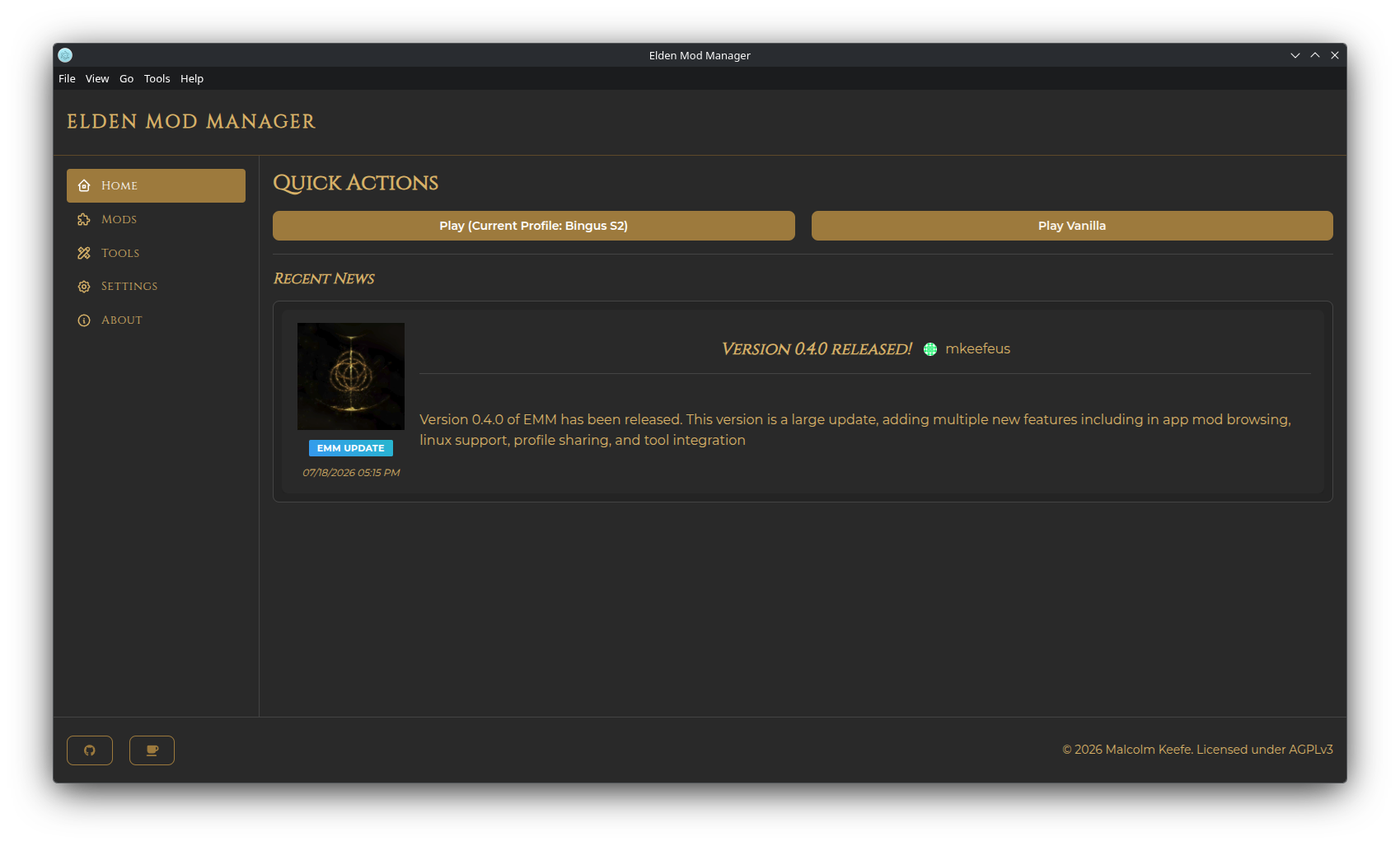
The Home page has two Quick Actions:
- Play (Current Profile: ...) — launches Elden Ring modded, using whatever profile is currently active
- Play Vanilla — launches unmodded Elden Ring via Steam
Below that is a Recent News feed pulled from the Elden Mod Manager blog.
A quick end-to-end walkthrough:
- Go to the Mods page and click Get Mods. See Get Mods & Nexus Integration for the full flow.
- Find a mod on the Nexus Mods tab (or add one from a local archive/folder), then fill out and submit the Configure Mod form.
- Back on the Mods page, your new mod appears in the list. Check its Enabled checkbox to add it to your active profile.
- Click Launch Game to start Elden Ring with the mod loaded.
For everyday mod management — enabling/disabling, load order, editing a mod's settings — see Managing Mods.