Settings & Backup
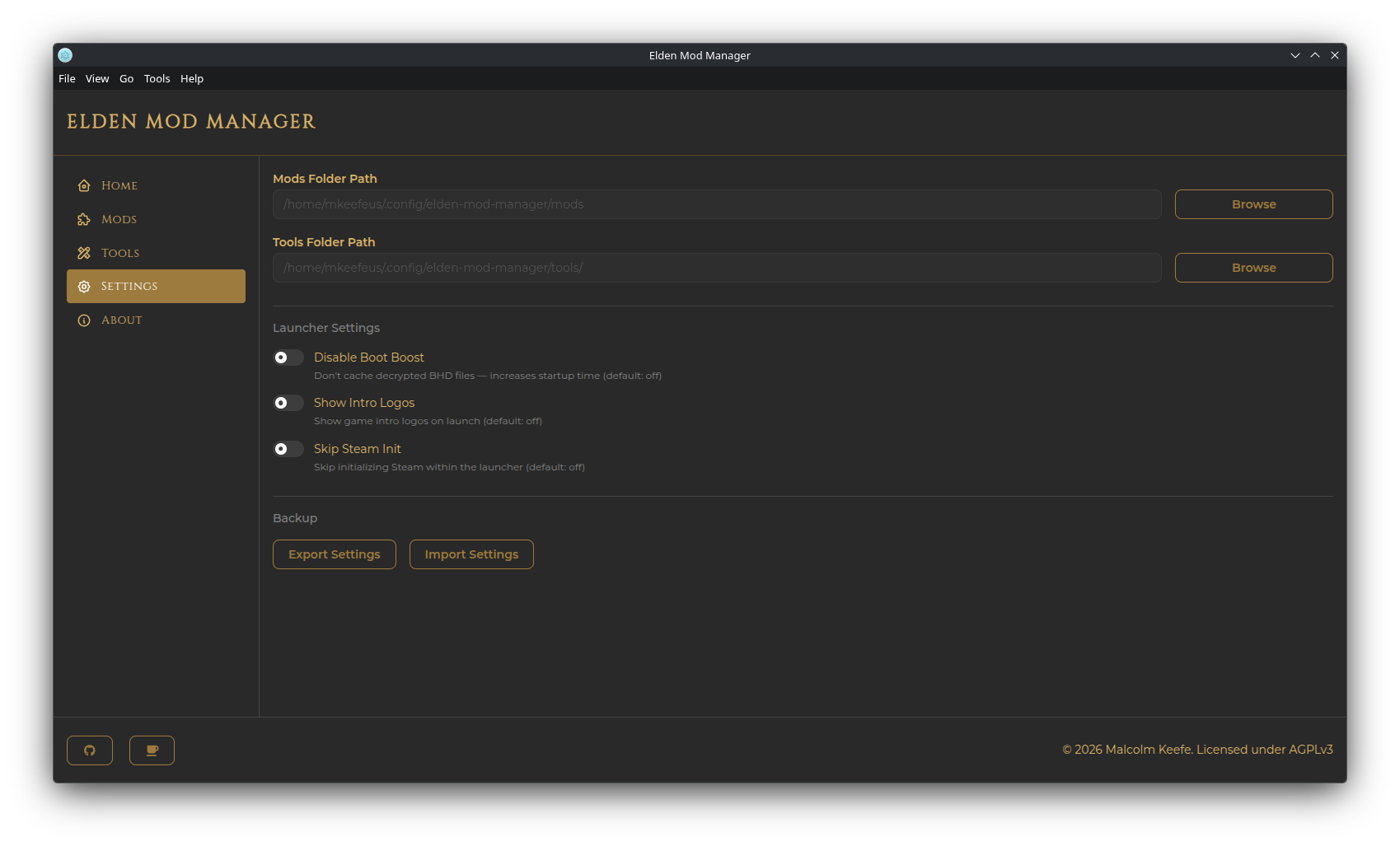
- Mods Folder Path — where installed mod files live
- Tools Folder Path — where managed tool files live
Both are shown read-only with a Browse button. Changing either one moves your existing files to the new location automatically — the destination folder must be empty first.
Tip: You can jump straight to these folders (plus the Elden Ring install folder and the app's AppData folder) from the Go menu in the menu bar — see Getting Started.
- Remember Last Page — reopen the app on whichever page you had open last time, instead of always starting on Home (on by default). This is an app-wide preference, not tied to any profile.
-
Export Settings — saves your mods/tools folder paths to a
.jsonfile. - Import Settings — loads those back in. If an imported path doesn't exist on the current machine, that particular path is skipped (with a warning) rather than applied — this restores configuration, not the mod/tool files themselves.
This is different from profile export/import, which covers a single profile's mod list, load order, and per-profile settings (including Launcher Settings — see Profiles) rather than app-wide paths.
Looking for Launcher Settings (Disable Boot Boost, Show Intro Logos, Skip Steam Init, Override Elden Ring Executable)? They moved to the Show Advanced panel on the Mods page, alongside the other per-profile launch settings — see Profiles.