Repository navigation
Tour
RetroDualStation turns ROCKNIX on the Anbernic RG DS Plus and RG DS into one system with two screens. This tour shows the additions on top of EmulationStation: the two special buttons, the Control Center, the Game switcher, the Power menu and the Artwork Manager.
The same tour runs once on the device after installation. You can start it again at any time from the Control Center with Select.
After installing, you'll find RDS in Ports by these icons:
| Entry | What for | |
|---|---|---|
 |
Install RDS | Installs RDS – after installing, a new package shows up here as Update RDS |
 |
RDS Dual-Screen | ES across both screens |
 |
RDS Single-Screen | Stock ES on one screen |
 |
Artwork Manager | Boxart, icons and hero images on the device |
 |
Uninstall RDS | Back to stock: restores your original settings; games, artwork and saves stay |
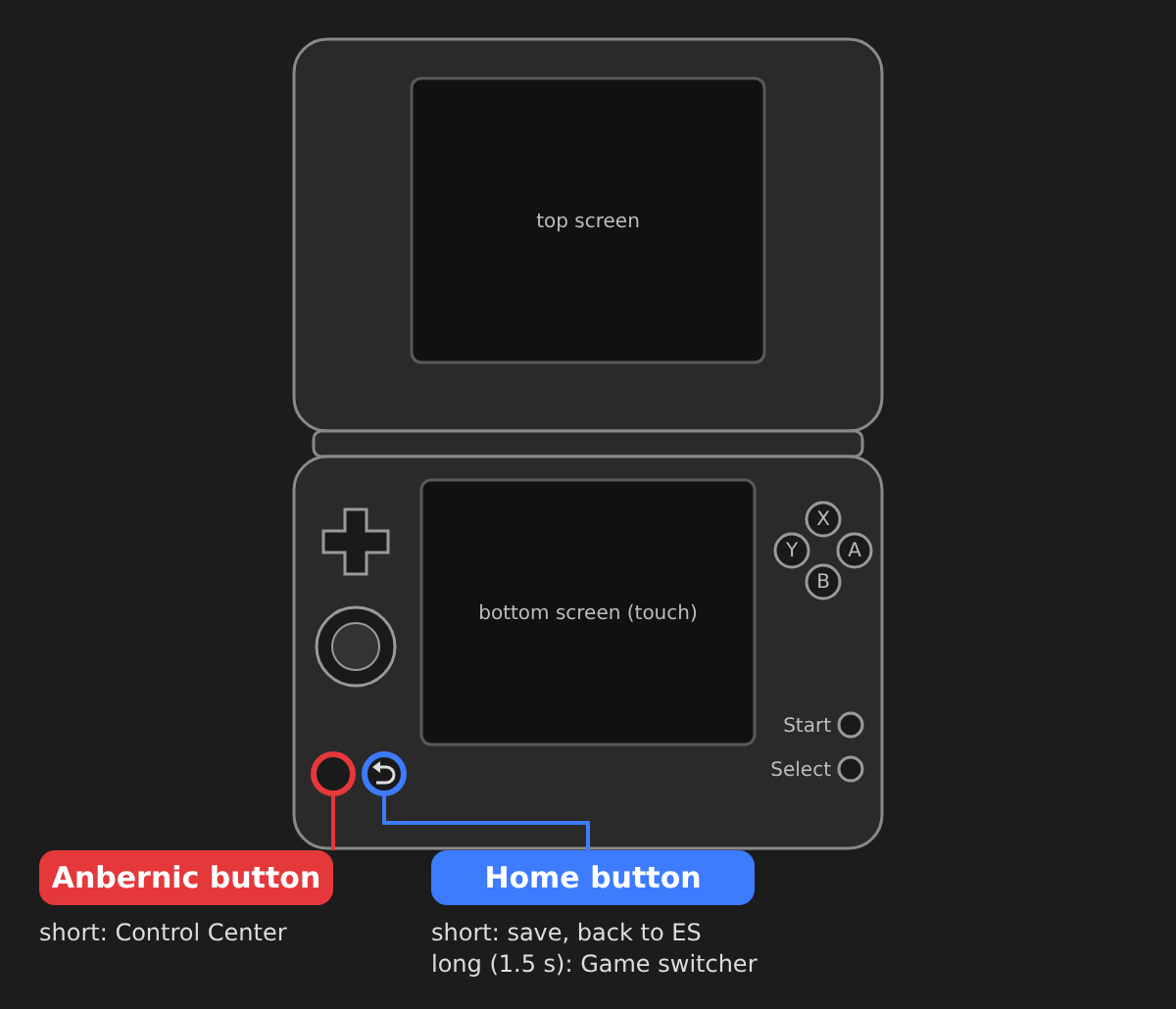
| Button | Press | Action |
|---|---|---|
| Anbernic | short | Open / close the Control Center |
| Home | short | In a game: save and return to EmulationStation |
| Home | twice | Open the Game switcher |
| Home | hold (0.8 s) | In a game: swap to the previous game |
| Power | short | Open the Power menu |
| Power | long (0.8 s) | Sleep immediately |
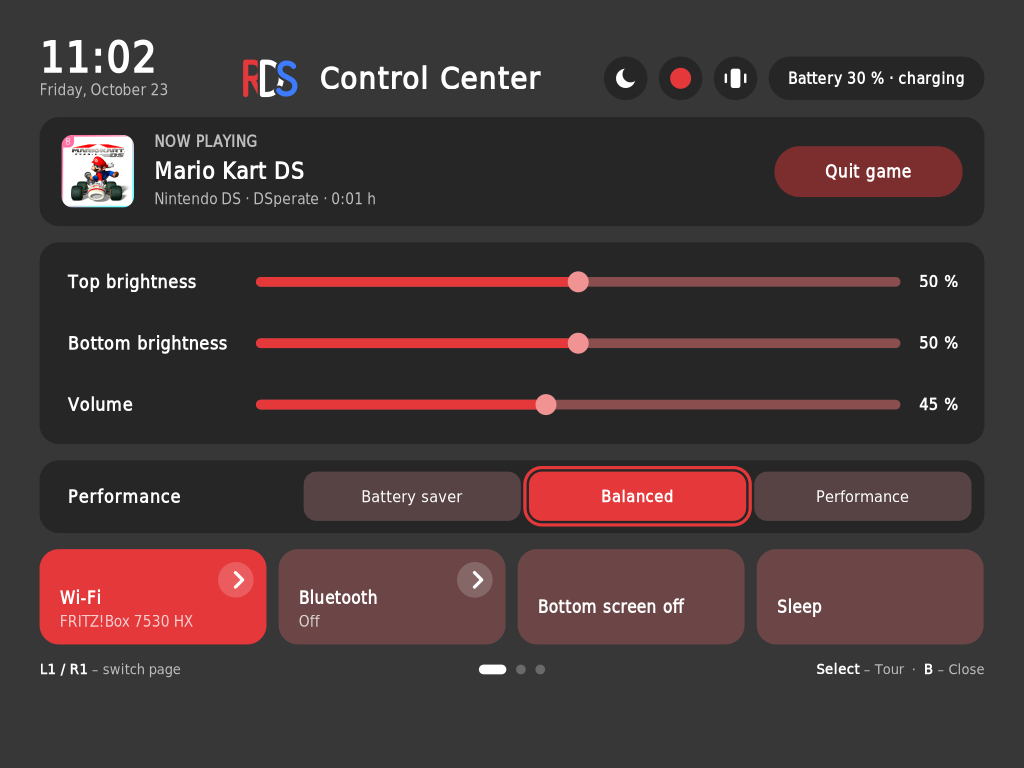
Open it with the Anbernic button – in EmulationStation and in every game (the game pauses).
- Now playing: the running game with Quit game.
- Brightness of the top and bottom screen and volume – with the D-pad or by touch.
- Performance: Battery saver · Balanced · Performance.
- Tiles: Wi-Fi and Bluetooth (X / Y – details and pairing), Bottom screen off (wake it with the Anbernic button) and Sleep.
- Top right: theme dark · light · automatic (automatic takes the colours of the ES theme, e.g. canvas rds Famicom) and the accent colour from the 16 colours of the DS profile.
L1 / R1 – switch page · B – close · Select – start this tour again
 |
 |
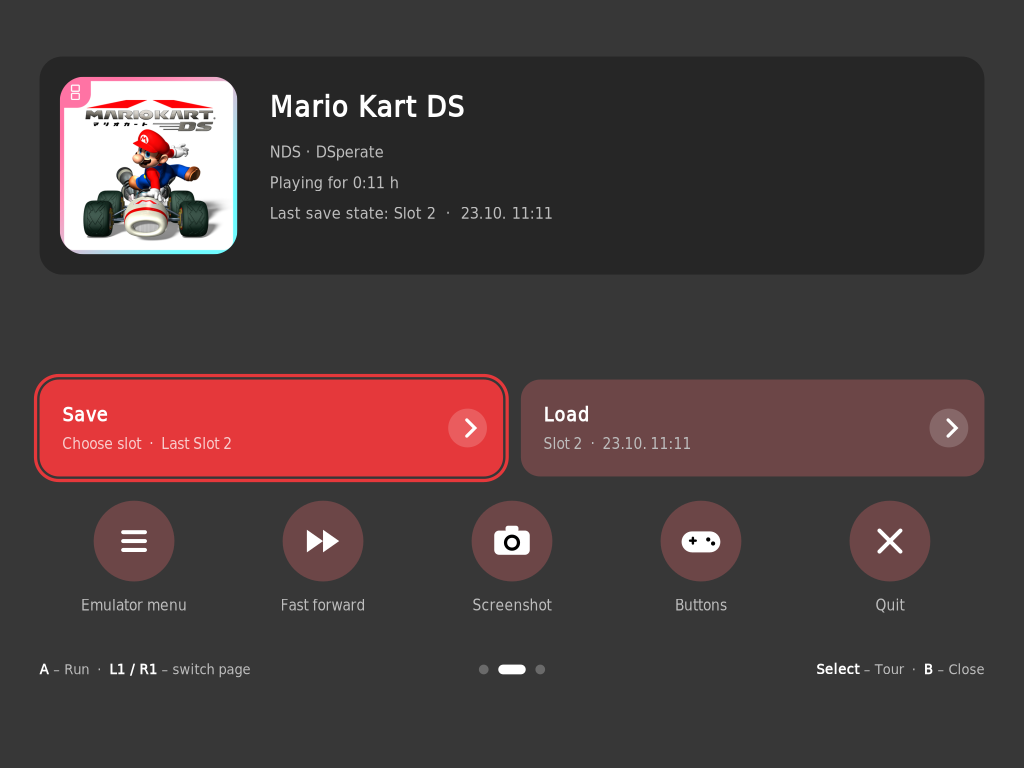
In a game, press R1 for the game page (RetroArch, DSperate and DraStic):
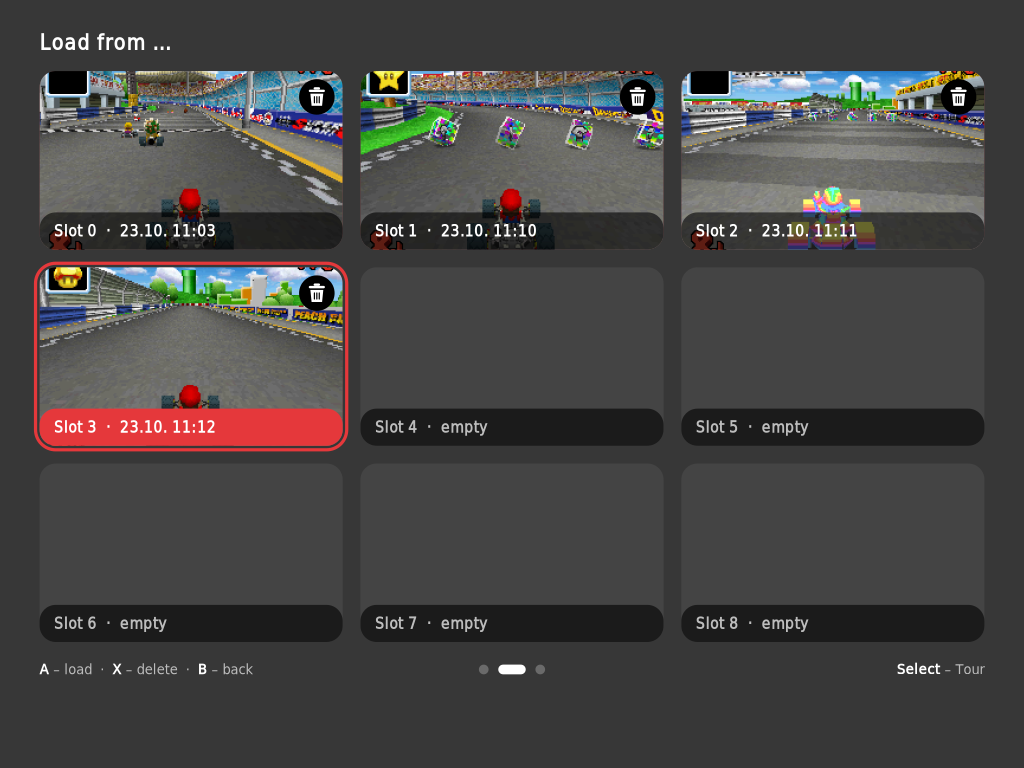
- Save / Load open slots 1–9 (the same numbers as in the emulators) with preview picture and time. Loading also offers the protected Automatic save point (game switcher, Home short). Saving onto a used slot asks first. The bin (or X, X) deletes a save.
- Icons: Emulator menu · Restart · Fast forward · Slow motion · Screenshot · Buttons · Quit.
- Buttons shows the original system's buttons (e.g. NES: D-pad, A, B, Select, Start) and the emulator's shortcuts.
- After an action the Control Center closes and you're back in the game.
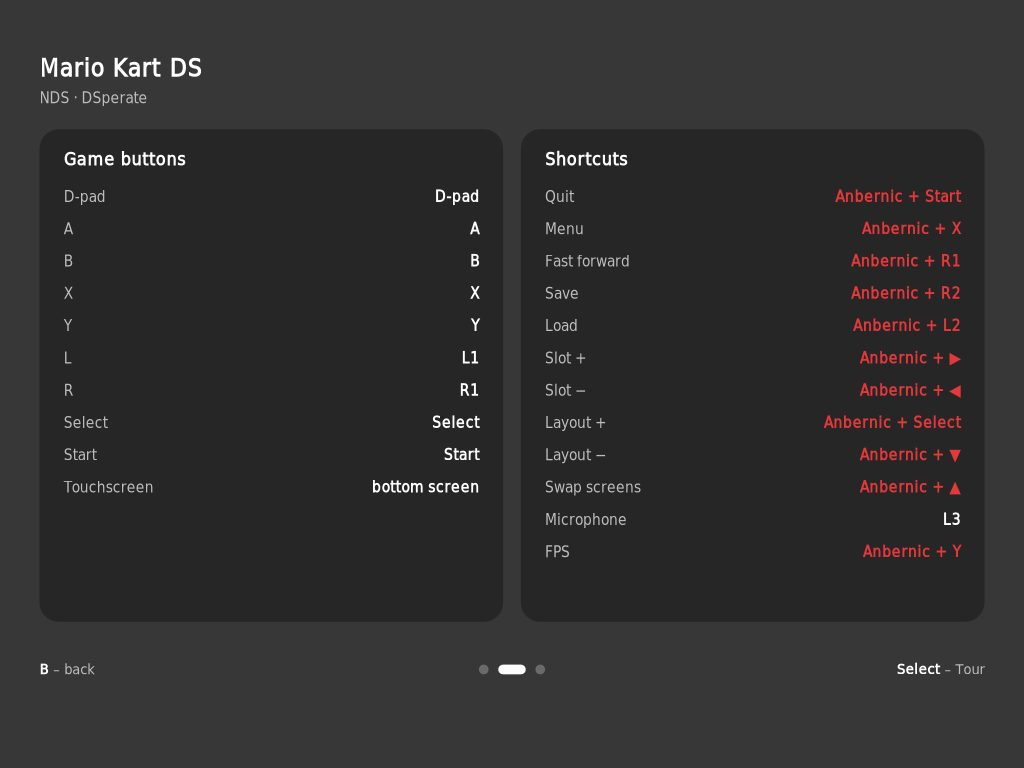
Hold the Anbernic button and press a second button. Everything also works with a tap in the Control Center.
| Anbernic + | Action |
|---|---|
| R1 | Fast forward on/off |
| R2 / L2 | Save / Load |
| X | Emulator menu |
| Y | Show FPS (RetroArch, DSperate – DraStic: in its menu) |
| Start | Quit game |
| ◀ / ▶ | Save slot − / + |
DraStic has no button combinations – the Control Center translates them: Anbernic + R2/L2 saves and loads, Anbernic + X opens the menu, Anbernic + R1 fast-forwards. R2/L2 alone do nothing.
 |
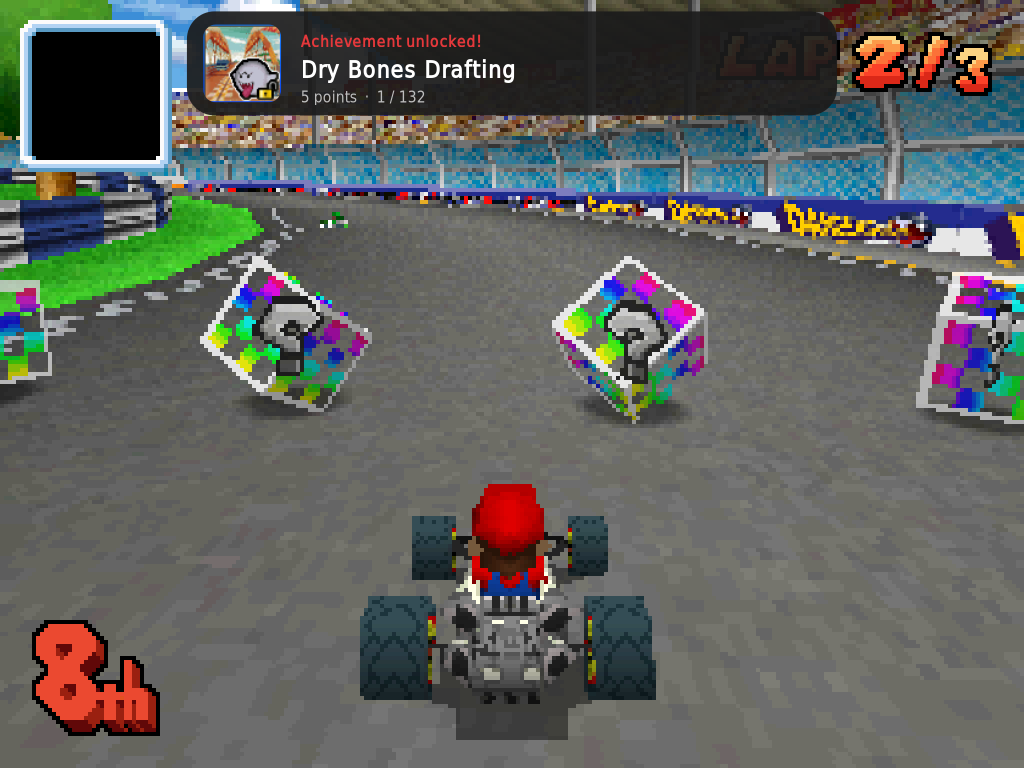 |
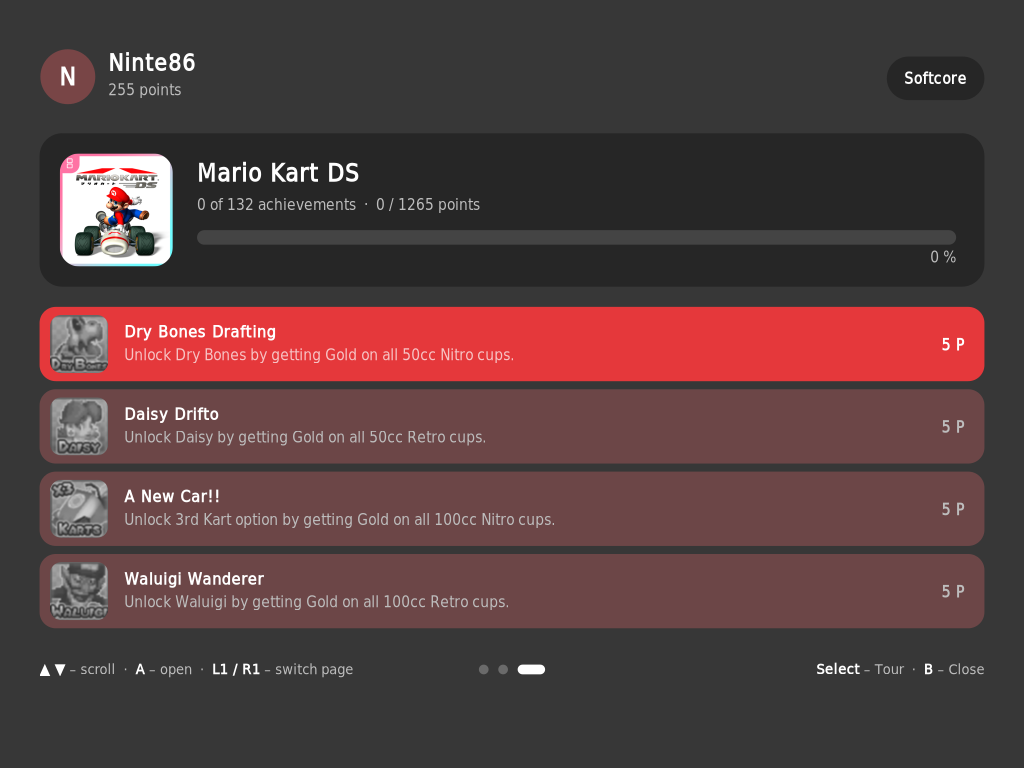
Your account, your progress in the running game and all achievements – A opens one with description, points and rarity. A new achievement briefly appears on top of the game, and so does the volume on Vol+ / Vol−. Achievements are shown only here, while a game is running – the ES game list (X → game options) has no achievement entry in dual mode. Sign in in ES: Game settings → RetroAchievements settings. Supported: RetroArch and DSperate games.
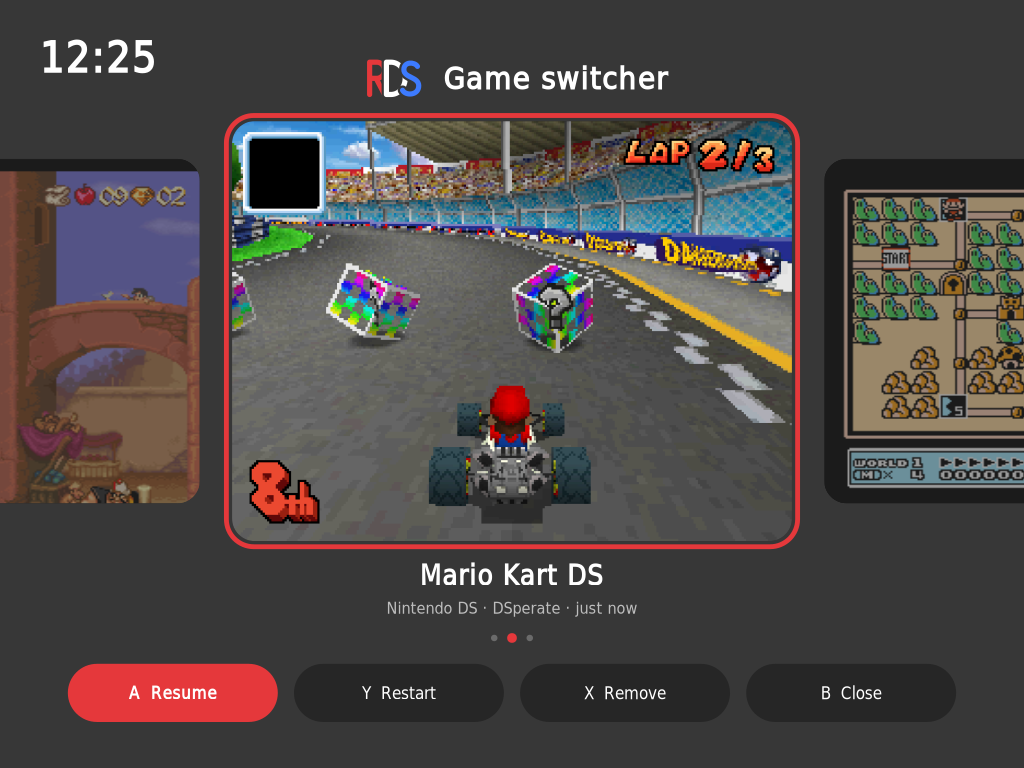
Press Home twice. In a game, hold Home (0.8 s) to swap straight to the previous game. Your recently played games appear as cards with their last screen. Switching saves the running game automatically and continues the next one where you left off.
◀ ▶ – choose · A – Resume · Y – Restart · X – Remove from list · B – Close
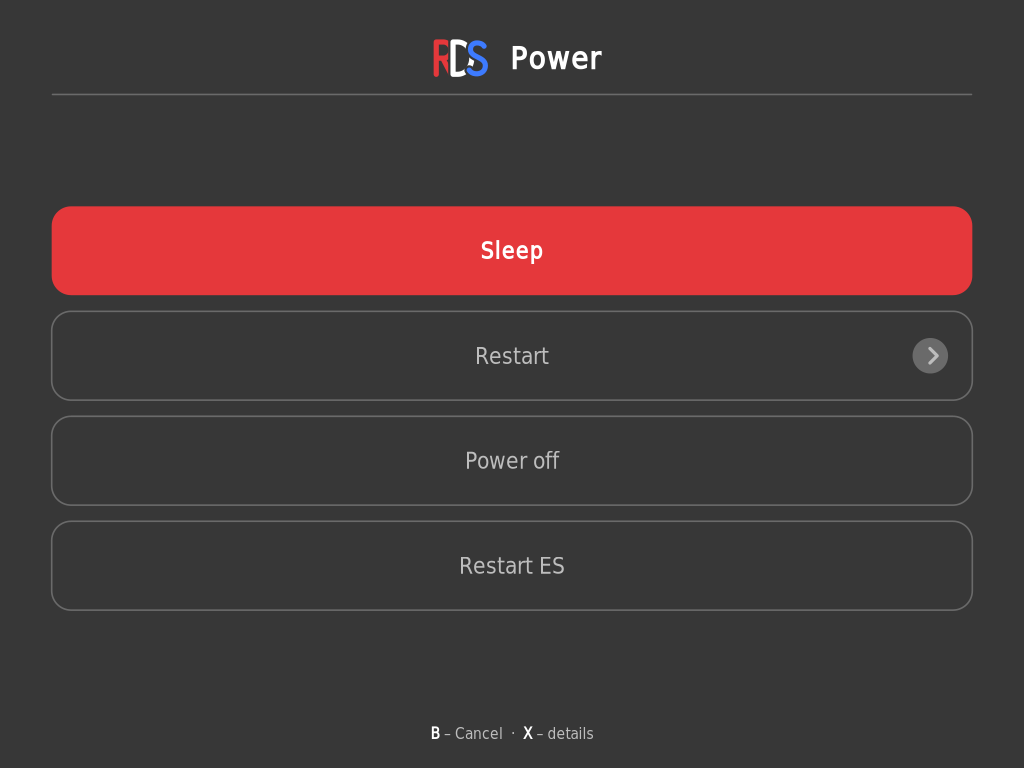
Press Power briefly: Sleep, Restart, Power off and Restart ES. Holding Power sends the device to sleep right away.
▲ ▼ – choose · A – confirm · X – details · B – cancel
 |
 |
 |
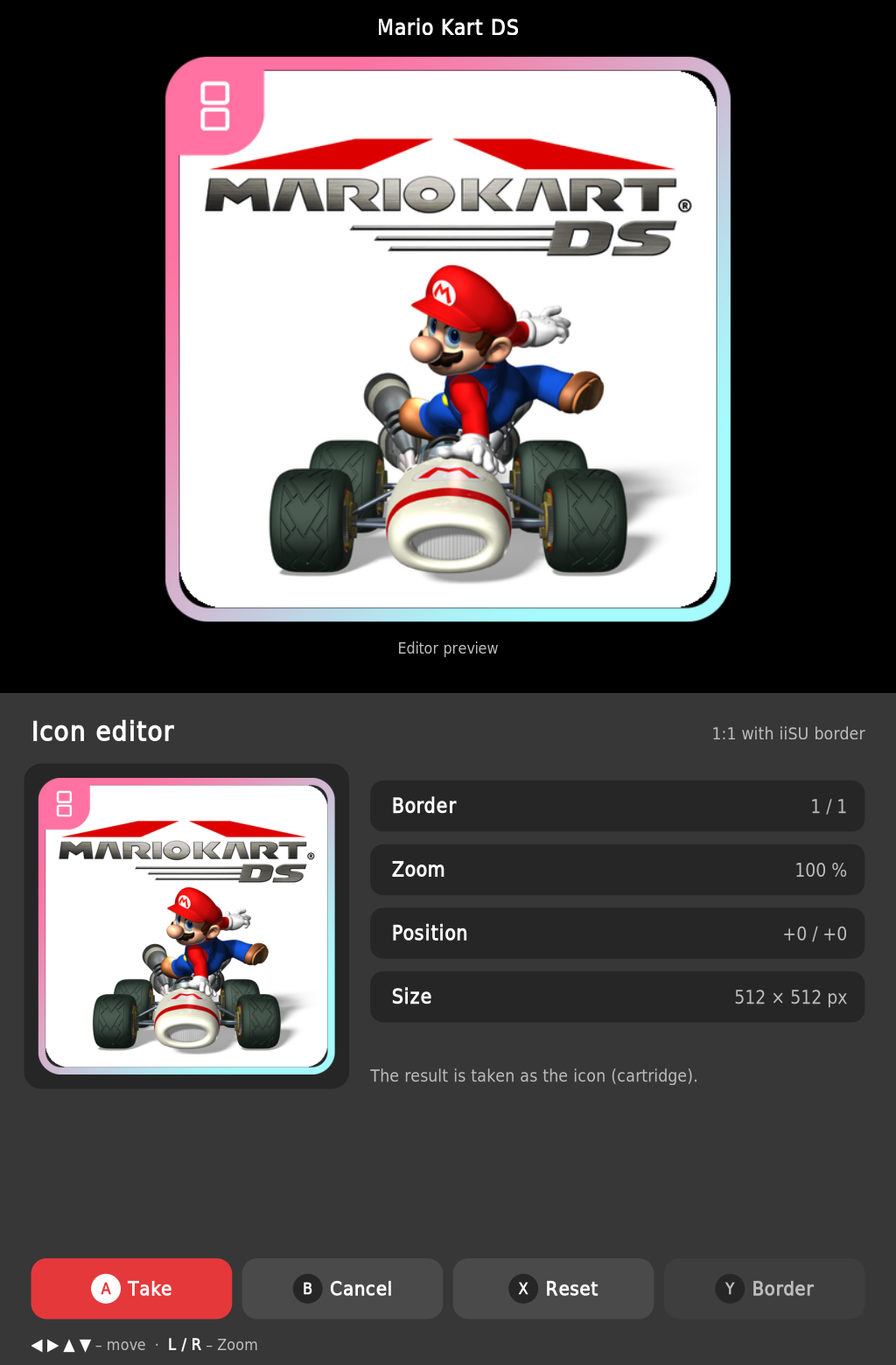 |
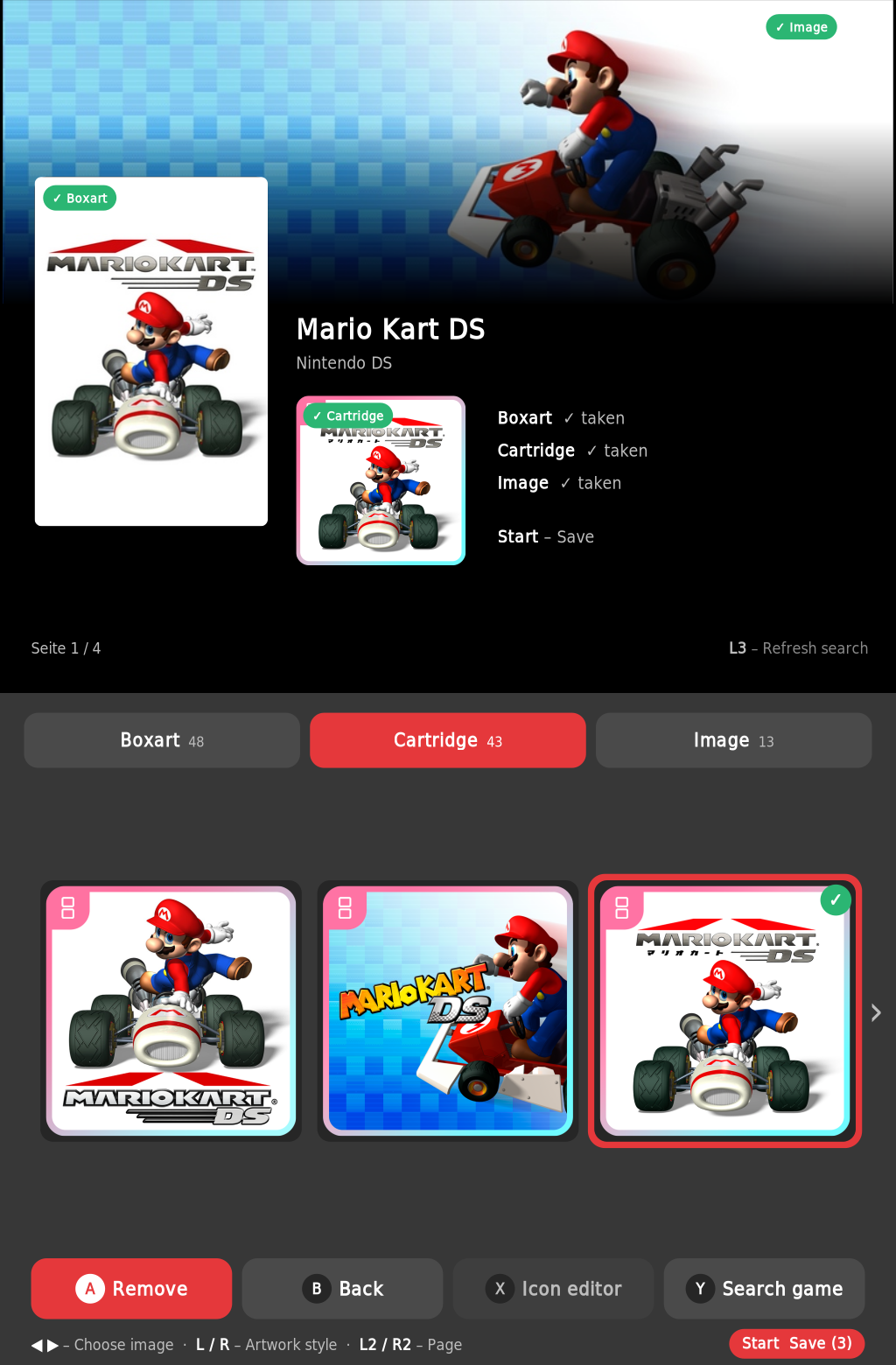
Start it from Ports → Artwork Manager. It adds Boxart, Cartridge (1:1 icon) and Image (hero) to your games – the top screen shows how the three look together.
Requirement: every system needs a gamelist.xml. Create it once with ScreenScraper in
the ES menu under Scraper (works in dual mode, too); RetroDualStation and stock ES use the same list.
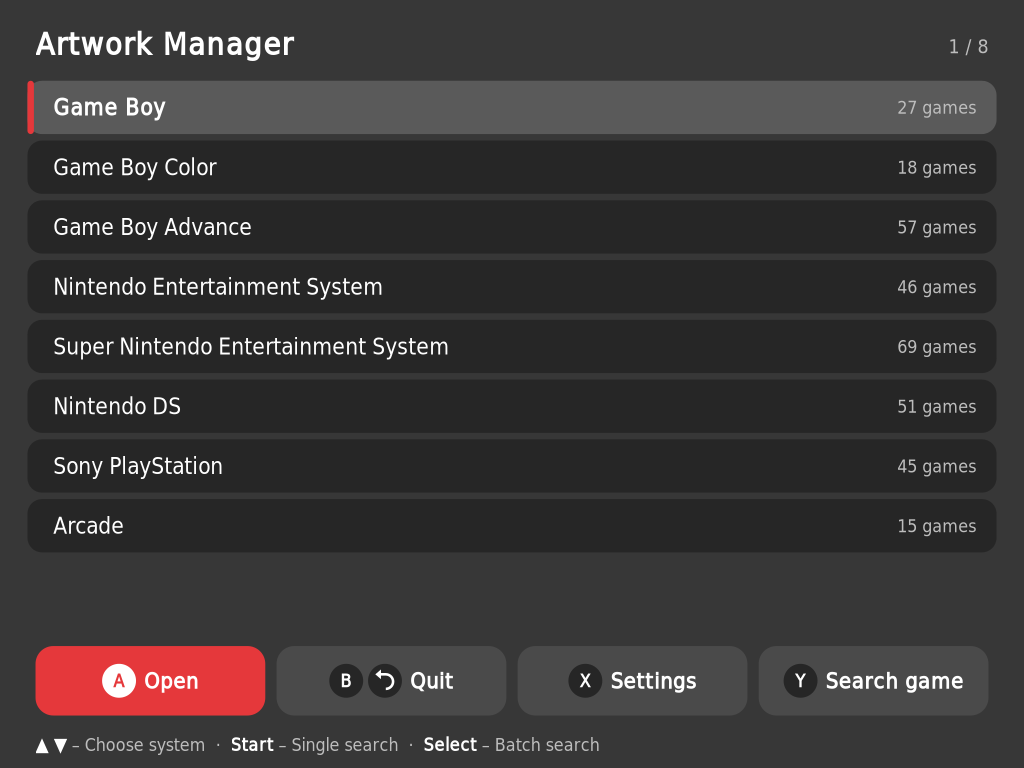
| Where | Button | Action |
|---|---|---|
| System list | Start | Single search: edit one game |
| Select | Batch search: all games with missing artwork, one after another | |
| Y | Search a game across all systems | |
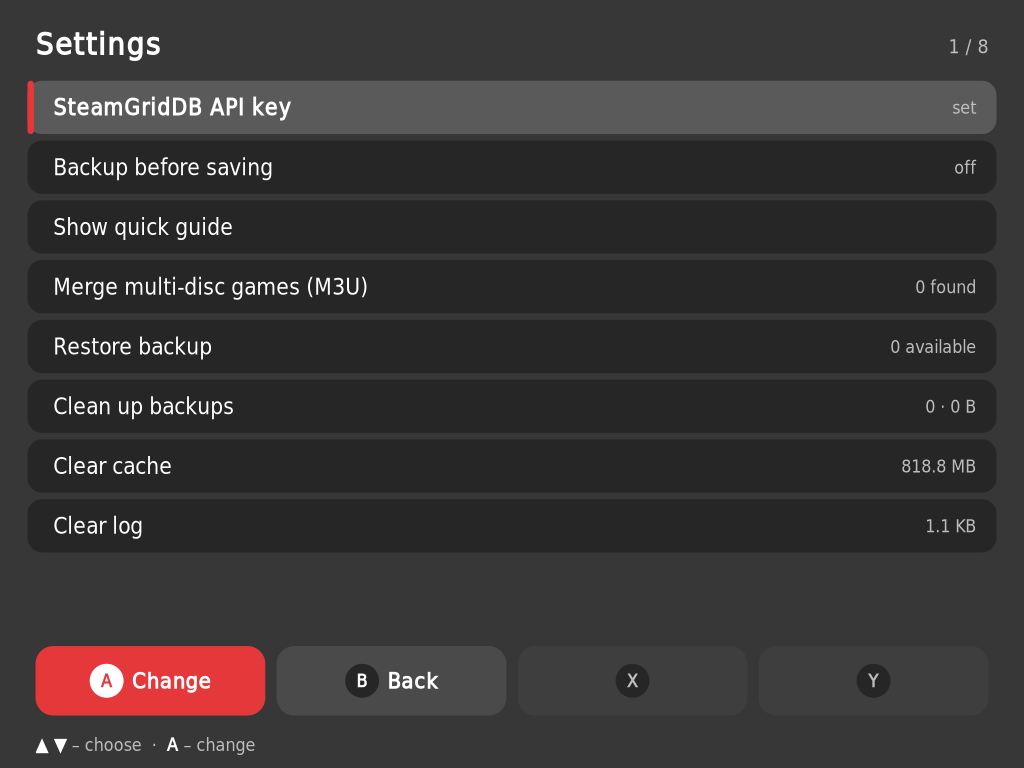
| X | Settings (API key, backups, merge multi-disc games as M3U, cache, quick guide) | |
| Game list | X | Open the icon editor for this game directly |
| Y | Filter: all · missing · no artwork | |
| Game view | ◀ ▶ | Choose image |
| L / R | Artwork style | |
| A | Take image | |
| Start | Save | |
| Y | Search another game | |
| L3 | Refresh the artwork search | |
| X | Icon editor: turn the chosen icon into a 1:1 image with iiSU border (◀ ▶ ▲ ▼ move · L / R zoom · Y border). Not needed – and greyed out – for icons that already have the iiSU border |
Before the first save per system a backup is created (can be turned off in the settings).
Own images: put PNG/JPG/WebP files into ports/rds-artworkmanager/eigene/ (or eigene/<system>/), named like the game – they appear first in every tab marked Own image. Everything in eigene/alle/ appears for every game.
The SteamGridDB API key can also be entered on a PC in
/storage/roms/ports/rds-artworkmanager/settings.cfg.
Logos and artwork in screenshots belong to their respective owners.