Repository navigation
Insights
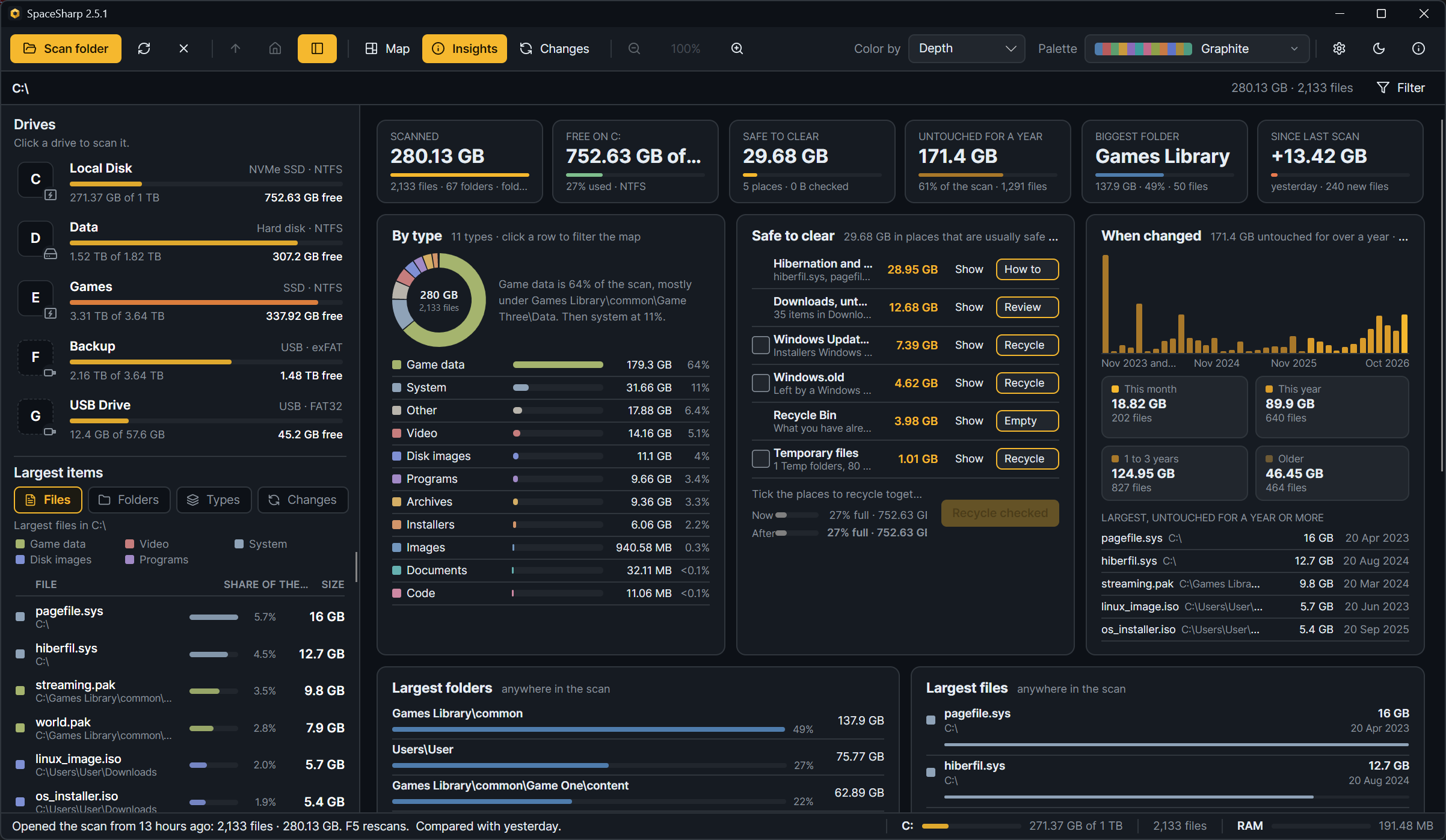
Insights swaps the map for the numbers behind it. The Insights button in the toolbar opens it; B cycles Map, Insights and Changes. Every row in it is a click back to the map, zoomed or filtered to what the row was about.
| Tile | What it says |
|---|---|
| Scanned | Files, folders and bytes, and whether the scan came from the file table or a folder walk |
| Free space | How full the drive is and what is free; for a folder scan, the drive the folder is on |
| Biggest folder | The largest top-level folder and its share |
| Untouched for a year | How much of the scan has not changed in a year |
| Since last scan | The net change against the compared scan, or "No earlier scan" |
By type. Space by file type (video, images, archives, game data, installers and so on), with the biggest extensions of each and a sentence that sums it up. Click a row to filter the map to that type.
Safe to clear. Places that are usually fine to empty, found by name only, largest first:
| Place | What is matched | Button |
|---|---|---|
| Windows.old | The folder a feature update leaves behind | Recycle |
| Recycle Bin | $Recycle.Bin |
Empty (Windows asks first) |
| Hibernation and paging files |
hiberfil.sys, pagefile.sys, swapfile.sys
|
How to (SpaceSharp never touches them) |
| Temporary files |
AppData\Local\Temp, Windows\Temp
|
Recycle |
| Package caches | npm, pnpm, Yarn, NuGet, pip, Cargo, Gradle, Composer, Go, Maven caches | Recycle |
| Browser caches | Chrome, Edge, Firefox, Brave page caches and INetCache; passwords, history and tabs are not in them | Recycle |
| Shader caches | Steam, NVIDIA, AMD and DirectX shader caches; rebuilt on the next launch | Recycle |
| Windows Update downloads | Windows\SoftwareDistribution\Download |
Recycle |
| Downloads, untouched for a year | Items in any user's Downloads not changed in a year | Review (selects them on the map) |
Tick the rows you want gone and press Recycle checked; everything goes to the Recycle Bin after the usual confirmation. Show selects a row's places on the map so you can look first. Under the list, two bars show the drive now and after: the amber slice of the top bar is what the ticked places take up today, the lower bar is the drive without them, each with its fill and free space. Tick and untick, and the bars follow.
When changed. A histogram of last-modified dates by month, with bands for this month, this year, one to three years and older. Click a month or a band to filter the map to it. A line under it names the largest files untouched for a year or more.
Largest folders and Largest files. The top of each, with their share of the scan; click to zoom there.
Since last scan. Grew, shrank and new since the compared scan, and the biggest movers. Open Changes opens the Changes view for the whole story. Without a comparison the card says how to get one.
Biggest extensions. The extensions that take the most space and where most of each lives.
- Insights describes the whole scan; the filter only affects the map.
- A scan whose drive is not present (a saved scan of an unplugged drive) shows the scanned bytes without the drive's free space.
- The cards rearrange themselves for the window's width: four columns on a wide screen, one on a narrow one.