Repository navigation
Saved Scans and the Start Screen
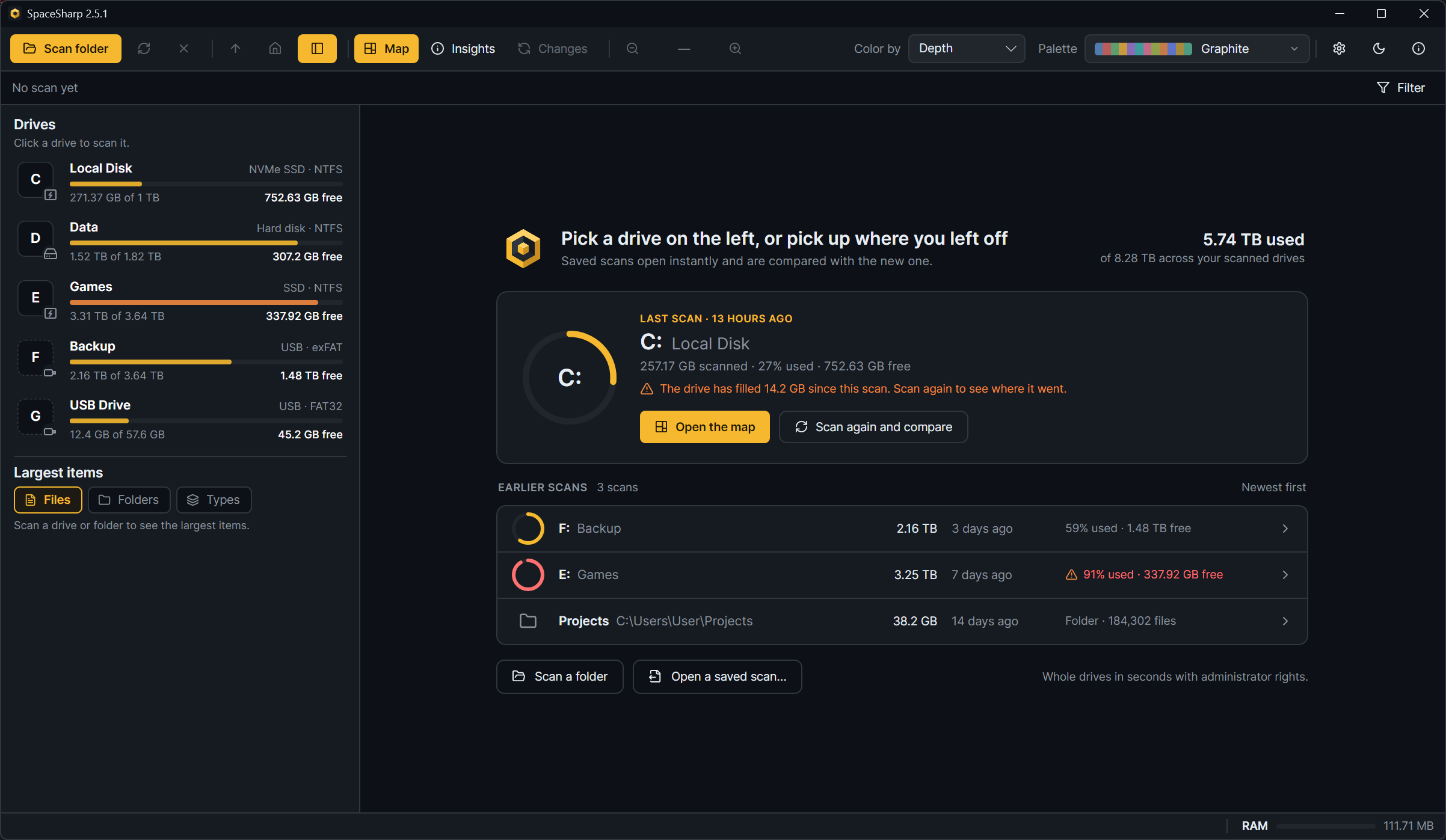
What you see when no scan is open. On the left, your drives; in the middle:
- Your last scan, in a panel of its own: a ring showing how full the drive is now, "Last scan · 13 hours ago", the drive letter and label, what was scanned, and two buttons: Open the map (instant, from the saved file) and Scan again and compare.
- A line under it when the drive has moved on: "The drive has filled 14 GB since this scan. Scan again to see where it went." in the warning color, or the quieter "The drive has 14 GB more free space than at this scan". It appears when the free space differs from the scan's by at least 1% of the drive and 500 MB.
- Earlier scans, newest first: a small ring, the name, the scanned size, when, and how full the drive is now; a drive at 85% or more shows in the warning color, and the same "filled since" mark appears as a tooltip. Folder scans show the folder icon, the path and the file count.
- Scan a folder and Open a saved scan… under the list, and the totals across your scanned drives at the top right.
Ctrl+W, the × next to Rescan, or right-click › Close the scan brings you back here from an open scan.
Every finished scan is saved to %LocalAppData%\SpaceSharp\scans:
| File | What it is |
|---|---|
C.sscan |
The last scan of drive C: |
C.prev.sscan |
The one before it, kept for comparison |
folder-3F2A9C1B4E.sscan |
The last scan of a folder (the name is a hash of the path) |
The next scan of the same place is compared with the saved one (Changes), then replaces it, and the old file becomes .prev. Opening a saved scan from the start screen is instant because the whole tree is in the file.
Settings › Behavior › Keep saved scans for (7 days to forever) prunes automatic saves older than that when the app starts; Delete all saved scans is under the same setting. Files you saved yourself are never touched by either.
- Right-click › Scan file › Save scan as… (Ctrl+S) writes the open scan to an
.sscanfile wherever you like, with the drive name and date suggested as the file name. -
Open saved scan… (Ctrl+O), the start screen's button, double-clicking an
.sscanfile, orSpaceSharp.exe scan.sscanopens one. A scan of an unplugged drive opens fine; Insights just cannot show its free space. - Compare with a saved scan… sets any file as the comparison for the open scan.
An .sscan is gzip-compressed and holds the full paths, sizes, dates and attributes of everything scanned, plus when it was made, how (file table or folder walk, with the hidden-file and hard-link settings) and the drive's free space at the time. Never file contents. It is the same information the map shows, so treat it as you would a directory listing: fine to keep, worth thinking about before sending to someone.