Repository navigation
The Filter

The filter narrows the map without changing it: matching boxes keep their color, everything else dims, so you see where the matches are, not only that they exist. Ctrl+F opens it; the Filter button in the path row does too.
Type what you are looking for. These all work, in any combination and order:
| You type | It means |
|---|---|
videos, photos, music, archives, programs, documents, code, game data, installers, iso, databases, fonts, system, other
|
A file type. Several: type:video,audio
|
over 500MB, larger than 2 GB, > 1gb, at least 10 MB
|
At least this size (b, kb, mb, gb, tb) |
under 1 MB, smaller than 100kb, < 5gb
|
At most this size |
older than 1 year, not modified in 6 months, untouched for 2 years, unused for 90 days
|
Last changed before then (days, weeks, months, years) |
newer than 1 week, modified in the last 30 days, changed within 2 months
|
Last changed since then |
.mp4, *.log, backup*, ?.tmp
|
An extension or a wildcard pattern on the name |
report, node_modules
|
A word the name contains |
folders, is:folder
|
Folders only |
Words like and, with, the, show, find are ignored, so show me videos that are over 500MB and older than 1 year reads as type:video >500MB older than 1 year. The canonical form is what the filter box shows after it has understood you.
The default filter face, a sheet over the right of the map, writes the same filter from controls:
- Type: a stacked bar of how the scan divides between file types, then one tile per type with its size; pick any number.
- Larger than, Smaller than, Not modified for: scales with seven ticks each; click a tick and the span lights up.
- Show: everything, files only, or folders only.
-
Quick filters: Large files (
>1GB is:file), Big videos (type:video >500MB), Installers & archives (type:archives,programs >100MB), Untouched for 2 years, Big and old (>500MB older than 1 year is:file), Recently changed (newer than 1 week is:file).
Settings › Map › Filter layout swaps the drawer for a rail under the path row, one pill per condition, for people who want the whole map visible while they filter.
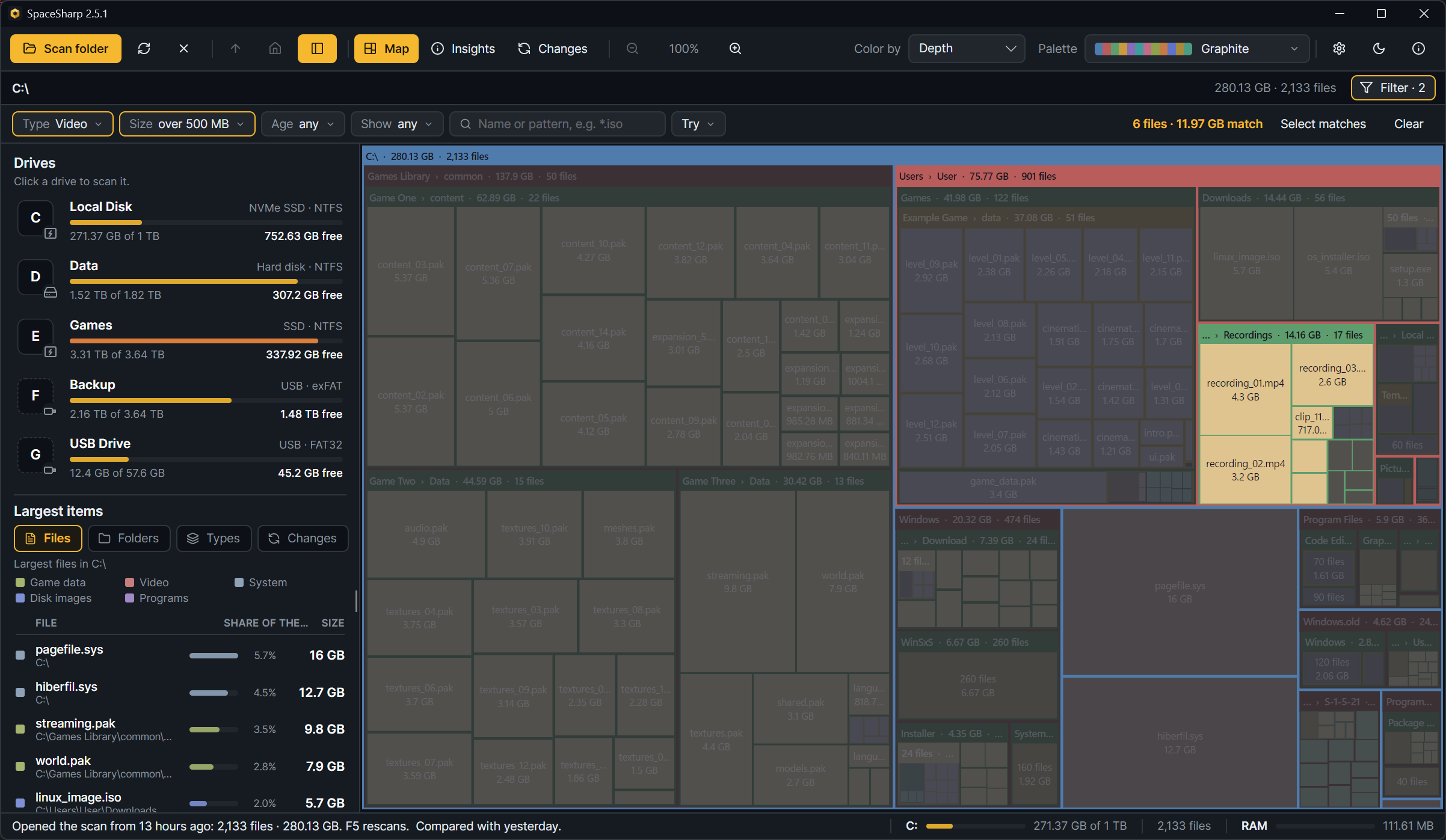
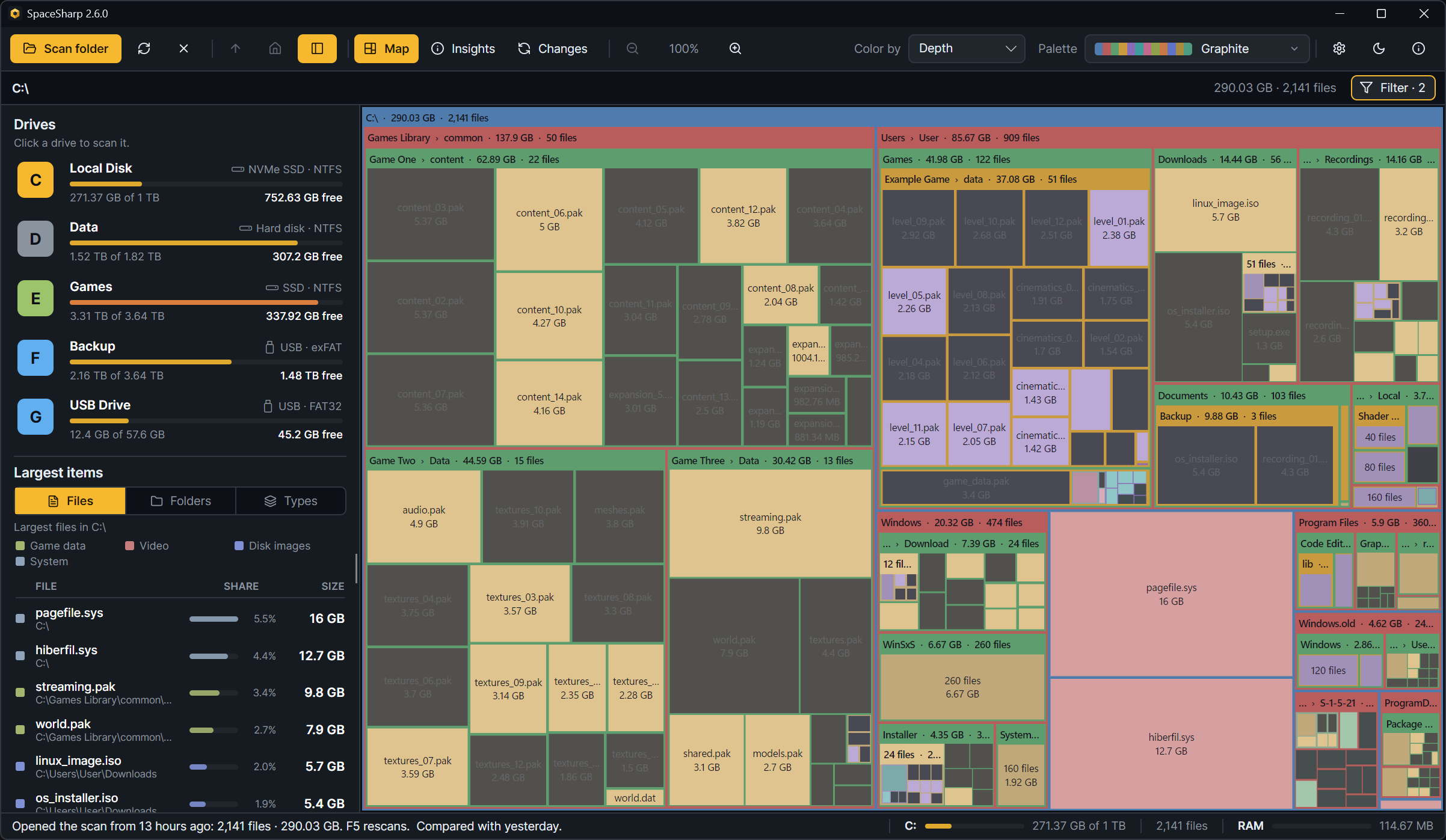
- The side panel and Insights keep showing the whole scan; the filter only affects the map.
- Ctrl+A (Select matches) selects every matching file. Then Del sends them to the Recycle Bin, Ctrl+I inspects them together, Ctrl+C copies their paths.
- Right-click › Export to CSV › Filter matches writes them to a file.
- Esc clears the filter when the filter box is not focused; a second Esc closes the drawer.
- Right-click a file › Show only this type writes
*.extfor you. - Every row in Insights › By type is a click that filters the map to that type.
- A filter stays on while you zoom, so
older than 2 yearsplus a dive into Downloads is a fast way to find forgotten installers.