Repository navigation
Palettes and Looks
Three things decide how SpaceSharp looks: the theme (dark or light), the look (the window's own colors within that theme), and the palette (the colors of the boxes on the map).
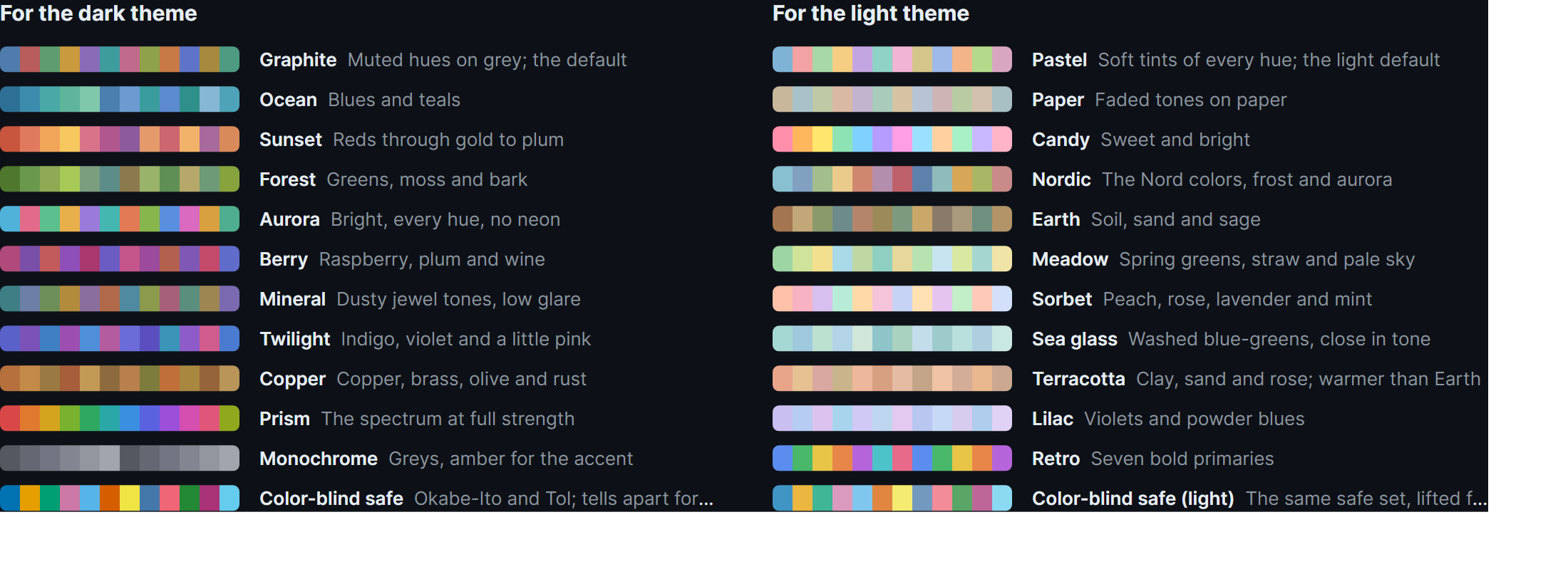
Twenty-four built in, twelve per theme. Each has twelve folder hues, ordered so neighbors sit apart on the color wheel, with file tints and type colors derived from them.
| Dark theme | Light theme | ||
|---|---|---|---|
| Graphite | Muted hues on gray; the default | Pastel | Soft tints of every hue; the light default |
| Ocean | Blues and teals | Paper | Faded tones on paper |
| Sunset | Reds through gold to plum | Candy | Sweet and bright |
| Forest | Greens, moss and bark | Nordic | The Nord colors, frost and aurora |
| Aurora | Bright, every hue, no neon | Earth | Soil, sand and sage |
| Berry | Raspberry, plum and wine | Meadow | Spring greens, straw and pale sky |
| Mineral | Dusty jewel tones, low glare | Sorbet | Peach, rose, lavender and mint |
| Twilight | Indigo, violet and a little pink | Sea glass | Washed blue-greens, close in tone |
| Copper | Copper, brass, olive and rust | Terracotta | Clay, sand and rose; warmer than Earth |
| Prism | The spectrum at full strength | Lilac | Violets and powder blues |
| Monochrome | Grays, amber for the accent | Retro | Seven bold primaries |
| Color-blind safe | Okabe-Ito and Tol; tells apart for everyone | Color-blind safe (light) | The same safe set, lifted for light surfaces |
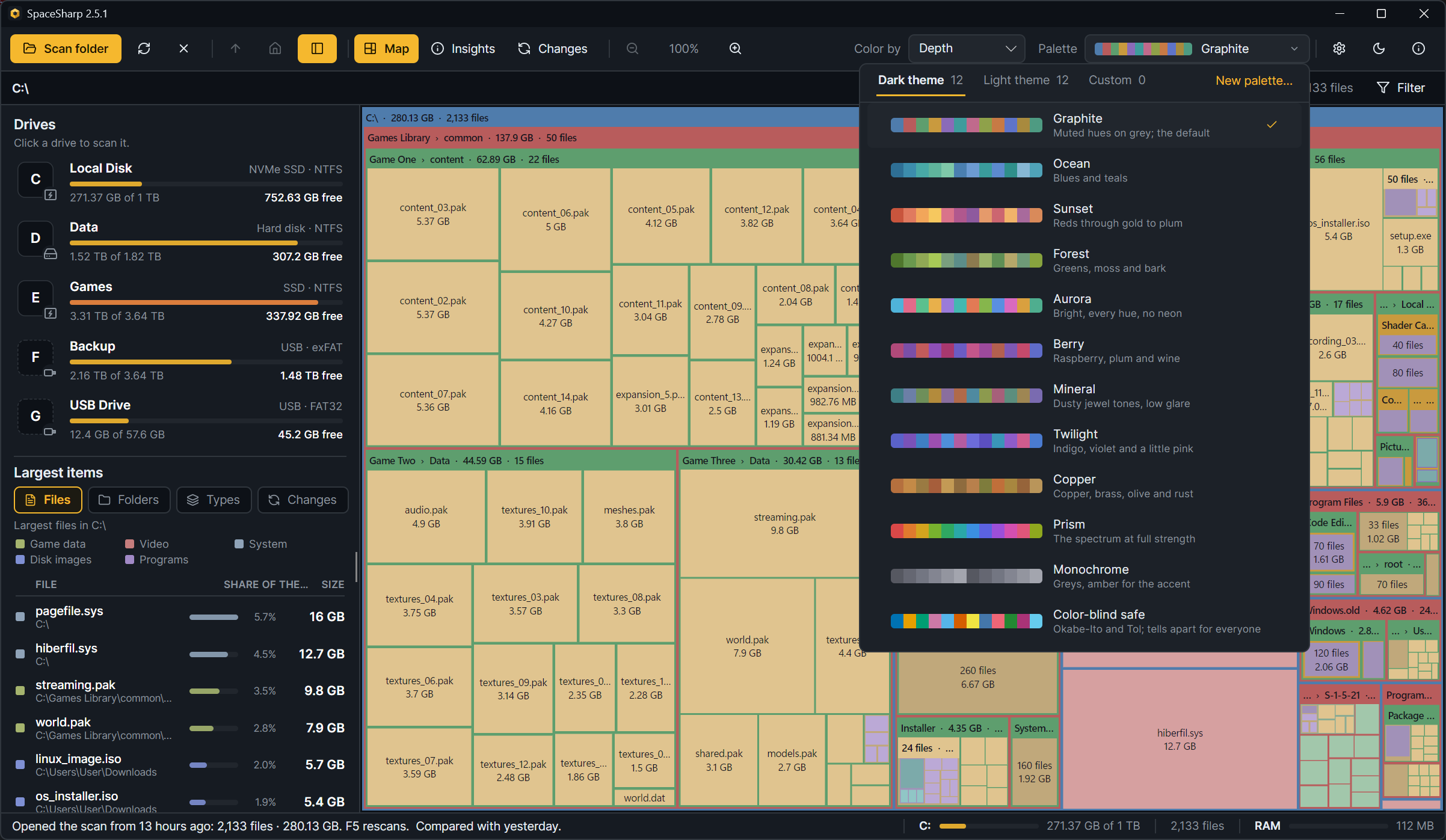
The palette control in the toolbar shows a strip of the current palette's colors and its name. It opens a panel with three tabs, Dark theme, Light theme and Custom, each with its count; under them every palette is a strip of its twelve colors, its name and the line above. The one in use has a check, and the panel opens on the tab that holds it.
Picking a palette made for the other theme switches to that theme and uses it there; the tab says so first. If you would rather use light palettes on the dark theme or the other way around, turn on Settings › Treemap › Use any palette on either theme, and palettes are used as they are.
New palette… in the panel's corner opens the editor. Settings › Treemap › Palette is the same choice in another place.
Your own palettes live as JSON files in %LocalAppData%\SpaceSharp\palettes and show up in the picker's Custom tab. The palette editor (New palette… in the picker, or Settings › Treemap › Custom palettes) writes them for you, with twelve folder colors, the file tint, the type colors, readability checks and a sample map. Custom palettes covers the editor and the file format.
Settings › Appearance. Dark look: Graphite, Slate, Mocha, Midnight, GitHub Dark, Carbon. Light look: Paper, Linen, Mist, Sand, GitHub Light, Snow. The look colors the window, panels, menus and status bar; the map's palette is separate, so Graphite the look and Graphite the palette can be swapped independently.
All under Settings › Treemap, with a sample map that follows every change; the Settings reference lists each control. The short version: cushion shading is off by default and the Soft preset is ready when you turn it on; Outlined labels helps if the map is hard to read; Density decides how early small files are grouped.