Repository navigation
Dashboard
The Dashboard gives a live overview of your creative workspace — scanning project folders on startup and presenting aggregated metrics, activity trends, and storage analytics at a glance.
Home · User-Guide · Project-Folder-Convention
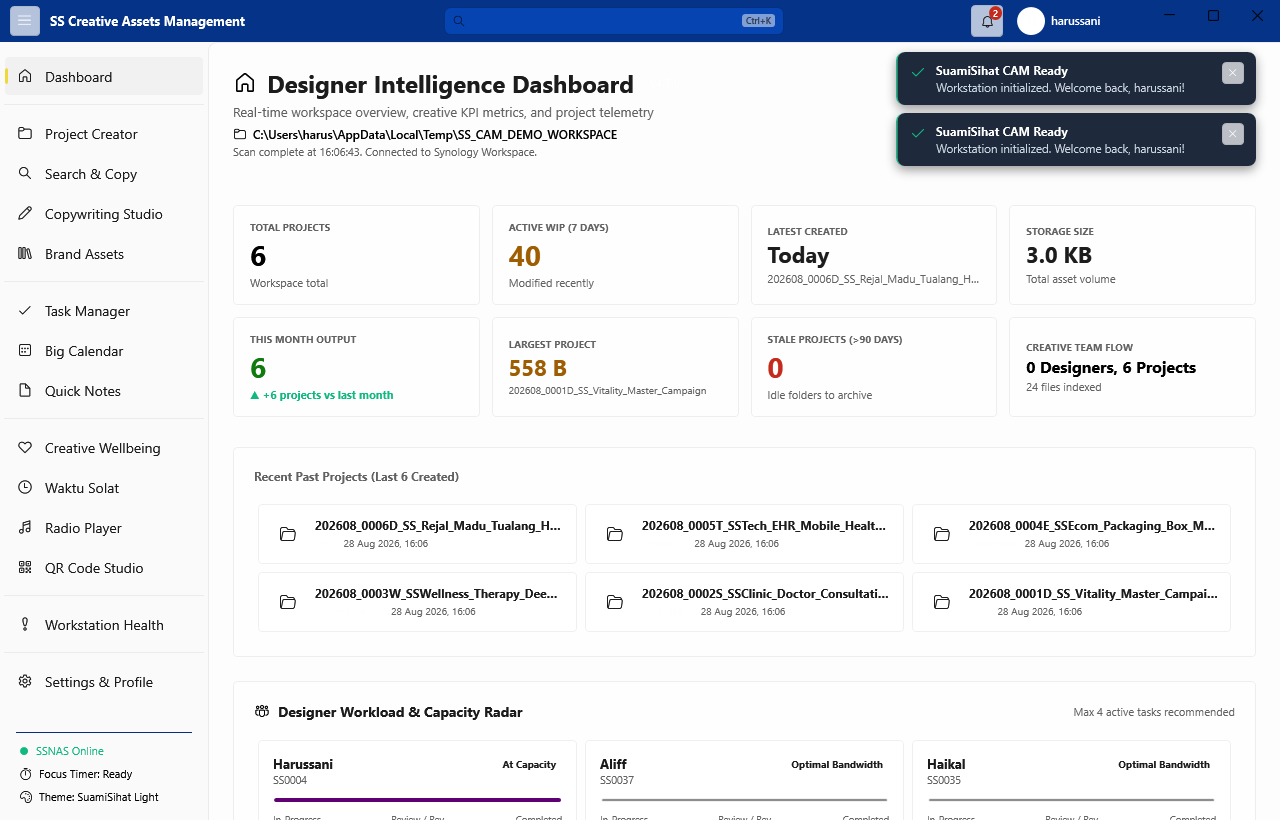
Each card displays a single workspace metric. Hover any card to read its tooltip — a brief explanation of what the metric means and how it is calculated.
| Card | What It Shows | How It's Calculated |
|---|---|---|
| Total Projects | All project folders found in the workspace | Count of subdirectories matching the naming convention |
| Active WIP | Projects in active production | Projects modified in the last 7 days |
| Designers | Number of unique designers working in the workspace | Unique designer identifiers parsed from folder names |
| Storage Used | Total disk space consumed by all projects | Recursive byte count across all project subfolders |
| Largest Project | Single project consuming the most disk space | Folder with the highest recursive byte total |
| Stale Projects | Projects potentially ready for archival | Projects not modified in 90+ days |
| This Month | Projects created in the current calendar month | Folders whose YYYYMM prefix matches the current month |
Pie chart showing the proportion of job types (General D, Social Media S, Video V, Brand Identity P) across all projects.
Bar chart breaking down project counts per sub-brand code (SS, SSH, SSC, SSW, SSE, SST). Reveals which brands are generating the most creative work.
Line chart tracking how many projects were created each month over the past six months. Useful for spotting seasonal workload peaks and team output trends.
Horizontal bar chart showing disk consumption per sub-brand. Identifies which brand's projects are consuming the most storage on the NAS.
Below the metric tiles is a rotating Designer Insight card — a curated pool of 40+ design tips covering colour theory, print production, typography, file hygiene, brand discipline, and creative wellbeing.
- Tips rotate automatically every 60 seconds
- Click Next Tip to advance manually
- Click Articles to fetch the 5 latest design articles from Smashing Magazine RSS (requires internet)
The Team Board card shows the last 10 shared notes from _Team/team-notes.json on the NAS workspace root.
- Post a note visible to all team members from the input row
- Pin important notes to keep them at the top
- Delete your own notes
- Falls back gracefully when NAS is offline
- Auto-refreshes every 30 seconds
The Synology Flow diagram visualises the NAS hierarchy:
Workspace Root
    └── Designers  (unique designer count)
            └── Projects  (total project count)
                    └── Files  (total file count)
Live counts populate each level on load.
The Dashboard scans the workspace automatically on every application launch. To refresh mid-session, navigate to any other module and back — the scan runs each time the Dashboard page is loaded.
For large workspaces (10,000+ files), the initial scan may take a few seconds. A loading indicator appears during scanning.