Repository navigation
User Guide
Practical reference for using SS-CAM day-to-day.
Home · Installation · Dashboard · Project-Folder-Convention
┌──────────────────────────────────────────────────────────────┐
│  TitleBar — SS Creative Assets Management  ·  [ — 🗖 ✕ ]     │
├────────────────┬─────────────────────────────────────────────┤
│                │                                             │
│  Sidebar Nav   │           Main Content Area                  │
│  (Collapsible) │                                             │
│                │                                             │
│  OVERVIEW      │                                             │
│  > Dashboard   │                                             │
│                │                                             │
│  CREATION &    │                                             │
│    ASSETS      │                                             │
│  > Project     │                                             │
│  > Search      │                                             │
│  > Brand       │                                             │
│                │                                             │
│  PRODUCTIVITY  │                                             │
│  > Quick Notes │                                             │
│  > Task Mgr    │                                             │
│                │                                             │
│  WELLBEING     │                                             │
│  > Wellbeing   │                                             │
│  > Waktu Solat │                                             │
│  > Radio       │                                             │
│                │                                             │
│  SYSTEM        │                                             │
│  > Workstation │                                             │
│  > Settings    │                                             │
│                │                                             │
├────────────────┴─────────────────────────────────────────────┤
│  Status Bar — NAS · Radio mini-player · Theme · Version      │
└──────────────────────────────────────────────────────────────┘
| Area | Description |
|---|---|
| TitleBar | Application title, window controls (draggable) |
| Sidebar | Collapsible Fluent 2 NavigationView — categorized module list |
| Main Content | Active module content area |
| Status Bar | Live NAS dot, Radio mini-player, Theme toggle, version badge |
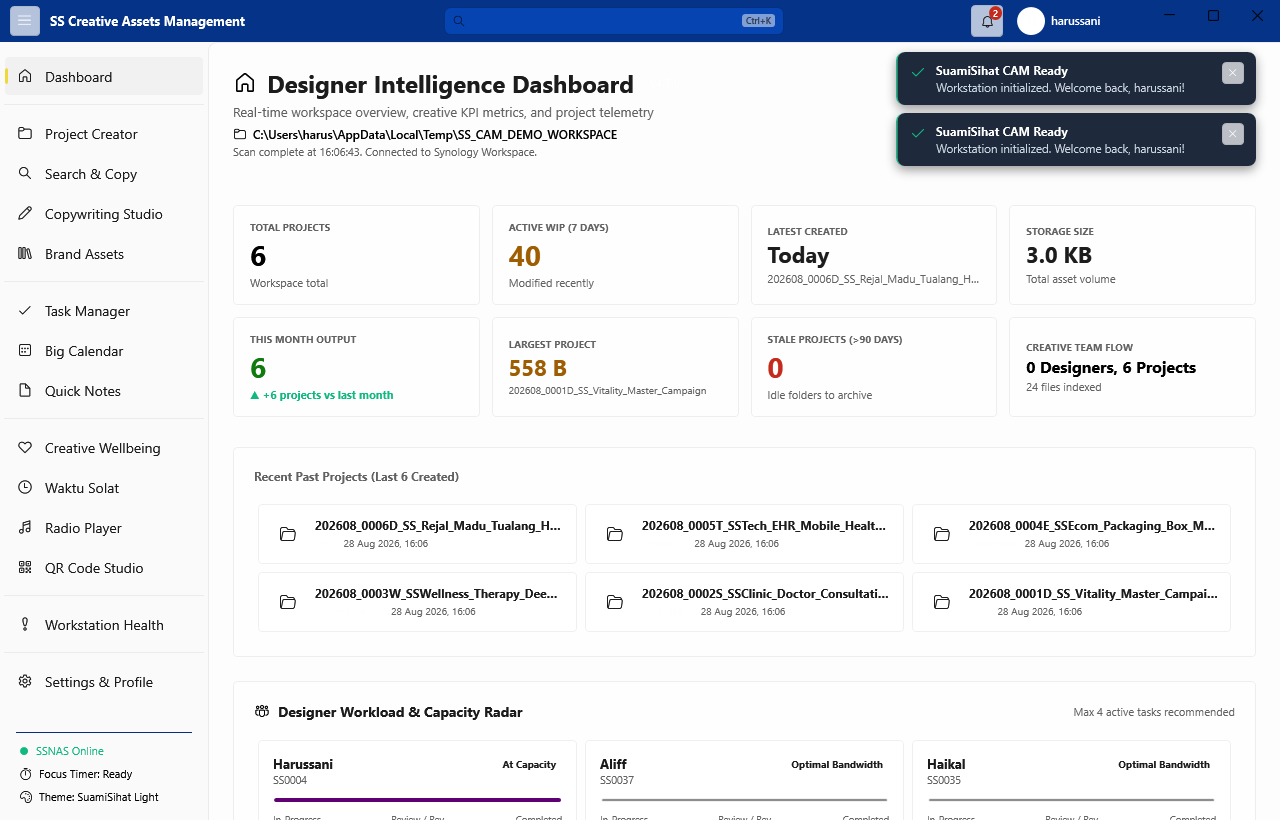
The sidebar uses a categorized Fluent 2 NavigationView (v3.0.1+) with 5 logical groups:
| Category | Modules |
|---|---|
| OVERVIEW | Dashboard |
| CREATION & ASSETS | Project Creator · Search & Copy · Brand Assets |
| PRODUCTIVITY | Quick Notes · Task Manager |
| WELLBEING & FAITH | Creative Wellbeing · Waktu Solat · Radio Player |
| SYSTEM | Workstation Health · Settings & Profile |
Collapse/Expand: Click the hamburger icon (☰) at the top of the sidebar to toggle compact mode. In compact mode, only icons are shown and the bottom status bar switches to a streamlined layout.
| Module | Purpose |
|---|---|
| Dashboard | Live workspace metrics — project counts, storage usage, sub-brand breakdown, stale projects, largest project, 6-month activity trend |
| Project Creator | Generate standardized project folders with auto Job ID and live directory preview |
| Search & Copy | Search projects, preview READMEs, copy assets into work orders |
| Brand Assets | Colour palettes, design libraries, logos, reports (visible when Brand Kit detected) |
| Quick Notes | Markdown note editor — notes autosave to %APPDATA%\SS-CAM\notes\
|
| Task Manager | YAML frontmatter project board — reads project README.md status fields |
| Creative Wellbeing | Focus session timer, 16-second box breathing, energy check-ins, DPAPI-encrypted Mind Drops |
| Waktu Solat | JAKIM live prayer times for 41 Malaysian zones, countdown, adhan reminders |
| Radio Player | Live stream player with Malaysian stations, lo-fi beats, custom M3U8/HTTP streams |
| Workstation Health | Real-time CPU, RAM, disk monitoring with threshold alerts |
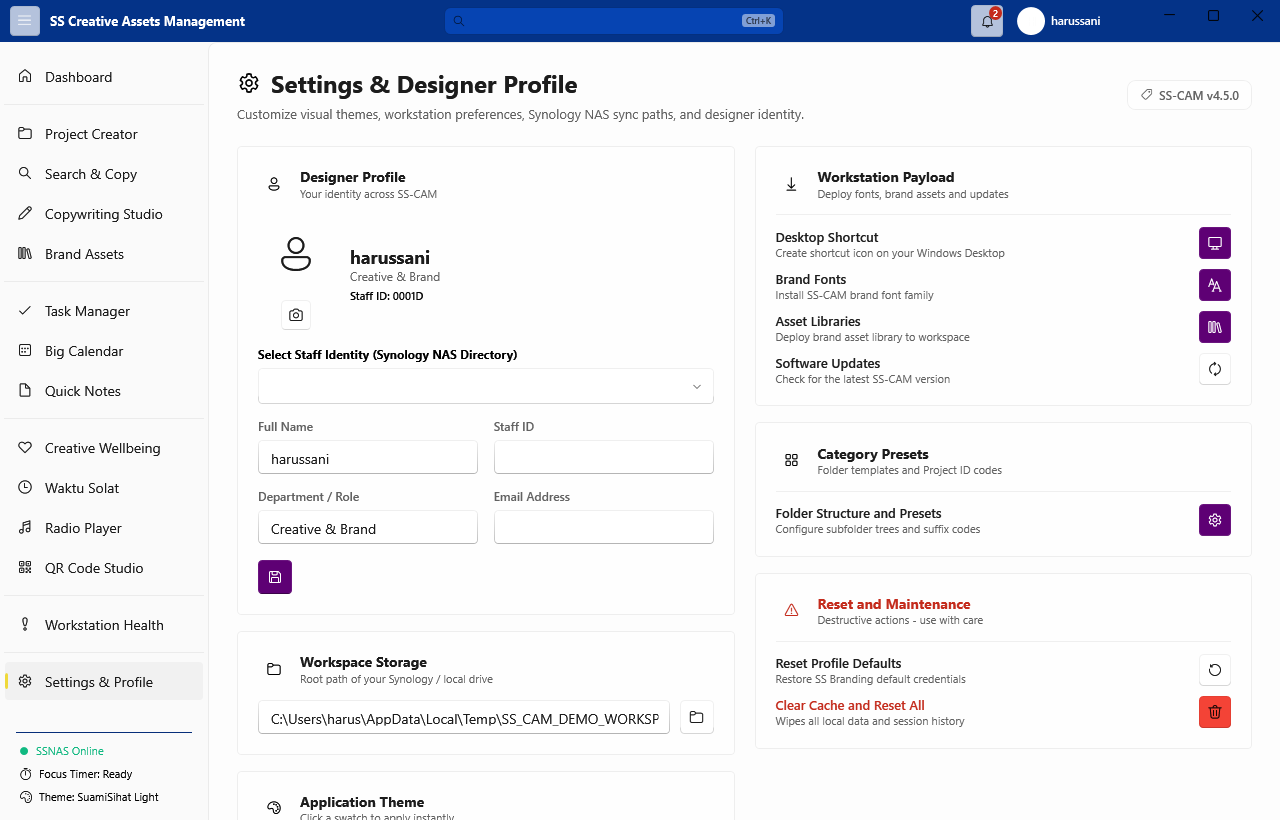
| Settings & Profile | User profile, workspace root, NAS path, theme selection, Waktu Solat zone |
The Workspace Root is the parent directory that SS-CAM scans for project folders. All Dashboard metrics, Job ID calculations, and Search results are derived from this path.
To change it: Settings → Workspace Configuration → Browse
The workspace root should point to the top of your designer folder on the NAS or local drive — the folder that contains your yearly sub-folders (e.g. 2026\, 2025\).
Access via Settings → User Profile.
| Field | How It's Used |
|---|---|
| Designer Name | Embedded in generated project folder names |
| Staff ID | Used as a designer identifier in metrics |
| Department | Displayed in workstation reports and sidebar |
| Avatar | Shown in the sidebar profile card |
| Waktu Solat Zone | Selects your Malaysian prayer times zone (41 zones) |
The bottom status bar shows a coloured dot:
| Colour | Meaning |
|---|---|
| 🟢 Green | NAS (suamisihat.myds.me) is reachable |
| 🔴 Red | NAS is unreachable — check VPN or LAN connection |
Click the dot to trigger an immediate connectivity recheck. The monitor polls automatically every 30 seconds in the background.
Click the theme indicator in the sidebar footer to cycle through themes:
SS Default → Falconia → Metamorphosis → Catppuccin → Rosé Pine → Nord
Or select a specific theme in Settings & Profile → Theme.
When a newer version of SS-CAM is detected on the NAS update endpoint, a yellow banner appears at the top of the main content area. Click it to open the GitHub Releases page and download the latest build.
To check manually: Settings → Check for Updates
- Check the Dashboard first — a 30-second review each morning keeps you oriented on workload and storage.
- Use the Project Creator for every new job — never manually name a folder. The auto Job ID prevents duplicates.
- Check Waktu Solat — the countdown to the next prayer is always visible. Don't miss Zohor.
- Start a Focus Timer for deep work — even a 25-minute session measurably reduces context-switching.
- Drop a Mind Drop when blocked — capturing a blocker in text often clarifies thinking without disrupting flow.
- Let the NAS dot guide connectivity — if it's red when you start work, resolve VPN/LAN before accessing NAS assets.