Repository navigation
Profiles
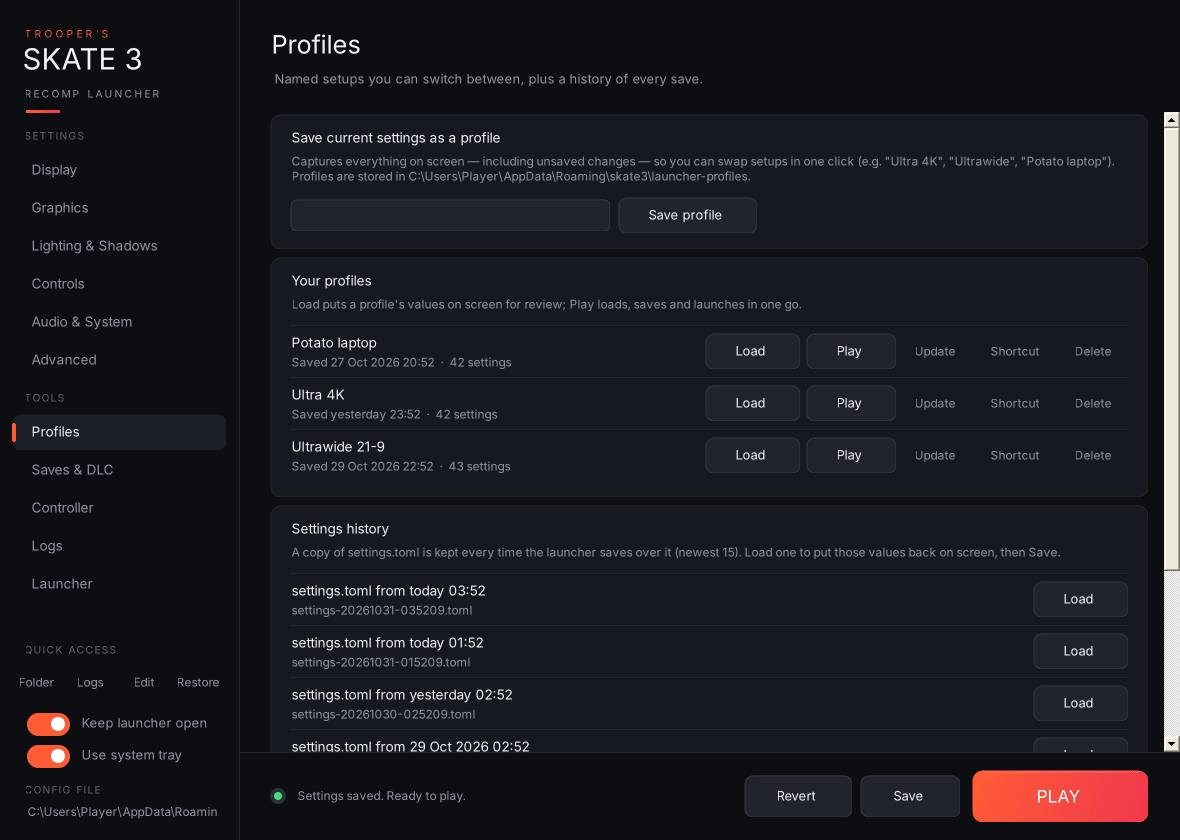
- Save current settings as a profile: give it a name such as "Ultra 4K" or "Ultrawide" and press Save profile (or Enter). This captures everything on screen, including unsaved changes, plus every other key in your file.
-
Your profiles: one row per profile, with these buttons:
- Load: puts the profile's values on screen, unsaved, so you can review them before saving.
- Play: loads, saves and launches the game in one click.
- 💾 Update: overwrites the profile with what's on screen now.
- 🔗 Shortcut: creates a desktop shortcut
Skate 3 - <name>that launches straight into the game with that profile (--profile "<name>" --play). - 🗑 Delete.
-
Settings history: every time the launcher is about to overwrite
settings.toml(Save, PLAY, restoring the original backup, or a profile shortcut), it first copies the current file into the history folder. The newest 15 are kept. Load puts any of them back on screen; Save makes it permanent. This is your "revert to last session" button. -
Original backup: Restore original backup replaces
settings.tomlwithsettings.toml.launcher-backup, the copy taken the very first time the launcher saved. This happens immediately, and the current file goes into history first.