Repository navigation
Getting Started
- The interface must be in PC mode. At power-on the meters show nothing in PC mode. If they show CC (Class Compliant), switch back: hold SELECT and DIM while plugging in the USB cable.
-
Install two packages: Audra and its driver (
snd-usb-babyface-pro-dkms). The README shows how to build them and install them withsudo apt install. The driver package builds itself for your kernel, and again for every new one. The README also has the steps by hand. - Updating an older driver? Reverb and Echo need the driver from 2026-11-05 on. If you installed the packages, build and install them again; if you installed the driver by hand, follow the README's "Updating an installed driver". Then reboot: the old driver stays loaded until then.
To look around without the interface, start the simulated device: audra --mock.
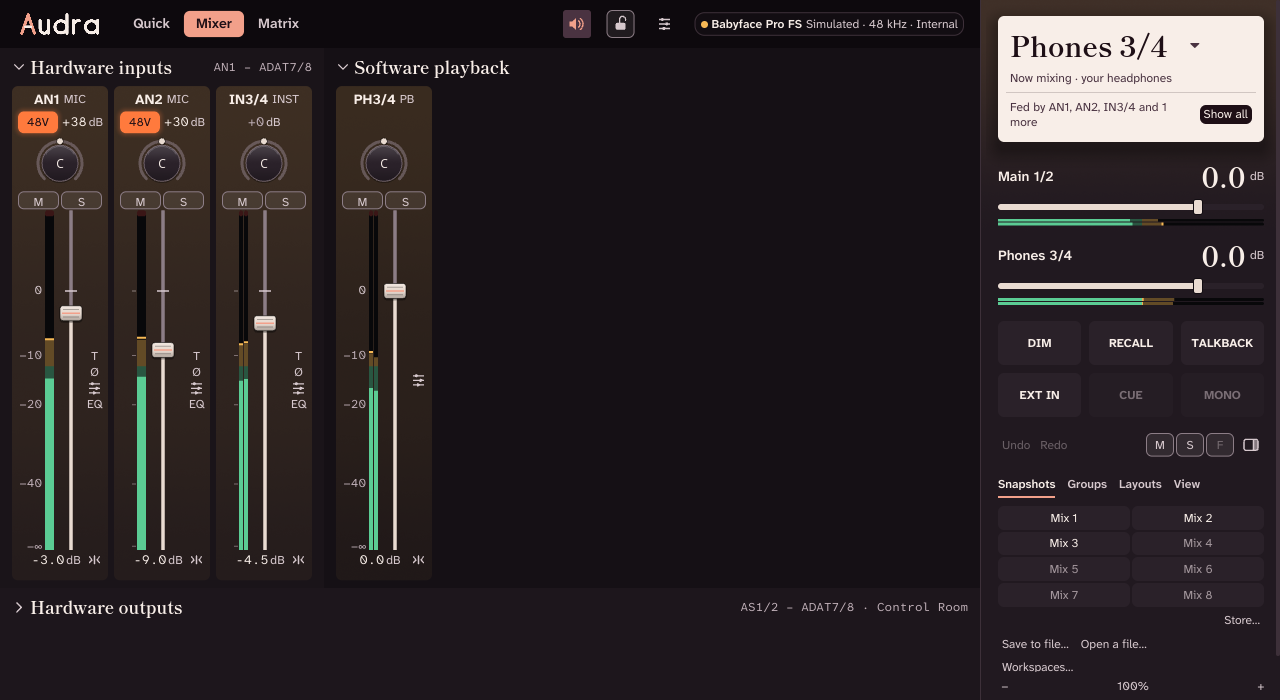
The Babyface's mixer has no single "master" mix. Each output pair (Main, the Phones, AS1/2, ADAT…) has its own submix: its own level for every input and every playback channel.
So a fader on an input strip is not "the channel's level". It is that channel's level in the mix you are editing now. Pick another mix and the same fader shows that mix's level instead.
You choose the mix you are editing in two ways:
- the big name at the top of the right-hand column (the placard), for example Main 1/2 or Phones 3/4, or
- a click on an output strip.
Under the name, the placard says who the mix is for ("Now mixing · your headphones") and what feeds it.
The strips that feed the mix you're editing stand in a warm wash of light, so you can see at a glance what plays there.

Main 1/2 (your speakers) gets the vocal and the guitar; Phones 3/4 also gets the room mic, louder.
Which build you have. The label beside the Audra name in the top bar, such as v0.1.0 alpha · build 786, says the version, how far along it is (alpha: it works and changes often) and the build number, which grows with every change. Mention it when you report a problem or share a screenshot. About also shows the exact commit. To report a problem, Help → About → Copy these details for a bug report puts the version, your device, kernel, system and driver on the clipboard, ready to paste into the issue form (nothing personal: no user name, computer name or paths).
The quickest way is Quick setup (Audra opens on it the first time; click it in the top bar, or press Ctrl + Tab): pick your mic, set its level against the "speak here" band, and hear it in the Phones, three steps that tick themselves off. See Quick Setup.
In the Mixer:
- Pick Phones 3/4 on the placard.
- Raise the input faders (your mic, your instrument) to where you want them in your headphones.
- Raise AN1/2 PB in the Software playback row to hear the computer.
- Set the overall level with the Phones fader in the right-hand column.
Your speakers (Main) keep their own, separate mix. Pick Main 1/2 to work on that one.
To be walked through it, open Help (F1, or the ?) and start Build a headphone mix under How do I…: a card ticks each step as you do it. See Learning, Guides and Milestones.
On a short window only one row is open at a time. Press Only these on the placard: the mixer then shows just what feeds this mix, and its inputs and playback fit side by side, your mic next to the DAW's return. Show all brings every strip back.
- The mixer itself is saved by Linux's ALSA state at shutdown and restored at boot. After your first setup, run
sudo alsactl store BabyfaceProonce. - Audra's own preferences, your EQ, mic and effect presets among them, live in
~/.config/audra/gui.json.
Next: Quick Setup, then The Window.