Repository navigation
The Window

From left to right:
- Audra (the wordmark): opens Help: the "How do I…" guides, your milestones, every key and gesture, and at the foot Audra's version and a link to this wiki. On a window 1440 px wide or more, Audra's version sits beside it; narrower, it steps aside so the tabs stay put.
- Quick setup / Mixer / Matrix: the three views. Ctrl + Tab cycles them. The first launch opens Quick setup; after that Audra opens on the view you used last.
-
Rec (a red dot): records the input Quick setup works on (your mic; both sides of a linked pair) to a WAV file in your Music folder, under
Audra. With Voice on it records the mic as others hear it, through Voice. Reverb & Echo are in the take too, as you hear them, each with its own switch: the In recordings key at the foot of each effect on the Reverb & Echo page, and the same two switches in Audra settings → App → Recordings (Reverb in recordings, Echo in recordings; both on to start). The take is then stereo, your voice plus its own reverb and echo at the balance you hear in the mix Quick setup listens on. The key reads Rec AN1 + FX with both going in, + Reverb or + Echo with one, and the note says which (the first time, it adds that the effects are now in the file for good: switch one's key off for a take without it). An In recordings key shows as an outline while its effect is off or not heard yet, and lights once it would really go in. Only your mic's own effects go in, not another strip's. Switch an In recordings key on and, when that adds an effect to the take, the Rec key flares once in amber so you see its new words. The key only says + Reverb when the take will really hold it: not while Mute FX silences the mix you listen on, that mix's FX return is off, or your mic sends nothing to the effects (its hover says which). With both switches off, or the effects you include switched off, you get your mic as others hear it (through Voice when it is on). While it records it lights up and shows the time; press again to stop, and a note at the foot of the right-hand column says the file's name and where it is, with an Open folder button that opens that folder in your file manager. If the take has dropouts (moments where the sound cut to silence because the computer was too busy), the note says how many: listen before you use it, and close other busy apps before the next take. Such a note stays until you close it. Files are never overwritten (each is named by the date and time, for exampleAudra 2026-11-10 17-40-12 AN1.wav). It stops by itself, saying why, if the unit is unplugged or the disk is nearly full; what was recorded is kept. A WAV file holds at most 4 GB (about four hours of two channels), so a longer take goes on in a second file,… part 2.wav, without losing a moment. It needs the unit (it does nothing in the simulation), and inputs other than AN1/AN2 need the unit's Pro Audio profile. The Babyface has no port for a USB drive, so this is how Audra does what RME's DURec does on bigger units. - The notes (two beamed notes): Audra's own sounds on or off, struck through when off. These are Audra's clicks and chimes, not your monitors.
- The padlock: locks the mix (see Settings). While it's locked, the Now Mixing card says Locked with a padlock.
- The ?: Help, the same as F1.
- The gear: Audra settings, also F2 (see Settings).
- The device chip: the interface, its state, sample rate and clock. Click it for the device panel (F3). On a narrow window it shortens: the state word alone, then the state short (Sim, On, Off, Wait), then just its coloured light; point at it to read the whole line.
- Quick setup: a guided setup for one mic: its preset and 48V, its level, and where you hear it, each step ticking off when it's right. See Quick Setup.
- Mixer: the full mixer, in rows like TotalMix.
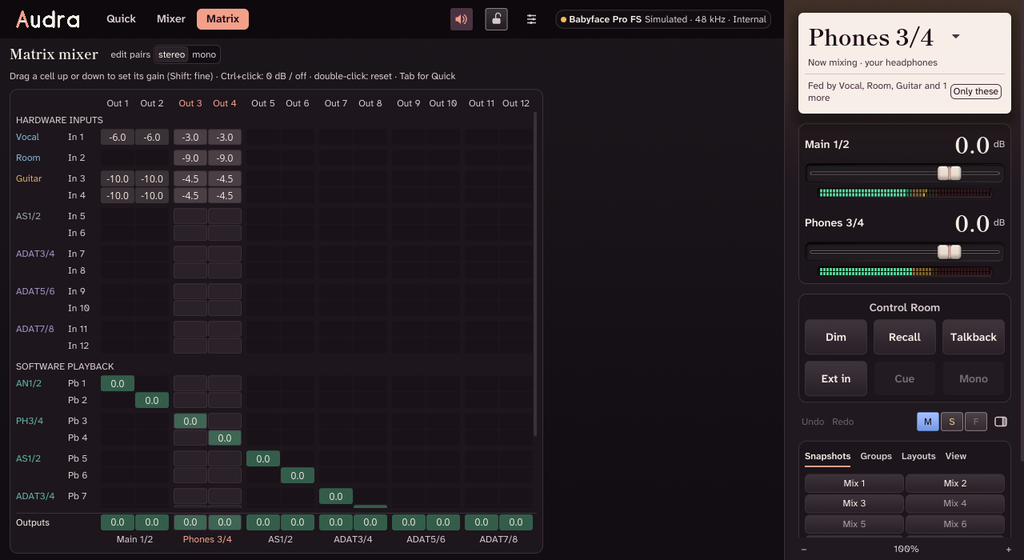
- Matrix: every source against every output as a grid of levels.
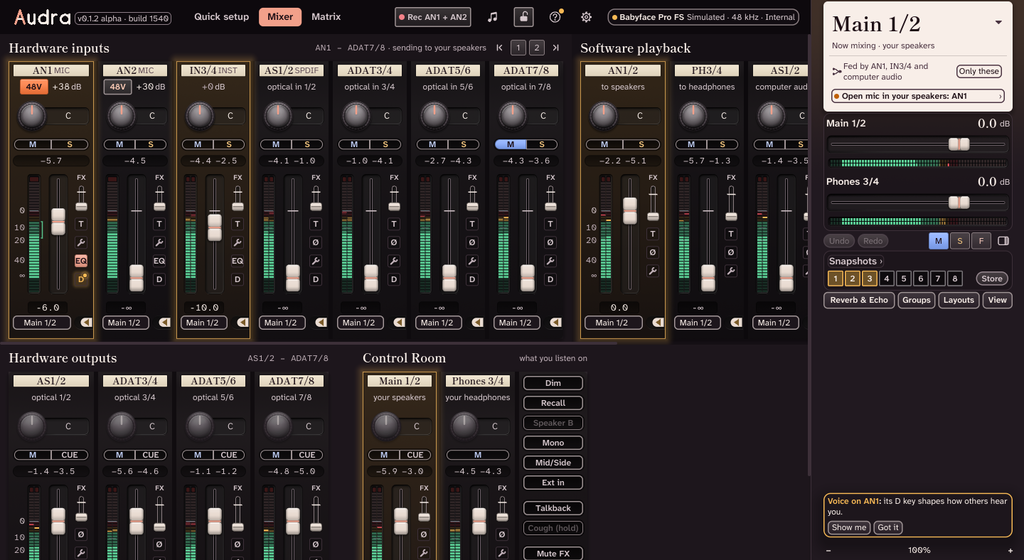
From top to bottom:
- Hardware inputs: AN1, AN2, IN3/4, AS1/2, ADAT.
- Software playback: what the computer sends to each output pair.
- Hardware outputs, with the Control Room (Main and the Phones) right after the last output. Its heading says what it is: what you listen on.
Each row's head names the first and last channel in it. How many rows are open depends on the window's height:
- A tall window (about 1400 pixels, or a wide one where inputs and playback sit side by side): every row is open, and the Control Room is whole in view.
- A mid-height window (1600×900 to about 1920×1080): two rows open: the outputs, where you choose a mix, and the source row you opened last (inputs or playback). So "pick an output, then mix its sources" never folds a row away under you.
- A short window (1280×700, say): one row is open at a time. Click a folded row's head to open it; click the open row's head to fold it too. The folded rows' heads stay pinned above and below the open one, so you can always reach them.
- A folded row that feeds the mix you're on keeps the lamp: its head glows amber at the rim and says what it holds, such as "AN1/2 PB feeds Main 1/2".
- The folded outputs row shows a key for each mix (Main 1/2, Phones 3/4, AS1/2, …), the one you're mixing lit. Click one to pick that mix without unfolding the row; [ and ] step through them too.
The View page's mixer rows switch picks auto (the above), 3, 2 or 1. With 2, or on a wide window, inputs and playback sit side by side. Ctrl+1, Ctrl+2 and Ctrl+3 fold or open the inputs, playback and outputs rows (point at a row's name for its key).
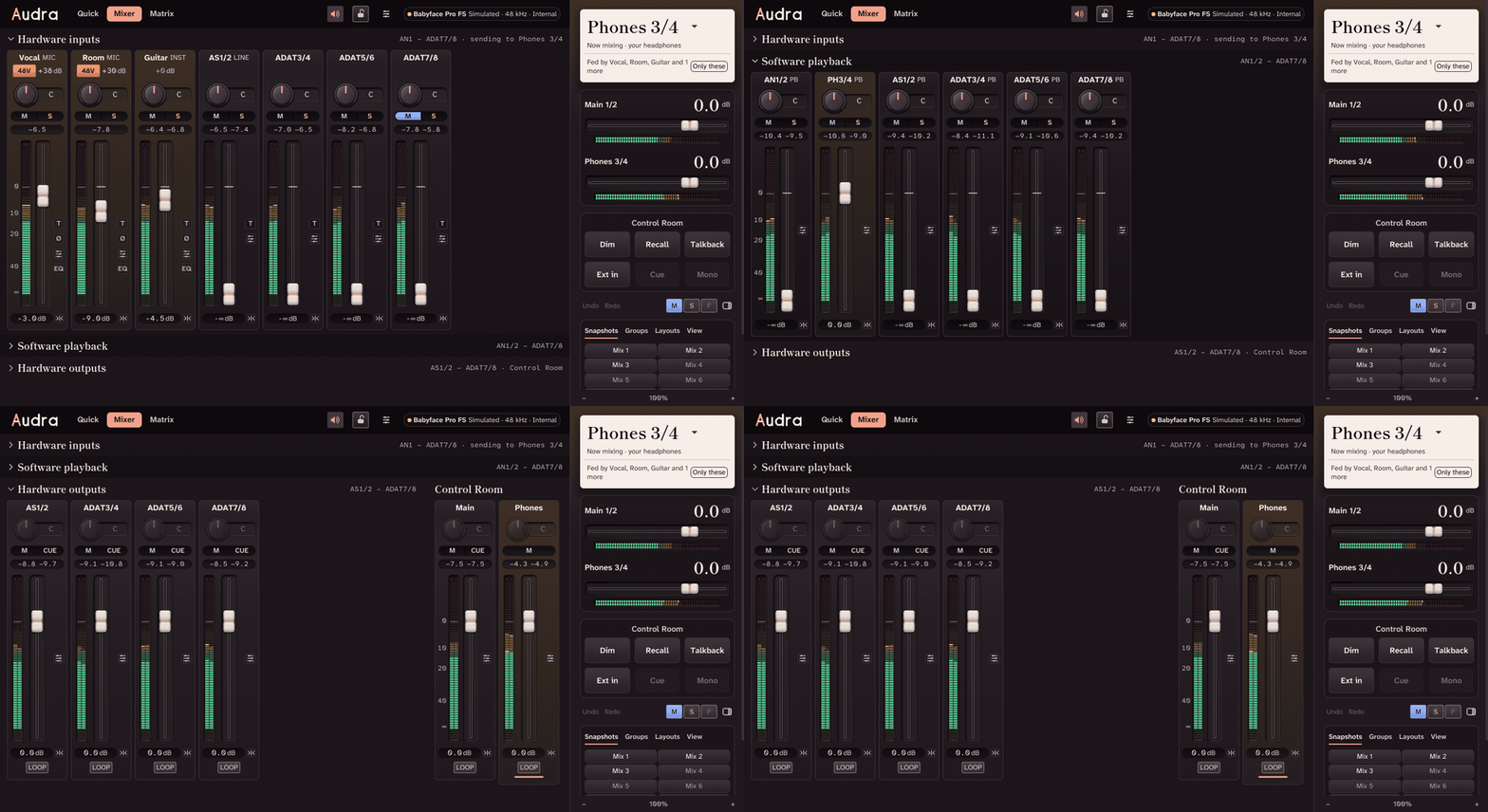
When a row is wider than the window it scrolls sideways, and its head shows the scroll markers: jump to the first strip, markers 1 and 2 (a click on an empty marker remembers where the row is now, a click on it later goes back there, and a right-click moves it), and jump to the last strip.
The strips that feed the mix you're editing stand in the lamp's light: a warm wash, a lit frame and a soft glow round them, in every theme.
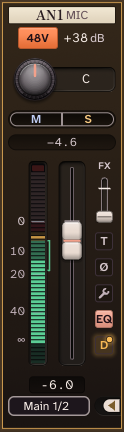
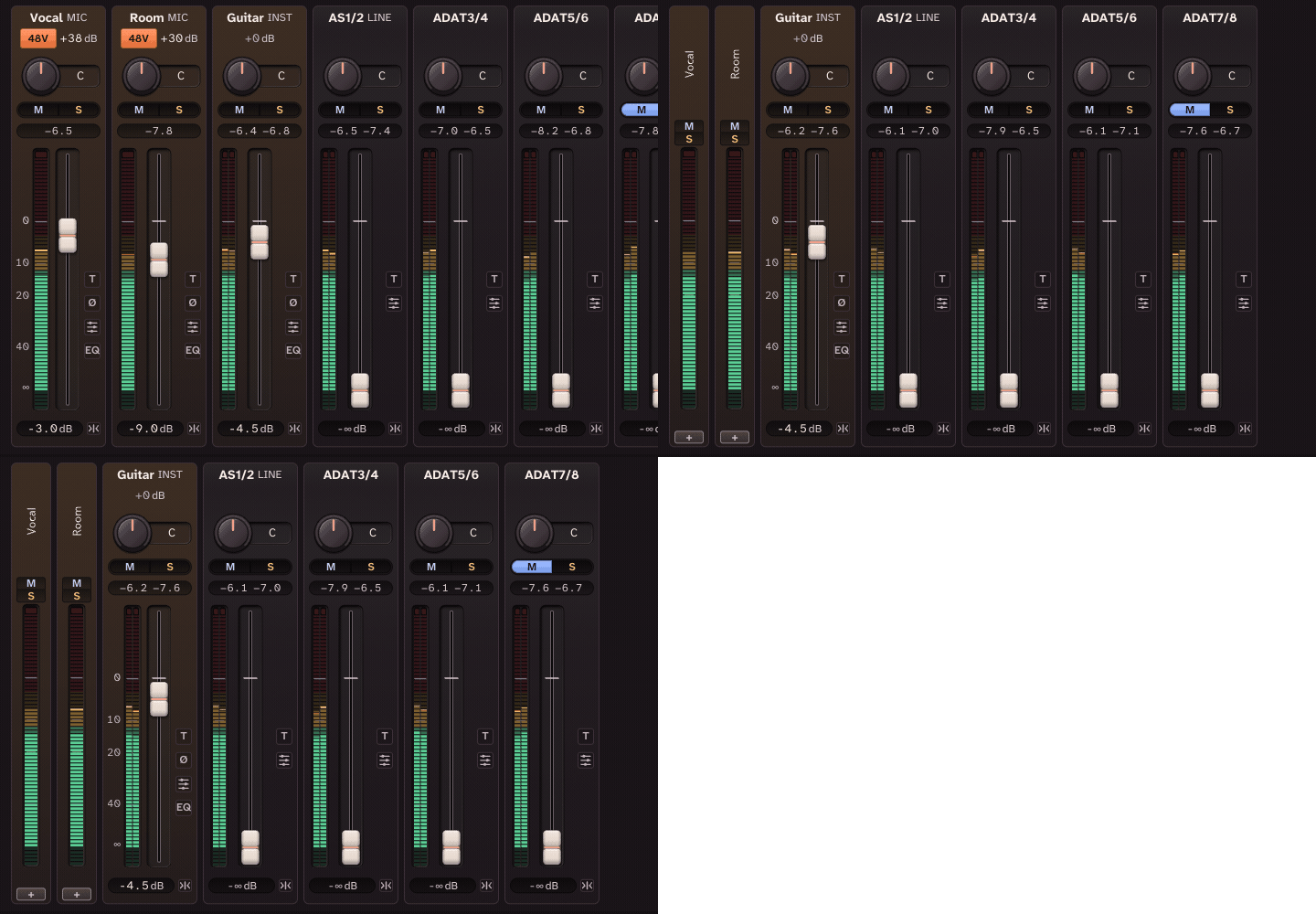
From top to bottom:
- Name and type (MIC, INST, LINE, PB, OUT). Double-click the name to rename it.
- On inputs: 48V and the gain (click the gain for the strip's Settings panel). When you turn the gain on the unit itself, the gain readout lights up for a moment.
- Pan knob. Double-click it to centre.
- M (mute) and S (solo, or PFL in Live Mode). On outputs, M and CUE, and the LOOP key.
- The channels' peak in dB.
- The meter and the fader. The meter's solid bar is the loudness (RMS), the lighter part above it the peaks, and the line the held peak. The two small lights at the meter's top are the clip lights (one per side): they turn red when the channel hits the top, which means it's too loud, and stay red so you notice. Click them to clear them; if they keep coming back, turn the gain down (the column's "Heads up" card offers Fix it: −6 dB).

- On the right of the fader, as in TotalMix: the small FX fader (the send to Reverb & Echo, or an output's return; every strip that has one shows it, labelled "FX"; where the strip is too short, an FX key that opens its Settings right at the Reverb & Echo row, solid while the level is on and an outline while that panel is open with the level off; a click above its cap steps the level up 6 dB at a time, never all at once; AN1 and AN2 share one send, so moving either moves both), T (Trim Gains), Ø (phase, AN1 to AN4), the wrench (the strip's Settings panel) and EQ (greyed where the Linux driver has none). Each takes a click anywhere in a 24-pixel square around it, at every zoom; it stays quiet at rest and shows a clear edge under the pointer. See Mixing.
- At the bottom: the level in dB (double-click to type one) and ◀ on the strip's right edge, which narrows the strip to its meter (▶ brings it back). Ctrl-click it to narrow (or widen) this strip and every strip to its right in the row. Under it, on inputs and playback, the routing field names the mix the fader edits. A folded mic strip with 48V on shows a lit 48V under its M and S.
Right-click a strip to open its Settings panel (or press Space with the keyboard on it). A strip's Settings and EQ panels open beside it, each with its own × (Esc closes them too). A panel is as tall as its rows, lying over the row below while it's open, so everything in it shows at once; only on a window too short for it do its rows scroll under its name, with a scrollbar beside them. With two panels open, or while Audra settings or another dialog is open, each panel stays inside its own row.
Where it goes (in an input's or playback's panel) and What plays here (in an output's) open the map of where its sound goes beside the panel: see Mixing.
The strip the keyboard is on has a lit tab in the middle of its top edge and a glow round it. Selected strips (Ctrl- or Shift-click) have a coral edge.
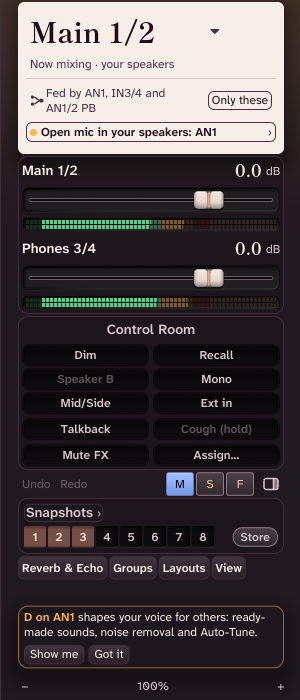
From top to bottom:
- The placard (the Now Mixing card): the mix you're editing, who it's for ("Now mixing · your headphones"), what feeds it and whether Reverb & Echo are heard there ("… · with Reverb"; when something's in the way in a mix you listen on, a row says what to do, for example "Reverb not heard · turn up Main 1/2's FX ›", and pressing it does it; point at it for why) (click that "Fed by …" line, with the small map icon before it, for the map of the mix, see Mixing), and Only these / Show all. If an open mic plays in your speakers, it says so here, in any view (see Control Room).
- Main and Phones levels, each a fader on its side with its meter under it.
- Control Room keys: Dim, Recall, Speaker B, Mono, Mid/Side, Ext in, Talkback, Cough (hold), Mute FX and Assign… (and Link and Listen once set up); Cue is on each output strip. See Control Room.
- Undo and Redo keys (while a notice's Undo key shows, this Undo's tooltip says what it puts back too), and the M S F masters: every mute, every solo, every fader link. See Mixing.
- The pages, each under its own bar: Snapshots, Reverb & Echo, Groups, Layouts, View. Click a bar to open its page, and click it again to close it. One page is open at a time, or none, and Audra opens with the one you left open. The Reverb & Echo bar has a lit dot while an effect is on.
- On a tall window the snapshots are one named list with Store under it. On a shorter window (under about 880 pixels at 100 % zoom), they are a framed row of eight keys with Store instead (see Snapshots), and the other pages are a row of keys under them (Reverb & Echo, Groups, Layouts, View), lit while open. Each opens its page right there under the keys if it fits, otherwise as a card beside the column; a second click, its × or Esc closes it.
- Locked (the padlock): the Now Mixing card says Locked, and Audra makes no sound at all, so nothing of Audra's reaches a stream.
- Notices and cards: Audra's notices, and the learning cards (a guide, a milestone, a new trick), stand here, just above the zoom bar, so they never cover a fader. A notice never moves the keys above it. A notice about a change Undo takes back (PAD off, a snapshot switching Reverb and Echo, a snapshot stored over, a split pair, AutoSet turning a mic down, a strip played into another mix) has its own Undo key beside the ×, and its tooltip says what it puts back ("Turn PAD back on", "Bring back what Snapshot 2 held"). It takes back that change. Such a notice stays up while its key applies: until you change something else (here or on the unit), press Undo or Redo, or close it. Then the key goes, so it never takes back something else. After its first 5 seconds it also makes way for a card that can't wait (a clipping warning, a guide's next step, a milestone), and on a short window it goes rather than keep the page buttons away; then the tools row's Undo key keeps saying what it puts back. When a notice needs the room the page buttons use, they step away whole until it goes, never cut in half. While you move around with the keyboard, the card says what the keyboard is on and which keys change it ("Preamp gain, dB · AN1 · ← → one dB a press, Esc leaves"). See Learning, Guides and Milestones.
- The zoom bar at the foot (also Ctrl + wheel).
Fold the column with the panel button beside the M S F masters, or double-click an empty part of it. Folded, it keeps the Main and Phones meters, a Dim key and Main's level in dB, and, while a mic is open in your speakers, a lit Mic key that opens the column at the warning; hover a meter for its level, and click anywhere on the rail to open it again. It also folds by itself on a narrow window, or when you zoom in so far that the rows no longer fit beside it, and comes back when you zoom out.
