Repository navigation
Shortcuts and Remote Control
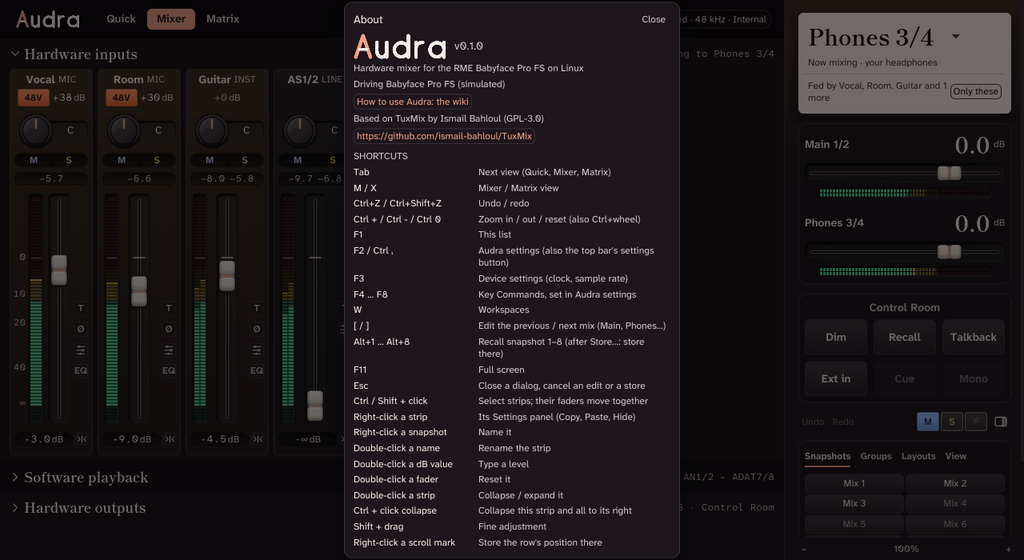
F1, the ? in the top bar, or a click on the Audra wordmark shows them all, under Keys and gestures in Help. A ring beside each one ticks once you've used it (see Learning, Guides and Milestones).
| Key | Does |
|---|---|
| Ctrl + Tab | Next view (Quick, Mixer, Matrix) |
| X | Matrix view |
| F1 | Help: the guides, the milestones and every key and gesture |
| ? | What's this? Every hint shows at once as you point at things, with a banner saying so (clicks still work); ? or Esc ends it. Also from Help's What's this? key; the Help icon stays lit while it's on, and a click on it ends it |
| F2 or Ctrl + , | Audra settings |
| F3 | Device settings (clock, pitch, sample rate); Tab walks it, Esc closes it |
| W | Workspaces |
| F | Faders show FX sends, or the mix again (Esc leaves too) |
| Ctrl + / Ctrl − / Ctrl 0 | Zoom in / out / reset (also Ctrl + wheel) |
| Ctrl + 1 / 2 / 3 | Fold or open the inputs, playback and outputs rows |
| F11 | Full screen |
| Ctrl + W / Ctrl + Q | Close the window (to the tray, where there is one) / quit Audra |
| Esc | Close a dialog or a strip's panel, cancel an edit or a store |
| Key | Does |
|---|---|
| Tab / Shift + Tab | On through the strips, a strip's open panel and the counter; in Quick its setup, in Audra settings its options |
| ← → | Walk the Mixer's strips (Esc lets go) |
| M / S | Mute / solo it (M with no strip: the Mixer view) |
| Space | Open / close its Settings panel |
| Shift + ← / → | Move its pan, in the mix you're editing |
| N | Narrow or widen it |
| Space / Enter | Elsewhere: press the key, switch the row, load the preset, set the Matrix cell to 0 dB or off |
| + / − | Change the level, gain or preset the keyboard is on (← → on a level too) |
| ↑ / ↓ | Nudge its fader, else the one under the pointer (Shift: finer) |
| Key | Does |
|---|---|
| [ / ] | Edit the previous / next mix (Main, Phones, and on round) |
| Alt + 1 … Alt + 8 | Recall snapshot 1 to 8 (after Store…: store there) |
| Alt + S | Store…: arms Store; then Alt and a slot's number keeps the mix there |
| Ctrl + Z / Ctrl + Shift + Z | Undo / redo |
| F4 … F8 | Key Commands: F4 Dim, F5 Talkback, F6 Mute master to start (see below) |
| C (hold) | Cough: silence what others hear while it's held, once Voice runs (Control Room has the key too) |
While the keyboard is on something, the card at the foot of the right-hand column names it and its keys, for when you can't point at it for its tooltip.
Audra keeps its own keyboard focus, so you can work the whole mixer from the keys. The item the keyboard is on has a ring round it; a strip has a lit tab at the middle of its top edge and a glow.
- The Mixer: Tab and Shift + Tab walk the strips, then on into the right-hand column, top to bottom: the Now Mixing card's mix name (← and → choose another mix), its Fed by … line (opens the map of the mix), Only these (and the open-mic warning's line, then, once it's open, Take it out and Hide: I listen on headphones, then the "not heard" line when it shows, and an output's phase or M/S note (opens its Settings); with the faders on FX sends, the card's Back to … and the key beside it instead of Only these), the Main and Phones levels, the Control Room keys, then each page's bar (Snapshots, Reverb & Echo, Groups, Layouts, View), and under an open page its own stops: the snapshot slots and Store…, the Reverb & Echo page's keys, types, presets and knobs, the layout slots and their Store…. Last come a guide card's Show me and ×, or the one-time D note's Show me and Got it (Show me takes the keyboard into the Voice panel, on its ON). Then round again. The column scrolls so the ring stays in view, and Tab onto a strip in a folded row opens that row.
- A strip's panels: with a strip's Settings panel open (Space), Tab goes into its rows first. A strip's open EQ panel or Trim card comes between the strip and the next one.
- The Voice or Loudness panel (the D key): Tab walks it top to bottom in the order you see it: ON, the preset list (← → pick a preset), the choices, Reset to Natural, then the knobs under More while it's open. The panel scrolls so the ring stays in view. If a choice asks Move Voice to …?, the keyboard lands on Keep it on …, so a second Space changes nothing.
- Quick setup: Tab walks the setup's controls, and the setup scrolls so the ring stays in view. See Quick Setup.
- The Matrix: the arrows move a cell, Tab walks the cells in reading order, + and − change its level, and Space switches it between 0 dB and off.
- Audra settings: Tab walks its options, and stays inside until you close it.
- Help (F1): Tab walks each guide's Start (or Again) and the two links at its foot, and stays inside until you close it. Start a guide from the keyboard and the ring moves to the guide's card. While Help is open, no key reaches the mix behind it; Help and Audra settings close each other.
Once the keyboard is on something:
- ↑ and ↓ move between items (on a strip, they nudge its fader);
- ← →, or + −, change a level, a gain or a knob a step, the reference level, the settings' page, a type, or which preset to load; on a list, they choose the option before or after;
- Space or Enter presses a key, switches a row, recalls a snapshot or loads a preset. 48V and Reset Mix keep their two presses;
- Esc lets go a step at a time; a click hands back to the mouse.
If the thing the keyboard is on goes away (a card you answered, a panel you closed), the ring moves to whatever now stands in its place, or lets go with the panel. A key pressed at that moment does nothing, so it can't press a neighbour by surprise.
A few things still want the mouse: opening a list's menu (the Now Mixing card's mix menu has [ and ] instead), the EQ's Preset menu, and typing in a text field. Typing is safe: while you type a name, the letter keys never mute or solo anything.
| Action | Does |
|---|---|
| Ctrl / Shift + click strips | Select them; their faders move together |
| Right-click a strip | Its Settings panel (Copy, Paste, Hide) |
| Right-click a snapshot slot | Name it |
| Double-click a name | Rename the strip |
| Double-click a dB value | Type a level |
| Double-click a fader | Back to 0 dB, gliding up; never turns up Main or Phones (can be switched off) |
| Double-click a strip | Collapse or expand it |
| Ctrl + click a collapse button | Collapse or expand that strip and every strip to its right |
| Shift + drag | Fine adjustment |
| Right-click a scroll mark | Store the row's position there |
| Scroll over a fader or knob | Move it (can be switched off) |
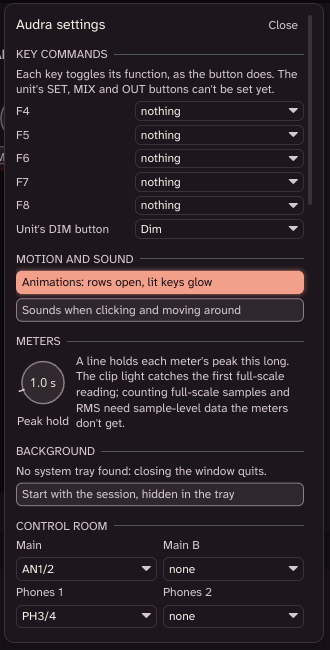
In Audra settings (F2) → Remote → Key commands, set what each of F4 to F8 does, and what the Babyface's own DIM button does: Dim, Recall, Talkback, External Input, Speaker B, Listenback, the mute or solo master, or locking the mix.
- A key does exactly what its button does, so the lock holds it the same way and Undo covers it the same way.
- Every function toggles: press once for on, once more for off. (The unit reports its DIM button only as presses, so hold-to-talk isn't possible there.)
- To start, F4 is Dim, F5 Talkback and F6 the Mute master; F7 and F8 are free. DIM starts as Dim on Main.
The Babyface's DIM button does what Key Commands give it (Dim on Main to start). Its volume knob moves Main. SET switches 48V on the mic input, as it does without a computer (TotalMix on Windows doesn't use it for anything else either); MIX and OUT are handled by the driver.
Any MIDI controller with faders, knobs or buttons can drive Audra. Audra settings (F2) → Remote → MIDI:
- Switch on MIDI control from a controller. Audra connects to every controller by itself, including ones you plug in later. In your system's MIDI connections it shows as Audra.
- Pick What to control: a strip's fader, mute or solo, the Main or Phones level, or a Key Commands function (Dim, Talkback…).
- Press Learn, then move the fader, knob or button on the controller. The binding appears in the list; Remove takes it away.
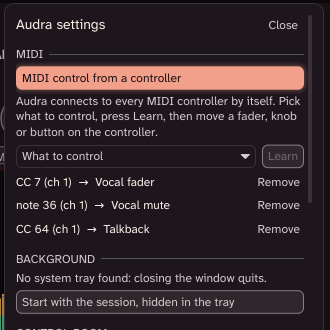
- A fader or knob (a control change, or a pitch-bend fader) moves a fader over its whole travel, on the same curve as the screen.
- A button that sends notes toggles a mute, solo or function each time you press it. One that sends control changes switches it on at 64 and above, off below.
- A controller does exactly what the screen does, so the lock holds it and Undo covers it.
- A fader set to a strip moves the mix that strip edits: the placard's mix, or its own output in free routing.
- A fader or knob moved up a long way in one go (more than 6 dB) glides up over a moment instead of jumping, as a click high on a fader's lane does; small moves and moves down land at once. A Mackie surface's faders and an OSC app's levels and gains do the same.
A control surface in Mackie Control mode (motor faders, V-Pots, a display) drives a block of eight strips. In Audra settings → Remote → MIDI, switch on Mackie Control surface and pick the surface's port under Surface. Only that port gets Audra's lights and fader moves (so a synth never plays them as notes), and its buttons and faders stop going to learned bindings.

| On the surface | In Audra |
|---|---|
| Faders 1–8, master fader | The block's eight strips; the Main level |
| V-Pots 1–8 (press: centre) | Pan |
| Mute, Solo, Select 1–8 | Mute, solo, select |
| Rec 1–8 | Edit the mix of output pair 1–8 |
| Bank ◀▶ or cursor ◀▶ | The block 8 strips left or right |
| Channel ◀▶ or Rewind / Fast forward | The block 1 strip left or right |
| Cursor ▲▼ | The block to the row above or below |
| EQ / Plug-in / Instrument / Flip | Mute master / Solo master / Trim Gains / Speaker B |
| Stop / Play / Record | Dim / Talkback / Recall |
| F1–F8 | Snapshots 1–8 (after Store…: store there) |
| Undo | Undo |
Audra sends back the fader positions (the motors follow the screen; a fader you're holding is left alone), the button lights, the V-Pot rings, the strips' names and levels on the display, the row ("IN", "PB", "OU") on the two-digit display, and meters (switch off Send meter levels to the surface if you don't want them). The strips the surface drives have a coral line along their top in the mixer. Channels kept from remote control (Layouts page → Channels → for: remote) are left out of the block.

An extender (a second surface with eight more strips, such as an X-Touch Extender or an MCU Pro XT): pick its port under Extender and say whether it stands left or right of the main surface. The block becomes sixteen strips; each surface drives and shows its own eight, the bank buttons move all sixteen, and the master fader and function keys stay on the main surface.
Not built yet: the manual's per-slot options (several remote slots, mapping stereo strips to two mono).
Start Audra with --osc for an OSC control surface on this computer (ports 9000 and 9001, loopback only): faders, pans, mutes and meter levels for OSC apps. audra --help lists every option.