Repository navigation
Settings
Open them with the gear in the top bar, with F2, or with Ctrl + ,.
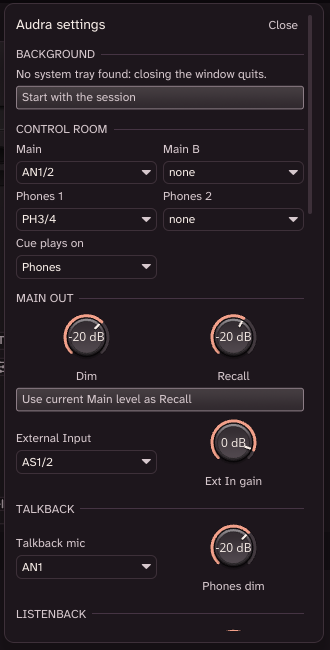
Audra settings come in five pages, picked from the row of keys under the title: Mixer, Monitor, Look, Remote and App. They open on the page you used last. Options are rows with a switch at the end; a switch that can't be used says why.
From the keyboard, Tab and Shift + Tab walk the options (and stay inside Audra settings until you close it), ← → turn the one you're on (the page row too), Space or Enter switches a row or presses a key, and Esc closes it.
-
Mixer:
- Centre the pan when a pair is split.
- Double-click resets a fader to 0 dB (on by default).
- Mouse wheel moves controls (on by default; off, the wheel scrolls the page instead of moving faders and knobs).
- Layouts keep open panels.
- 48V asks for a second click to switch on (on by default).
- FX send follows: its highest submix, the Main mix, or nothing (a fixed send). See Reverb and Echo.
- At start: a mic preset to load each time Audra starts, and the input it loads on. See Inputs and EQ.
- Meters: Peak hold, how long a meter holds its peak line (0.1 to 9.9 seconds); Over, how long the sound must hit the top before the clip light comes on (full-scale samples in a row) (1 to 10; 1 to start), counted on the inputs and the playback; RMS (on to start): each meter's solid bar is the loudness (RMS, averaged over about 0.3 s) and the peaks show lighter above it; RMS +3 dB shows the RMS 3 dB higher, so a sine wave reads the same as its peak.
- Snapshots: Loading a snapshot leaves alone: Nothing (load all), The Main volume, or Main and Phones volumes.
Each section has a line saying what it's for.
- Control Room: which outputs are your speakers (Main, Main B) and your headphones (the Phones), and where Cue plays. See Control Room.
- Main out: the Dim amount and the Recall level (Set to Main’s level now sets it to where Main is).
-
More for studios (press the bar to open it; closed each time Audra starts) holds what only a studio uses:
- Talkback: the Talkback mic and the Headphones down by (how far the Phones are lowered).
- Listenback: the Listenback mic and Speakers down by.
- External Input: the input pair Ext in plays on your speakers, and its Ext in gain.
- Appearance: the theme tiles (as on the View page, see Themes), Change the theme with the time of day, and Follow the desktop's light and dark (see below).
- Motion and sound: see Motion and sound below.
- Key commands: what F4 to F8 and the unit's DIM button do. See Shortcuts and Remote Control.
- MIDI: control from a MIDI controller, learned control by control, and Mackie Control surfaces. See MIDI controllers.
- Background: Keep running in the tray when closed; Start with the session, hidden in the tray where there is one; Show Audra in the app launcher and the dock (on by default): Audra adds its launcher entry and icon for the copy you're running, so the dock shows Audra's icon rather than a gear.
-
Recordings: where Rec saves its takes (
~/Music/Audrato start), Change… to pick another folder (Audra checks it can really save there and says so at once if it can't), Open folder to see them in your file manager, and your last five takes with their lengths (newest first). Reverb in recordings and Echo in recordings (both on to start): your takes are stereo, your voice with the effects you include as you hear them (a switch that's on while its effect is off says Waiting: Reverb is off); both off, your mic as others hear it (through Voice when it's on), as the section's first line says. The Reverb & Echo page has the same two switches as the In recordings key under each effect. The Babyface itself has no recorder, so this is Audra's own choice to make. - Learning as you go: Tips and tricks as you work, Milestones, Small wins (sparks and a rising note) and Plain words and the sockets sketch (all on by default, each on its own), how many tricks you've found, and Show the tips again. See Learning, Guides and Milestones.
- Reset mix: Reset the mix… shows the resets. See Snapshots, Layouts and Reset.
Audra settings → Look → Motion and sound:
- Animations: rows open, lit keys glow (on by default): a row that opens grows into place; a key that lights glows like an LED warming up, and fades out like one cooling when it goes off; a fader or knob that jumps (a snapshot, Undo, a reset) glides there like a motorised fader; a fader or knob landing on its home (0 dB, the centre, a double-click reset) sends a ring out; a fader that Audra moves (a recall, Undo, a reset) lands just past its mark and settles, like a motorised one, and a knob turned into the end of its travel shudders back; a clip light that comes on sends out a red flash; a 48V? or LOOP? waiting for your second click breathes; the padlock shakes when the lock holds a change back; and a fader held still in your hand too long starts to sweat. When the window first shows, the meters run a quick light test, sweeping up and back like a desk powering on (any click or key ends it). The milestones' sparks, Quick's drawn ticks and the Reverb key's flare are animations too. Switch them off for a still window.
- Sounds when clicking and moving around (on to start): a click when something switches on or off, a soft tap for every other press, a faint tick when a fader crosses 0 dB or the gain passes each 10 dB, a soft bump when the gain reaches either end, two quick rising notes when a snapshot is recalled, a soft round pop when moving to another view, mix or theme, two little rising ticks when something waits for your second click (48V?, Store, a Reset Mix, a workspace Load) and the same ticks falling if the wait runs out, two round notes rising when something is kept (a snapshot, layout or workspace stored, a preset, theme or file saved), and two low notes falling when something is refused (the lock held it back, or the interface didn't take a change: read the note that appears). They're made like a phone's UI sounds, soft "tocks" rather than beeps, so they don't grate when repeated.
- Celebration sounds (on by default): soft notes for a win: three rising for a milestone, one for a trick found or a guide's step; small wins climb half a step, a milestone a step above them. They need the sounds above on too. While you're on air (Rec recording, an app using your mic through Voice, or a mic open into your speakers) they stay quiet, and so does the clip tick: the cards and sparks still show, and your own clicks still answer.
- Volume, while sounds are on.
The quickest way to switch Audra's sounds on or off is the notes button in the top bar (two beamed notes, struck through when off). It silences the celebration notes too. These are Audra's own clicks and chimes, not your monitors.
The sounds play on your default output, usually the Babyface, so they can reach your monitors and recordings. They play as "Audra UI sounds": in your system's sound settings you can send them to other speakers instead.
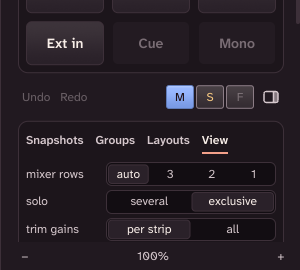
In the right-hand column: mixer rows (auto, 3, 2, 1), solo (several or exclusive), trim gains (per strip or all), S button (solo or PFL), routing (submix or free, see Mixing), names (custom or original), and the theme tiles. Each row has a line under it saying what it does.
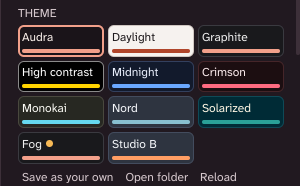
Ten colour themes, one click away: the theme tiles on the View page, and in Audra settings → Look. Each tile is drawn in its own colours, so you can see it before you pick it, and Audra remembers your choice.
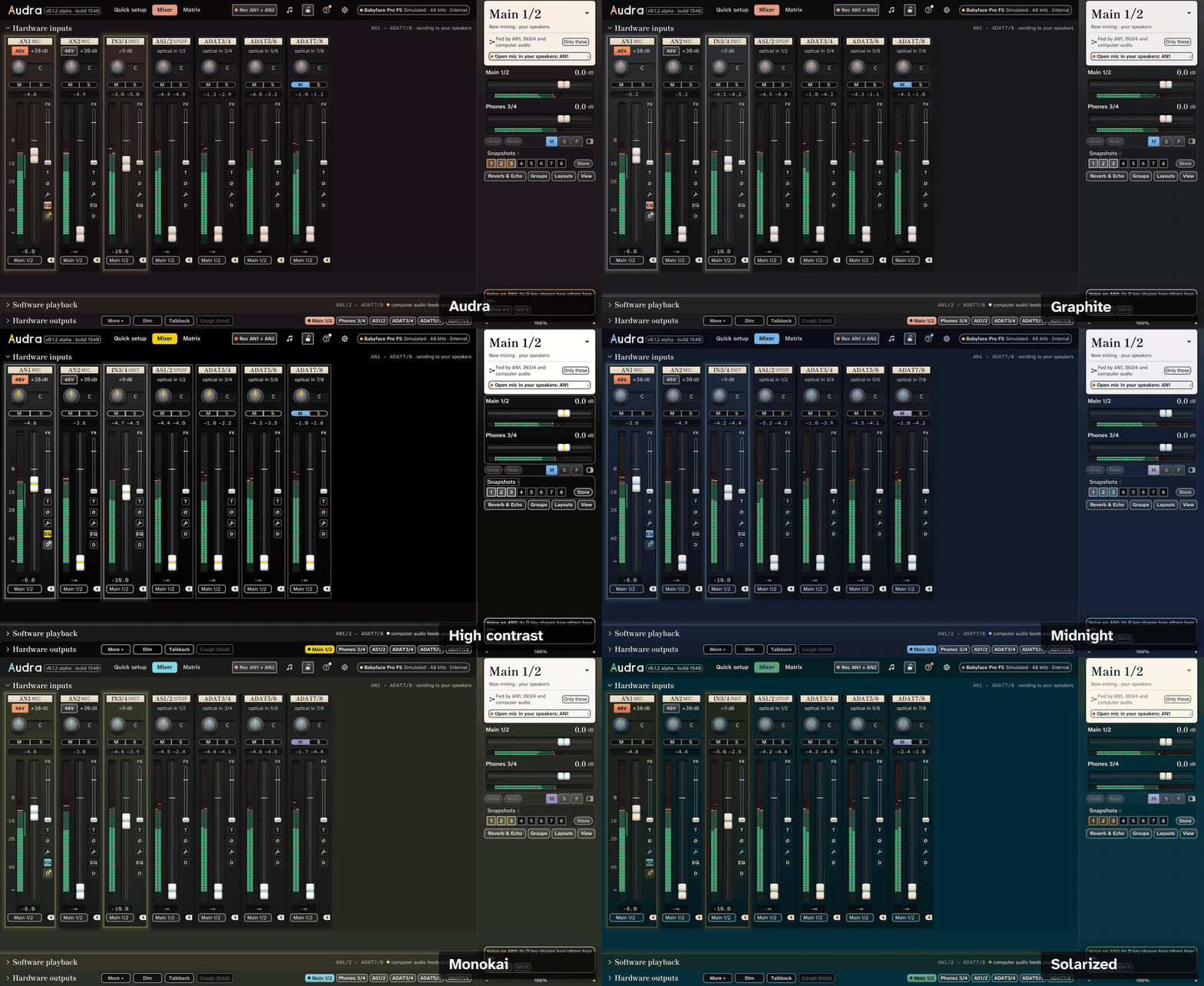
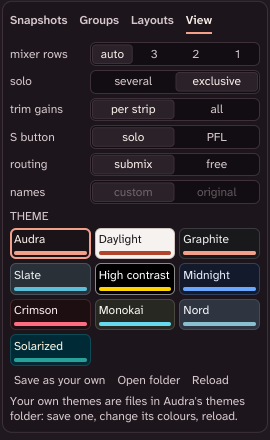
- Audra: the warm dark default.
- Daylight: light, for a bright room.
- Graphite: neutral grays.
- Slate: cool slate with teal light, like a hardware mixer's room: an orange M and a red 48V.
- High contrast: black and white with yellow, for the most legibility.
- Midnight (blue), Crimson (red), Monokai, Nord and Solarized.
Every theme keeps the same readable contrast, and the meters keep the same green, amber and red, so levels read the same whatever the theme. In every theme, the strips that feed the mix you're editing take the lamp's light: a lit frame and a soft glow round them. A new theme fades in over half a second instead of switching at once.
Under the theme tiles: Save as your own writes the theme showing now into Audra's themes folder (~/.config/audra/themes/) as a file with every colour, and picks it. Open folder opens that folder; change the colours in the file with any text editor, then press Reload. Your themes get tiles beside the built-in ones.
A theme file only needs the colours it changes, starting from a built-in theme:
{ "name": "Studio B", "based_on": "nord", "colors": { "accent": "#ff9e64", "lamp": "#ffb37a" } }The colours are bg_deep, surface, surface_hi, border, control_edge, text_primary, text_sec, accent, accent_dim, fader, on_active, signal, attention, clip, mute, phantom, top_bar, counter, muted, lamp, on_placard_sec, and floors (three: inputs, playback, outputs). Audra checks each theme with the same readability rules as its own: one that falls short still loads, with an amber dot on its tile, and its tooltip says where (for example "Hard to read: secondary text on a lit strip is 3.2:1 (needs 4.5:1)"). Reload says if a file or a colour in it couldn't be read.
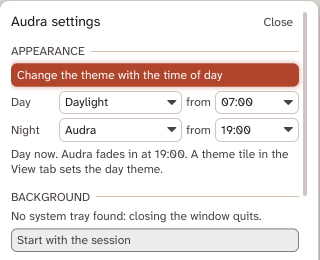
Audra settings → Look → Appearance → Change the theme with the time of day. Pick a Day theme and the time it starts, and a Night theme and its time (every half hour; Daylight from 07:00 and Audra from 19:00 to start with). When the time comes on your computer's clock, the window fades slowly from one to the other, like the light in a room. A day that runs across midnight works too (day from 20:00, night from 06:00).
While it's on, the View page's heading says DAY THEME or NIGHT THEME and when the other starts, and clicking a tile sets the theme for that part of the day. Switching it off keeps the theme showing now.
Audra settings → Look → Appearance → Follow the desktop's light and dark. Pick a Light theme and a Dark one: Audra shows the Light one while your desktop is set to light, the Dark one while it's dark, and changes when the desktop does (COSMIC, GNOME and KDE all say which they are). It and the time of day take turns: switching one on switches the other off.
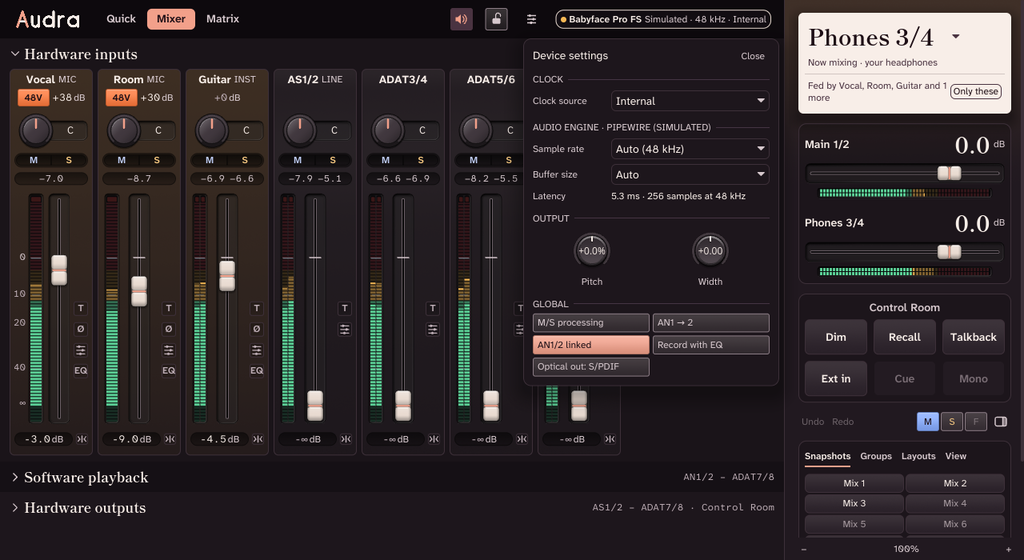
Click the device chip in the top bar (or press F3): the clock source (internal or optical), Pitch (varispeed) under it (the whole unit up to 5 % fast or slow; only on the internal clock, and the chip says "Pitch +1.0%" while it is off zero), the audio engine's sample rate and buffer, and the optical output's format. The keyboard walks the card: Tab steps through it, ← → change a choice or turn Pitch a tenth of a percent, Space switches a row (or puts Pitch back to 0), Esc closes it.

The padlock in the top bar freezes the mix: faders, pan, mute, solo, EQ, gain, 48V, snapshots, Undo, the Reverb and Echo send and returns, and OSC changes are all held, and a note says how to unlock (with the padlock shaking, so you know where to look). While locked, Audra makes no sound at all: its clicks and chimes play on the Babyface, and a stream could pick them up. Over a fader or knob the pointer shows "not allowed". The Control Room keys, PFL, views and settings still work, so you can still listen and look around. Click the padlock again to unlock. The unit's own knob and buttons are not locked.
Ctrl + and Ctrl − (or Ctrl + wheel, the bar at the foot of the right-hand column, or Look → Size of text and controls → Smaller / Larger) zoom the whole window. Ctrl 0 goes back to 100%. Zoomed in so far that the mixer's rows no longer fit beside it, the right-hand column folds to its rail, and comes back when you zoom out.
Ctrl + W closes the window and Ctrl + Q quits Audra. Where there's a system tray, the first time you close the window Audra asks Keep Audra running in the tray?: Keep running in the tray or Quit Audra. Your answer sets Keep running in the tray when closed (Audra settings → App → Background), where you can change it later.
Only one copy of Audra runs at a time: starting it again brings up the window that's already open.