Repository navigation
Inputs and EQ
On AN1 and AN2:
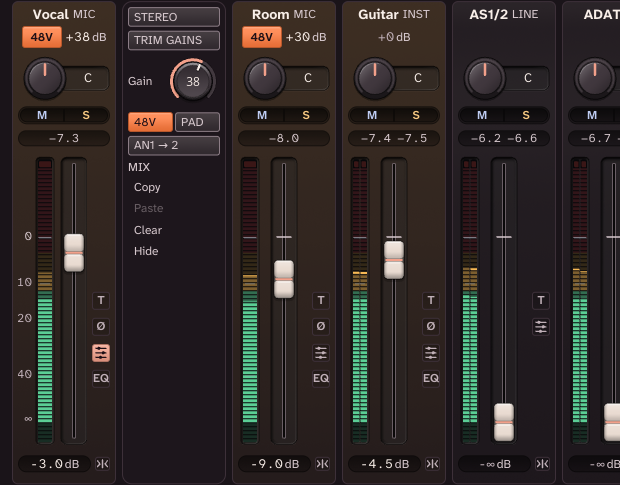
- 48V on the strip switches phantom power. It lights ember, like the unit's own LED. Switch it on only for mics that need it, with your monitors down: phantom power thumps as it comes on.
- Switching 48V on takes two clicks: the first shows 48V? (an ember outline) and a notice, Click 48V? again to switch phantom power on for AN1.; the second within four seconds switches it on. Switching off is one click. Audra settings → Mixer → 48V asks for a second click to switch on turns this off.

- The gain next to it shows the preamp gain. Click it to open the strip's Settings panel with the gain knob. When you turn the gain with the unit's own knob, the readout lights up for a moment.
To open it, click the strip's wrench, right-click the strip, or press Space with the keyboard on the strip. It floats over the strips beside it and has its own ×; Esc closes it too. On a short window its name stays put and its rows scroll under it, with a scrollbar beside them to say there's more.
On an input:
- Stereo pair: one strip for the pair, or two mono strips. On AN1/2 it also links the unit's own two preamps, so the unit's knob moves both gains.
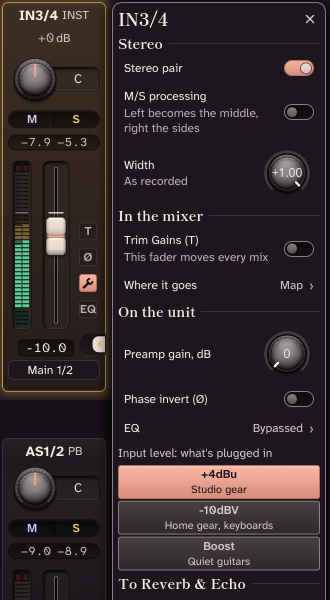
- An input's panel opens with its stereo picture, then three groups by where each thing happens:
- Stereo (at the top): Stereo pair, then on a linked stereo pair (AN1/2, IN3/4, AS 1/2, ADAT; a playback pair too) M/S processing: its left becomes the mid and its right the side, as TotalMix's M/S Proc, for a mid/side mic pair or a width check; and Width, as TotalMix's: +1.00 is the pair as recorded, 0 mono, −1.00 left and right swapped. The line under it says which, its arc grows as you narrow from +1.00, a double-click or Space puts it back to +1.00, and ← → turn it 0.05 a step. While M/S runs the strip's tag reads M/S; a width off +1.00 reads W (narrower), MONO or L⇄R (any swap), in coral (as LOOP: a state the unit is changing), and says what it means on hover. A linked pair whose two sides stand at different levels in the mix shown (the Matrix sets one side alone with edit pairs: mono) shows L>R or L<R after its type word (which side is louder), in a colour of its own: the fader shows the left side, and moving it moves both by the same amount, so the difference stays. Linking AN1/2, by Stereo pair or by AN1→2, copies AN1's 48V, PAD, mute and levels onto AN2: when that would switch AN2's 48V on, take its PAD off (11 dB louder) or unmute it, the first press only arms, the switch says what a second press will do, and the second press within 12 seconds links. A mic preset that powers AN2 says so. A split pair's Stereo pair row says what linking brings; splitting one switches its M/S and Width off, and a notice says so.
- In the mixer: Trim Gains (T): this fader moves every mix (see Mixing).
- On the unit: preamp gain, Phantom power (its 48V key), PAD, AN1→2 (AN1 on both sides), Phase invert (Ø) and the EQ.
- PAD, −11 dB ("For loud sources: 11 dB quieter before the gain"; RME's figure for the Babyface Pro FS). Switching it off makes a mic 11 dB louder, so Audra dips the gain first, switches PAD off, and lets the gain climb back: you'll see its number dip and rise. When the gain is too low to take all 11 dB, the mic's sends dip by the rest and glide back too, so nothing jumps. A notice says why: PAD off: AN1 comes up 11 dB. If it clips, Audra stops the rise. (at low gain, where the mic's own level can't be eased: PAD off: AN1's input is 11 dB hotter. What you hear eases up.), and once it has risen, PAD off: AN1 is 11 dB louder. Its gain number flashes as it climbs, and if AN1 clips on the way up the rise stops right there and says so. If it clips just as it reaches the top, the note says so too, with the way back (turn its gain down, or Undo). The notice's Undo key puts PAD back on, even partway up (nothing gets louder on the way). While PAD is on, the strip says so where its type word stands: AN1 PAD instead of AN1 MIC, in the state colour; folded, the strip shows a lit PAD chip under its 48V lamp. TotalMix jumps instead. PAD on is quieter and lands at once. A mic preset that takes PAD off does the same.
- To Reverb & Echo: its FX send, which a pair's two channels share (AN1/2's can follow a fader; the others are a fixed level). An older driver has AN1/2's only, and the other inputs say so.
- Preamp gain, dB: the preamp gain knob.
- Voice (on an output, Loudness): now the D key on the strip (see Voice and Loudness: the D key below); the Settings panel's Voice row (an output's Loudness row) opens the same panel.
- AutoSet: turns the gain down by itself if it gets too loud. With it on, when the sound comes within 1 dB of the top (where it would distort), Audra lowers the gain 1 dB, and again if it keeps happening; it never turns it up and never below 0 dB. A note at the foot of the right-hand column says each time ("AutoSet turned AN1 down to +32 dB"), and Undo takes it back. On a linked pair one switch covers both sides. Audra reads the meters, so it catches a loud moment just after it happens: it keeps clipping from coming back rather than stopping the very first peak.
- 48V: the same key as on the strip, with the same two clicks.
- Pad, −11 dB: the mic input 11 dB down, for loud sources.
- AN1 on both sides (AN1 → 2), on AN1's panel: copies AN1 to channel 2, so one mono mic is heard on both sides of a stereo recording. It links AN1/2.
- The reference level of the IN3/4 instrument inputs, under "Input level: what's plugged in": +4dBu for studio gear, -10dBV for home gear and keyboards, Boost for quiet guitars (passive pickups). Each key says who it suits under its name; one switch for both inputs.
- FX send: how much goes to Reverb and Echo (see Reverb and Echo).
- EQ · On › (or Bypassed ›): opens the EQ panel, as the strip's EQ key does.
- Mic preset: see Mic presets below.
- Its sends: Copy, Paste, Clear (see Mixing), and Hide this strip (takes the strip off the mixer and the Matrix; it keeps playing).
On an output, in three groups:
- In the mixer: Stereo pair, Follows Trim Gains (off is TotalMix's No Trim) and Gets Talkback (Talkback reaches this output too; the Phones always get it).
-
On the unit (driver from 2026-11-09):
- Phase invert, left (ØL) and right (ØR), or one Phase invert (Ø) on a split pair: every source into that side flipped, as TotalMix does it. For a speaker wired the wrong way round.
- M/S processing, on a stereo pair: the left plays the middle (L+R), the right the sides (L−R). A quick way to check how wide a mix is.
- EQ · On ›: the output's EQ panel, on Main, Phones and AS1/2 (the other outputs say they have none).
- From Reverb & Echo: FX return, how much of Reverb and Echo this output plays.
The output's strip shows what's on: Ø lights while either side is inverted (pressing it flips the whole strip), EQ lights while its EQ is on (one click opens it), and an M/S tag sits under the name. Changing phase or M/S on Main or the Phones says so in a notice, with an Undo key that puts it back, and while it holds, a line on the Now Mixing card says it too ("Phones 3/4 plays mid and side ›"; a click opens that output's Settings).
- Its mix: Copy, Paste, Mirror, Clear, and Hide this strip (not on Main or the Phones).
An output strip's LOOP key records that output: the computer gets that output's mix on the input channels of the same number instead of what's plugged in there (LOOP on Main 1/2 replaces AN1/2's recording, on Phones 3/4 IN3/4's). Because it replaces a recording, it takes two clicks to switch on (LOOP? first, like 48V), and the replaced input's strip shows LOOP in coral where its type was. The tooltip names the input.
A mic preset keeps a mic's whole setup under a name: its gain, Pad, phase, EQ and Low Cut (with their on and off), its 48V, the pair's stereo link, and on AN1/2 whether AN1 is on both sides. Load it and the input is set up in one go.
To save one, set the input up, then in its Settings panel under Mic preset type a name in Name to save as and press Save (or Enter). If a preset of that name exists, the key says Replace and replaces it. Saved without a name, it's called "Mic preset 1" and so on.
To load one, pick it from the menu (Load a mic preset). It loads onto a linked pair's both sides, as one Undo step, and a notice says what it loaded: Loaded TLM 107 talking on AN1/2. The menu names the preset the input is set to, until you change one of its settings. The instrument inputs IN3/4 have the same menu, under Preset, without the 48V.
A preset never switches 48V on by itself. One saved with 48V on arms the 48V key instead (48V?, breathing, for 12 seconds), and the notice says Its 48V waits for you: click 48V? to switch phantom power on. One click confirms. A preset saved with 48V off switches it off. A preset that raises the gain a lot glides it up.
To remove one, choose Remove name… in the menu, then choose it again (it now reads Remove name? Choose again). It can't be undone.
Quick's first step has the same menu. See Quick Setup.
Audra settings → Mixer → At start: pick a mic preset (or Nothing) to Load, and the input it loads on. Each time Audra starts, after the saved mix, that preset loads as a load from the menu does: its 48V waits for your click and its gain glides up. Removing the preset clears this.
Mic presets are kept with Audra's settings, and they travel in workspaces.
The strip's T key is Trim Gains, as in TotalMix: that fader then moves the channel in every mix at once (see Mixing). The Babyface has no separate trim before the mixer. (Audra had an "input trim" knob until November 2026; the driver wrote it straight into Main, so it could put the mics on the speakers, and it was removed.)
Click EQ on the strip to open its EQ panel, named after its strip ("AN1 EQ", "Phones 3/4 EQ"). Its ‹ goes back to the strip's Settings:
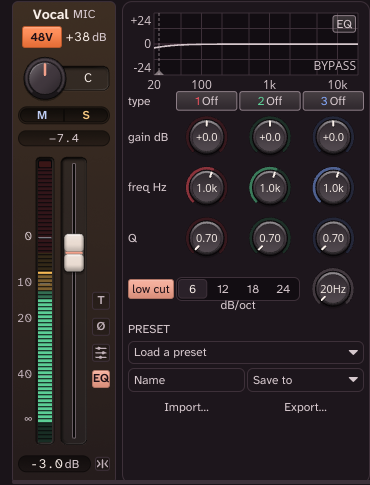
- At the top: the round EQ on key (lit while the EQ is on; click to bypass it), the name, and the Preset menu.
- The response curve, on a dark screen in every theme. Drag a band's handle on the curve, or turn its knobs. Scroll over a handle to change its Q.
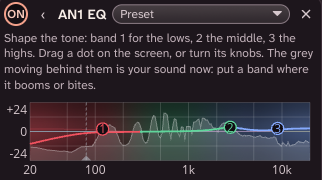
- A line under the title says what it's for: band 1 for the lows, 2 the middle, 3 the highs. On an input you haven't touched, all three bands start off: the line then says so, and turning a band's Gain knob (or pressing 1, 2 or 3) switches that band on as a bell, in the lows, the middle or the highs.
- Three bands, each with its Type (drawn as its filter shape: off, bell, low shelf, high shelf; a click steps to the next), Gain (how much of that band), Freq (which part of the sound) and Q (how wide the band is: low Q wide and gentle, high Q narrow). Point at a knob for what it does.
- Low cut, with its own round on key, its frequency and its slope (dB/oct: how steep). It takes away rumble below its frequency.
The strip's EQ button is solid while the EQ is on; with the panel open and the EQ bypassed, it shows as an outline.
Preset has its own row under the panel's title. To keep an EQ you made, type a name in the field at the foot and press Save as preset (or Enter); it appears in the Preset menu for every input.
Your sound, live, behind the curve. While an EQ panel is open, the grey shape moving behind the curve shows which pitches the sound has right now: the low boom on the left, the bite and hiss on the right. Talk or play, see where it piles up, and put a band there. On an input it's that input's sound (a pair's two sides together); on an output (Main, Phones, AS1/2) it's only what the computer plays there, since the unit mixes your inputs in itself where the computer can't see. It's the sound before the EQ (the Babyface hands the computer its inputs before their EQ, unless Record with EQ is on in the device card, and then the panel says the grey is your sound with the EQ), so turning a band moves the curve, not the grey: the curve shows what the EQ does to what you see. It has its own scale (quiet at the foot, loud at the top), apart from the curve's ±24 dB. In the simulation an input sounds like a voice, so the shape moves there too.
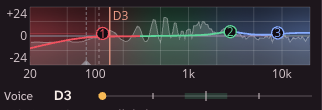
A voice tuner, under an input's graph. Like a guitar tuner for your voice: the note you're singing or speaking on ("D3"), a needle from a quarter-tone low to a quarter-tone high with the in-tune middle marked (the dot turns green within 10 cents), and in words how far off it is ("143 Hz · −49 cents, a little low"). On the graph, a line marks your pitch with its note, and a dashed line your voice's low end over the last 10 seconds. Keep the Low Cut under that dashed line: if it sits above, a line in amber says it thins your voice and suggests a frequency to try. While you're quiet it says "Sing or talk to see your note".
Auto-Tune, a switch at the foot of an input's Voice panel (its D key): it pulls your voice onto the nearest note, gently, in what others hear. Your app picks Audra processed mic as its mic, and Audra's Rec records it too. You hear yourself as you are, because through the computer it would come back too late for your own ears. Turning it on turns that input's processed mic on (one input at a time; it says when it moves it from another input), and the line under it says the note it's pulling to. It leaves a voice alone within 10 cents of a note, doesn't flip between two notes when you're right between them, and glides rather than snaps, so speech stays natural. It corrects the note your voice is centred on and keeps your vibrato, and when it's done correcting it leaves the sound exactly as it was. It needs the unit; the D panel's dynamics run after it. Turn it off with the same switch.
With the 2026-11-09 driver, Audra works out the filters itself, the way TotalMix does (checked against TotalMix's own messages, band for band), and sends them to the unit. The driver's own input EQ had two bugs, now worked around: its high shelf came out wrong (a gentle +1 dB of air at 10 kHz was −4 dB below 6 kHz and up to +5 dB at 20 kHz), and AN1's EQ also landed on AN2. An output's EQ goes to both sides of a linked pair.
With the keyboard on a strip, Tab goes on into its open EQ panel (the on key, the band keys, the knobs) ; ← → turn what it's on.
The Preset menu shows the preset the EQ is set to: one of yours (with its slot number), a factory one, or a mic preset's EQ (TLM 107 talking · mic). In the open list that preset has a ▸ before it (a mic preset's EQ gets a ▸ row of its own at the top). Once you move a band by hand it says Preset again. It holds:
- Flat (reset): the EQ flat.
- Your saved presets, with their slot numbers, and 14 factory presets to start from. Loading one leaves the EQ's on/off as it is.
- Save over … a slot you've used, or Save as new: saves the current EQ under the name typed in the field at the panel's foot. There are 16 slots.
-
Import a file… and Export to a file…: a preset as a
.audraeqfile, through the desktop's file dialog.
AS1/2, ADAT and the playback channels come as stereo pairs. A pair shows as one strip with two meter bars. Turn Stereo pair off in its Settings panel for two mono strips. Audra settings → Mixer → Centre the pan when a pair is split centres their pans when you split one.
When you link a pair, its right side takes the left's level in every mix, and the left's mute, as in TotalMix, so the pair plays as its one strip shows. Audra also does this for every linked pair each time it starts.
Every hardware input strip, and every output strip (Main and the Phones too), has a D key under EQ, as in TotalMix FX. It's solid while that strip's sound is being shaped; with the panel open and Voice (or Dynamics) off, it shows as an outline. Click it for the D panel beside the strip. On a mic the panel is called Voice ("AN1 Voice"): it shapes how others hear you in calls, streams and Rec, through the mic apps see as "Audra processed mic". On an output it's Dynamics: it shapes what apps play there.
The first time you're on the Mixer, a small note points at your mic's D key (the key glows in the lamp's light with a small amber dot at its corner, and a card at the right's foot): Voice on AN1 (its D key, marked with a dot) shapes how others hear you… Show me opens the panel, Got it puts the note away. It shows once.
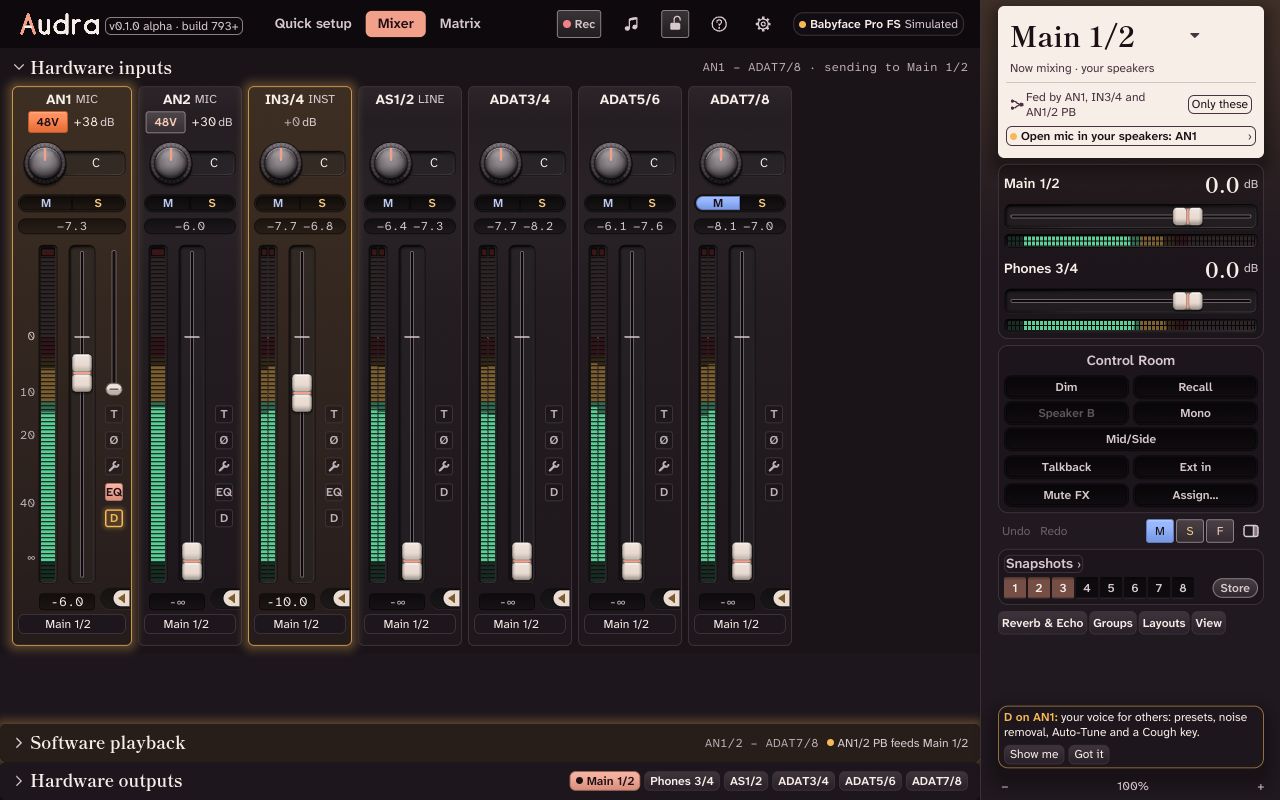
A mic's Voice panel opens with what others hear, with a plain Turn on Voice or Turn off Voice key (the same as the small round ON at the top), then the Sound box: your preset, a line on what it does, and Fit to my voice. The sound rows (Voice strength, Noise removal, Harsh S sounds, Quiet between words, Keep me even) and Auto-Tune fold into one Fine-tune line that says what's set; click it to open them (open, the summary steps aside for the rows). Tab goes through the panel top to bottom. While Voice runs on another mic, a mic's panel shows a card instead (Voice runs on AN1), with Open AN1's Voice and Move it to AN2, so nothing there changes the other mic's sound by surprise.
Until an app records from it, Voice's card reads amber ● Voice is ready, but no app uses it yet and says to pick Audra processed mic as the microphone in your call or streaming app; once one does, it turns green, ● Voice is on, and an app is using it (Audra can see an app has the mic, not whether that app has it muted), and the card glows green for a moment as the app starts listening.
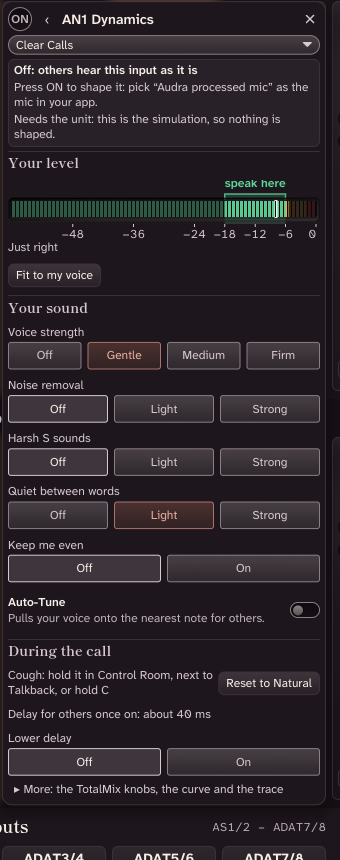
The round ON key at the top left is the power for everything in the panel: presets, noise removal, harsh S sounds, Auto-Tune, all of it. Lit solid coral, others hear you through Voice (on an output: what apps play there is shaped); a press turns it all off, and the settings stay for next time. The card under the preset says in words what's happening (● Others hear you through Voice, or Off: others hear this input as it is and what ON will do). On an output, while apps play through its virtual speaker, ON asks for a second press (amber), since they'd move to your speakers unshaped.
The simple part, on top, in three groups (plain choices that set the knobs for you). A chosen Off shows quiet grey. While ON is off, a chosen setting shows tinted with a coral edge: set, and waiting. Press ON and it lights solid coral, so solid coral always means working. Picking a setting or a preset turns ON on as well, so it acts at once; picking Off never does.
If Voice is running on another mic when you pick something, Audra asks first instead of moving it: Move Voice to AN2? with Move it to AN2 and Keep it on AN1. The mics share one set of settings, so your pick already applies where the voice runs; the question is only which mic it runs on. The round ON moves it without asking. While your voice runs on another mic, that mic's Voice panel says so at the top: ● Voice runs on AN1: these settings shape it there.
- Preset: Clear Calls (the everyday one), Streamer, Podcast, Singing, Radio Voice, Drums. Each ends in a safety limit at −2 dB, so nothing hits the top. On an output: Volume protection, Even out, Night. Trying presets never loses a voice you tuned: when a preset, Fit or Reset to Natural replaces your own settings, they wait at the top of the list as Yours (a notice says so), and one press brings them back, noise removal, harsh S sounds and Auto-Tune included. While your own settings are live, the list's head reads Your own settings. Your voice's Yours is kept when Audra closes.
Your level
- A level coach (an input): the meter with the band your voice should peak in, and in words: too quiet, just right, or too loud (turn the gain on the strip's wrench panel).
- Delay for others: how much later others hear you than you hear yourself (about 40 ms), judged: fine, may show on video (past 80 ms), or trails the video (past 125 ms). It counts what really grows: noise removal and Auto-Tune when on, and a backlog when the computer falls behind. When it's high, the Lower delay row lights up. Its tooltip says what to do in OBS if it ever matters.
- Lower delay: if the delay ever gets too high, turn this on. It pauses only the extras that cost time (noise removal, about 20 ms, and Auto-Tune, about 17) and keeps Audra's queue short; your voice strength, quiet between words and the safety limit stay on, since they add no delay and protect your voice from clipping. The Lower delay row lights up from 80 ms, and a notice says so if it passes 125 ms.
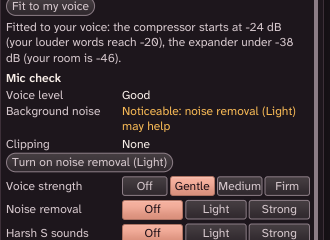
- Fit to my voice: press it and talk for ten seconds as you would on a call, with a pause or two. Audra sets where the compressor and the expander start from your voice and your room, and says what it chose in the panel's words: Voice strength now works on your louder words and Quiet between words turns your room down in the pauses (the figures are under More), or why it couldn't (too short, no talking, no pauses). From the same listen it gives a Mic check: your voice level (good, too quiet, too loud), your background noise (excellent, good, noticeable, high) and clipping, with a Turn on noise removal button when the room would benefit. It judges the noise by how far it sits under your voice: in a quiet room noise removal would change your voice more than it removes, so it isn't offered there.
Your sound
- Harsh S sounds: Off, Light, Strong. Tames sharp S and SH sounds: only the very top of your voice is turned down, only while an S is there. No delay.
- Voice strength: Off, Gentle, Medium, Firm (how much loud and quiet parts are evened out).
- Noise removal: Off, Light, Strong. It turns steady background noise (fans, air conditioning, hum, hiss) down under your voice, even while you talk (Light up to 8 dB, Strong up to 18), using RNNoise, a small AI denoiser. In a quiet room leave it off; the mic check says when it helps. Switching it on or off mid-word is smooth. It adds about 20 ms for others, and works when the unit runs at 48 kHz.
- Quiet between words: Off, Light, Strong. It turns the sound down in the gaps between your words (the room, a keyboard).
- Keep me even: brings quiet parts up slowly, with the safety limit kept.
- Auto-Tune: pulls your voice onto the nearest note, gently (more below, under the EQ's voice tuner).
During the call
- Cough lives in Control Room, next to Talkback, where it's always in view: hold it, or hold C, to silence what others hear. This row points there.
- Reset to Natural, at the panel's foot: everything off, noise removal, harsh S sounds and Auto-Tune too: your sound as it comes in. It asks twice (Reset? Press again, the key breathing while it waits for four seconds), as 48V does. Your settings, extras included, wait under Preset as Yours.
- On an output instead: Volume protection, Maximum volume (−2, −6 or −10 dB) and Even out. They work once the panel is on: press Turn it on on its card (while it is off the card says Off: nothing below is working yet and the switch is greyed).
- ▸ More opens the TotalMix knobs, the curve and the trace, below.
Under More, as in TotalMix:
- Compressor and expander have their own ON key here: it switches just those two, on or off together (off and on again brings back just what was on). Preset (at the top) gives starting points: Clear Calls, Streamer, Podcast, Singing, Radio Voice, and Drums for punch (a slow attack lets each hit's front through).
- The trace under them: the last 4 seconds of the sound, newest at the right, moving as you talk, with the compressor's threshold dashed red and the expander's dashed green across it. Set the red line just under your loud parts and the green just over the room's noise; light blue hanging from the top shows how far it turns down.
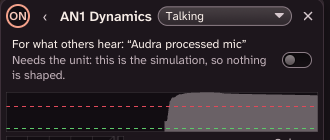
- The display: the line shows what goes in (left to right) against what comes out (bottom to top). Its green end is the expander turning quiet parts down, its red end the compressor holding loud parts back. The dot is the level now; the thin bar at its right fills with light-blue marks while it turns the sound down (one mark every 3 dB). With Auto Level on, a dashed line marks the ceiling nothing goes over.
- Thresh. / starts at and Ratio / how firm for the compressor (Comp., red) and the expander (Exp., green): over the compressor's threshold, loud parts are held back by its ratio (1 does nothing, 4 is firm, 10 nearly a wall); under the expander's, quiet parts (room noise, hum, the gaps between words or hits) are turned down by its ratio. Gain brings the whole back up after the compressor (up to 12 dB). Attack is how fast the compressor reacts (slow lets a hit's front through: punch), Release how fast it lets go.
- Auto Level has its own ON (just that part, like the compressor's): a limiter and a slow amplifier together. Headroom sets how far under full scale the loudest parts stay (the whole gets that much quieter), Max. Gain how far it may bring quiet parts up, Rise Time how slowly it does.
- Every value shows its unit (dB, ms, s, a ratio like 3.0:1). Hover any knob for what it does; double-click puts it back. While a strip's D is turning the sound down, light blue marks show across the top of its meter, one for each 3 dB, as in TotalMix. The keyboard reaches all of it (Tab from the strip).
Where it acts. The Babyface has no dynamics in the unit (the Fireface UCX II and UFX III do), so Audra runs them on the computer, and the panel's switch says where:
- On an input: on what others hear. Your recording or streaming app picks Audra processed mic as its mic (Audra's Rec records it too, as "AN1 processed"). You keep hearing yourself straight through the unit, with no delay: through the computer and back takes about 40 ms here, enough to notice on your own voice. One input at a time: turning it on at another input moves it there. Your app stays on Audra processed mic while it moves (it hears a moment of silence, then the new input) and while Voice restarts after a problem; the device goes away only when you switch Voice off or quit.
- On an output: on what the computer plays there. Apps (or your system's sound settings) play to the virtual speaker Audra Phones 3/4 (or Audra Main 1/2, and so on), and the sound is shaped on its way to the output through the output's own playback channel (PH3/4 PB for the Phones). The rest of that output's mix, your mic and instruments included, isn't shaped and still reaches it at once. The panel names that channel and warns if it isn't in the output's mix (nothing shaped would be heard there) or plays in another mix too. Limit never makes anything louder; Even out brings quiet parts up a little; Night holds loud scenes down.
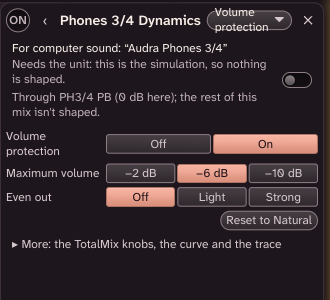
Others hear you about 40 ms after you hear yourself (fine for calls and streams; if your video ever looks early in OBS, add a small audio sync offset). It needs the unit (nothing is shaped in the simulation) and runs while Audra runs. Quitting Audra asks first while apps play through its speakers or record from its processed mic. On an output, the ON keys off only stop the shaping: the virtual speaker stays and passes the sound on, so apps keep playing there. The speaker goes only when you switch it off or quit Audra, and then an app still playing to it moves to the Babyface's first output (Main 1/2, your speakers) without the shaping (checked on the unit). So while apps play through it, the switch asks for a second press, and quitting asks first (Keep Audra open or Quit anyway). The virtual mic goes the same way when its switch is off or Audra quits; apps recording from it then get your default mic.