Repository navigation
Snapshots Layouts and Reset
A snapshot is the whole mix: every level, pan, mute, EQ and output level, and the Reverb and Echo send and returns. The Snapshots page has eight slots, named Snapshot 1 to Snapshot 8 until you name them.

On a tall window the snapshots stand in the right-hand column as this named list, with Store under it and Save to file, Open a file and Workspaces after, so they show once, by name. On a shorter window (under about 880 pixels at 100 % zoom; 1280 × 700, say) they stand there as a row of eight numbered keys with Store at its end, as in TotalMix: a key is lit for the snapshot you recalled, glows for one that's stored, and turns amber once you've changed the mix since. The row is framed like the Control Room: its title, Snapshots ›, opens the full page (with the names, Save to file, Open a file and Workspaces) under the keys if there's room, otherwise as a card beside the column; beside the title stands the snapshot you recalled, by name, with changed once you've moved the mix since. Point at a key for its name and its Alt shortcut.
- Store: press Store… (or Store by the keys), then click the slot or key to keep the mix in (or press Alt + 1 to Alt + 8). The slots' coral edges light one after another, then wait; Cancel or Esc backs out. Storing never touches the mix, so you can store over a slot without recalling it first. Storing over a slot that already holds a snapshot says so (Snapshot 2 replaced.), and the notice's Undo key (or Ctrl + Z) puts the old one back.
- Recall: click a stored slot, or press Alt + 1 to Alt + 8. A recall is one Undo step. A snapshot keeps whether Reverb and Echo were on when it was stored and switches them so ("Talking + reverb" switches them on); a notice says when a recall switches them, and Undo puts them back with the mix. Storing with an effect on says so too, and such a snapshot shows a short coral bar under its number on its key, and a small coral dot by its name in the list. If it turns an output, a preamp gain, an FX return or a channel's level in a mix up by more than 6 dB, that level glides up rather than jumping; a Dim it lets go of glides up too, from where Dim had it, and so do the sends that Talkback, Cue or a solo were holding down: nothing comes back at full level first. Undo, Redo, a workspace, Reset Mix… → Total reset, Recall, a change of the Main/Phones assignment and quitting let go the same way (quitting waits up to a second for the glides). Something muted that a snapshot or Undo unmutes (say you mute Main, then press Ctrl+Z) comes back from silence, gliding up, not at its full level at once. The same goes for pasting or mirroring a mix, linking a stereo pair (its right side glides up to the left's), "Make it heard" on the Reverb & Echo page, and "Fix it" unmuting the Phones.
- Name: right-click a slot and type a name ("Tracking", "Vocal overdub"), then press Enter or click elsewhere. Esc keeps the old name; an empty name goes back to "Snapshot 3". Names stay with Audra and travel in workspaces; they stop at 32 letters.

- Each slot's round lamp is a dim grey dot while the slot is empty, glows amber once something is stored (white in the High contrast theme), and is lit for the active slot (the one you last recalled or stored); it flashes a ring as you store into it or recall it. On the row of numbered keys a stored key has an amber edge. A dot on that slot means the mix has changed since it was recalled.

-
Save to file… keeps the mix as it is now as a
.audrasnapfile, to carry it to another computer or keep more than eight. -
Open a file… loads a snapshot file into the mix (one Undo step). It isn't in a slot yet: press Store… and click a slot to keep it there. A
Mix 3.jsonfrom Audra's snapshots folder opens too. - Audra settings → Mixer → Snapshots (Loading a snapshot leaves alone) can make a recall leave the Main level, or the Main and Phones levels, as they are, so recalling a mix never jumps your monitoring.
The files keep their old names (Mix 3.json), so snapshots stored before load as they did. Storing your first snapshot is a milestone (see Learning, Guides and Milestones), and "Keep a mix as a snapshot" in Help's How do I… walks you through it.
A workspace is your whole setup in one go: the mix, the eight snapshots and their names, the groups, the layouts, the EQ presets, the mic presets, your channel names, which strips are collapsed and which are hidden, and the row, solo and Trim Gains settings. Keep one per kind of session ("Podcast", "Tracking", "Mixdown") and switch between them in a moment.
Press W, or click Workspaces… under the snapshots:
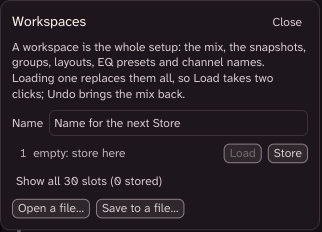
- Store: type a name, then click Store on a slot. It saves the setup as it is now. The panel lists your stored workspaces and the first empty slot ("empty: store here"); Show all 30 slots lists every quick slot.
- Load: click Load on a stored slot, then again to confirm. Loading replaces your snapshots, layouts and groups too, which is why it asks twice. Undo brings the mix back (not the snapshots).
-
Open a file… / Save to a file…: keep a workspace anywhere as a
.audrawsfile, for a backup or another computer.
Loading a workspace leaves your Main (and Phones) level alone if Audra settings → Mixer → Snapshots says so, so it never jumps your monitoring. Your window, zoom and Audra's own settings (Reverb and Echo's settings and presets among them) stay as they are.
A layout is which strips are collapsed and which are hidden: six slots in the Layouts page, used like snapshots (click to recall; Store… then a slot to keep). With Audra settings → Mixer → Layouts keep open panels, a layout also stores which strip panels (Settings, EQ, Trim) are open.
Hide the strips you never touch (an unused optical input, a playback pair nothing plays to) so the rest fit on screen. A hidden channel keeps playing and keeps its place in every mix; it only leaves the mixer and the matrix.
- Hide one: right-click a strip (its Settings panel) and press Hide this strip.
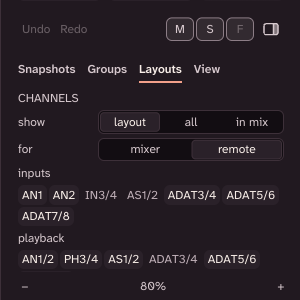
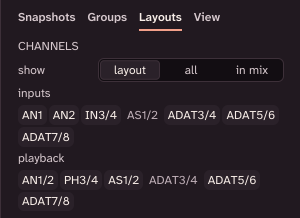
- Hide or show any: the Layouts page's Channels list has a chip per strip. A lit tile shows; a faint name is hidden. Click to switch.
- A row with hidden strips says so in its head ("1 hidden"). Click that to open the list.
- show: layout / all / in mix: all brings every strip back for a look, in mix shows only the sources that feed the mix you're editing (handy for a headphone mix). Neither changes what's hidden.
- Store a layout slot to keep a set of hidden channels, and recall it to switch. Main and the Phones always show.
- for: mixer / MIDI, OSC: switch the chips to MIDI, OSC to choose which channels MIDI controllers and OSC apps can reach, without hiding them from the mixer. A channel kept from remote control isn't offered for MIDI learn, its old MIDI bindings do nothing, and OSC can neither move it nor hear about it. A channel hidden from the mixer is out of their reach too (its chip is faint and can't be clicked in MIDI, OSC).

In Audra settings (F2) → App → Start over, the first key is Start fresh: a clean, safe mix in one go (computer audio in your speakers and headphones, mics silent until you set them up again in Quick setup, effects and mutes off, your speakers down 10 dB and your headphones no louder than you had them), two clicks and one Undo step (its note has an Undo key). Your snapshots, channel names and My setup stay as they are. For TotalMix's own resets, press the bar under it, TotalMix's resets, one part at a time…, to show them; the page scrolls so the list is in view, and each reset has a line under it saying what it does. Each one takes two clicks: the first arms it (it turns amber and says "Click again"), the second within four seconds does it. Changed your mind? Leave it, and it lets go by itself. That way a stray click can't silence your monitoring. Every reset except the names is one Undo step.
- Straight playback, all to Main: each playback channel to its own output at 0 dB, and every playback also to Main. Output levels stay.
- Straight playback: the same, without the extra Main routing.
- Clear all submixes: every routing into every output off.
- Clear channel effects: EQ and low cut off, their knobs back to default, and every stereo pair's Width back to +1.00. Reverb and Echo's send and returns off.
- Set output volumes: every output to 0 dB, Main and Main B to −10 dB. What you listen on (Main, Main B, the Phones) only ever comes down.
- Reset channel names: removes every name you gave a channel. This one can't be undone.
- All channels mono / All channels stereo: splits or links every pair.
- Total reset: playback straight and to Main, everything else off (mutes, solos, effects, Control Room). It never turns an output up.