Repository navigation
Getting Started
The first time WinSpeed starts, it asks three questions:
- How should speeds be shown? Choose bytes per second (MB/s, like your browser's download speed) or bits per second (Mbps, like your internet plan).
- Where should the meter sit? Next to the clock, on the left of the taskbar, or as a floating window.
- Start automatically with Windows?
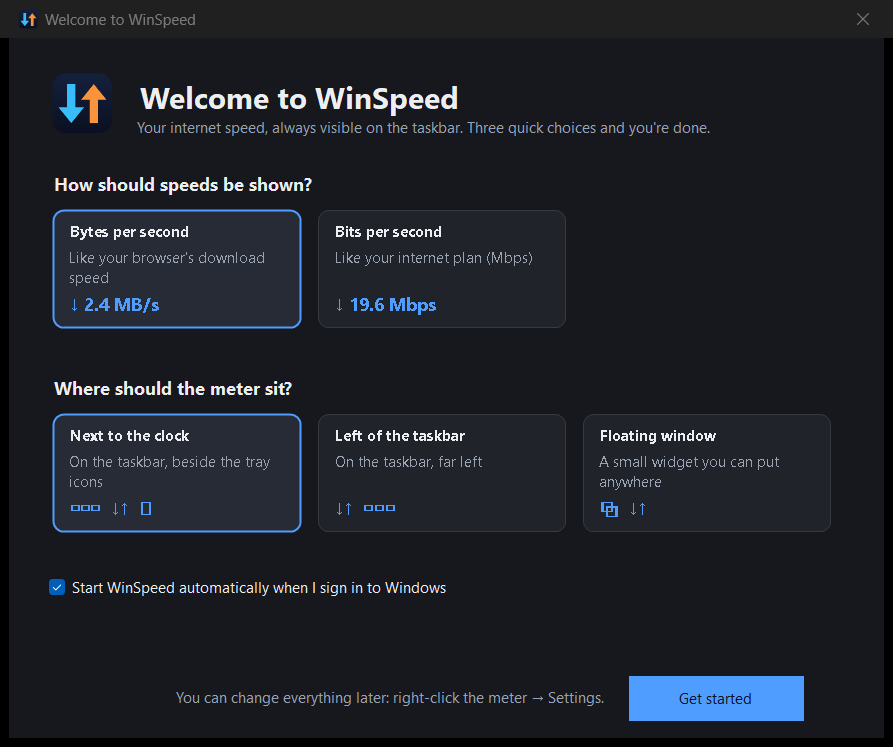
You can change all of these later.
The meter shows download (↓) and upload (↑) speed on the taskbar and updates every second.
| To… | Do this |
|---|---|
| Open the menu | Right-click the meter (or the tray icon) |
| Open the main window | Double-click the meter, or click the tray icon |
| Move it | Drag it with the left mouse button |
| See more detail | Hover over it: peak speed, today's usage, ping and active adapters |
| Hide or show it | Press Ctrl + Alt + N (configurable) |
Right-click the meter or the tray icon:
- Open WinSpeed: the main window
- Run speed test
- Data usage, Connection & adapters, Meter & display, Settings
- Show speed meter: turn the taskbar meter on or off
- Display: separate / combined / download only / upload only; stacked or side by side
- Units: auto bytes, auto bits, or a fixed unit
- Position: next to the tray, left side, floating; lock and reset
- Reset session statistics, Start with Windows, Help & user guide, About, Exit
| Page | What's on it |
|---|---|
| Overview | Live download / upload, latency, today's usage, a live graph, billing-period usage and per-adapter speeds |
| Speed test | Run a test; see results and history |
| Data usage | History by hour, day, month or year; per-adapter filter; CSV export |
| Connection | Online status, public IP, ISP and location; every network adapter with full details |
| Meter & display | Everything about how the taskbar meter looks |
| Settings | Startup, theme, hotkey, connection monitoring, adapters, data plan, backup |
| About | Version, update check, links |
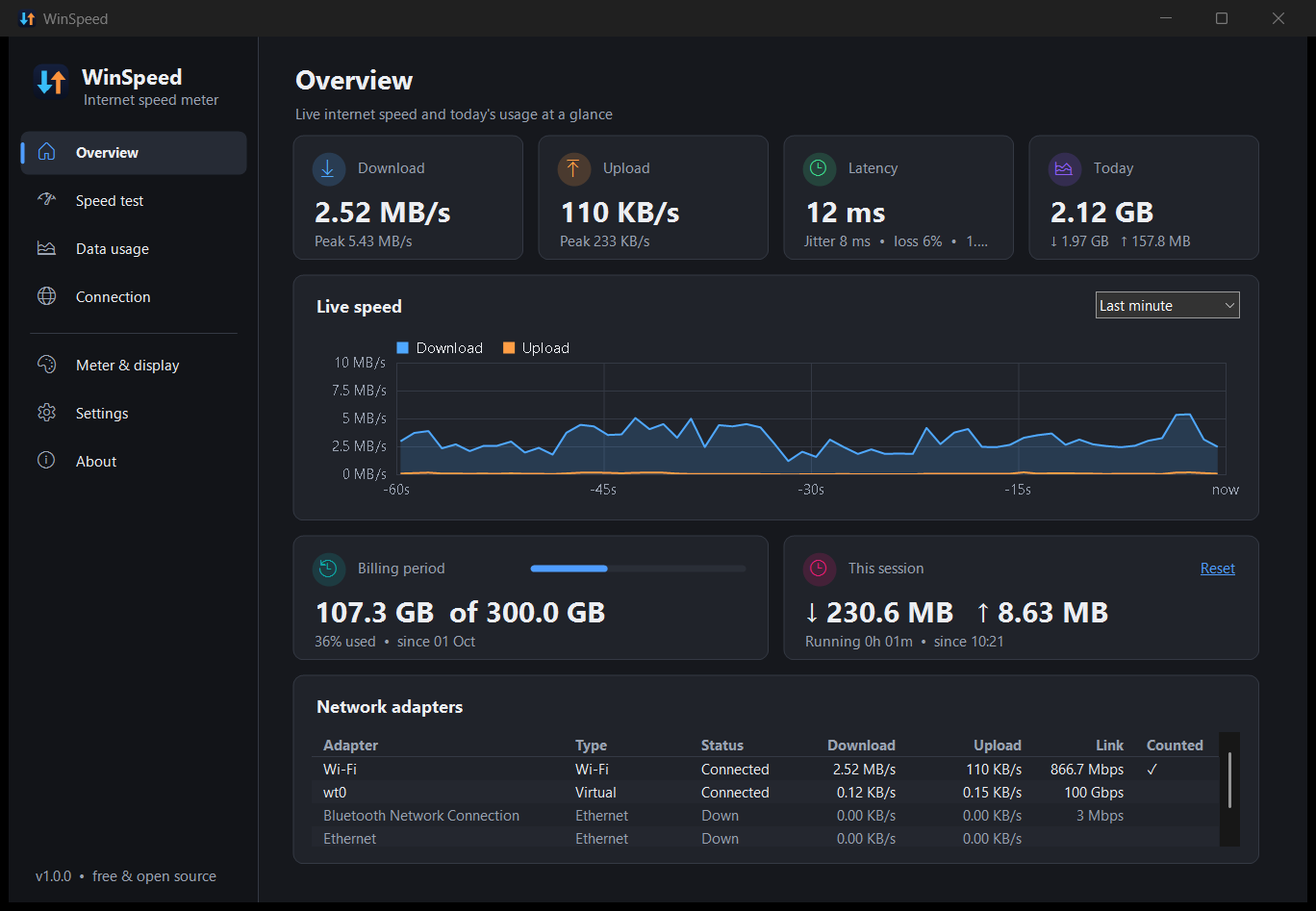
Changes on the settings pages are applied instantly. There's no OK or Apply button to remember.
- Make the meter look the way you like: The taskbar meter
- Set your monthly data limit: Data limits & alerts
- Check what your connection really delivers: Speed test