Repository navigation
The Taskbar Meter
All of these options are on the Meter & display page (right-click the meter → Meter & display…). Changes apply as soon as you make them.
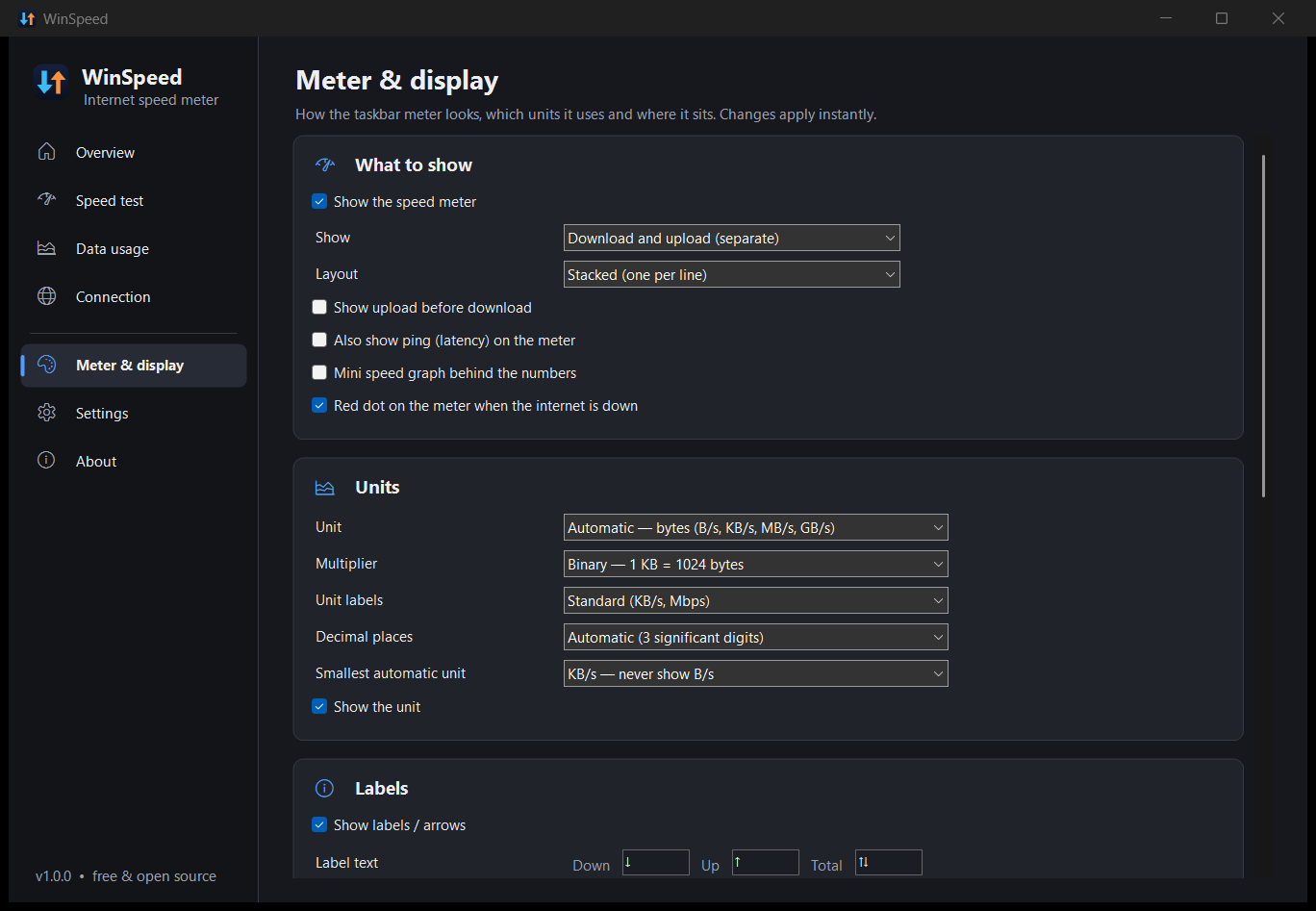
| Option | Choices |
|---|---|
| Show | Download and upload (separate) · Combined total · Download, upload and total · Download only · Upload only |
| Layout | Stacked: one value per line, the classic two-line meter. Side by side: everything on one line. |
| Show upload before download | Swaps the order. |
| Also show ping | Adds the current latency (for example ⏱ 12 ms) to the meter. Requires connection monitoring. |
| Mini speed graph | Draws a small graph of the last ~40 seconds behind the numbers. |
| Red dot when the internet is down | A small red dot in the corner of the meter while you're offline. |
Examples:
| Style | Looks like |
|---|---|
| Stacked + mini graph |  |
| Side by side + ping + background |  |
See Units explained for help choosing.
| Option | Choices |
|---|---|
| Unit | Automatic bytes (B/s → KB/s → MB/s → GB/s), automatic bits (bps → Kbps → Mbps → Gbps), or a fixed unit: B/s, KB/s, MB/s, GB/s, bps, Kbps, Mbps, Gbps. |
| Multiplier | Binary (1 KB = 1024 bytes) or decimal (1 KB = 1000 bytes, as ISPs use). |
| Unit labels | Standard (KB/s, Mbps), Compact (K, Mb) or IEC (KiB/s, Mibit/s). |
| Decimal places | Automatic (always three significant digits: 1.23, 12.3, 123) or a fixed 0–3. |
| Smallest automatic unit | Stops the automatic unit from going below KB/s (or MB/s), so idle moments read 0.12 KB/s instead of jumping to 120 B/s. |
| Show the unit | Hide it if you always use one unit and want a narrower meter. |
The arrows are fully customisable. Type anything, or pick a preset: ↓ ↑ ⇅, ▼ ▲ ◆, D: U: T:, DL UL Σ, ⬇ ⬆ ⇵, or none.
| Option | Notes |
|---|---|
| Font | Any installed font, size 5–36 pt, regular or bold. 9 pt Segoe UI fits the standard Windows 11 taskbar. |
| Automatic text colour | White on a dark taskbar, black on a light one, and it follows Windows when you switch. The arrows keep their own colours. |
| Colours | Download, upload and total colours (used for the arrows, and for the numbers when automatic colour is off). |
| Background | A colour and an opacity from 0 % (fully transparent, blends into the taskbar) to 100 %. |
| Speed highlight | Changes the text colour when speed reaches a threshold (in KB/s), e.g. turn red above 5 MB/s. |
| Hide meter below | Only shows the meter when there is traffic above the threshold. 0 = always visible. |
The numbers have a fixed width, so the meter doesn't jiggle as values change.
| Option | Notes |
|---|---|
| Location | Taskbar, next to the tray / clock (default) · Taskbar, left side · Floating window on the desktop. |
| Offset (pixels) | Fine-tune the position on the taskbar. Dragging the meter sets this for you. |
| Reset | Back to the automatic position. |
| Lock position | Prevents accidental dragging. |
| Hide while a full-screen app is active | Keeps games, videos and presentations clean. |
| Click-through | Mouse clicks go straight through the meter to whatever is under it. Use the tray icon for the menu. |
WinSpeed follows the taskbar automatically. It handles the Windows 11 centred taskbar, vertical taskbars on Windows 10, taskbar auto-hide (the meter hides with the taskbar), display and DPI changes, and Explorer restarts.
Tip: if the meter overlaps something on the taskbar (for example the Widgets button on the left), drag it a little, or use the X offset.
Under Settings → Mouse, keyboard & tray you can choose between the WinSpeed icon, a live speed icon (two tiny lines of numbers drawn inside the icon), or no tray icon at all. The tray icon always stays visible while the meter is hidden or click-through, so you can never lose the menu.
Windows 11 hides new tray icons in the overflow (^) menu. To keep WinSpeed's icon visible, open Settings → Personalisation → Taskbar → Other system tray icons and switch WinSpeed on.