Repository navigation
Settings
Change settings in the launcher before playing, or in the in-game menu while playing. Both show the same settings, shared by all profiles, and each shows the other's changes while the game runs.
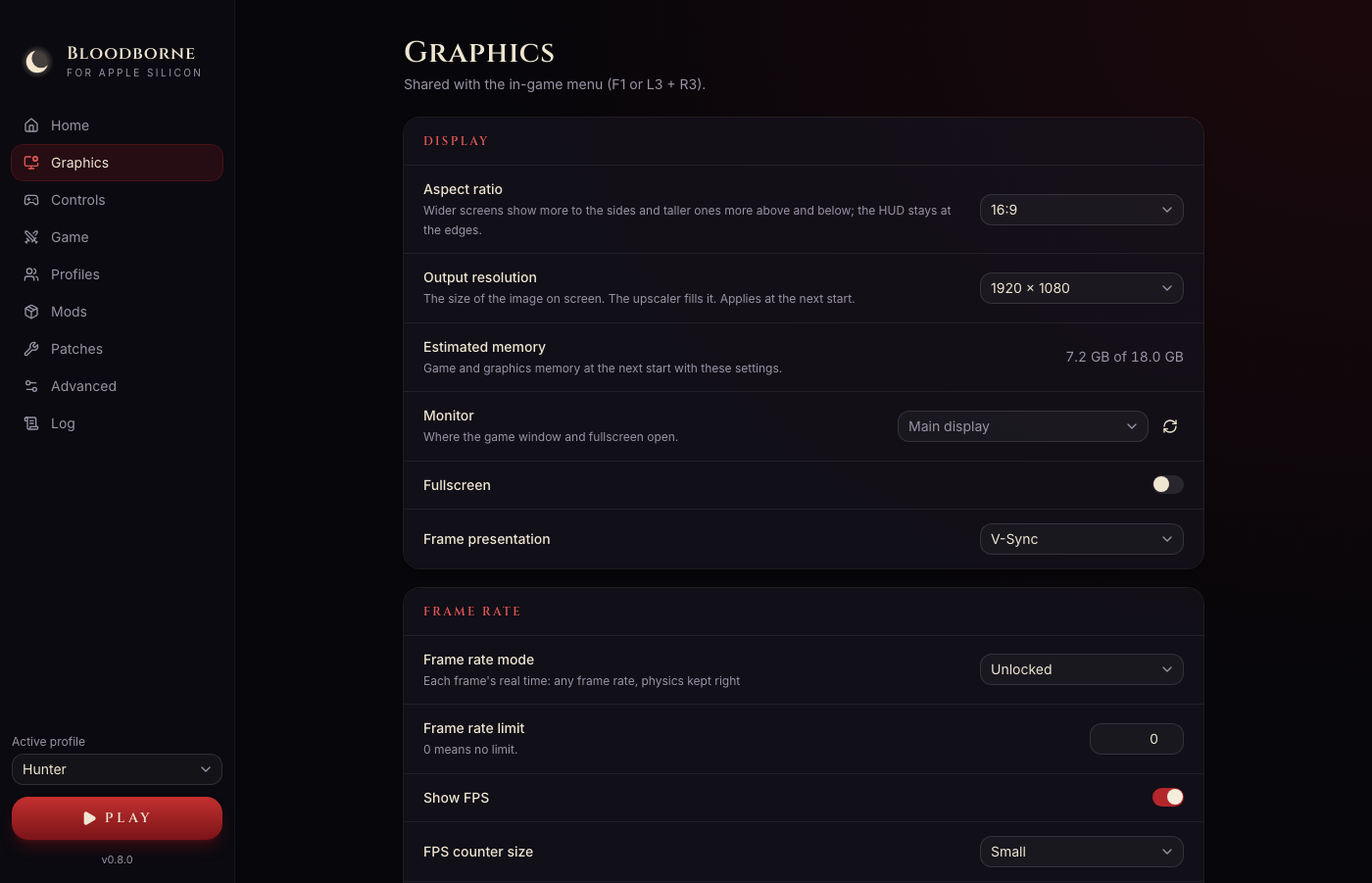
| Tab | What it has |
|---|---|
| Home | Your profile and trophies, the game folder and edition, a summary of the main settings |
| Graphics | Aspect ratio and output resolution with a memory estimate, monitor, fullscreen, V-Sync, frame-rate mode and limit, the FPS counter, upscaling and sharpening, character motion vectors, model detail, visual effects |
| Controls | Which controller to use, and button mapping for controller and keyboard |
| Game | Game language, skipping the intro videos, your save folder |
| Profiles | Profiles, each with its saves, backups and trophies (Profiles and saves) |
| Mods, Patches | Mods and patches |
| Advanced | Launcher language, hiding the launcher while playing, trophy notifications, update checks, the renderer, experimental performance options, free camera and debug menu, logs, data folders |
| Log | The game's output while it runs |
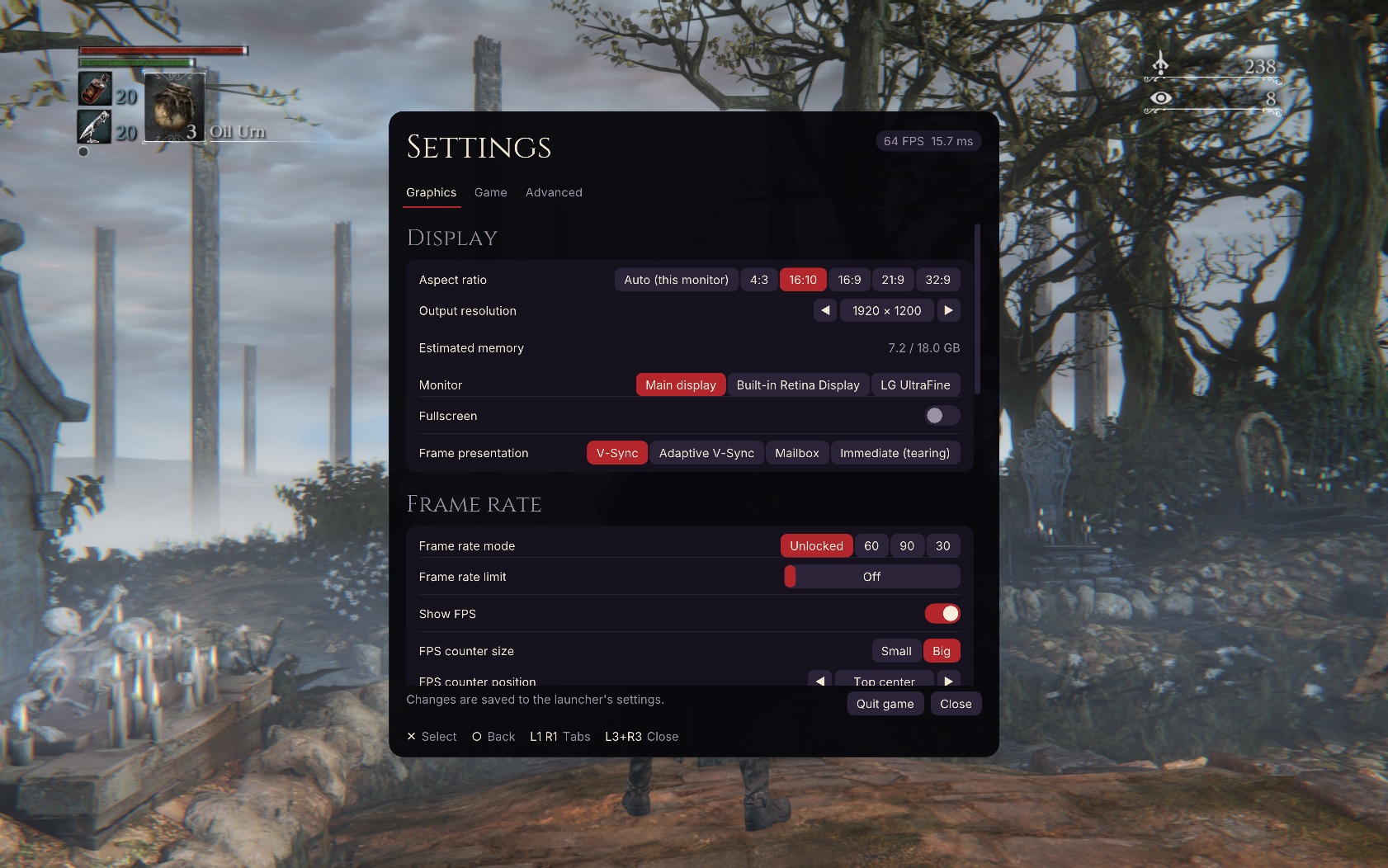
Press F1 on the keyboard, or L3 + R3 on a controller. The menu has the launcher's Graphics, Game and Advanced tabs. L1/R1 (keyboard: Q/E) switch tabs and Circle (Escape) goes back; the hints at the bottom follow the device you used last. Most settings apply at once; those that need a restart say so, and Restart applies them. A controller can type text (the character's name) on an on-screen keyboard, and the mouse can click its keys (right click cancels).
- Effects (chromatic aberration, depth of field, motion blur, ambient occlusion, the game's own anti-aliasing, shadows from dynamic lights, bloom). Screen-space reflections need a restart.
- Frame-rate limit. Above 30 FPS the game steps by each frame's real time, so physics, cloth and running speed stay right at any frame rate. F3 switches a 30 FPS limit on and off while playing (useful for Laurence's cinematic, which can misbehave at high frame rates).
- Fullscreen, the FPS counter, sharpening and the upscaler's preset with live resolution.
Output resolution, the upscaler preset (with a 1080p output), the renderer and the other Advanced options apply at the next start.
- Upscaler: off (native resolution), the default. In current builds the upscalers are slower than native 1080p on a Mac (performance). With the Metal renderer the only upscaler is MetalFX; FSR 3.1 and FSR 4.1.1 are for the MoltenVK renderer.
-
AMD FSR 4.1.1 (Metal), MoltenVK renderer only: AMD's neural upscaler (its Lite model), run on the Mac's GPU. It
costs more than FSR 3.1: on an M3 Pro at 1080p output (Balanced), 4.8 ms of GPU time a frame,
about 40 instead of 46 FPS. It suits Macs with frame-rate headroom, or a 30 FPS limit. It needs
two files of AMD's model from your own copy of AMD's upscaler DLL
(
amd_fidelityfx_upscaler_dx12.dll4.1.1, from OptiScaler or a game): in Graphics, AMD FSR 4.1.1 files → Choose AMD DLL…. The option appears in Upscaler only when this Mac can run it and the files are there. - Character motion vectors: off by default. They make moving characters much sharper with FSR for a few frames per second.
- Output above 1080p: use an upscaler preset; the memory estimate (Graphics, and the menu) shows what the game will use against your Mac's memory, in amber above three quarters of it. Without an upscaler above 1440p, characters are drawn black (a known issue).
- Renderer (Advanced → Performance): Metal, the default, draws with Apple's Metal directly and is about 25–30% faster than MoltenVK at native 1080p on an M3 Pro (about 39 against 31 FPS in the same place). MoltenVK stays available while Metal is new; switch to it if anything looks wrong, and report it. Native Metal does not load the Vulkan driver; selecting MoltenVK loads it for that run.
See Performance.
Graphics → Aspect ratio: 16:9 (the game's own) by default, or 4:3, 16:10 (MacBook screens), 21:9, 32:9, or Auto (the monitor the game is on). On a wider screen the game shows more to the sides, on a taller one more above and below; the HUD moves to the screen's edges and the markers over enemies stay on them. The output resolution then lists that ratio's sizes. A change applies at the next start.
Graphics → Frame rate: on or off, small (frame rate and frame time) or big (also the renderer, how the game's code runs, the upscaler, the resolutions and a frame-time graph), in any corner or edge center. Metal performance HUD shows Apple's own statistics.
By default the launcher hides to the menu bar while the game runs and comes back when it exits. Its menu-bar icon has Show launcher and Stop game. To keep the launcher and its Log tab visible, turn off Advanced → Launcher → Hide launcher during gameplay.
Trophy notifications (Advanced → Launcher, on by default) appear in the game's own overlay when you earn a trophy. The launcher still records trophies when notifications are off.
The launcher and the in-game menu come in the 20 languages of the PS4 game: English, Português (Brasil), Português (Portugal), Español (España), Español (Latinoamérica), Français, Deutsch, Italiano, Nederlands, Polski, Русский, Türkçe, Suomi, Svenska, Dansk, Norsk, 日本語, 한국어, 简体中文 and 繁體中文.
- Launcher language: Advanced → Launcher language (follows macOS by default). The menu follows it.
- Game language (the game's text and voices): Game → Language.
PlayStation, Xbox and other common controllers work through SDL3. The keyboard and mouse follow Dark Souls III's PC layout: WASD move, Space dodge, Left Shift run (Shift + Space jumps), F/Enter interact, left click attack, Shift + left click strong attack, right click shoot, Q blood vial, E transform the weapon, Tab/R quick item, 1/2 left/right weapon, 3/4 d-pad up/down, C lock-on, Escape menu (and back inside menus), G gestures. Click into the window to give it the mouse; F1 releases it.
The mouse turns the camera directly (no stick dead zone or speed limit), and points and clicks in the game's menus: hover selects, left click confirms, right click goes back, the wheel scrolls. Every key can be remapped on the Controls tab, also to a combination with Shift, Ctrl or Alt.
Button prompts follow the device you used last: with the keyboard and mouse the game's own hints ("Examine", item pick-ups, tutorials) show the bound key or mouse button, with an Xbox or another controller that controller's buttons, with a PlayStation controller the game's icons.