Repository navigation
Recovery
Recovery is OpenOSC's small second-stage bootloader. It installs firmware from the USB drive, gives access to the device's files and can repair the storage. It is independent of the main firmware, so it keeps working even when the firmware is missing or damaged.
- It opens automatically when no valid firmware is installed.
- Hold F2 while the device starts.
- From the firmware: Settings → Files & USB → Recovery / USB files, or
SYST:RECover USB.
While Recovery runs, the storage is shown as a USB drive on a connected computer.
At a normal start, Recovery shows the OpenOSC logo in one of three styles (Signal, Amber or Daylight) while it checks the firmware. The firmware then shows the full splash of the same style, with the top contributors and donors of the project, for about a second while it starts.
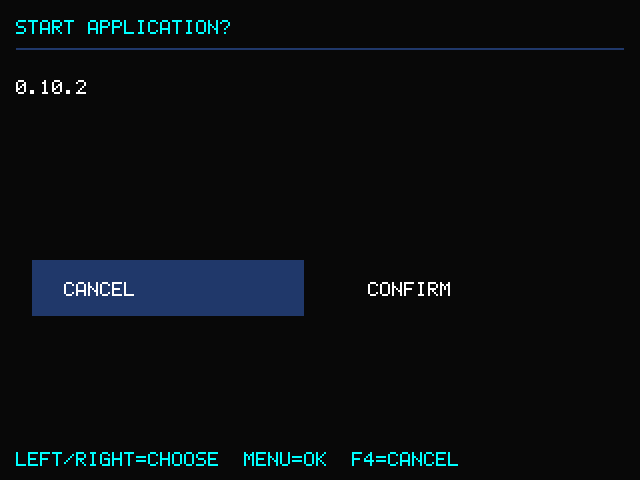
MENU = OK, F4 = back / cancel, arrows = navigation. Every confirmation starts on CANCEL: press ←/→ to select CONFIRM, then MENU.
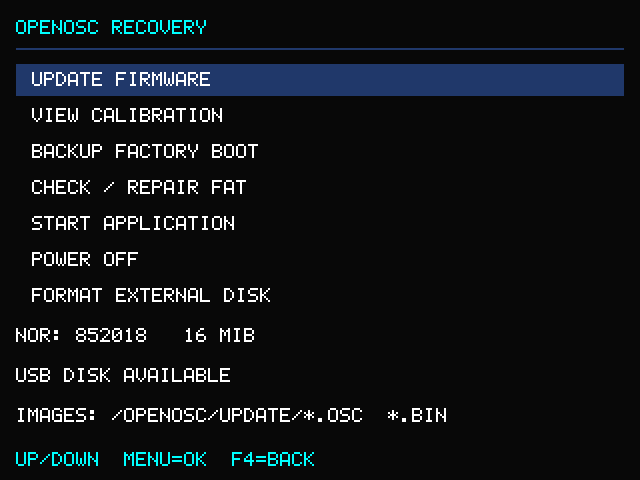
The bottom lines show the size of the device storage, whether the USB drive is available and where Recovery looks for firmware files.
| Item | What it does |
|---|---|
| UPDATE FIRMWARE | Installs a .OSC (or a raw firmware .bin) from /openosc/UPDATE/. Model, CRC and image structure are checked before anything is erased |
| VIEW CALIBRATION | Shows the device's calibration data (read only), per channel, in decimal or hex, and its format |
| BACKUP FACTORY BOOT | Copies the protected boot block (first 128 KiB of internal Flash) to /openosc/BACKUP/ and verifies the copy. See Installation
|
| CHECK / REPAIR FAT | Checks the file system (read only) and offers a repair if needed |
| START APPLICATION | Starts the installed firmware |
| POWER OFF | Switches the device off |
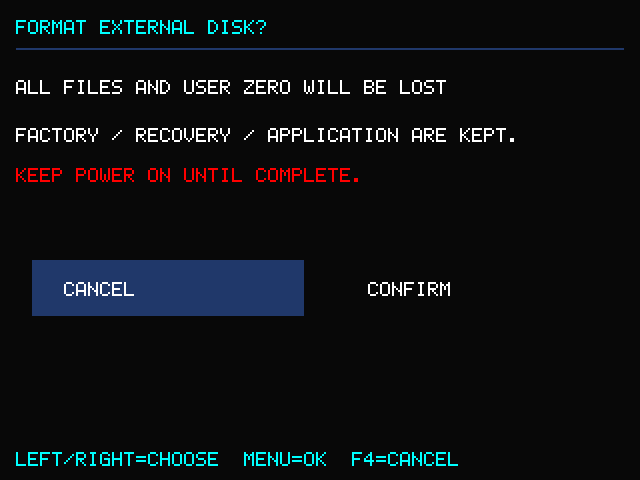
| FORMAT EXTERNAL DISK | Creates a new empty file system. All files are lost, including settings and calibration files |
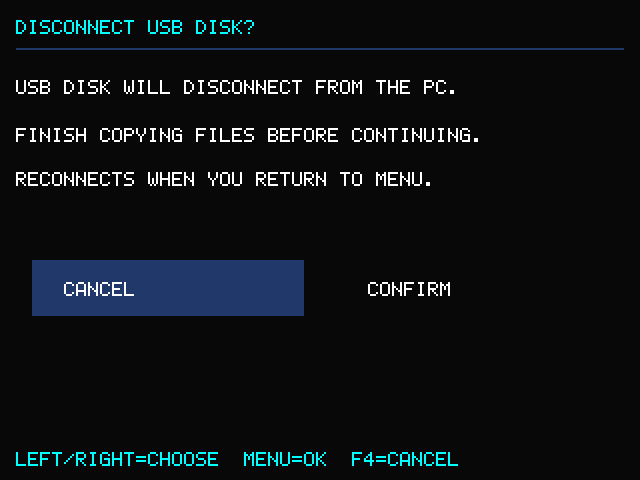
If the computer still has the drive mounted when you start an operation, Recovery asks DISCONNECT USB DISK? and detaches the drive itself; the cable can stay connected. Finish copying files on the computer before you confirm.
-
Copy the
.OSCfile into/openosc/UPDATE/on the USB drive, then select UPDATE FIRMWARE. Recovery lists the files it found; ←/→ turn the pages when there are many.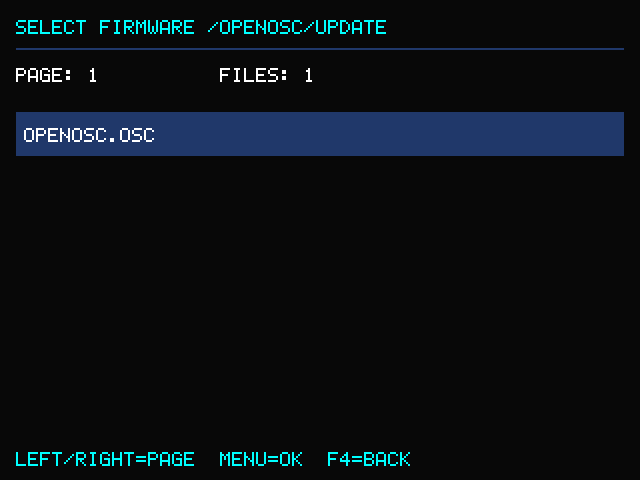
-
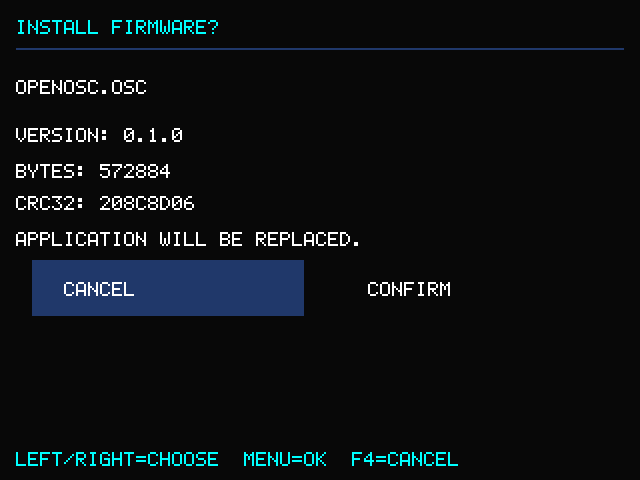
Choose the file with ↑/↓ and press MENU. Recovery checks the file and shows its version, size and CRC32. Select CONFIRM with →, then press MENU.
-
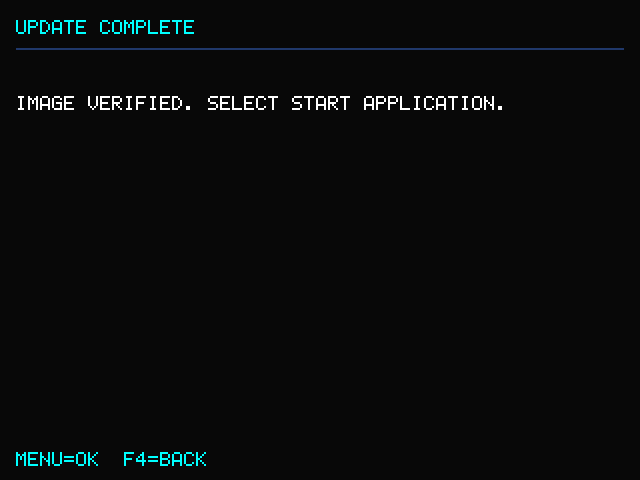
Recovery writes the firmware and verifies it. Keep the device powered until UPDATE COMPLETE appears.
-
Press MENU to return to the menu and select START APPLICATION. Recovery shows the installed version; select CONFIRM and press MENU.
BACKUP FACTORY BOOT writes /openosc/BACKUP/FACTORY_BOOT_08000000.bin and a .txt file with its address, size and CRC32, then reads the copy back to verify it (Installation). If a backup is already there, Recovery asks REPLACE EXISTING FACTORY BACKUP? first.
| Message | What to do |
|---|---|
| FAT ERROR (FAT VOLUME OR DIRECTORIES NOT READY) | Run CHECK / REPAIR FAT, apply the repair it offers, then select BACKUP FACTORY BOOT again |
| NOT ENOUGH SPACE FOR BACKUP | Free about 130 KiB on the USB drive and try again |
| BACKUP WRITE FAILED, BACKUP READBACK FAILED | Run CHECK / REPAIR FAT and try again; if it repeats, format the storage after saving your files |
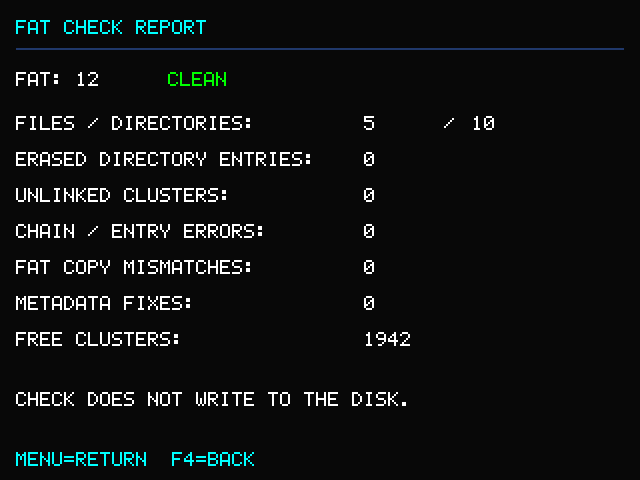
CHECK / REPAIR FAT only reads the disk and shows a report. When it finds problems that it can fix, the bottom line offers MENU = REPAIR OPTIONS. Press MENU, choose the repair and confirm REPAIR FAT?. Use it whenever another Recovery action reports FAT ERROR, then repeat that action.
FORMAT EXTERNAL DISK asks first. Every file on the storage is lost; the firmware and Recovery stay installed.
- Recovery never writes to the protected boot block.
- A file for the other model is rejected with IMAGE REJECTED.
- If an update is interrupted (for example by a flat battery), Recovery still starts and the update can simply be repeated.
- A hardware watchdog restarts the device if Recovery itself hangs.